
How to Set Up and Use Brand Profiles in CoSchedule
Use Brand Profiles to produce better, on-brand content. Brand Profiles train your AI Assistant to match your audience, brand voice, and positioning, and other important details about your company.
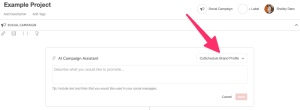
 Brand Profile use with AI Social Campaign Assistant
Note: This feature is only available in Agency Pro, Content Calendar, and Marketing Suite.
- Enable Brand Profiles
- Create Brand Profiles
- Edit Brand Profiles
- How to Use Brand Profiles with Your AI Assistant
- Frequently Asked Questions
How to Enable Brand Profiles
Before you can use the Brand Profile feature, it must be enabled.- From your calendar, click the Settings gear icon in the lower left corner
- Click Power Ups from the left side menu
- Locate Brand Profiles, then click Enable Brand Profiles
- Once enabled, you can set up and manage your Brand Profiles from the Power Ups section in your Settings.
How to Create Brand Profiles
- From your calendar, click the Settings gear icon in the bottom left corner
- Under the Power Ups section of the left panel menu, click Brand Profiles
- Click on an available module to get started with your first brand profile. Modules include Language Selector, Company Profile, Brand Voice, AI Humanizer, SEO Enhancer, Target Audience, Business Locations, Products and Services, Customer Reviews, Style Guide, and Compliance Check. As you add information and make adjustments to the module, changes are automatically saved.
- Use the page header to navigate back to your brand profile or all brand profiles by clicking directly on that section name.
- Continue adding available modules to your brand profile as needed.
- Click + Add Profile from the main Brand Profile page to create additional brand profiles.
How to Edit Brand Profiles
- From your calendar, click the Settings gear icon in the bottom left corner
- Under the Power Ups section of the left panel menu, click Brand Profiles
- Click the three-dot menu next to a profile for options to Edit, Duplicate, Make Default, or Delete the brand profile.
- When editing a profile, you can click on any enabled or available module to make necessary changes. Click the three-dot menu next to the profile name for the option to rename the profile.
How to Use Brand Profiles with Your AI Assistant
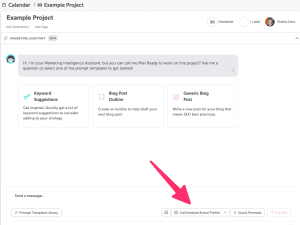
Brand Profiles are available for use when using CoSchedule's AI Assistant in projects and social campaigns. Your default brand profile will be automatically selected, but you can click on that profile to change to a different profile, or select none if you do not wish to use a brand profile. Brand Profiles can be used with the Marketing Assistant project attachment and AI Social Campaign Assistant. Brand Profile use with AI Marketing Assistant
Brand Profile use with AI Social Campaign Assistant
