
AI Campaign Assistant drafts a social campaign for you: a schedule, the message copy and, if you want them, images. You review the messages before they're added to the campaign. Available on Starter, Professional and Suite.
Start in a social campaign, either a social campaign project or a social campaign attachment in a project. See Create a social campaign.
Generate the campaign messages
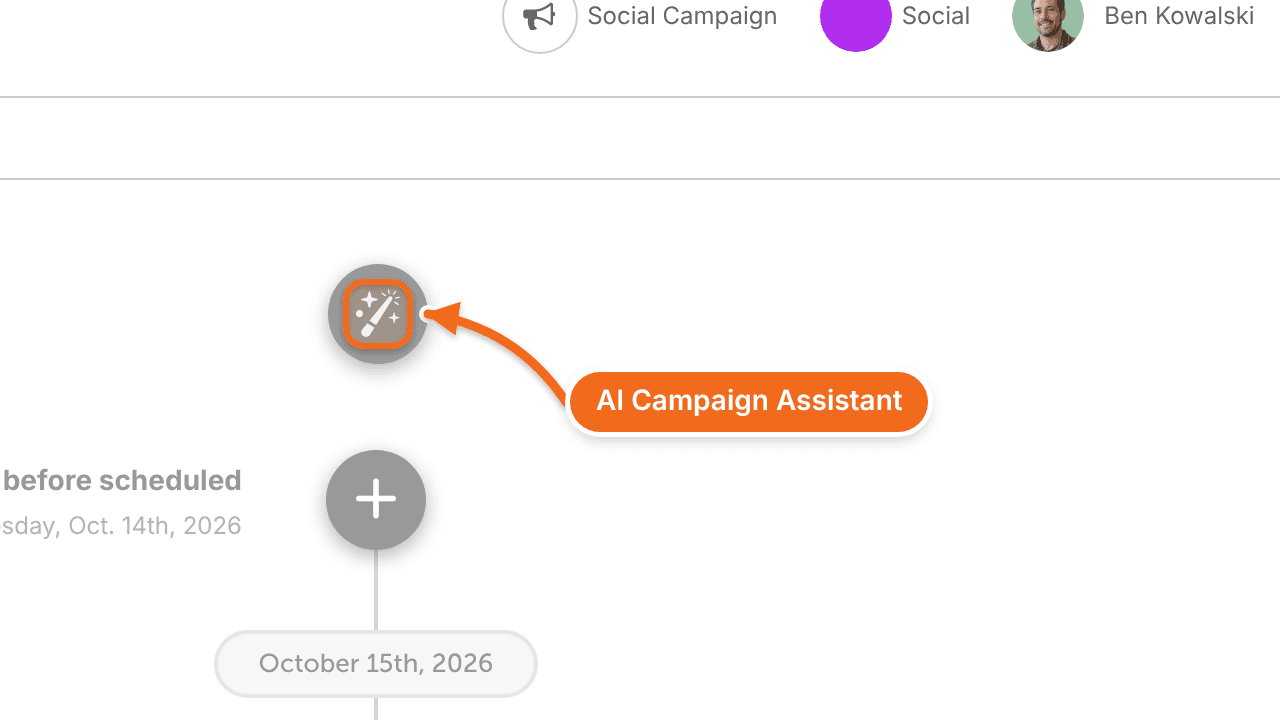
- Click the AI Campaign Assistant icon at the top of the social campaign.
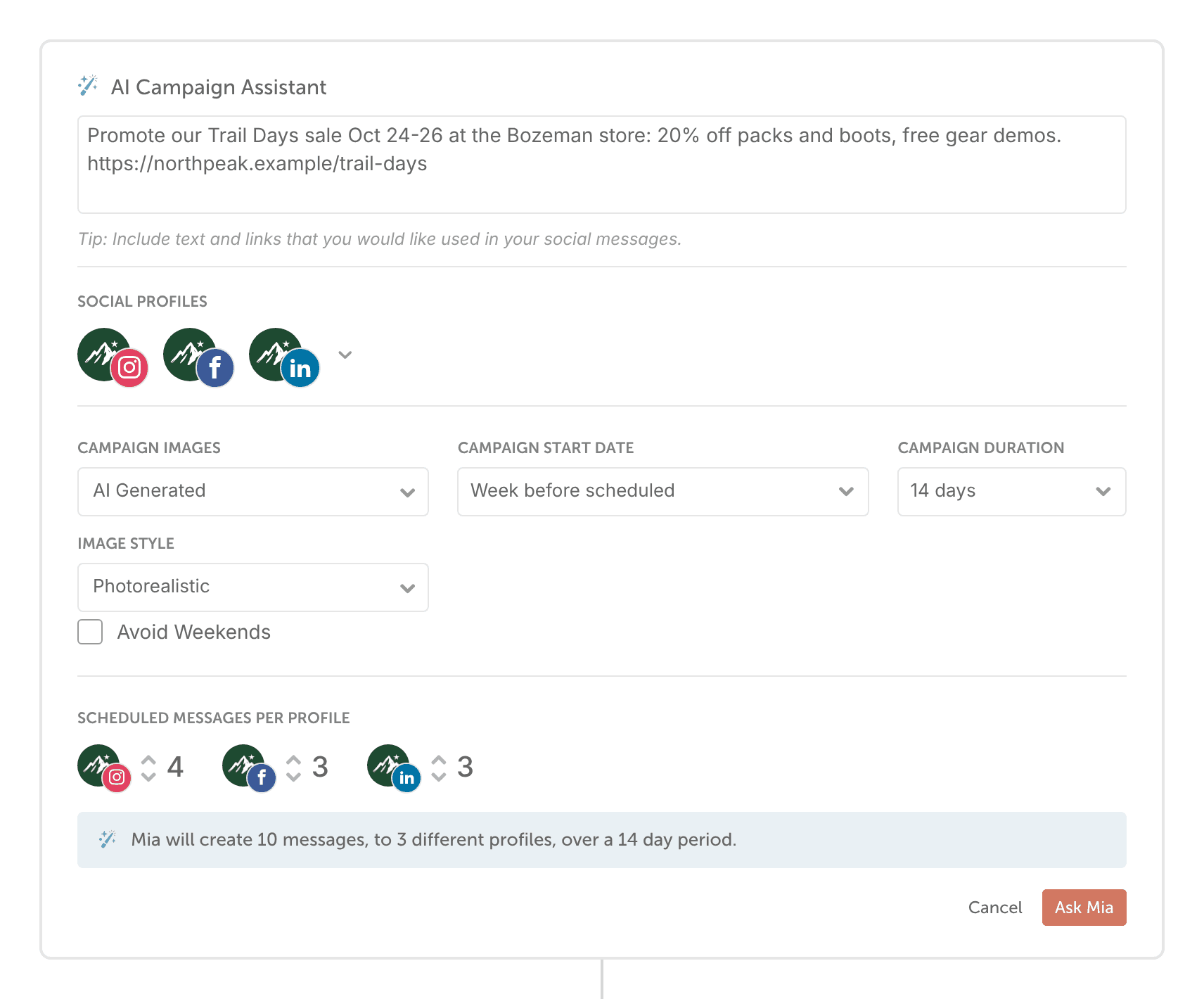
- In the text field, describe what you'd like to promote, including any text and links you want used in your messages. Click Next.
- Select social profiles, then click Next.
- Under Campaign Images, select No Images, Choose my own or AI Generated. Campaign Assistant doesn't support videos.
- If you selected Choose my own, click the camera icon and select the images to include. Each message gets one image.
- If you selected AI Generated, select the image styles.
- Select the campaign start date (relative to the project's scheduled date, or custom) and the campaign duration, then click Next.
- Check the number of scheduled messages per profile. This is how many messages Campaign Assistant creates for each social profile you selected. Raise or lower it as needed.
- Click Ask Mia at the bottom of the panel to create your campaign.
With AI Generated images, the campaign can take a minute or so to create.
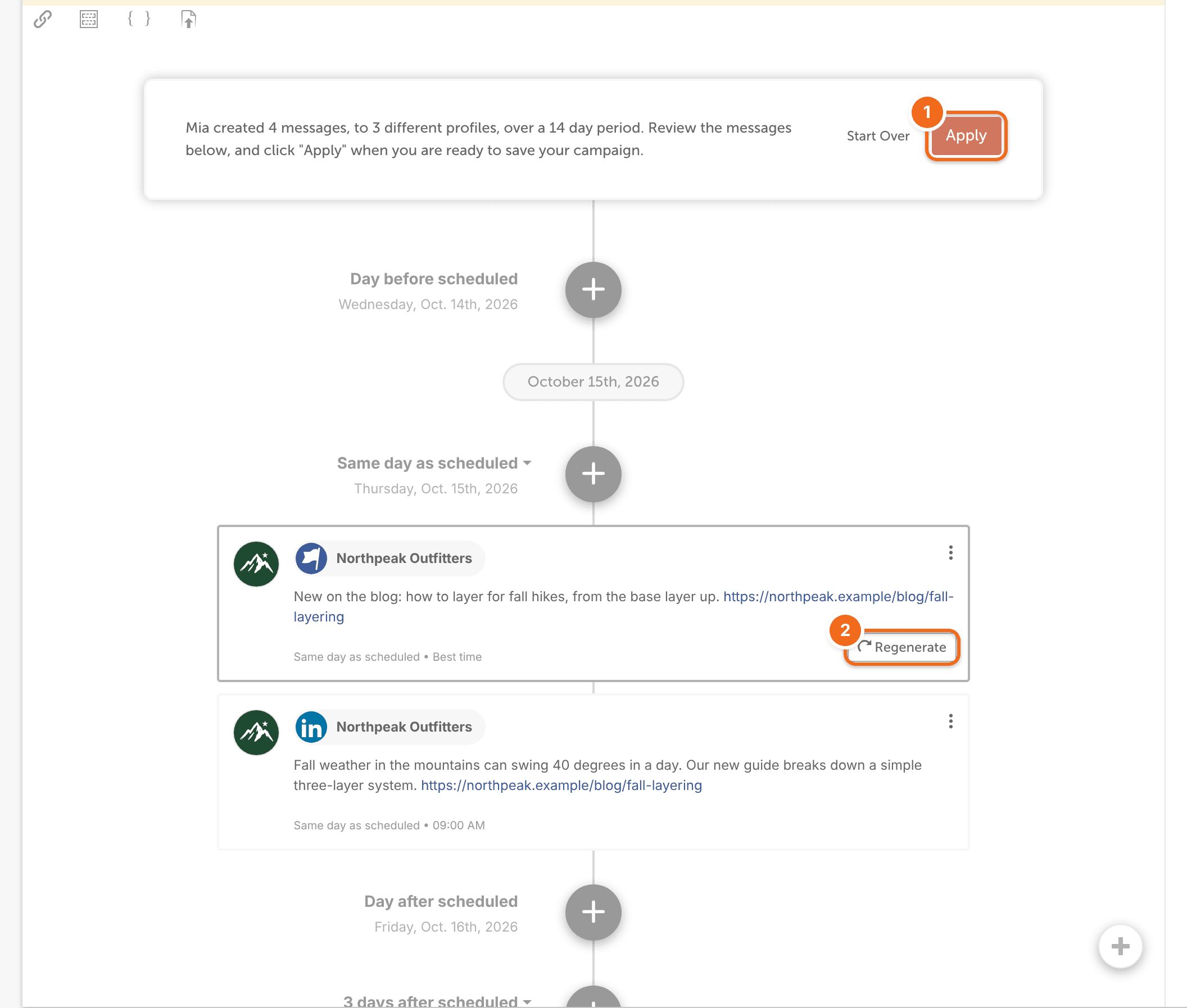
- Review the messages. Click Regenerate on a message to get a new version, or click into a message to edit it yourself.
- When you're ready, click Apply.
- Keep editing and adding messages as you would in any social campaign. You can run AI Campaign Assistant again to add more messages.
Use a brand profile
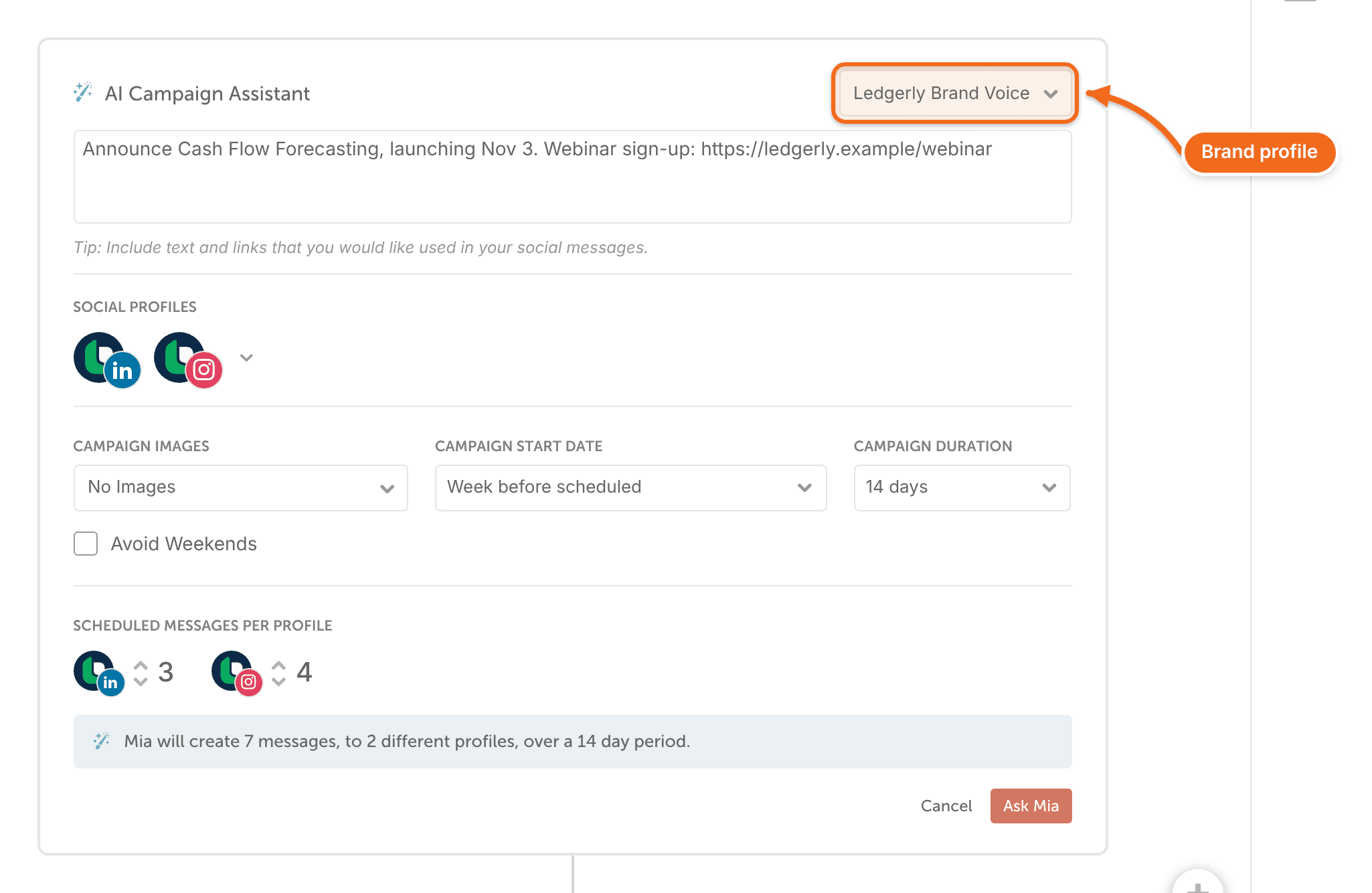
If your plan includes Brand Profiles, a paid add-on for Suite, your default brand profile is selected in AI Campaign Assistant. Click the profile to switch to a different one, or choose none to work without a brand profile. See Set up and use Brand Profiles.
When the messages publish
Messages scheduled relative to the campaign date move with it when that date changes. Messages set to a custom date stay where they are.
Messages in a social campaign follow the project's status. Set the project to scheduled status when you're ready. If the project stays in draft status, its messages won't be sent.