
Brand Voice Training & Profiles (Brand Profiles) teach CoSchedule AI your audience, brand voice, positioning and other details about your company, so the content it writes stays on brand. You can keep several brand profiles, for example one per brand. Brand Profiles are a paid add-on for Suite. To add Brand Profiles to your plan, contact CoSchedule.
Turn on Brand Profiles
- From your calendar, open Settings.
- Click Power Ups.
- Find Brand Profiles, then click Enable Brand Profiles.
Once Brand Profiles is on, you set up and manage your profiles from Settings, under Power Ups.
Create a brand profile
- From your calendar, open Settings.
- Under Power Ups, click Brand Profiles.
- Click an available module to start your first brand profile. Your changes save automatically as you add information.
- To go back to the brand profile or to all brand profiles, click that name in the page header.
- Add more modules to the profile as needed.
- To create another brand profile, click + Add Profile on the main Brand Profiles page.
Modules you can add
- Language Selector
- Company Profile
- Brand Voice
- AI Humanizer
- SEO Enhancer
- Target Audience
- Business Locations
- Products and Services
- Customer Reviews
- Style Guide
- Compliance Check
Edit, duplicate or delete a brand profile
- From your calendar, open Settings.
- Under Power Ups, click Brand Profiles.
- Click the three-dot menu next to a profile.
- Choose Edit, Duplicate, Make Default or Delete.
While you edit a profile, click any module to change it. To rename the profile, click the three-dot menu next to its name.
Use a brand profile with CoSchedule AI
When you use CoSchedule AI in a project, a social campaign, the social composer or Social Inbox, your default brand profile is selected for you. In a project or a social campaign, click the profile to switch to a different one, or choose none to work without a brand profile.
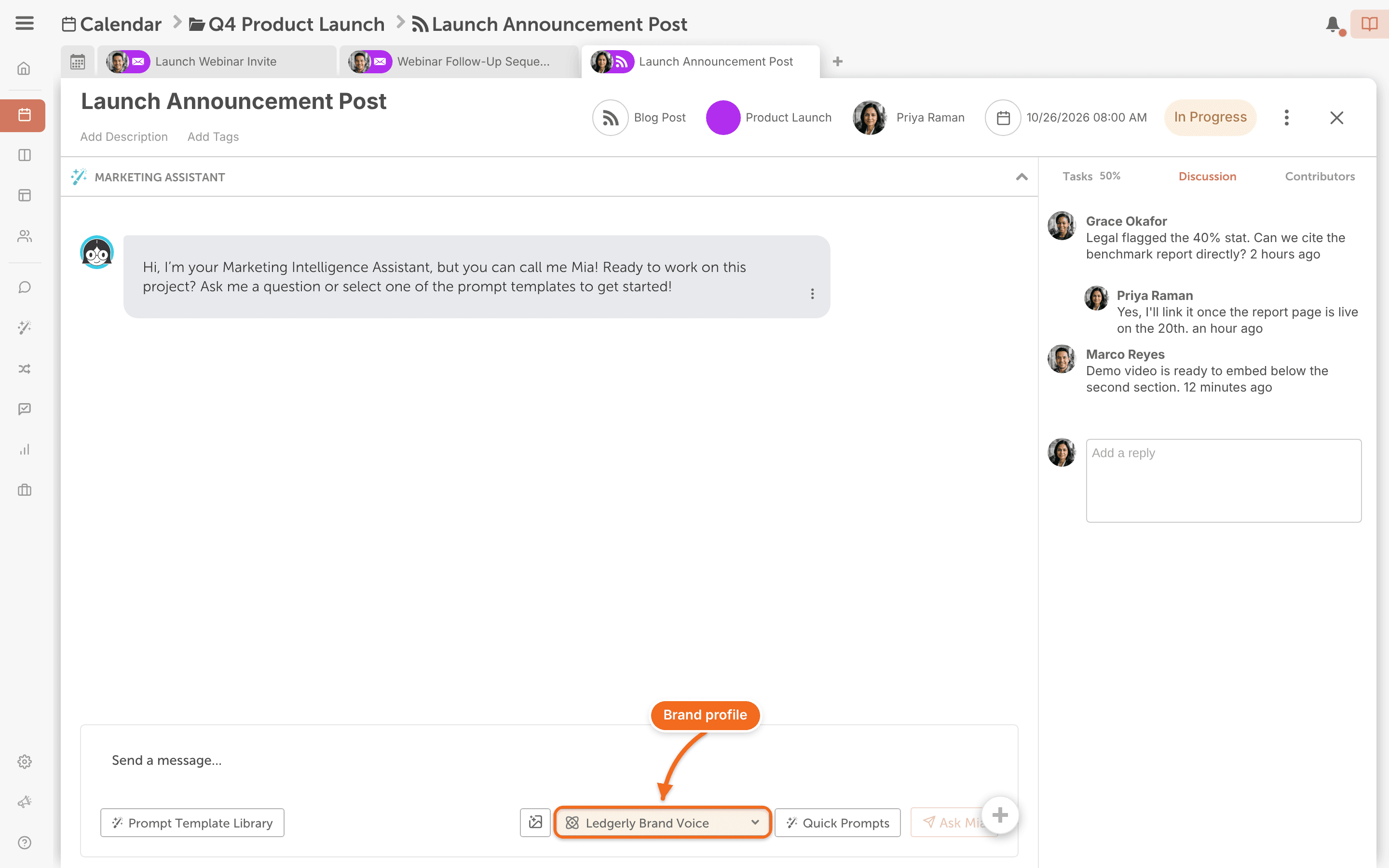
AI Project Assistant
Pick the brand profile in the AI Project Assistant attachment in a project. See Draft content with AI Project Assistant.
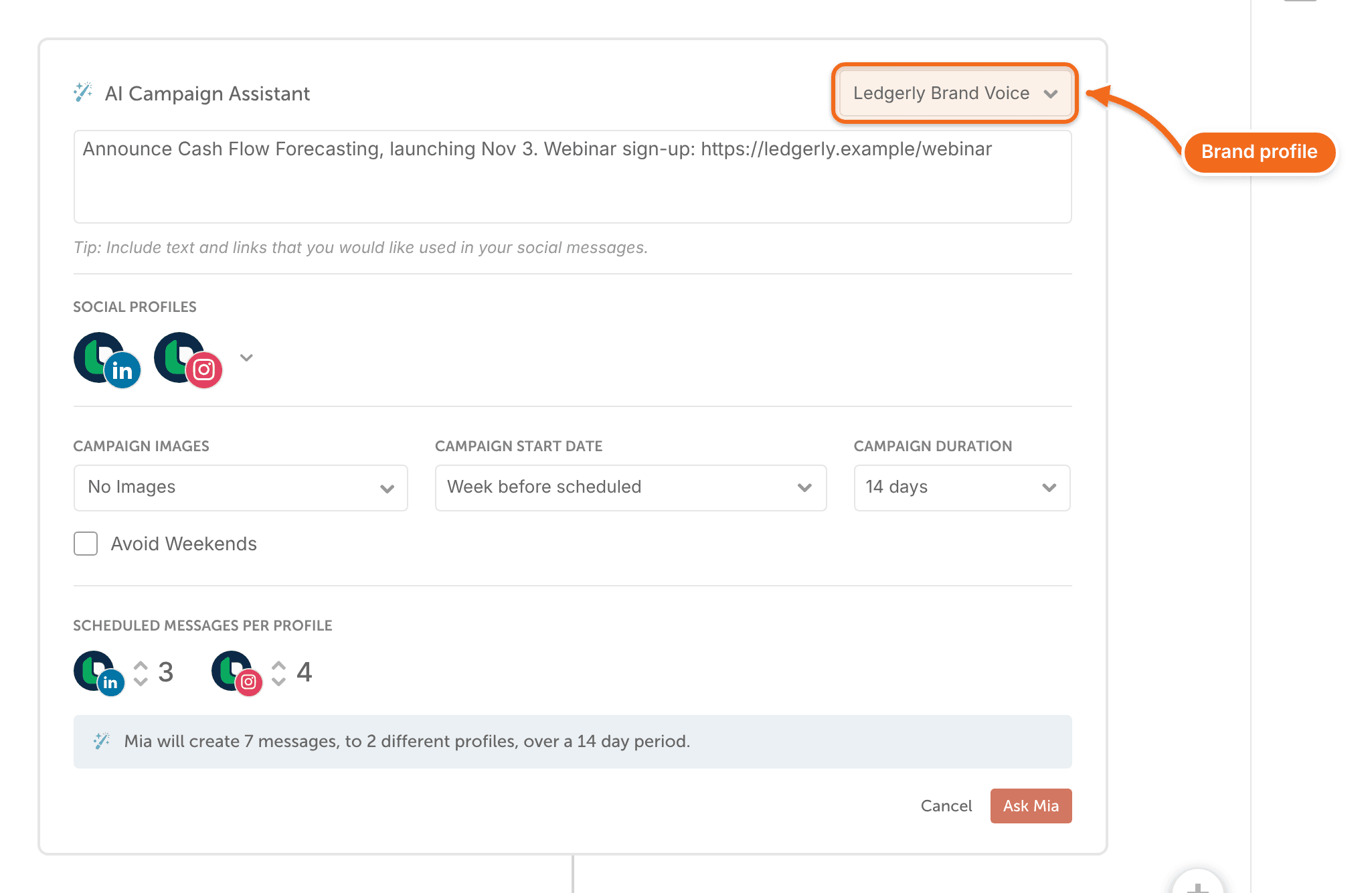
AI Campaign Assistant
Pick the brand profile when you build a social campaign with AI Campaign Assistant. See Build a social campaign with AI Campaign Assistant.
AI Social Assistant
When your calendar has brand profiles, AI Social Assistant in the social composer shows a brand profile picker. Each request uses the profile you choose, or your default brand profile. See Write social messages with AI Social Assistant.
AI Reply Assistant
When your calendar has brand profiles, AI Reply Assistant in Social Inbox shows a brand profile picker. Each reply it drafts uses the profile you choose, or your default brand profile. See Reply with AI Reply Assistant.
Smart Editor
If the SEO Enhancer or Compliance Check module is turned on in your brand profile, you can run it from the sidebar in Smart Editor. See Write and edit in Smart Editor.
Looking for ready-made prompts? In Smart Editor, click the book-stack icon in the AI toolbar (tooltip "AI Prompt Library") to open the Prompt Library. It opens on the Free tab. See Use the Prompt Library and create custom prompts.
Frequently asked questions
Who can create and edit Brand Profiles?
Anyone whose role has the "Access settings" permission. It depends on that permission, not on a fixed role. See Customize role permissions.
Who can use Brand Profiles?
Everyone on your team can use existing brand profiles with CoSchedule AI.
What if the Brand Voice analysis never finishes?
Reload the page. If it still doesn't finish, choose Create my brand profile manually and enter the details yourself.