
AI Project Assistant is a CoSchedule AI chat that you add to a project as an attachment. Use it to generate ideas and write first-draft copy for the project. Available on Starter, Professional and Suite.
Add AI Project Assistant to a project
- From your calendar, open a project.
- Click Add Attachment.
- Choose Marketing Assistant.
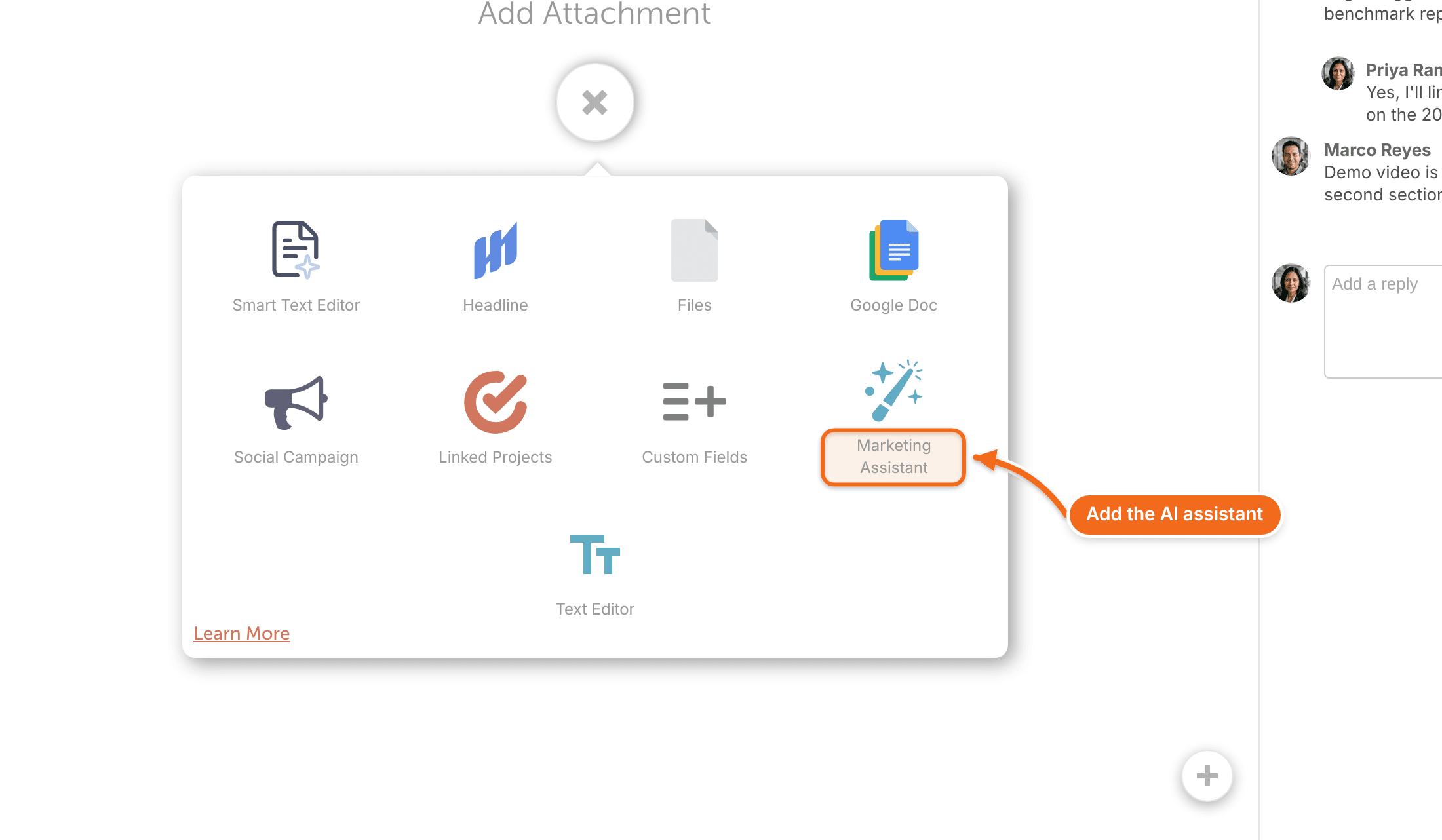
- In the chat, ask for what you need, such as ideas for a topic or a first draft.
Check what CoSchedule AI writes before you use it. AI can get facts, names and figures wrong, especially when a request goes beyond ideas and first drafts.
Keep a response
Save any response from the chat as its own attachment in the project, or copy it.
- Click the ellipsis menu on the response.
- Choose Create text editor attachment to save it as a Text Editor attachment in the project, or Copy text to copy it.
Work on it with your team
A conversation with AI Project Assistant belongs to its project. Everyone on your team who opens the project can read the conversation, refer back to it and add to it.
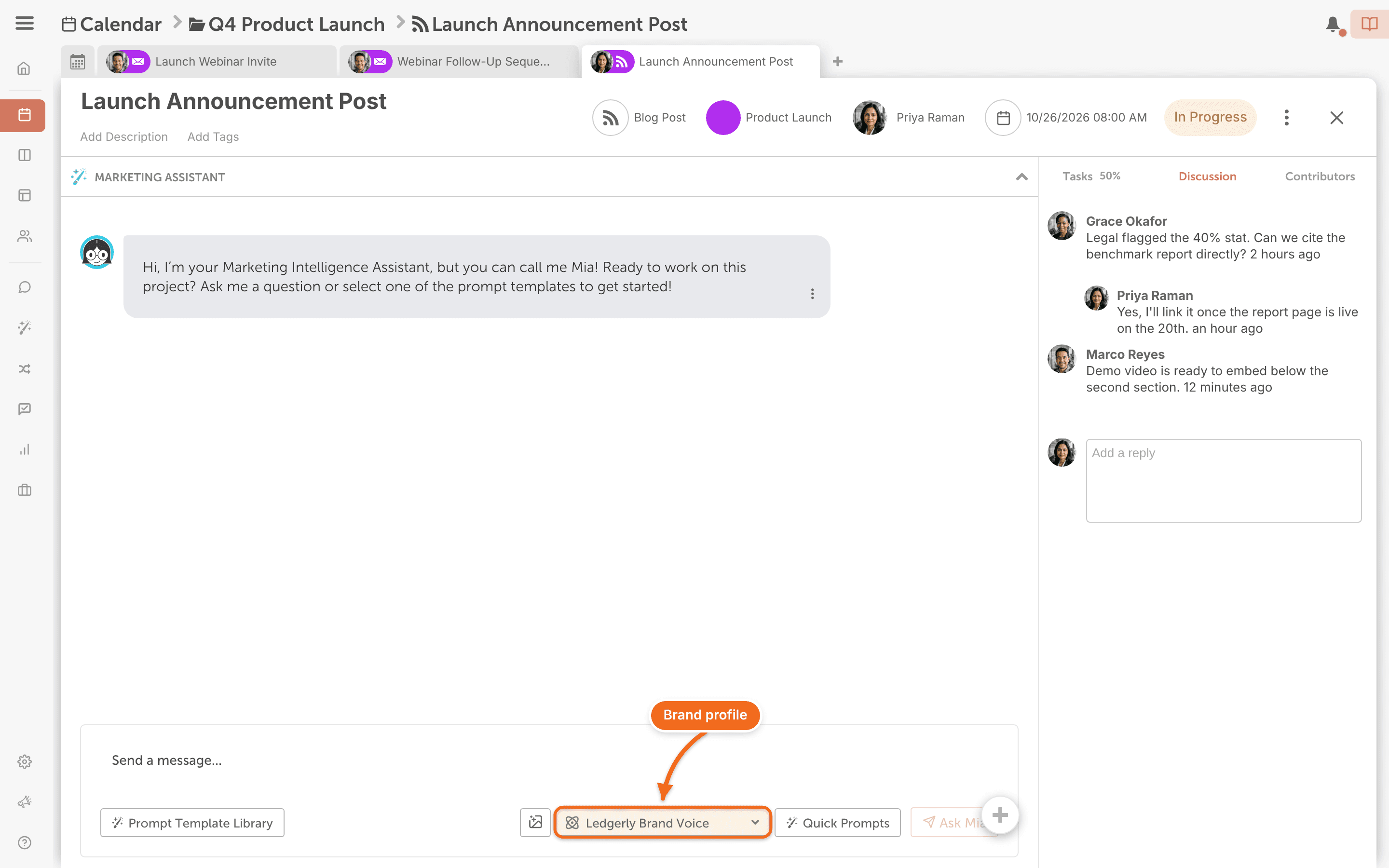
Use a brand profile
If your plan includes Brand Profiles, a paid add-on for Suite, your default brand profile is selected in the AI Project Assistant attachment. Click the profile to switch to a different one, or choose none to work without a brand profile. See Set up and use Brand Profiles.
What AI Project Assistant can't do
AI Project Assistant isn't connected to the rest of your calendar. It can't remind you about tasks or schedule social messages. To have CoSchedule AI draft and schedule a series of social messages, use AI Campaign Assistant in a social campaign. See Build a social campaign with AI Campaign Assistant.