
A social campaign groups the social messages that promote one thing, like a blog post, a launch or an event, so you can schedule and track them together. Social campaigns are available on Starter, Professional and Suite.
Start a social campaign
A social campaign can be its own project or an attachment to any existing project.
Create a social campaign project
- From your calendar, click + Create.
- Choose Social Campaign.
- Name your social campaign project, adjust the publish date and time if needed, then click Create Project.
Add a social campaign to an existing project
- Open any existing project.
- Click Add Attachment, then select Social Campaign.
Add a link and use default text helpers
A link is optional. When you add one, CoSchedule pulls the title, excerpt and images from the page so you can use them in your messages.
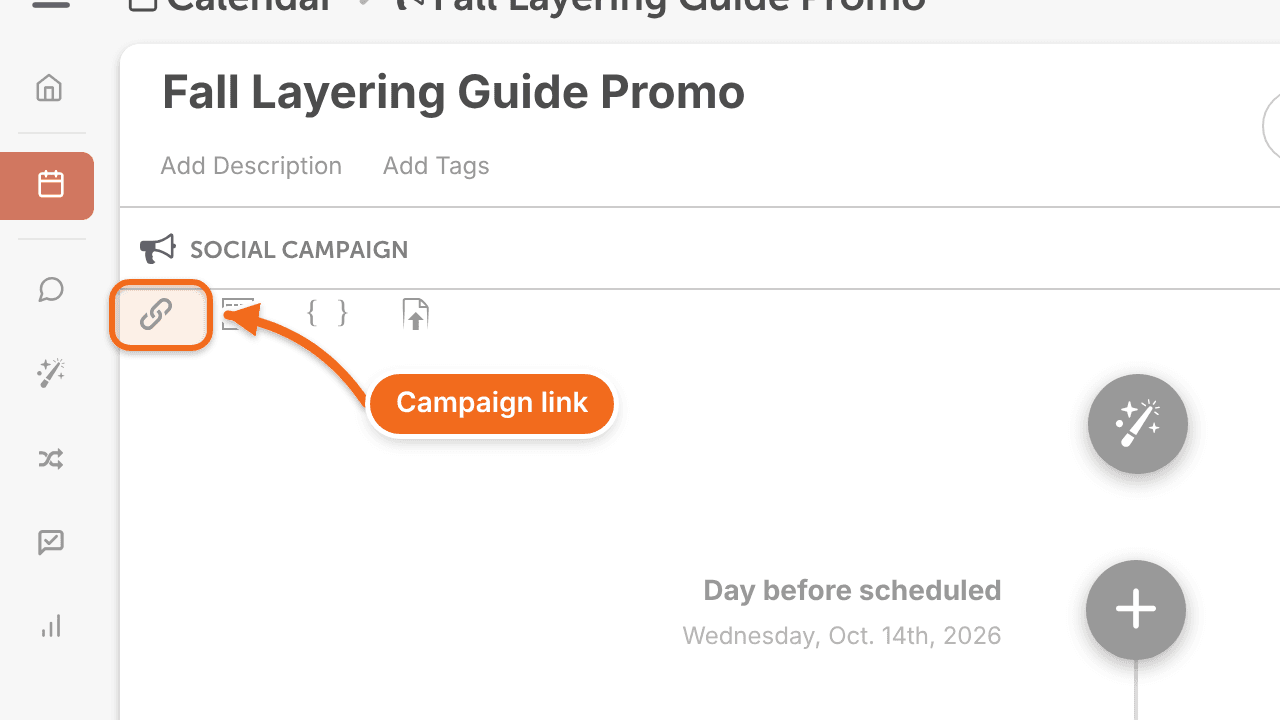
- Click the link icon in the left corner of the social campaign.
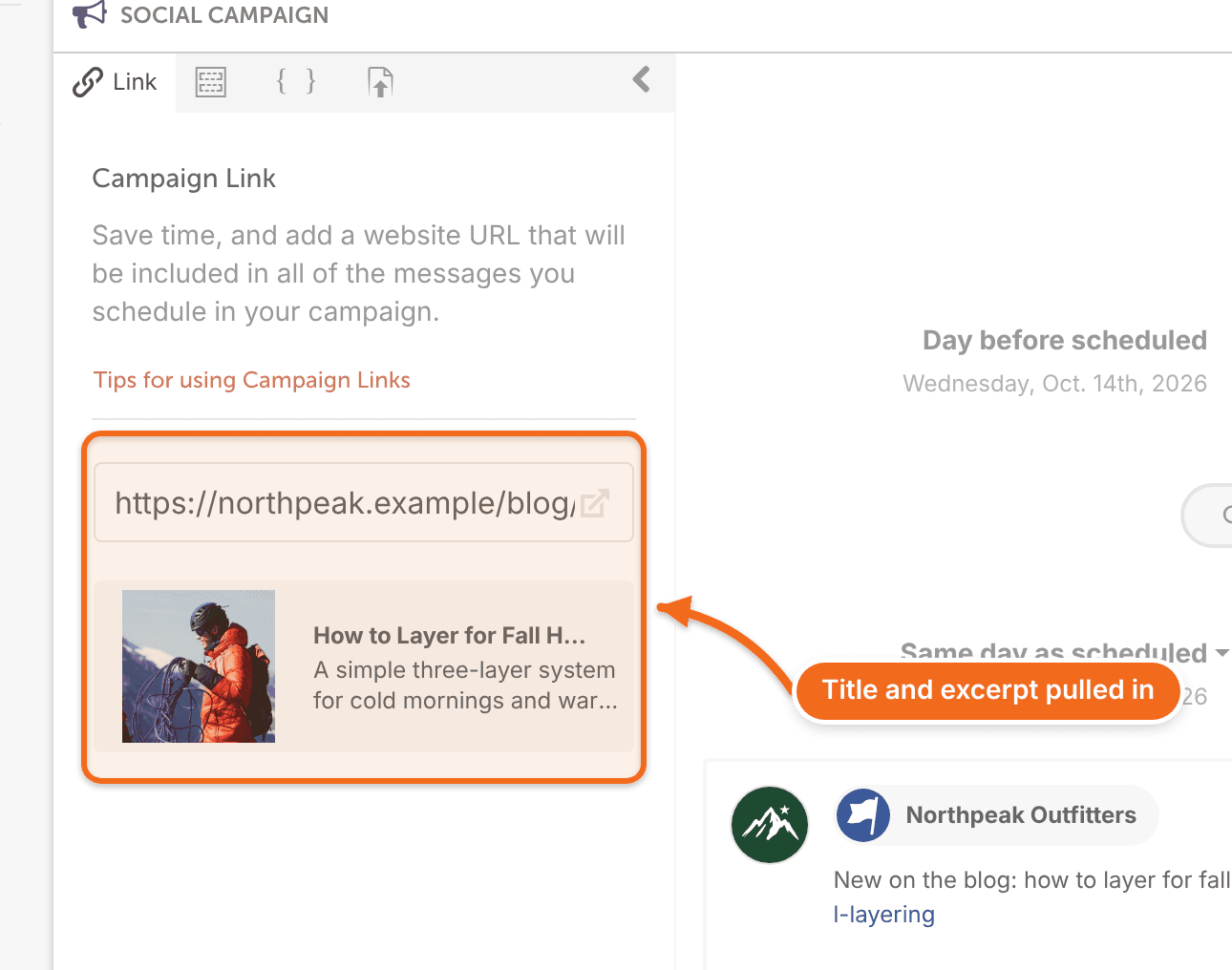
- Enter your URL in the link field. You'll see the link, its title and its excerpt.
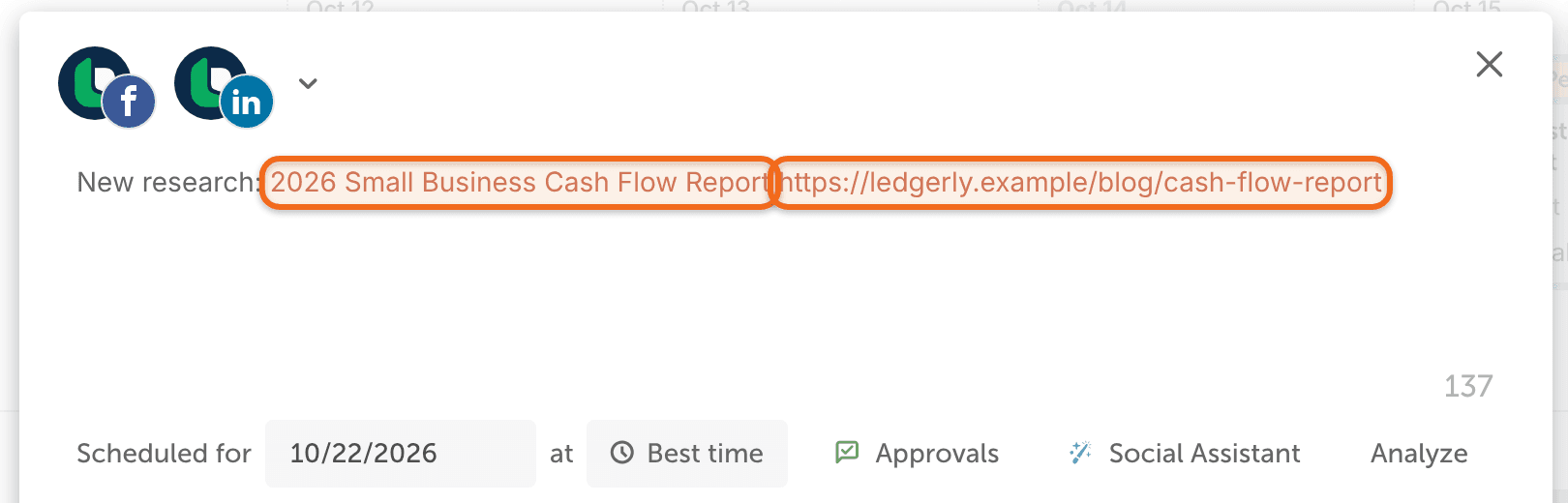
- Create a social message in the campaign. The title and permalink are pulled in automatically, and you can delete them if you don't want them.
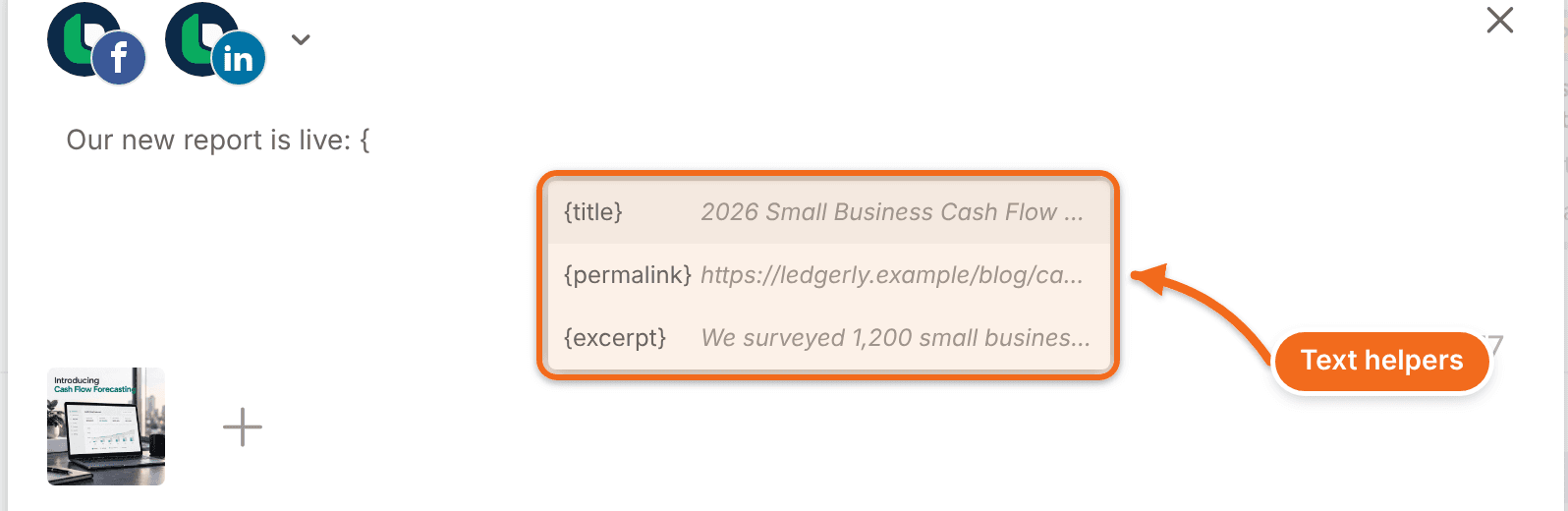
- To add a text helper, type { and select the helper.
Add and schedule messages
You can schedule each message for a custom date or relative to the date of the project. Click the + next to the relative or custom date to open the social composer and create your message.
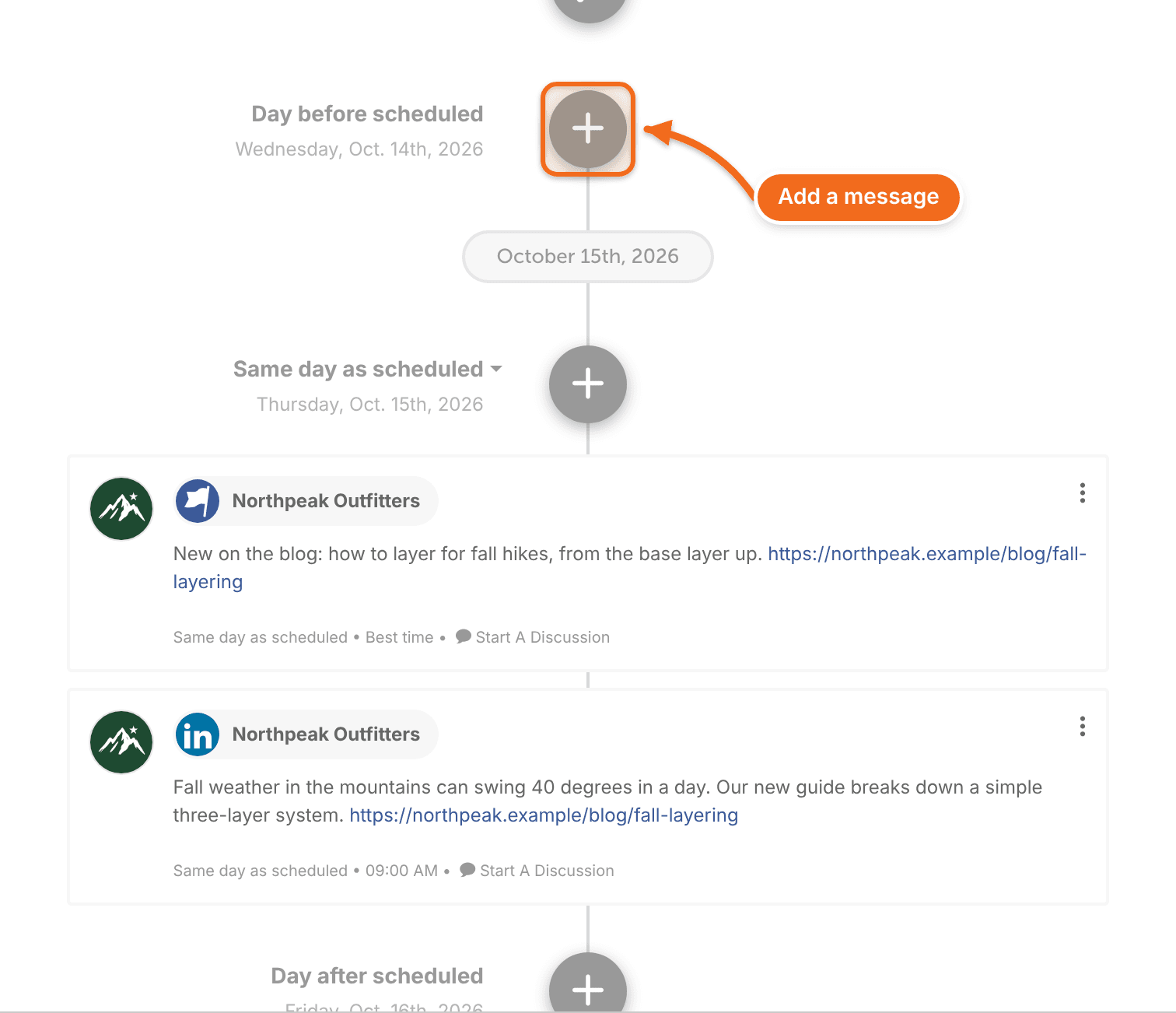
Messages scheduled relative to the campaign date move with it when that date changes. Messages set to a custom date stay where they are.
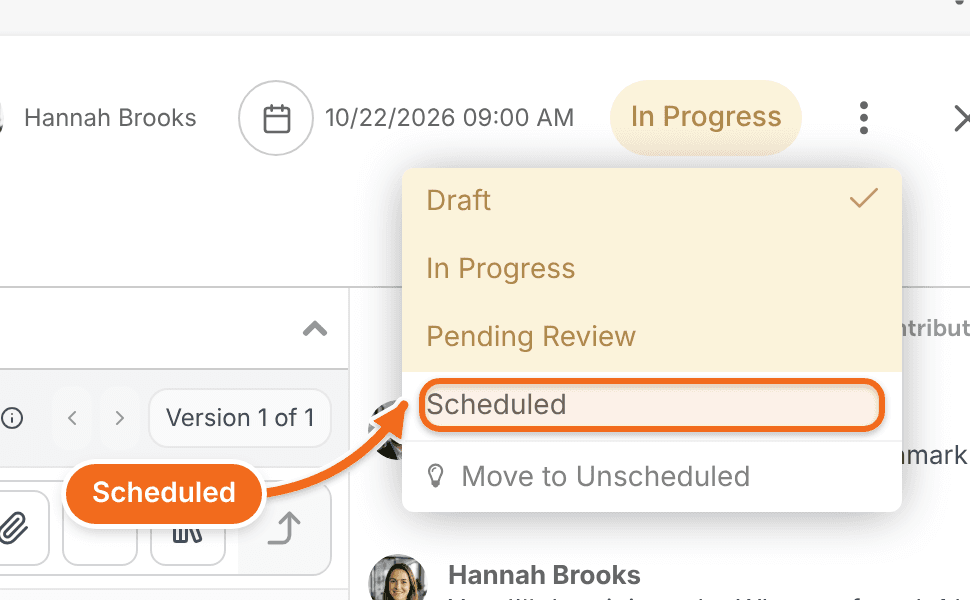
Messages in a social campaign don't have their own status; the project's status controls them. When you're ready, set the project to scheduled status in the upper right corner. If the project stays in draft status, its messages won't be sent.
Create messages with AI Campaign Assistant
AI Campaign Assistant drafts a schedule, message copy and images for your social campaign. It's available on Starter, Professional and Suite. See Build a social campaign with AI Campaign Assistant.
Pause a social campaign
There's no pause button for a social campaign. To pause it, set the project's status to draft. Its messages won't be sent while the project is in draft status.
Tag a social campaign
Messages in a social campaign take the project's tags. You can't tag a single message in a campaign, so add the tags to the project instead.