
The Home page shows the projects and tasks assigned to you, your notifications, and the projects you've opened or favorited. It's part of Starter, Professional and Suite.
To open Home from the calendar, use either of these:
- Click Home (the house icon) at the top of the left sidebar.
- Open the view switcher in the top bar and choose Home, the first option.
Approvers don't see the Home link in the sidebar.
From anywhere in CoSchedule, you can also click the bell icon in the upper right corner to see your notifications and jump to recent or favorite projects.
See what's coming up
My Upcoming lists your personal tasks, tasks from the calendar and scheduled projects. Click an item to open it, add comments or edit it.
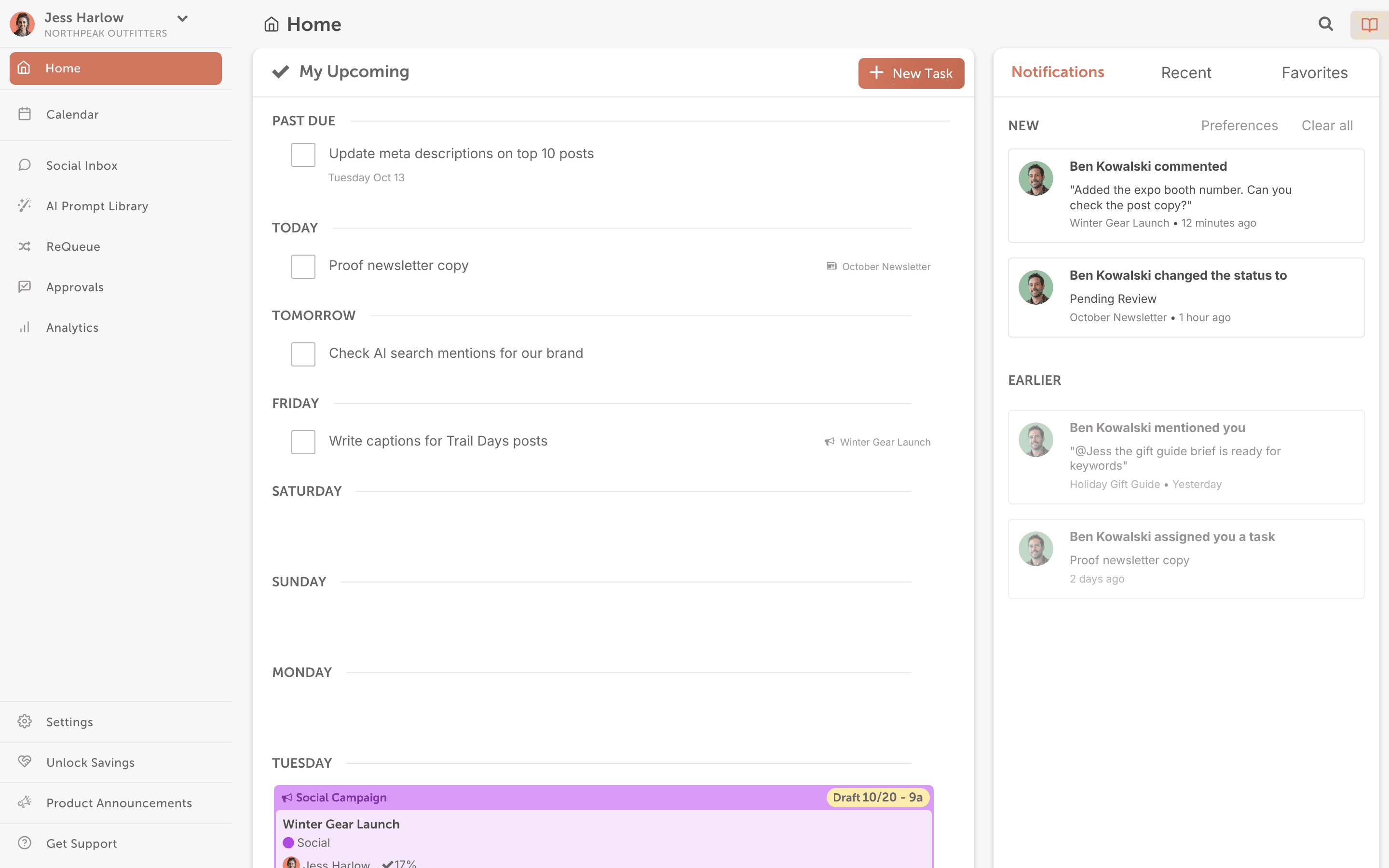
Tasks you create on the Home page are personal tasks. Only you can see them, and they don't show on the calendar.
Check your notifications
Notifications shows new comments, tasks and other activity on projects you contribute to. Click an item to open the project.
- To clear all notifications, click Clear all.
- To change which notifications you get, click Preferences.
Go back to a recent project
Recent shows the projects you've viewed, today and earlier. Click one to open it.
Favorite a project
Favorites shows the projects you've favorited.
- Click the three-dot menu on the project.
- Select Favorite.
To remove a project from Favorites, follow the same steps and select Unfavorite.