
Each person on a calendar chooses their own notifications: in the web app, by email and in the browser. This article also shows how to stop each kind of email CoSchedule sends. Notification settings are on every plan.
Change your notifications
- At the top of the left sidebar, click your name or photo.
- In the menu that opens, choose My Account. This opens the Account Details page.
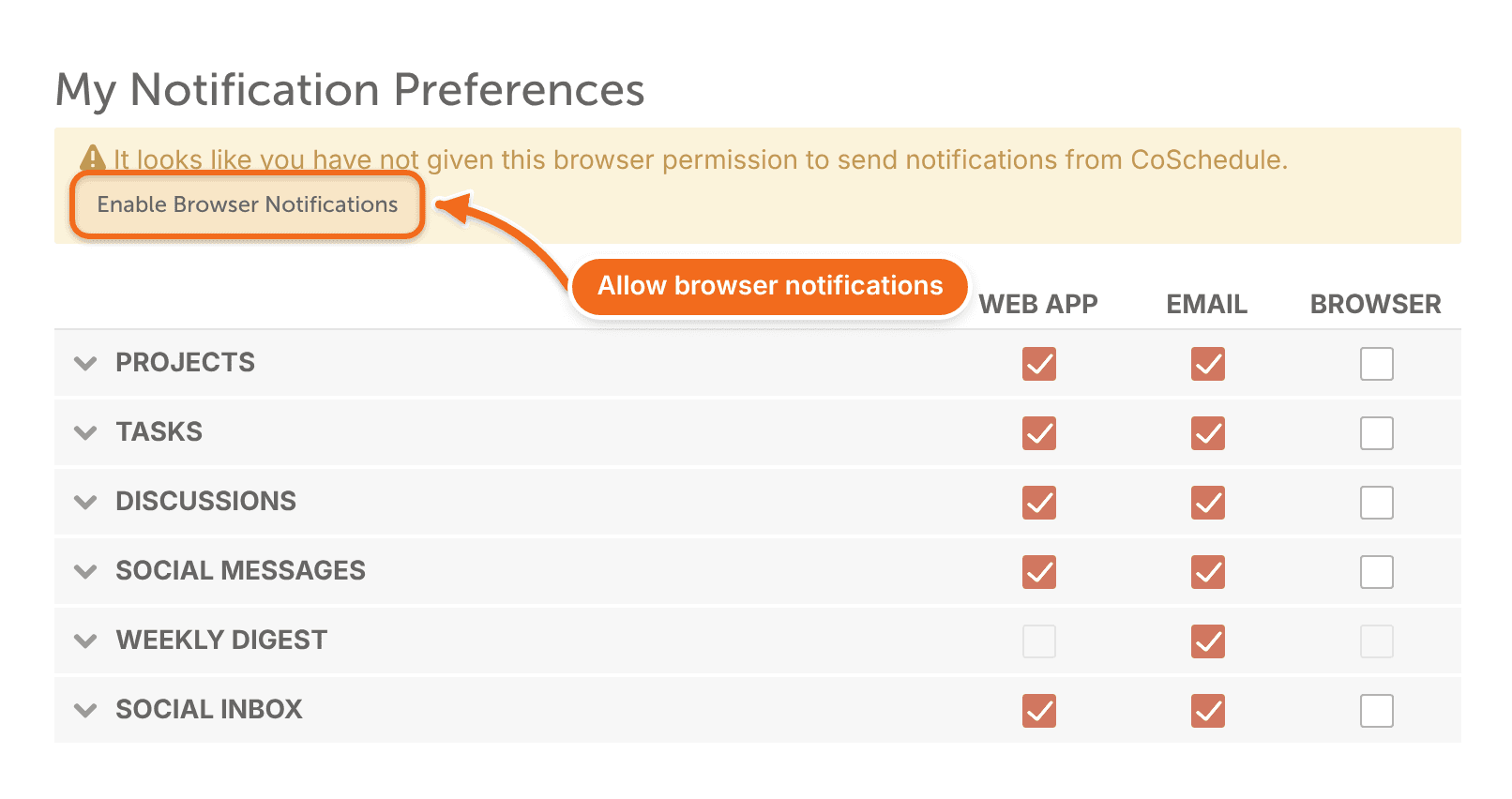
- Under My Notification Preferences, check the box for each notification you want in the Web App, Email or Browser column.
- Uncheck the boxes for notifications you don't want.
Push notifications on your phone are managed in the CoSchedule mobile app, not here.
Notifications you can choose
- Projects: the status of a project or post changes, you're added as a contributor, or you're made the owner of a project.
- Tasks: a task is assigned to you, someone completes your task or one you assigned, your task's due date changes, or your task is due tomorrow. Unscheduled tasks and tasks you assign to yourself never send due reminders.
- Discussions: someone comments on an item you contribute to, mentions you, or reacts to your comment.
- Social Messages: there was a problem with a social message. Owners, Managers and Admins get this when a social message fails to publish. There's no notification when a message publishes.
- Weekly Digest: a weekly digest of your activity.
- Social Inbox: a summary of open threads, new activity on your connected profiles, and conversations assigned to you. This group shows only when your plan includes Social Inbox.
- Request Forms: a request form you're a notifier on is submitted. This group shows only on Suite, which includes request forms.
- Approvals: your message is approved, or a message is waiting for your approval. These rows show only when social approvals are turned on, on Professional and Suite.
Turn on browser notifications
Browser notifications alert you to calendar activity even when you're looking at another tab.
- In My Notification Preferences, check the notifications you want under Browser.
- In the alert at the top of the notifications, click Enable Browser Notifications.
- Allow notifications from CoSchedule when your browser asks.
Browser notifications arrive only while CoSchedule is open in a window or tab.
If your browser doesn't ask, or you blocked notifications earlier, change the setting in your browser. See the help for Chrome, Firefox or Safari.
Which email is this, and how do I stop it?
How to stop it | |
|---|---|
Marketing email from CoSchedule | Click the unsubscribe link at the bottom of the email. |
Calendar notifications (projects, tasks, comments, approvals, digests) | Turn them off in your notification settings, as shown above. |
Paused social sending reminders | Sent daily to every team member while social sending is paused. You can't turn them off; resume sending in Settings > Configuration. |
Social profile re-authentication notices | Sent to Owners, Managers and Admins when a connected profile needs to be reconnected. You can't turn them off; reconnect the profile. |
Billing receipts | You can't turn these off. |
“Take action to keep your calendar” notices | Sent about a free or canceled calendar nobody has signed in to for four months. Sign in to that calendar or delete it. |
For more on these, see Pause all scheduled social messages, Reconnect a social profile and Why you got a “Take action to keep your calendar” email.
Not getting any email?
If no CoSchedule email reaches you, your address may have bounced. Contact support to reactivate it, and ask your email administrator to allow email from CoSchedule. Contact support too if notifications you turned on don't arrive.
Learn more
- Use the CoSchedule mobile app
- Set up and use social approvals
- Set up request forms
- Turn on and navigate Social Inbox
- Delete your CoSchedule account, if you want no CoSchedule account or email at all