
The calendar is where you plan and schedule your work in CoSchedule. Projects, social messages, social campaigns, tasks, events and notes sit on the dates they're scheduled for, so you can see the whole plan at once. On Suite, marketing campaigns show on the calendar too. The calendar is part of Starter, Professional and Suite.
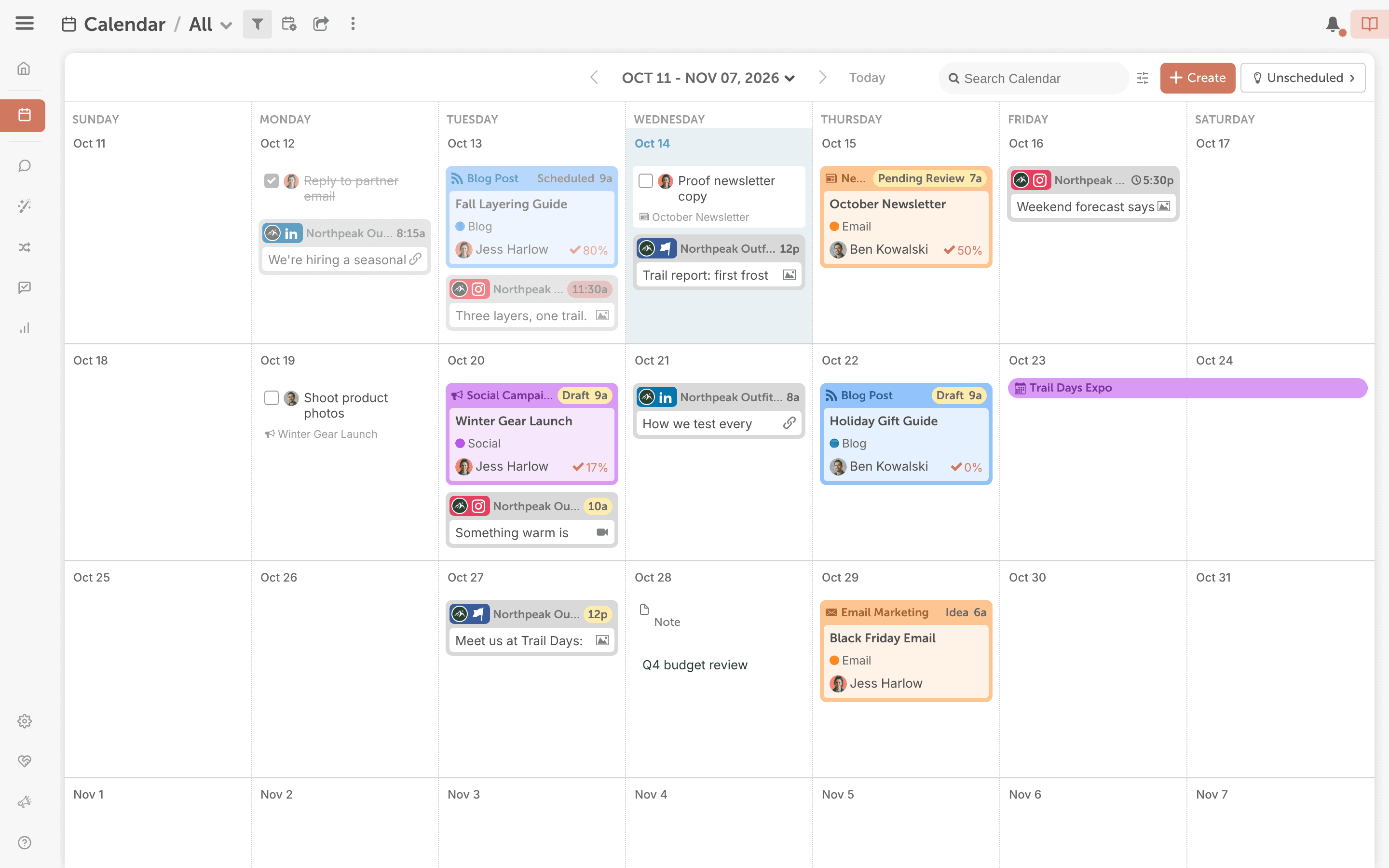
Add something to the calendar
- From your calendar, click +Create.
- Choose what to create, such as Social Campaign. Some items, like tasks, are under More Options.
Move work to a new date
Drag and drop works for projects, tasks and social messages.
- On the calendar, drag the item to a new date.
- Open the item and change the time if you need to.
- For a social message, check that its status is a scheduled status: white, not yellow.
When you drag a social campaign to a new date, messages scheduled relative to the campaign date move with it. Messages set to a custom date stay where they are.
Change what the calendar shows
Click the screen icon next to the calendar view name to open the display settings. They control things like how many weeks you see and which day the week starts on.
Find something on the calendar
Click the Search Calendar field in the upper right corner and type a name, tag or keyword. The calendar filters to show matches as you type.
Work that doesn't have a date yet waits in Unscheduled, in the upper right of the calendar. Drag an item onto a date to schedule it.