
Saved replies let you save an answer you give often and reuse it in Social Inbox, so your team can answer recurring questions quickly. They're available on Professional and Suite.
Create a saved reply
- Click Social Inbox in the left-side menu.
- Click any conversation to open it.
- In the reply box, click the saved replies icon (tooltip "Saved Replies").
- Click Create New Reply.
- Enter a Name and the reply's Content.
- Click Save.
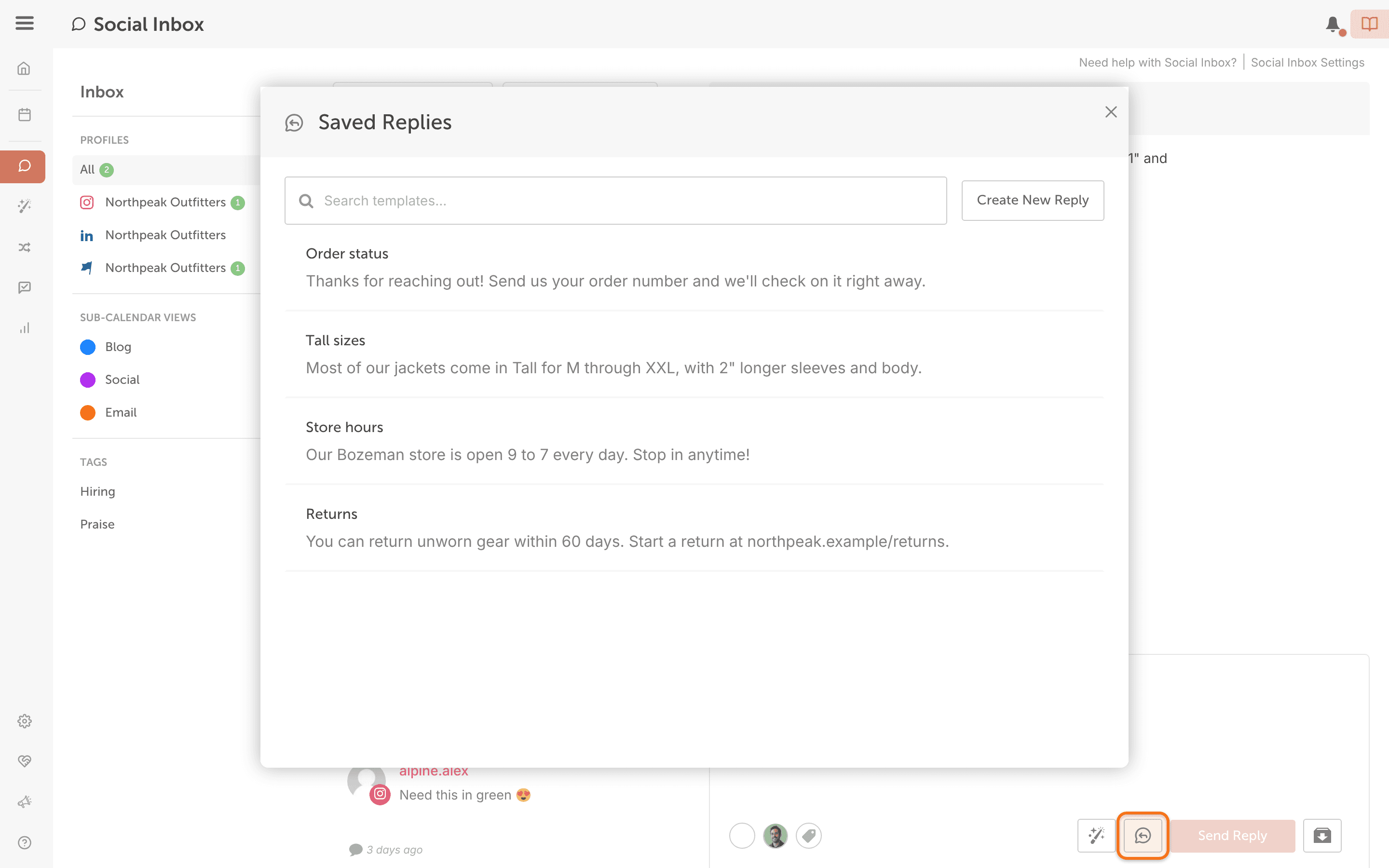
Your team can reuse the saved replies you create.
Use a saved reply
- Open the conversation you want to answer.
- In the reply box, click the saved replies icon (tooltip "Saved Replies").
- Next to the saved reply you want, click the icon with the tooltip "Insert Reply". The text goes into the reply box. It isn't sent yet.
- Check the reply and edit it if you need to.
- Send the reply.
You can reply only where the network allows it. For example, Facebook and Instagram direct messages can be answered from Social Inbox only within 24 hours of being sent. See Networks Social Inbox supports on each plan.
Edit or delete a saved reply
- In the reply box, click the saved replies icon (tooltip "Saved Replies").
- Next to the saved reply, click the pencil icon to edit it, or the trash icon to delete it.
- To delete, confirm in the Delete Saved Reply window.