
Social Inbox brings comments, mentions, replies and direct messages from your social profiles into one inbox, in its own tab in CoSchedule. It's available on Starter, Professional and Suite, but not on the free plan. The networks it covers depend on your plan: see Networks Social Inbox supports on each plan.
Turn on Social Inbox
- From your calendar, open Settings.
- Click Power Ups.
- Click Enable Social Inbox.
- Click Social Inbox in the left-side menu to open it.
Social Inbox collects conversations from the moment it's turned on. Comments and messages from before that don't appear.
Turning Social Inbox off removes everything in it, read or unread. If you turn it back on, it collects new conversations from that point and doesn't bring back the earlier ones.
Choose which social profiles appear
- From your calendar, open Settings.
- Click Power Ups.
- Click Social Inbox Settings.
- Turn each social profile on or off.
Turning a profile off removes its items from Social Inbox, read or unread. If you turn it back on, it collects new conversations from that point only.
Find your way around Social Inbox
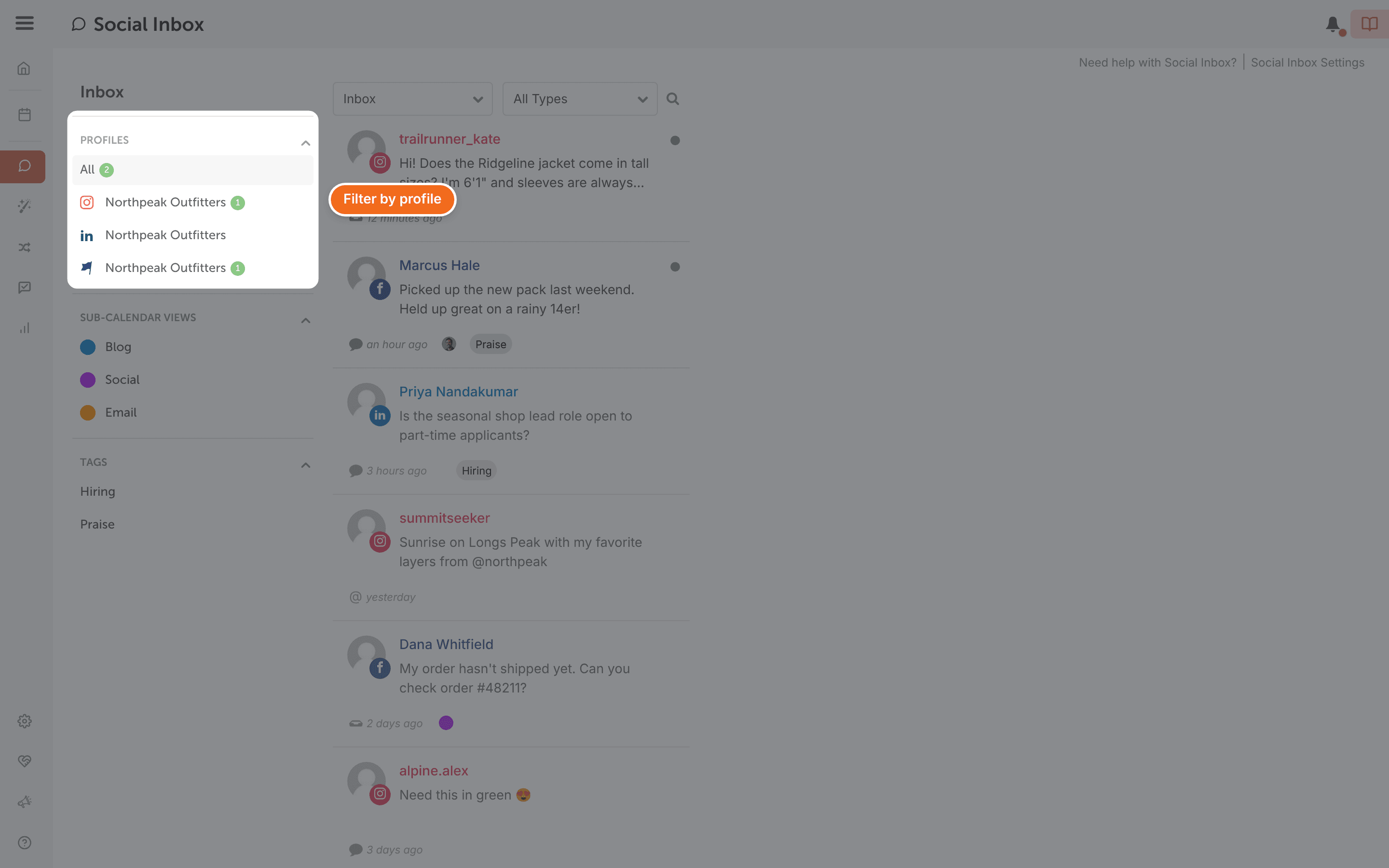
Your social profiles are listed on the left, each with a count of unread items. Unread items show a green dot.
Filter what you see
- To see one profile's items, click that profile in the list on the left. To see everything again, view all profiles.
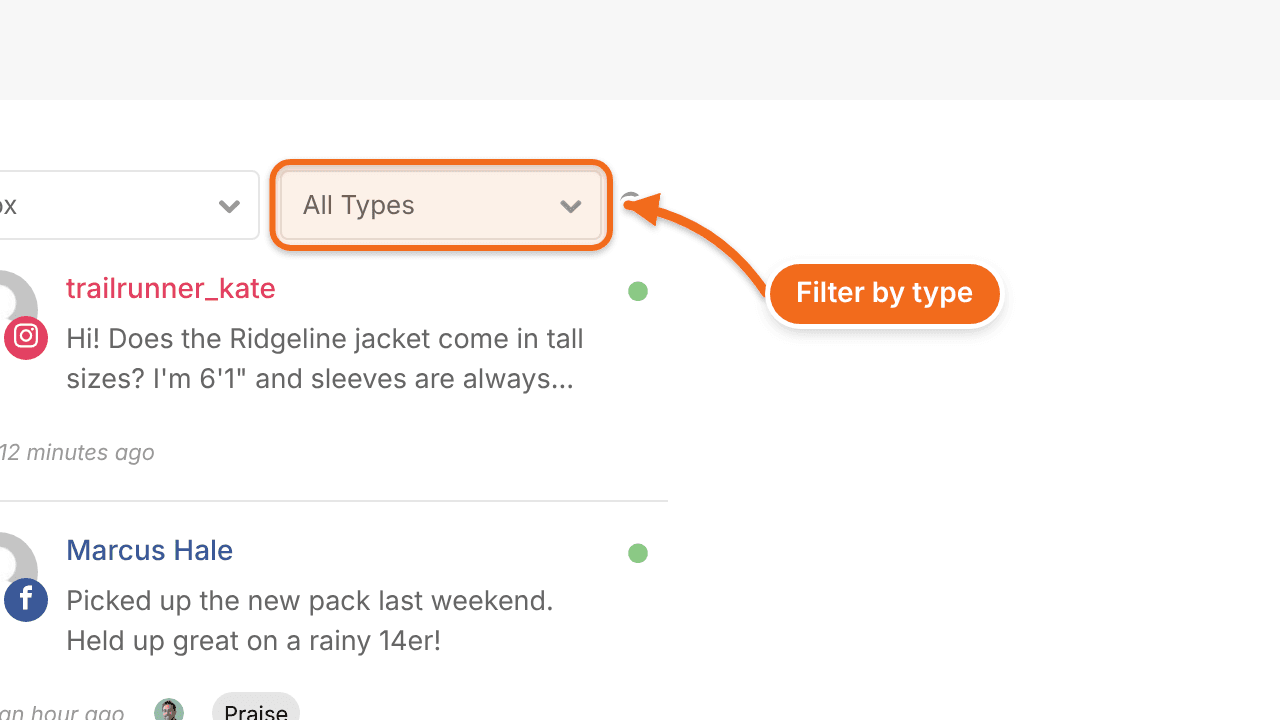
- To see one type of item, switch the type filter from All Types to the type you want.
Open and reply to an item
- Click an item to open it.
- Like it or reply to it, if the network allows that for this type of item.
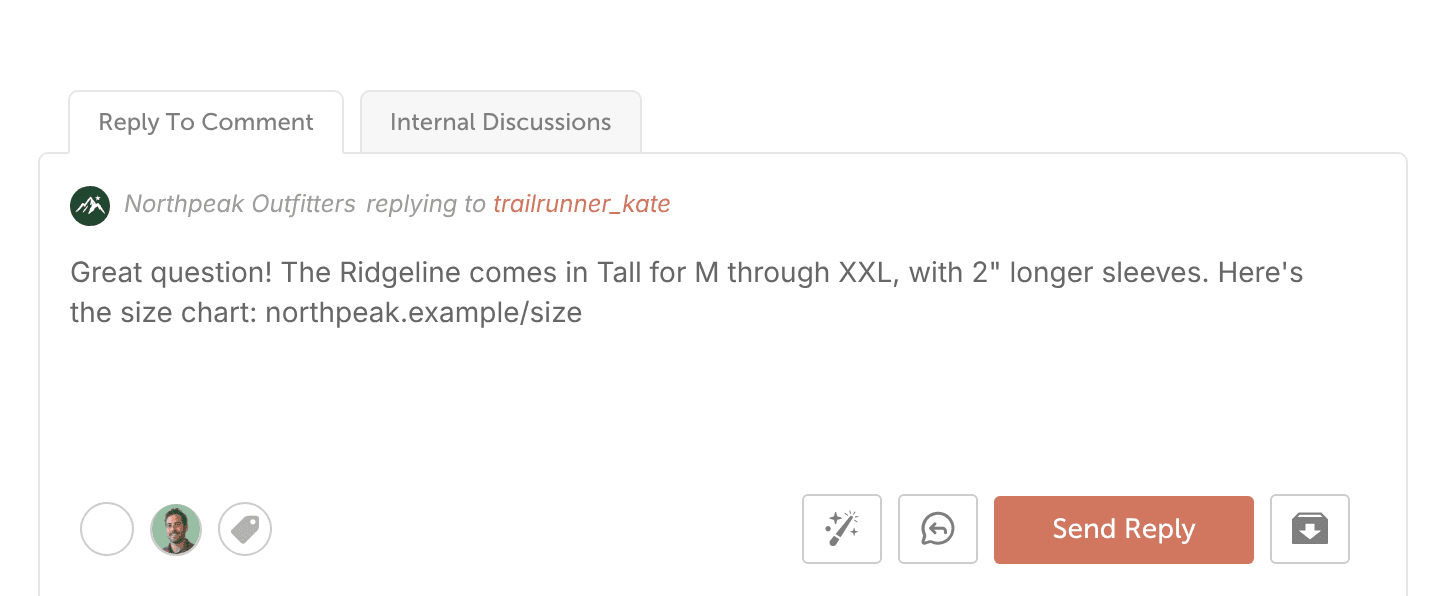
What you can do with each item depends on its network. See Networks Social Inbox supports on each plan.
From the reply box you can also:
- Draft a reply with AI Reply Assistant (Professional and Suite)
- Reuse a saved reply (Professional and Suite)
- Assign the conversation to a teammate (Suite)
Archive an item
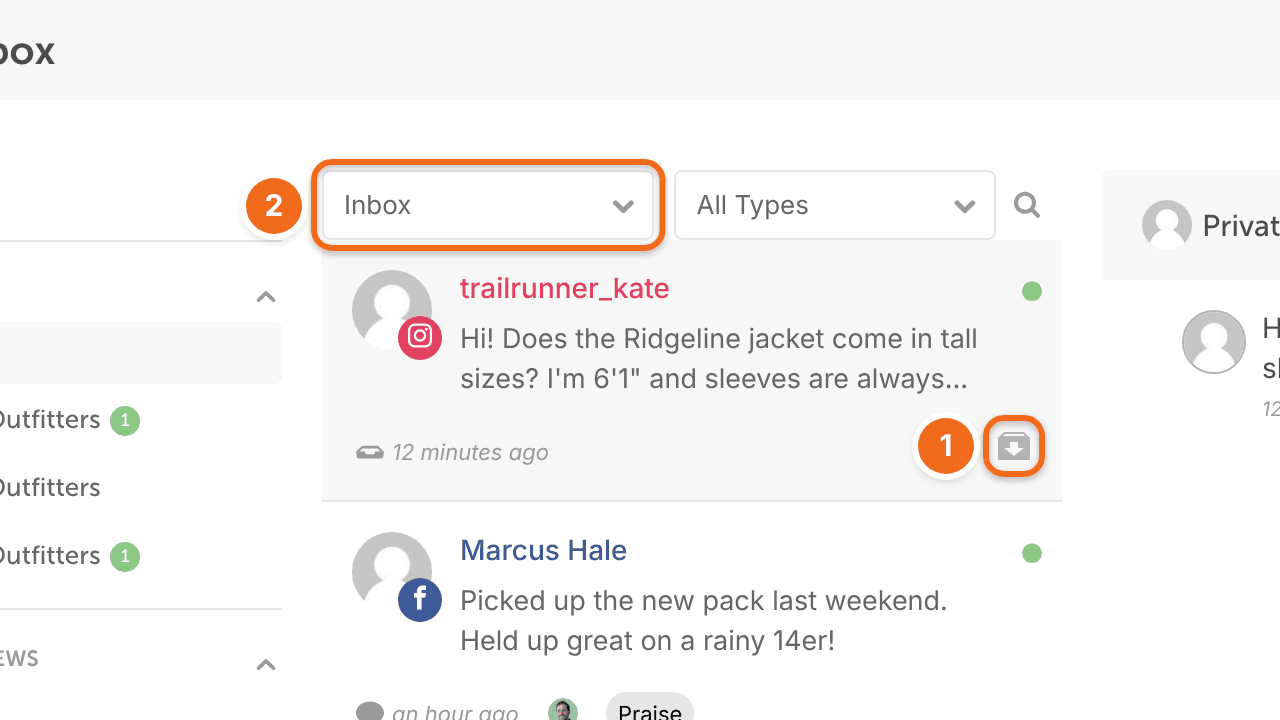
- Click the archive icon on the item.
- To see archived items, switch from Inbox to Archived.
- To move an item back to your Inbox, click the unarchive icon on it while viewing Archived.
Common questions
Can I mark an item as unread?
No. Opening an item marks it as read, and its green dot disappears.
Can I use Social Inbox in the mobile app?
No. Social Inbox isn't available in the CoSchedule mobile app.
How do color labels work in Social Inbox?
If the original message of a conversation is on your calendar, the conversation uses that message's color label. Changing the label in Social Inbox also changes it on the calendar message. If that message is part of a social campaign, you can't change its label from Social Inbox.