
Assign a Social Inbox conversation to a team member so they know it's theirs to follow up. Assigning conversations is available on Suite.
Assign a conversation
- Click Social Inbox in the left-side menu.
- Click the conversation you want to assign.
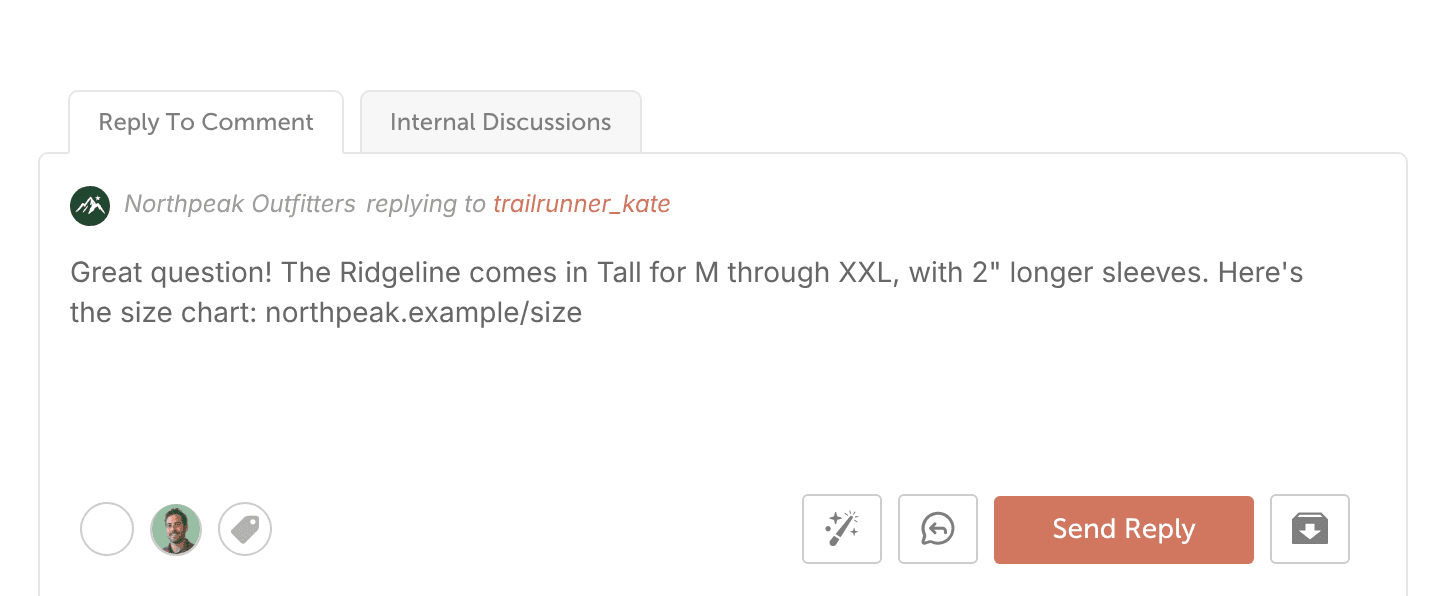
- In the lower-left corner of the reply box, click the person icon.
- Choose the team member.
Choose notifications for assigned conversations
Each team member chooses how they hear about conversations assigned to them.
- At the top of the left sidebar, click your name or photo.
- In the menu that opens, choose My Account. This opens the Account Details page.
- In My Notification Preferences, find the Social Inbox group.
- Check the box for each Social Inbox notification you want in the Web App, Email or Browser column.
The Social Inbox group includes notifications for conversations assigned to you. For more, see Manage notifications and unsubscribe from emails.