
You can move any social message that hasn't published yet to a new date and time, one message at a time or a whole social campaign at once. Available on Starter, Professional and Suite.
Change the date and time
- Click the message on the calendar.
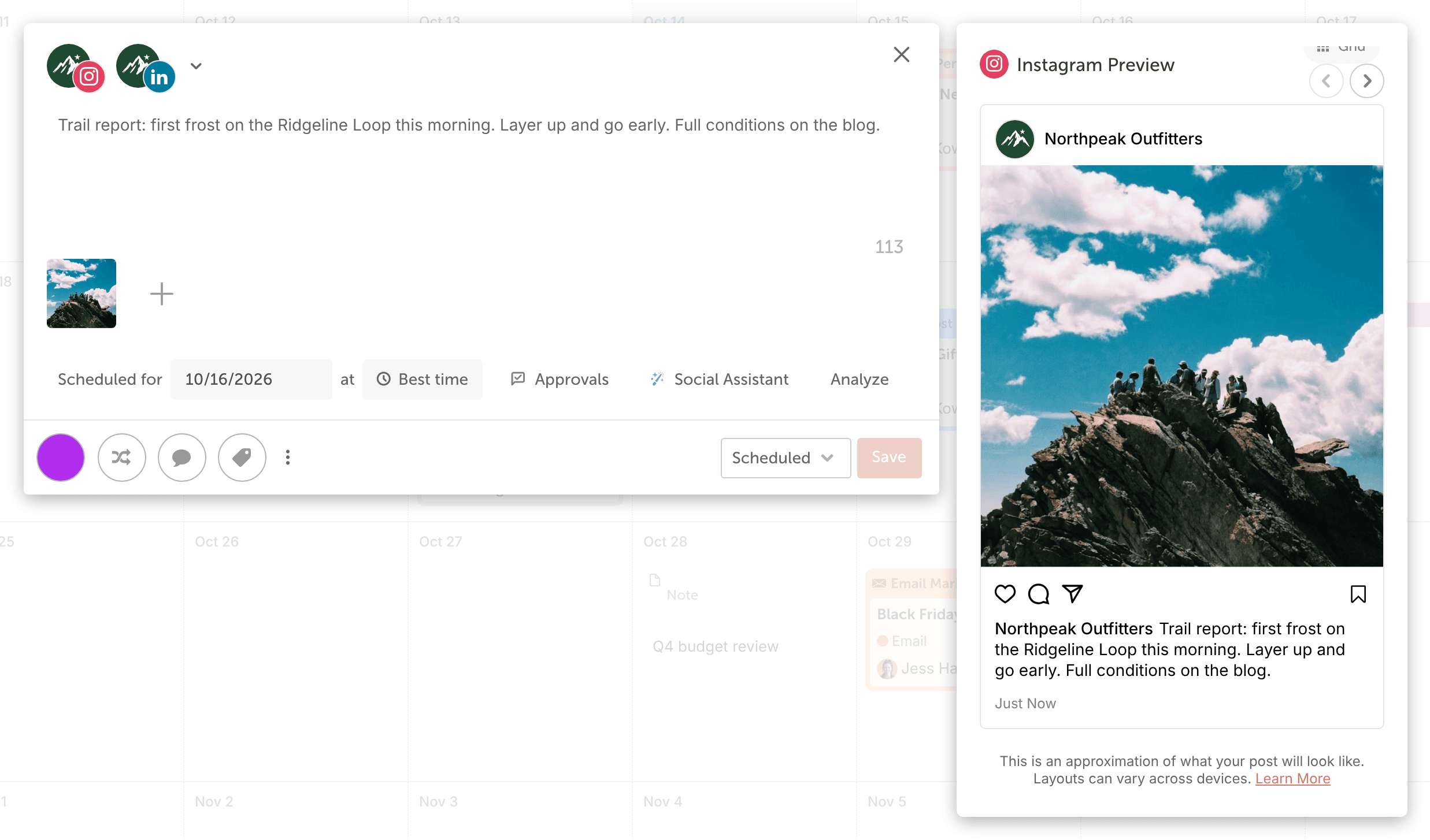
- Set a new date in Scheduled for and a new time in at.
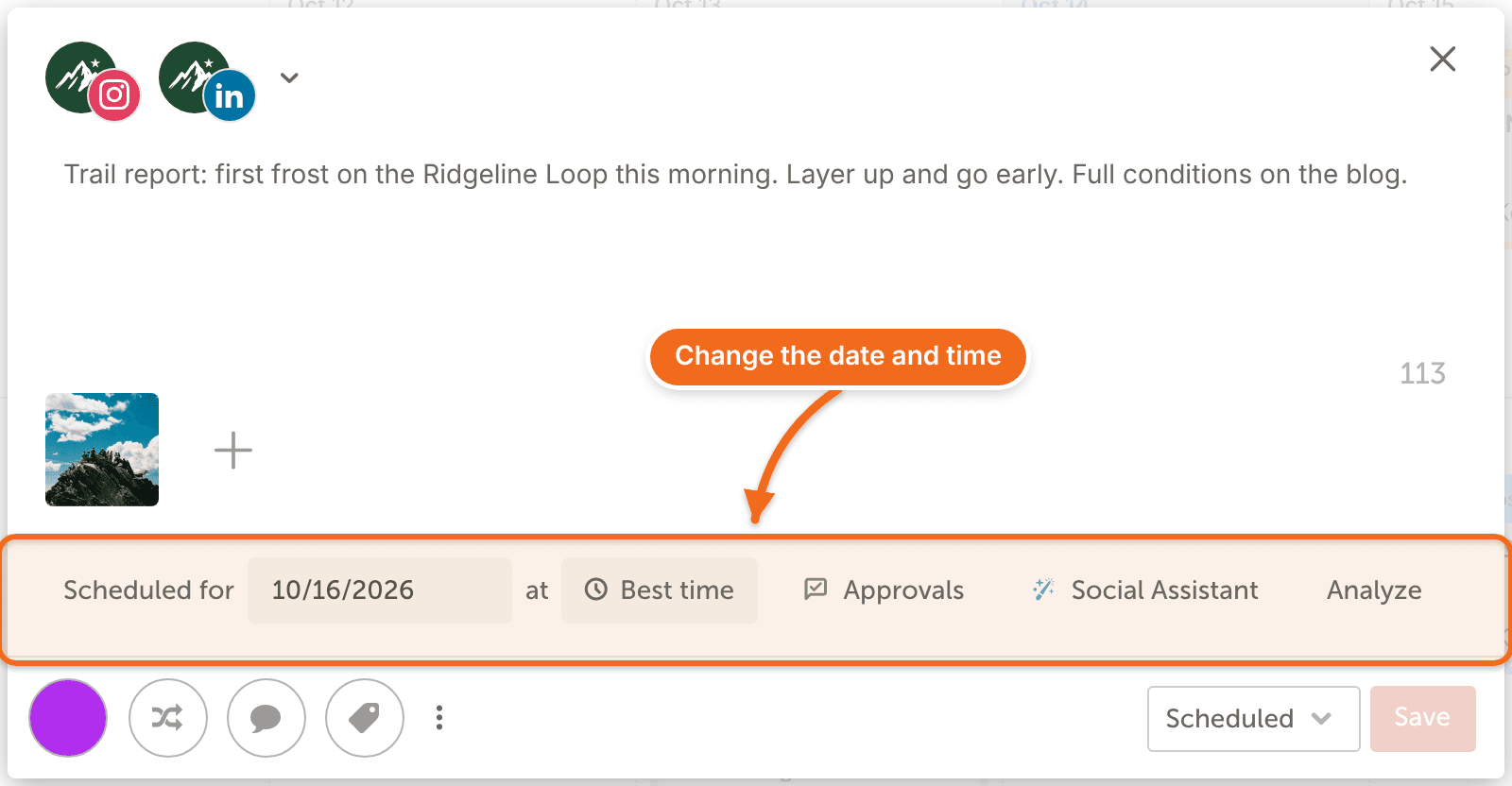
- Make sure the status is Scheduled. A scheduled status shows white, not yellow.
- Click Save.
Drag the message to a new date
- Drag the message on the calendar to a future date.
- To change the time too, open the message and set a new time in at.
- Make sure the status is Scheduled, shown in white, not yellow.
Reschedule a social campaign
- Drag the social campaign on the calendar to its new date.
- Make sure the campaign's status is a scheduled status, shown in white, not yellow.
Messages scheduled relative to the campaign date move with it. Messages set to a custom date stay where they are; reschedule those one at a time with the steps above. Messages in a campaign follow the campaign's status, so a campaign set to Draft holds all of its messages. See Create a social campaign.
Reschedule messages that failed
When a network has an outage or a message fails for another reason, reschedule each failed message once the problem is fixed:
- Open the failed message.
- Set a future date and time.
- Click Save.
A message whose publish time is too far in the past shows a red note. It won't send until you give it a new date and time. To find out why a message failed, see Why a social message did not publish. To check for an outage, see status.coschedule.com.
If a message published but only its first comment failed, the post is already live. Don't reschedule the message, or it will publish again.