
Display settings control how a calendar view looks: how many weeks you see, which day starts the week, and which kinds of items show. Available on Starter, Professional and Suite. The Ideas, Team and Projects board settings and Campaign Timelines are on Suite.
Open the display settings
- On the calendar, click the screen icon next to the calendar view name.
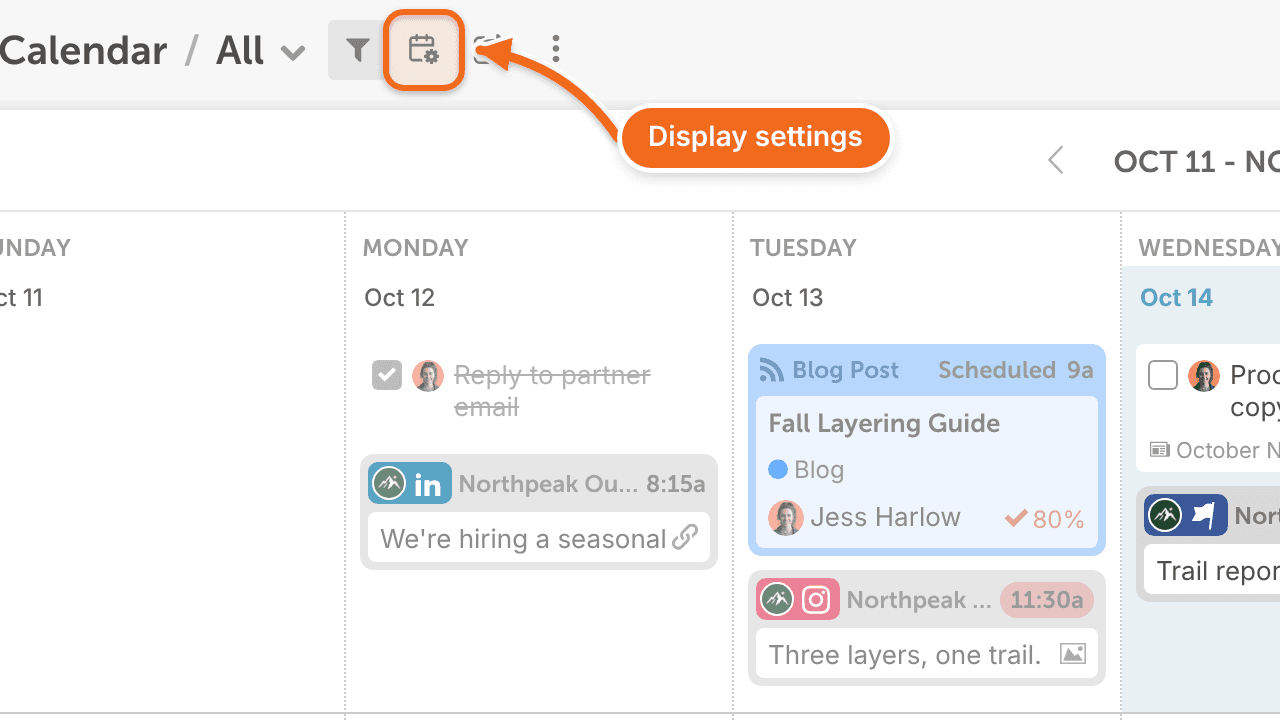
Calendar display settings
These settings change the Calendar view:
- Weeks to display: show 1 to 12 weeks at a time.
- Week starts on: start the week on Saturday, Sunday or Monday.
You can also show or hide:
- Weekends: Saturday and Sunday.
- Previous Week: the week before the current one.
- Social Messages: scheduled social messages.
- Team Tasks: your team's tasks.
- My Tasks: your own tasks.
- Campaign Timelines: bars that show how long each marketing campaign runs. On Suite.
Multi-day marketing campaigns not showing as bars? Turn on Campaign Timelines in the display settings.
Ideas view settings
On Suite, check the box to make the saved view available on the Ideas board, then set:
- Group default: how ideas are grouped.
Team view settings
On Suite, check the box to make the saved view available on the Team board, then set:
- Weekends: show or hide Saturday and Sunday.
- Team Tasks: show or hide team tasks.
- Weeks to Display: show 1 to 6 weeks.
- Display Default: choose Horizontal or Vertical to set how the Team board is laid out.
Projects view settings
On Suite, check the box to make the saved view available on the Projects board, then set:
- Weeks to Display: show 1 to 6 weeks.
- Group default: how projects are grouped.