
Search finds projects, social campaigns and marketing campaigns on your calendar. Available on Starter, Professional and Suite.
Search your calendar view
- Open your calendar.
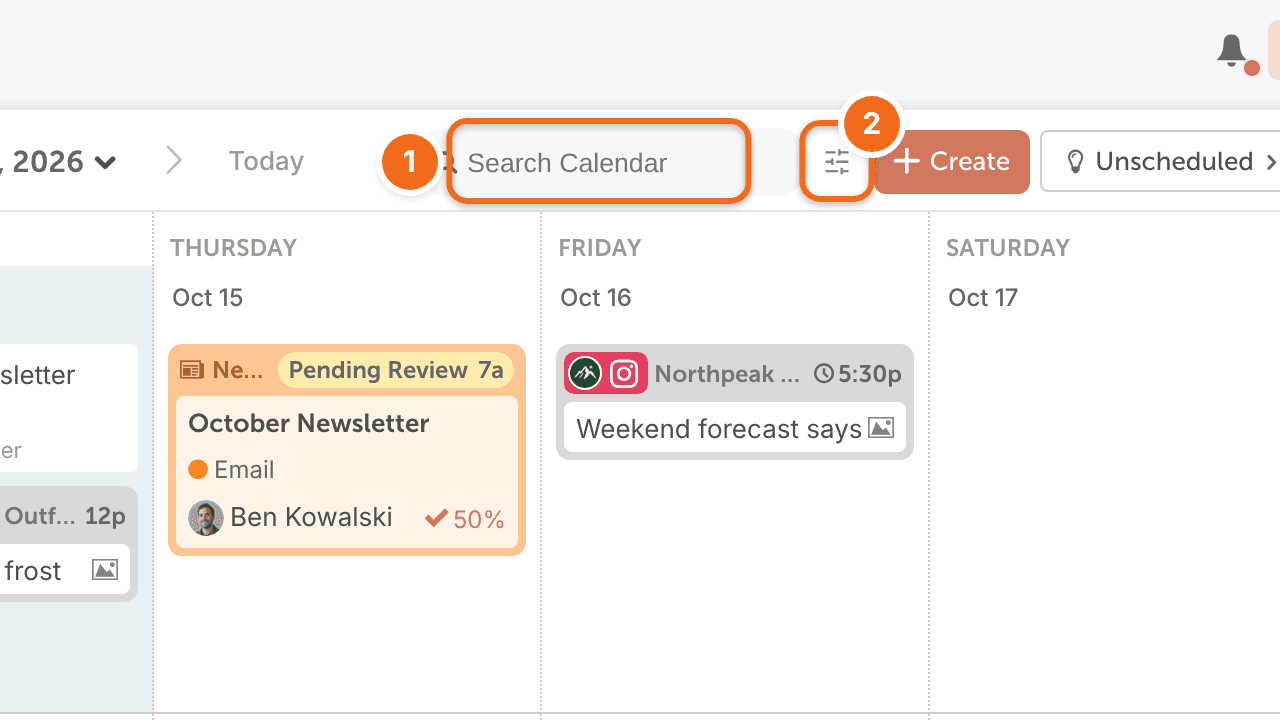
- Click the Search Calendar field in the upper right corner.
- Enter your search term. As you type, the calendar filters to show matching items.
Search outside your calendar view
- Click the Advanced Search icon next to the Search Calendar field.
- In the Advanced Search window, enter your search term.
- Adjust the filters as needed.
Advanced Search results don't show dates.
What search looks at
- Names of projects, social campaigns and marketing campaigns
- Tags
- Words from discussions
- Request form answers from fixed-choice fields. Answers typed into free-text fields aren't searchable.
Export projects from a date range
To export the projects in a date range, open Table View, add a Scheduled or Created date filter, then click the share icon and Download CSV. The CSV holds whatever the view's filters show; it doesn't ask for dates. Table View is available on Suite. See Use Table View.