
View Security and Access Logs Inside CoSchedule
Use Security and Access logs to track all changes inside CoSchedule.
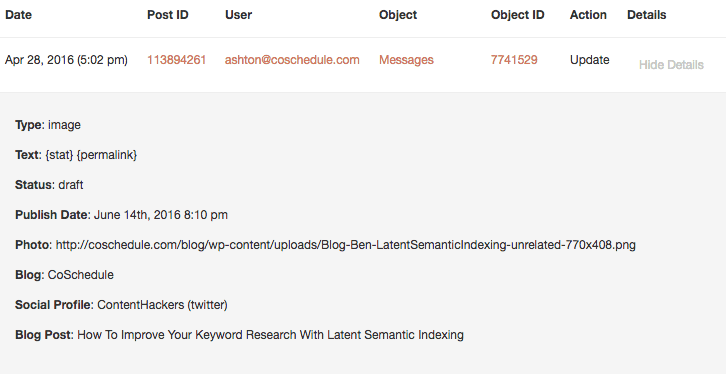 Filter Settings
Filter Security and Access Logs by Date. You can also filter by ascending or descending.
Date
This will show the date and time when the action took place.
Post ID
The Post ID on which the action has occurred. Clicking the Post ID number filters to other actions that have occurred under the same Post ID number.
User
This will show the user who performed the action.
Object
The Object is the type of action that was performed.
Object ID
The Object ID is the number that is associated with the Object. Clicking the Object ID number will filter to other actions that have occurred with the same Object ID number.
Action
This will be what action took place. The three options are Delete, Create, or Update.
Details
If you click View Details next to the action, you will be able to see all the details of that post. When you're done viewing the details, click Hide Details.
Filter Settings
Filter Security and Access Logs by Date. You can also filter by ascending or descending.
Date
This will show the date and time when the action took place.
Post ID
The Post ID on which the action has occurred. Clicking the Post ID number filters to other actions that have occurred under the same Post ID number.
User
This will show the user who performed the action.
Object
The Object is the type of action that was performed.
Object ID
The Object ID is the number that is associated with the Object. Clicking the Object ID number will filter to other actions that have occurred with the same Object ID number.
Action
This will be what action took place. The three options are Delete, Create, or Update.
Details
If you click View Details next to the action, you will be able to see all the details of that post. When you're done viewing the details, click Hide Details.
Note: Security and Access Logs are available in our CoSchedule Suite.
View All Security and Access Logs
- From your calendar, open Settings.
- From the left side menu, click Access Logs. When enabled, this page will display all the actions that have occurred on your calendar. See details below.
Filter Settings
Filter Security and Access Logs by Date. You can also filter by ascending or descending.
Date
This will show the date and time when the action took place.
Post ID
The Post ID on which the action has occurred. Clicking the Post ID number filters to other actions that have occurred under the same Post ID number.
User
This will show the user who performed the action.
Object
The Object is the type of action that was performed.
Object ID
The Object ID is the number that is associated with the Object. Clicking the Object ID number will filter to other actions that have occurred with the same Object ID number.
Action
This will be what action took place. The three options are Delete, Create, or Update.
Details
If you click View Details next to the action, you will be able to see all the details of that post. When you're done viewing the details, click Hide Details.
View Security and Access Logs by Project
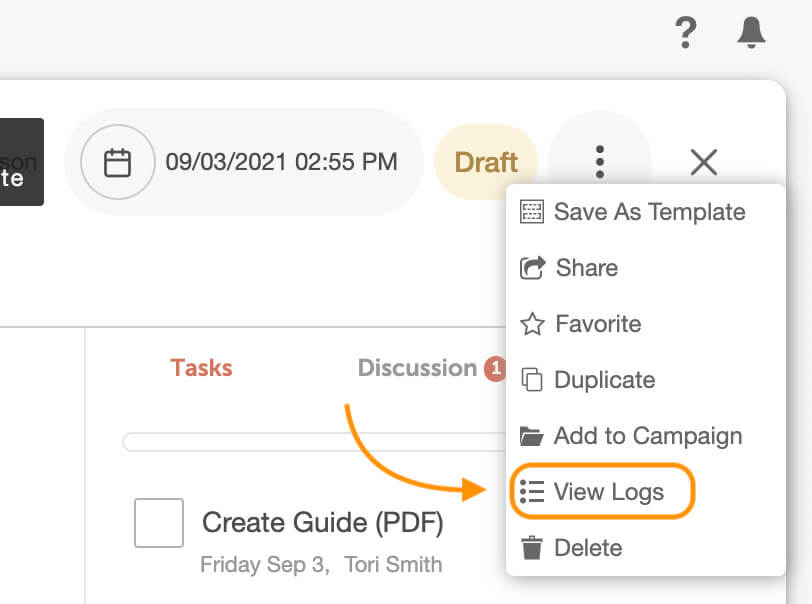
- From your calendar, open the project.
- Click the three-dot menu, then select View Logs.
