
A note puts a short reminder on a date in your calendar. Notes are private to you unless you make them public. Available on Starter, Professional and Suite.
Add a note
- Click the + on the date you want the note on.
- Select More Options.
- Select Note.
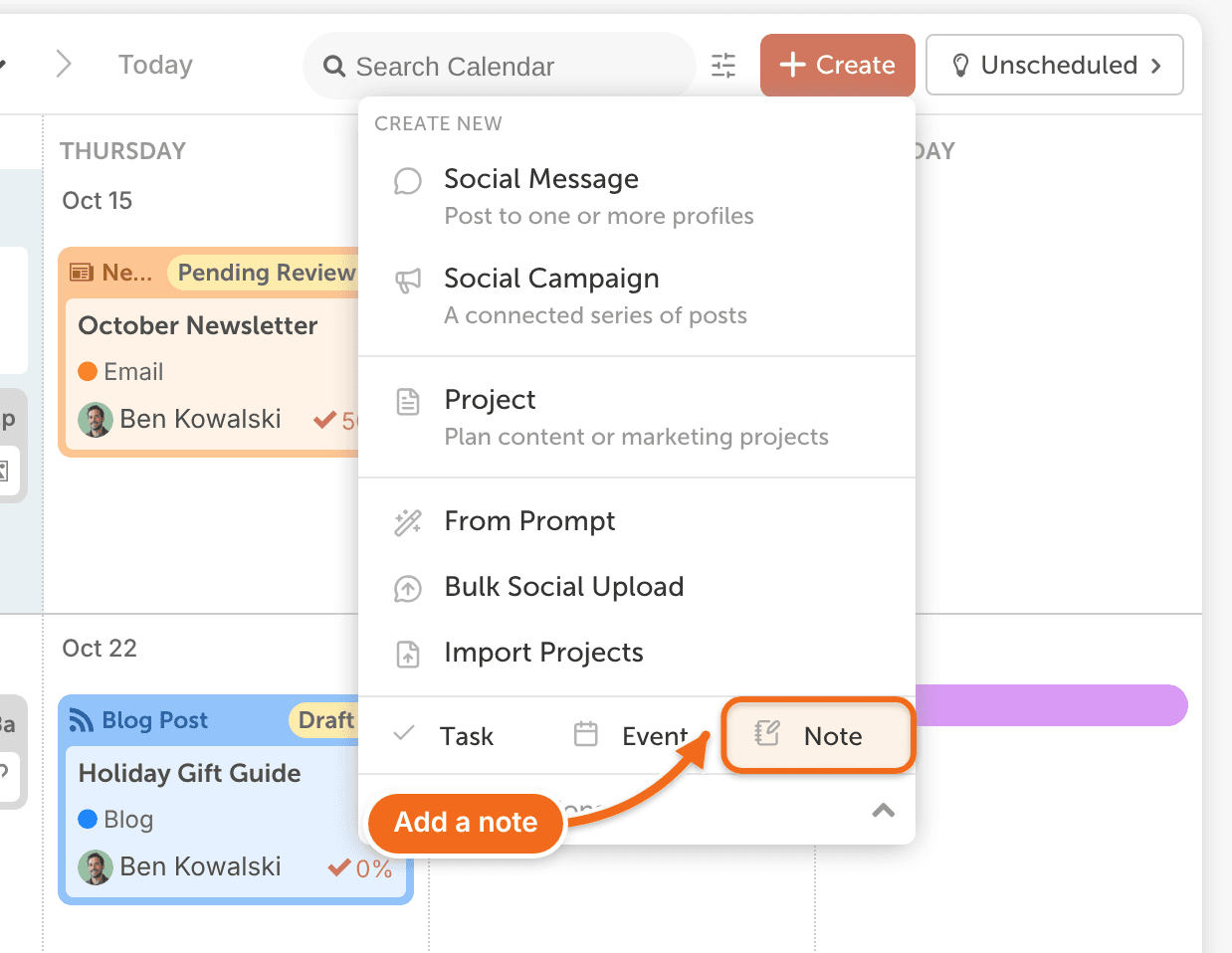
- In the Create A New Note window, enter the note. You can also change its date and time.
- To add a color label, click the Circle in the bottom-left corner and choose a label.
- To show the note to your whole team, click Make Public.
- Click Add Note.
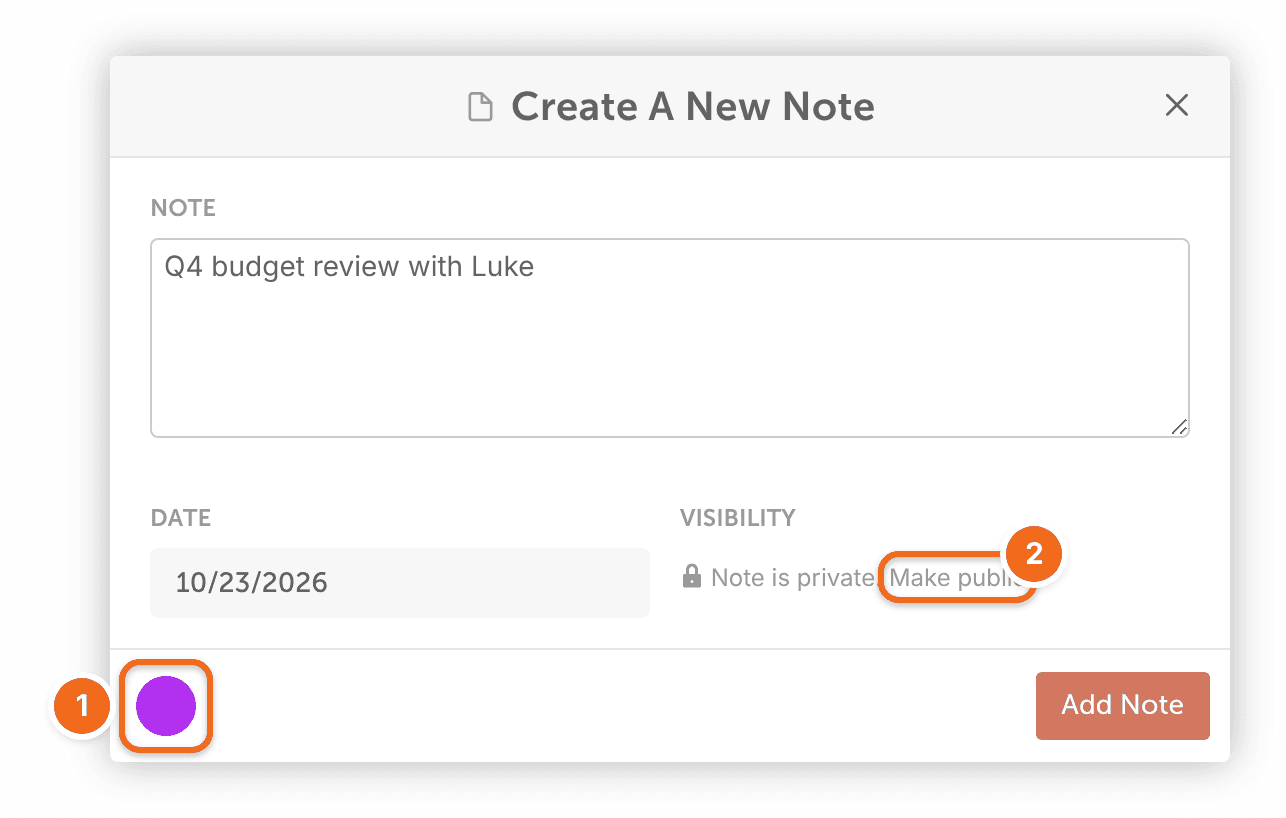
Notes don't save automatically. Click Add Note to save a new note, or Save Note when you edit one. New notes show only on your own calendar. Your team sees a note only after you click Make Public.
Edit or delete a note
- Click the note on your calendar to open the Edit Note window.
- Make your changes.
- Click Save Note.
To remove the note, click Delete Note, next to Save Note.