
Share a read-only version of your whole calendar, a filtered calendar view, a project or a marketing campaign with people who aren't on your calendar. Send them a link that stays up to date as changes are made, or download a PDF. Available on Professional and Suite.
Share a calendar view
- From your calendar, select the calendar view you want to share from the calendar view list.
- Click the arrow icon in the upper left of the calendar.
- Turn on read-only sharing.
- Copy the link, or click Download PDF.
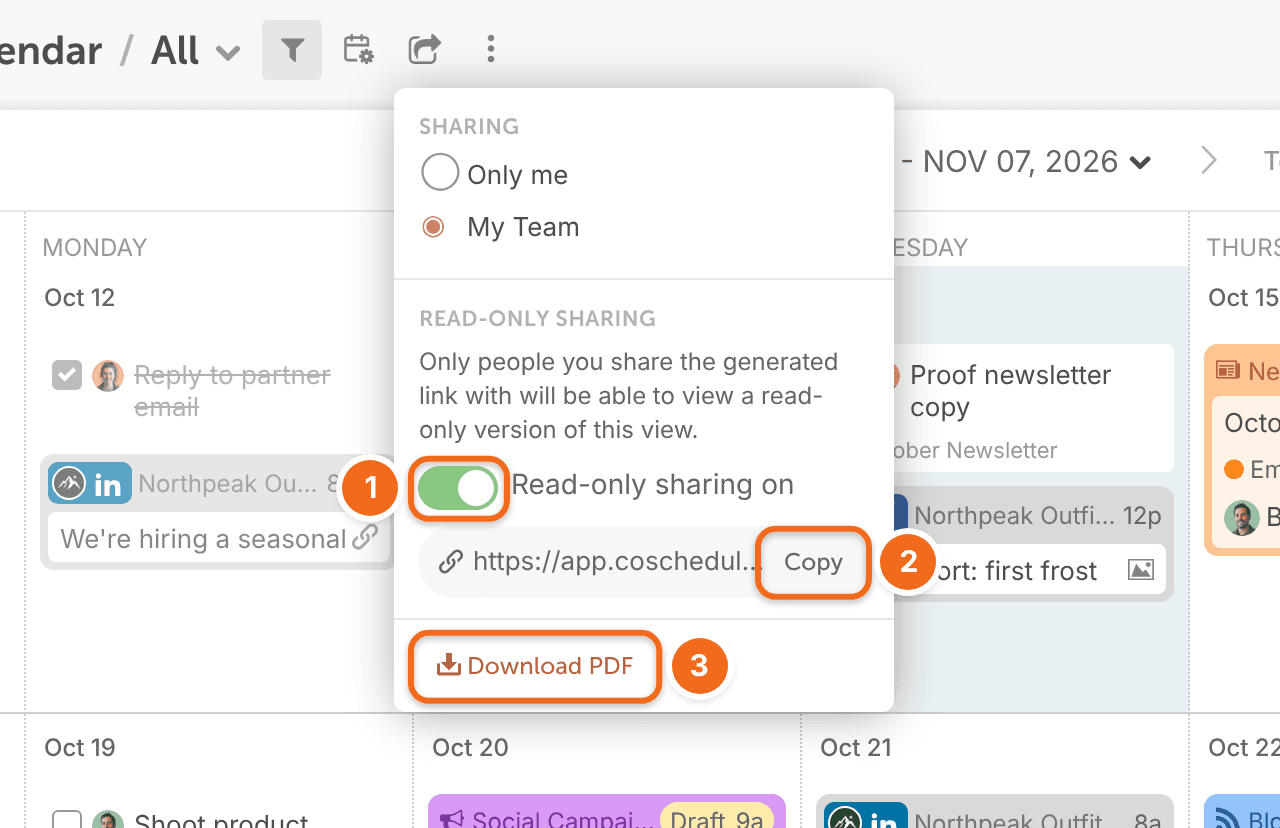
In Table view, the menu shows Download CSV instead of Download PDF. The CSV holds whatever the view's filters show and doesn't ask for dates, so to export a date range, add a Scheduled or Created date filter to the view first.
To show a client or manager only some of your work, share a filtered calendar view. See Save and manage calendar views.
Share a project
- Open the project.
- Click the ellipsis menu in the upper right corner.
- Select Share.
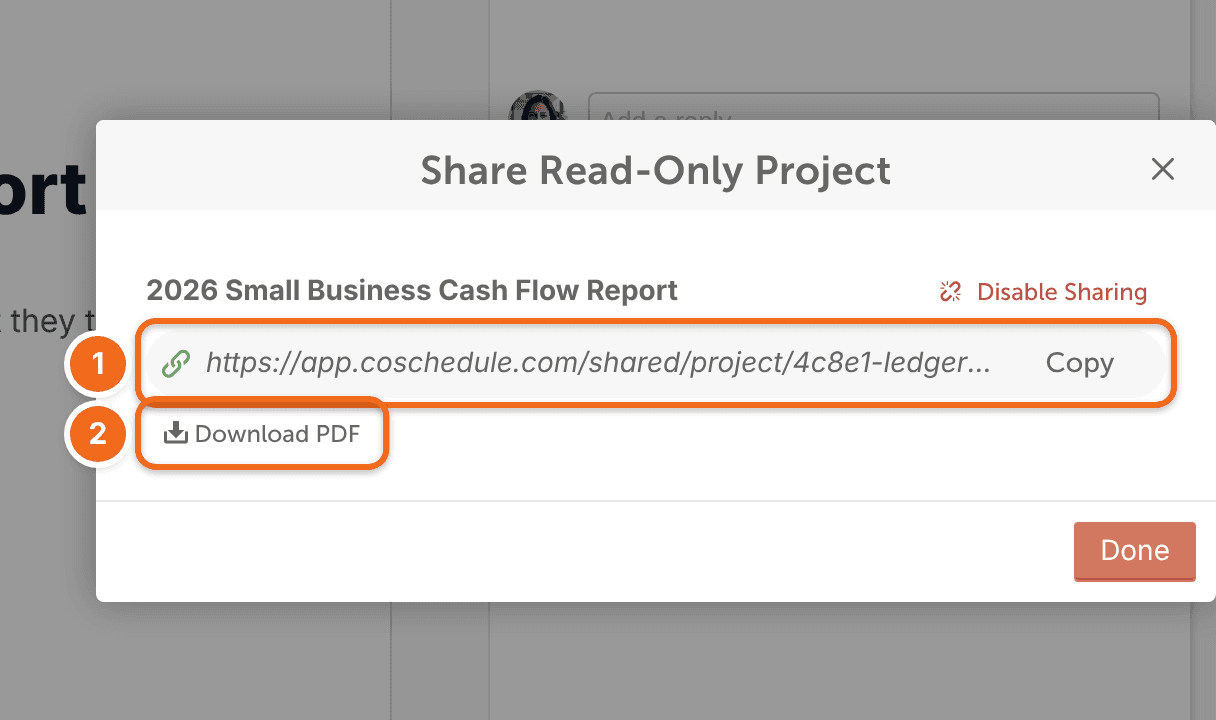
- In the share window (its title starts with "Share Read-Only"), turn on sharing.
- Copy the link, or click Download PDF.
Share a marketing campaign
Marketing campaigns are available on Suite. See Plan a marketing campaign.
- Open the marketing campaign.
- Click the ellipsis menu in the upper right corner.
- Select Share.
- In the share window, turn on sharing.
- Copy the link, or click Download PDF.
What people see in a read-only view
- The view updates as you make changes, so the link always shows your current plan.
- Drafts show unless your view's filters leave them out.
- Events, notes, tasks and ReQueue gaps show on a read-only calendar but don't open when clicked.
- Image alt text isn't shown.
To show your client's logo on a read-only view, see Add client branding to reports and read-only calendars.
To show your own logo on every read-only view, upload it in your calendar settings. See Change your calendar name, timezone and date format.
Print your calendar
There are a few ways to get a printable copy of your calendar:
- PDF: share a calendar view or project as shown above, download a PDF, and print the file.
- CSV for Excel: on Suite, export your projects from Table View as a CSV file. For a date range, add a Scheduled or Created date filter first. See Use Table View.
- Another calendar app: sync your projects or social profiles to Google Calendar or another calendar, then use that app's views and printing. See Sync your calendar with Google Calendar and other calendars.
- Your browser: you can print the CoSchedule calendar page directly, but it doesn't always format well.
If a project PDF fails to download, or a shared project doesn't display correctly, very large images in the project can be the cause. Keep images in a project under about 6 MB.