
Duplicate projects, tasks, notes, events, social messages and campaigns to reuse work you've already planned. Available on Starter, Professional and Suite.
Duplicate a project
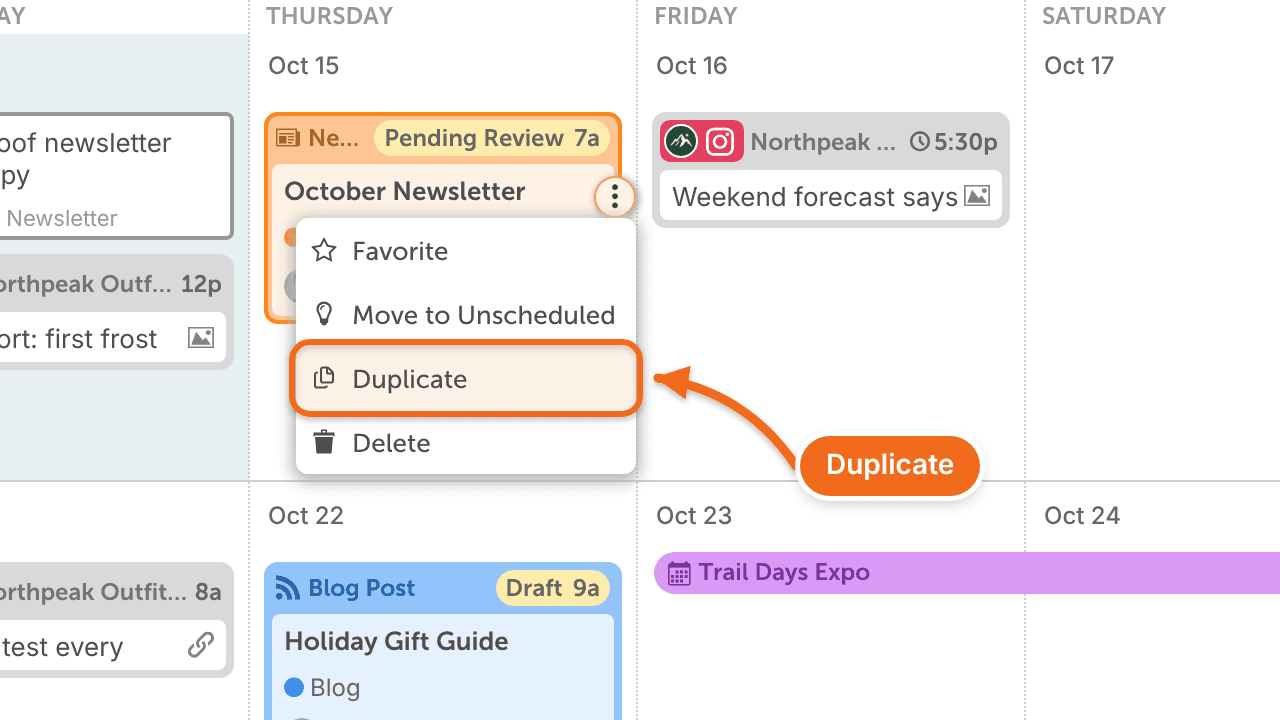
From the calendar
- Hover over the project on the calendar.
- Click •••.
- Select Duplicate.
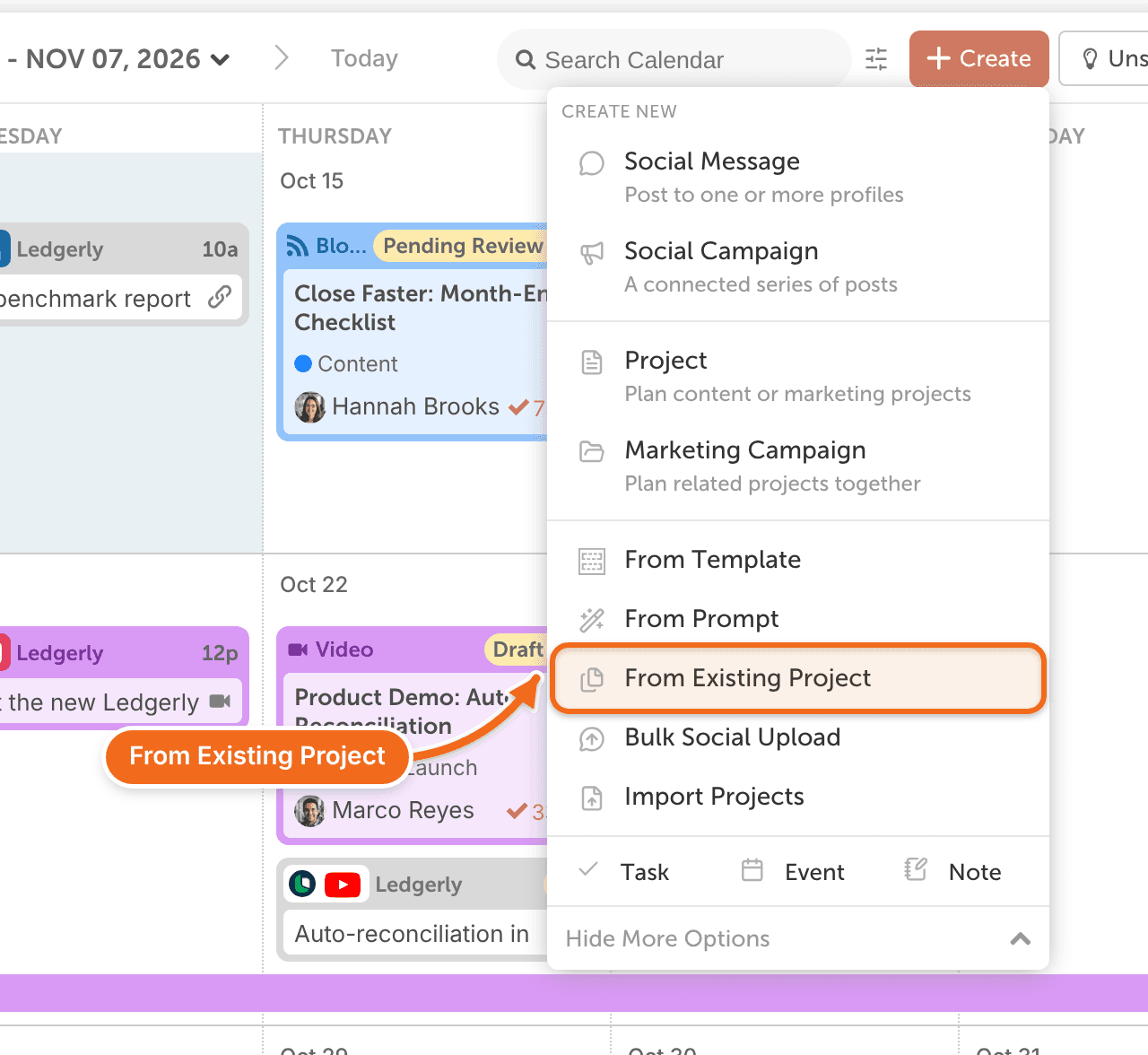
From the Create menu
- Click +Create.
- Select More Options.
- Click From Existing Project.
- Search for or select the project you want to copy.
- Change the new project's date.
The copy includes everything in the original project, and its title has the word "copy" in it. You can rename it at any time.
A project duplicated from the Create menu keeps the original's date. Change the date right away so the copy is saved where you want it.
Duplicate a task, note or event
- Hover over the task, note or event on the calendar.
- Click •••.
- Select Duplicate.
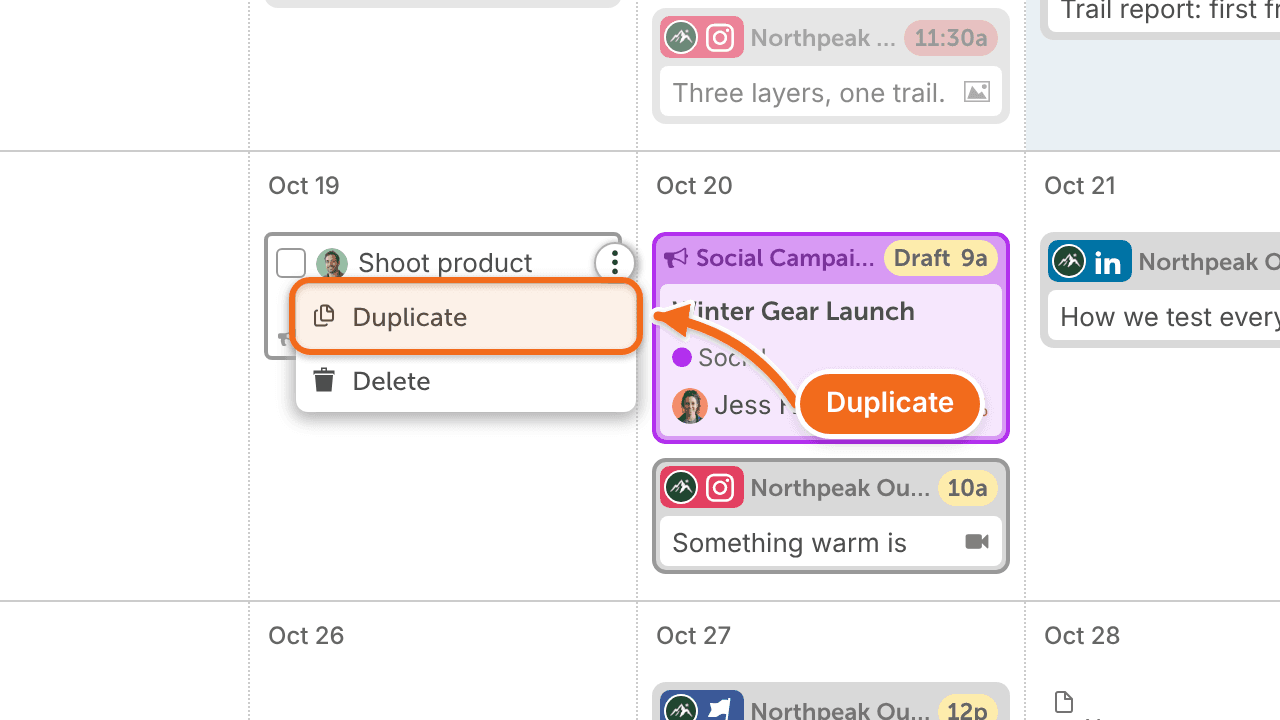
The copy appears just below the original. A copied task has the word "copy" in its name, which you can change. Drag the copy to another date or click it to open it.
Duplicating an event that is part of a recurring series creates one single event, not a new recurring series.
Duplicate a social message
- Hover over the social message on the calendar.
- Click •••.
- Select Duplicate.
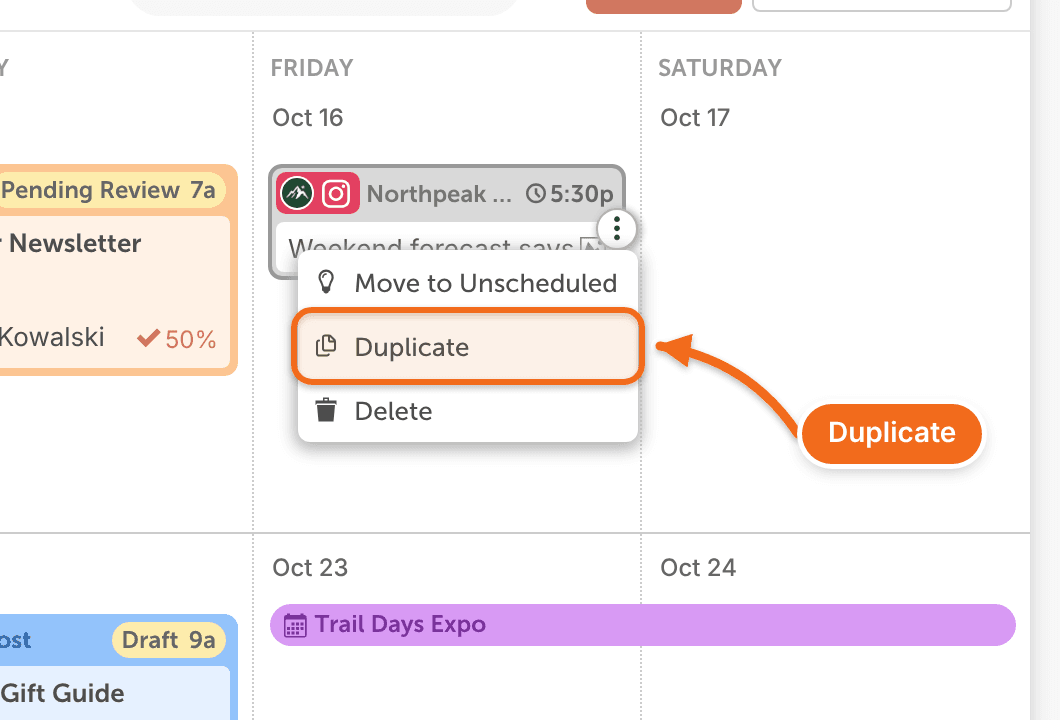
- This works for a standalone message and for one in a social campaign.
- The copy appears just below the original and includes all of its details.
- A message copied from a social campaign stays in the same campaign.
- Drag the copy to another date, or click it to open it and change any detail.
Duplicate a social campaign
- Hover over the social campaign on the calendar.
- Click •••.
- Select Duplicate.
The copy appears just below the original campaign and includes all of its messages. Its title has the word "copy" in it, which you can change.
Copy all messages from another social campaign
- Open the social campaign you want to add the messages to.
- Select Template.
- Select Duplicate from.
- In the Duplicate menu, search for or select the project whose social campaign has the messages you want.
- Select Apply.
All the messages from that campaign are copied into the one you have open.
Copy all tasks from another project
- Open the project you want to add the tasks to.
- Open the Template menu.
- Select Duplicate from.
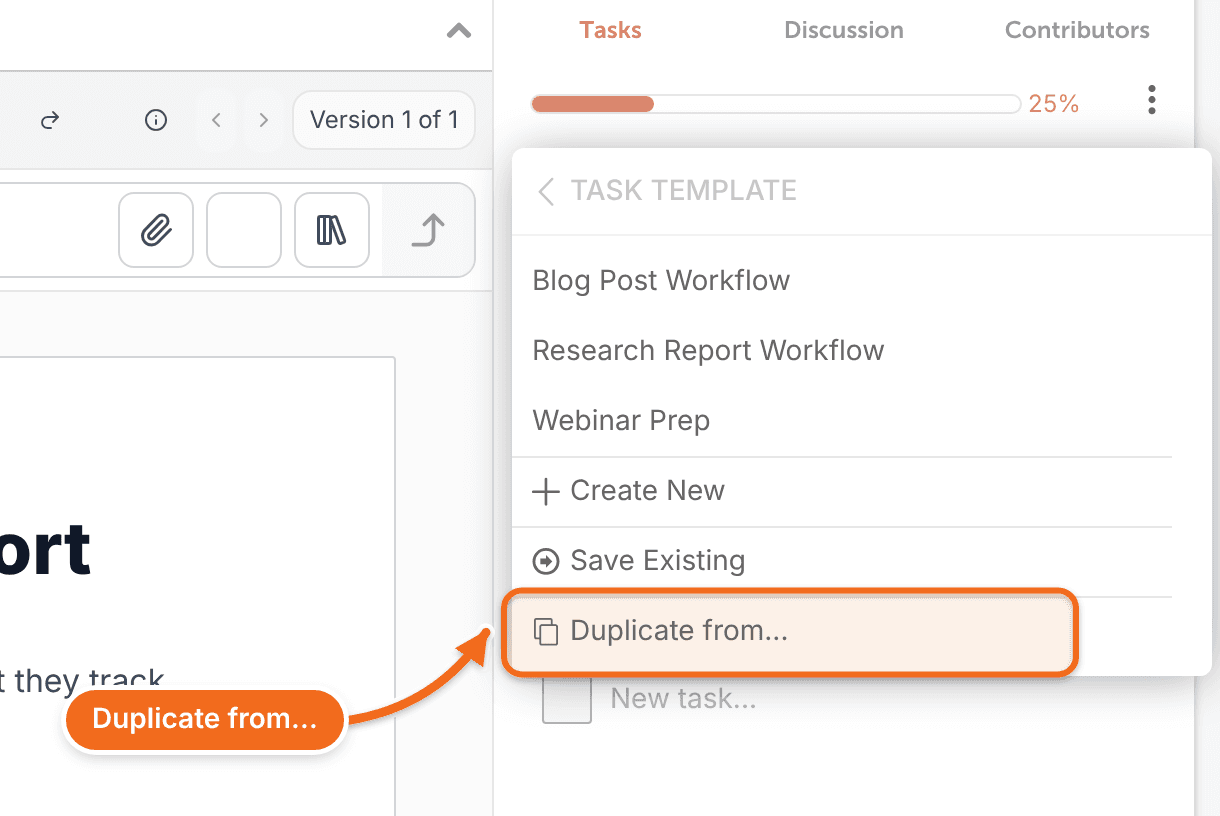
- In the Duplicate menu, search for or select the project with the tasks you want.
- Select Apply.
All the tasks from that project are copied into the one you have open.
Duplicate a marketing campaign
Marketing campaigns are available on Suite.
- Hover over the marketing campaign on the calendar.
- Click •••.
- Select Duplicate.
The copy appears just below the original and includes everything in it. Its title has the word "copy" in it, which you can change. Drag the copy to another date or click it to open it and change any detail.
Keep a copy before big changes
Deleting a project, campaign or social message is permanent and can't be undone. Before you make big changes to a project, duplicate it. On Suite, you can also save it as a project template.