
Social Profile Calendars give every social profile you connect its own calendar view, so you can see what one profile has scheduled and coming up. CoSchedule creates them for you, and the All view still shows every profile together. Available on Starter, Professional and Suite, and on the free plan.
There's nothing to set up. Each time you connect a social profile, CoSchedule adds a calendar view for it. Profiles you connected before these views existed already have one.
Open a social profile's calendar
- Go to your calendar.
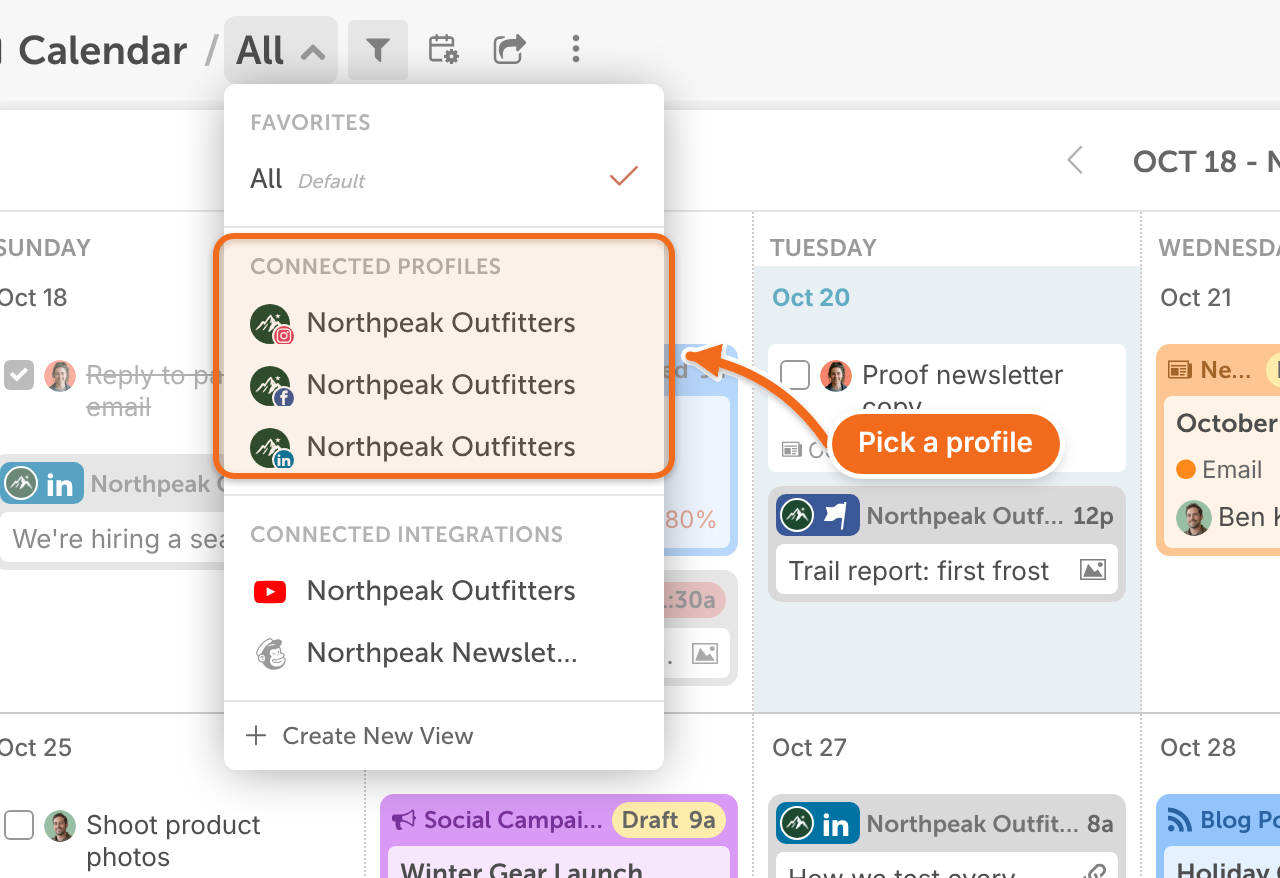
- Click the view name at the top of the calendar. It shows All by default.
- Under Connected Profiles, select the social profile you want to see.
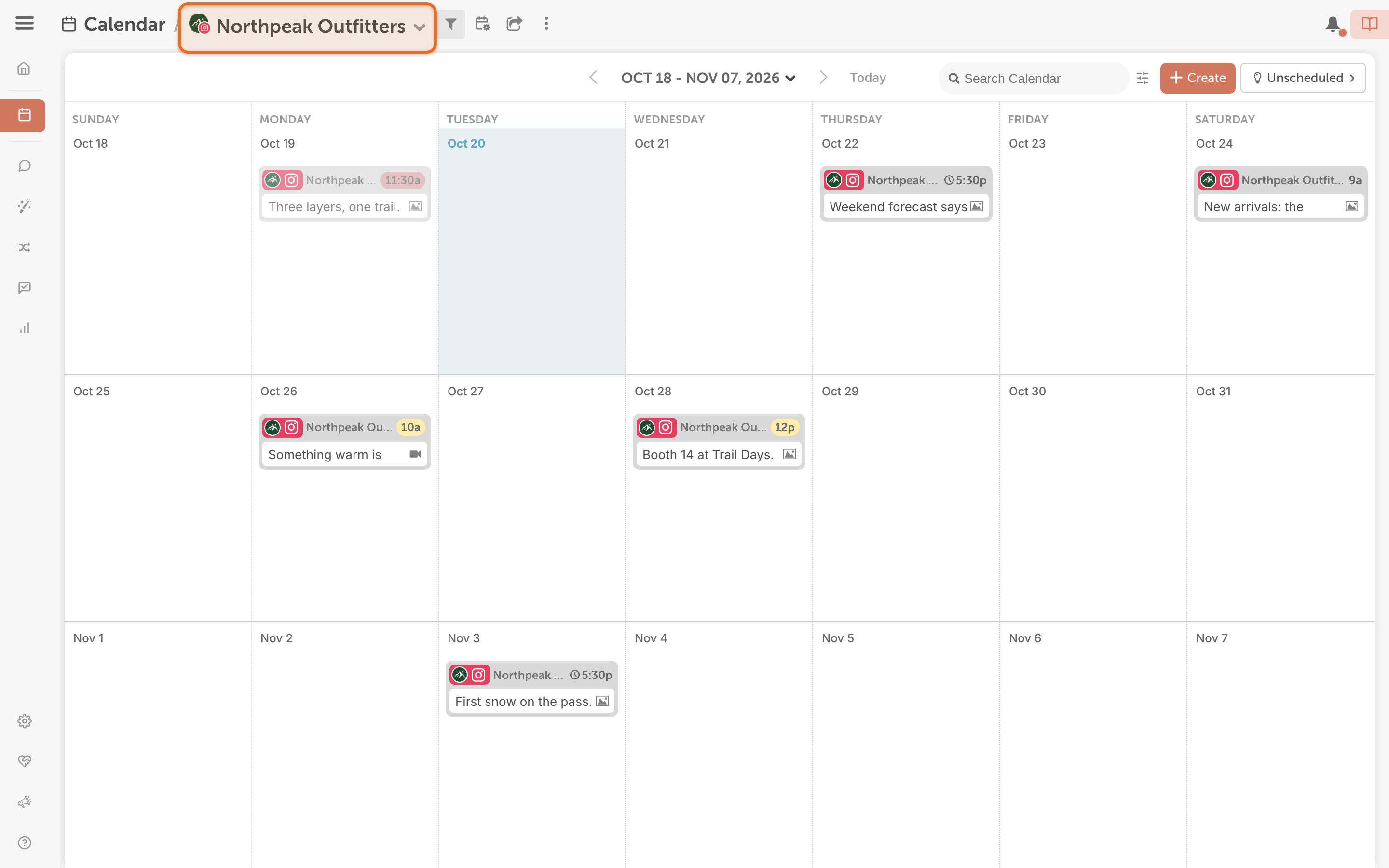
The calendar now shows only that profile's social messages, and the profile's name shows at the top of the calendar. To see every profile together again, open the menu and select All.
If you don't see a social profile in the list, check that it's connected. See Add or remove a social profile.
Create a social message from a profile's calendar
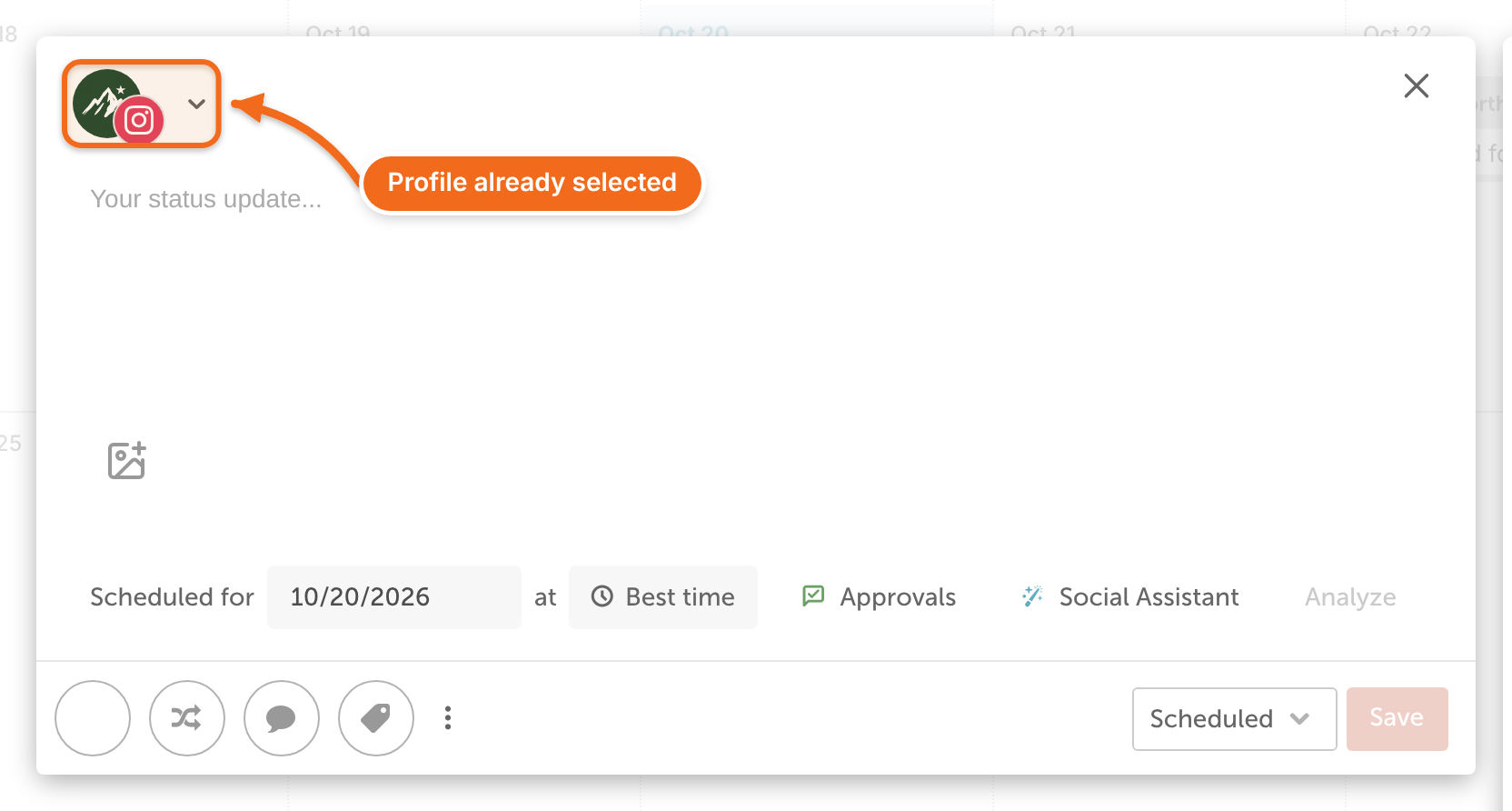
When you create a social message from a profile's calendar, that profile is already selected in the composer.
- Open the social profile's calendar.
- Click + Create, or click the + on the day you want the message to publish.
- Select Social Message.
- Write and schedule the message, then click Save.
To add more profiles to the message, select them in the composer. For the rest of the composer, see Create a social message.
Hide or show profile calendars
You manage profile calendars the same way as your saved calendar views. Hiding a view doesn't change what your teammates see.
Hide one profile's calendar
- Open the calendar view menu.
- Point to the profile and click the vertical ellipsis next to its name.
- Select Hide View.
Hide all profile calendars
- Open the calendar view menu.
- Point to Connected Profiles and click the vertical ellipsis next to it.
- Select Hide Section.
Show a hidden calendar again
Hidden views and sections move to Hidden Views at the bottom of the calendar view menu.
- Open the calendar view menu.
- Click Hidden Views to expand the list.
- Click the vertical ellipsis next to the view or section you want back.
- Select Show View for one view, or Show Section for a whole section.
Integration calendars under Connected Integrations hide and show the same way.
If you've made a profile's calendar a Favorite, it stays in Favorites when you hide its whole section. Hiding that one view removes it from Favorites.
How views are ordered
Profile and integration calendars can't be reordered. Social profiles are grouped by network, then listed A to Z. To keep a calendar at the top of the menu, make it a Favorite. Favorites show All first, then the rest A to Z.
Favorite a calendar or change its display
The vertical ellipsis menu next to a profile's name also lets you make its calendar a Favorite or your Default View. See Save and manage calendar views.
To change how many weeks a profile's calendar shows, or what it hides, select Edit in that menu to open Display Settings. Unlike hiding a view, Display Settings are shared with your team, and only people who can manage shared views see Edit. See Change calendar display settings.
What each calendar shows
A social profile's calendar shows that profile's social messages, scheduled and coming up, including ReQueue messages and messages in social campaigns. Projects, tasks and other items stay in the All view.
Every social profile you can connect gets its own calendar. If you remove a social profile, its calendar is removed too.
Some integrations get their own calendar too, listed under Connected Integrations and named after the channel, account or site:
- Each YouTube channel
- Each email account: Mailchimp, ActiveCampaign, Campaign Monitor or Constant Contact
- Each WordPress site
An integration's calendar shows only that account's items: projects tied to that YouTube channel or email account, or that WordPress site's posts. Tasks, social messages, notes and events stay in the All view.
Other integrations, such as HubSpot, Google Drive, Dropbox, OneDrive and Calendar Sync, don't get a calendar.
Common questions
Do I need to set anything up? No. CoSchedule adds a calendar for each social profile you connect, including profiles you connected before.
How is this different from a saved calendar view? Saved views are views you build yourself with filters. Social Profile Calendars are created for you, one per profile, and they select the profile for you when you create a social message.
Does this replace Sub-Calendar Views or Client Calendars? No. Those are organized by color label. Profile calendars sit in the same menu, and you switch to them the same way.
Can I use profile calendars in the mobile app? No. Like saved views, profile calendars are on the calendar in your web browser.