
A calendar event shows a launch or company event on your calendar for your whole team. Available on Starter, Professional and Suite.
Add an event
- Click the + on the date you want the event on.
- Select More Options.
- Click Calendar Event.
- Enter the event details.
- Click Add.
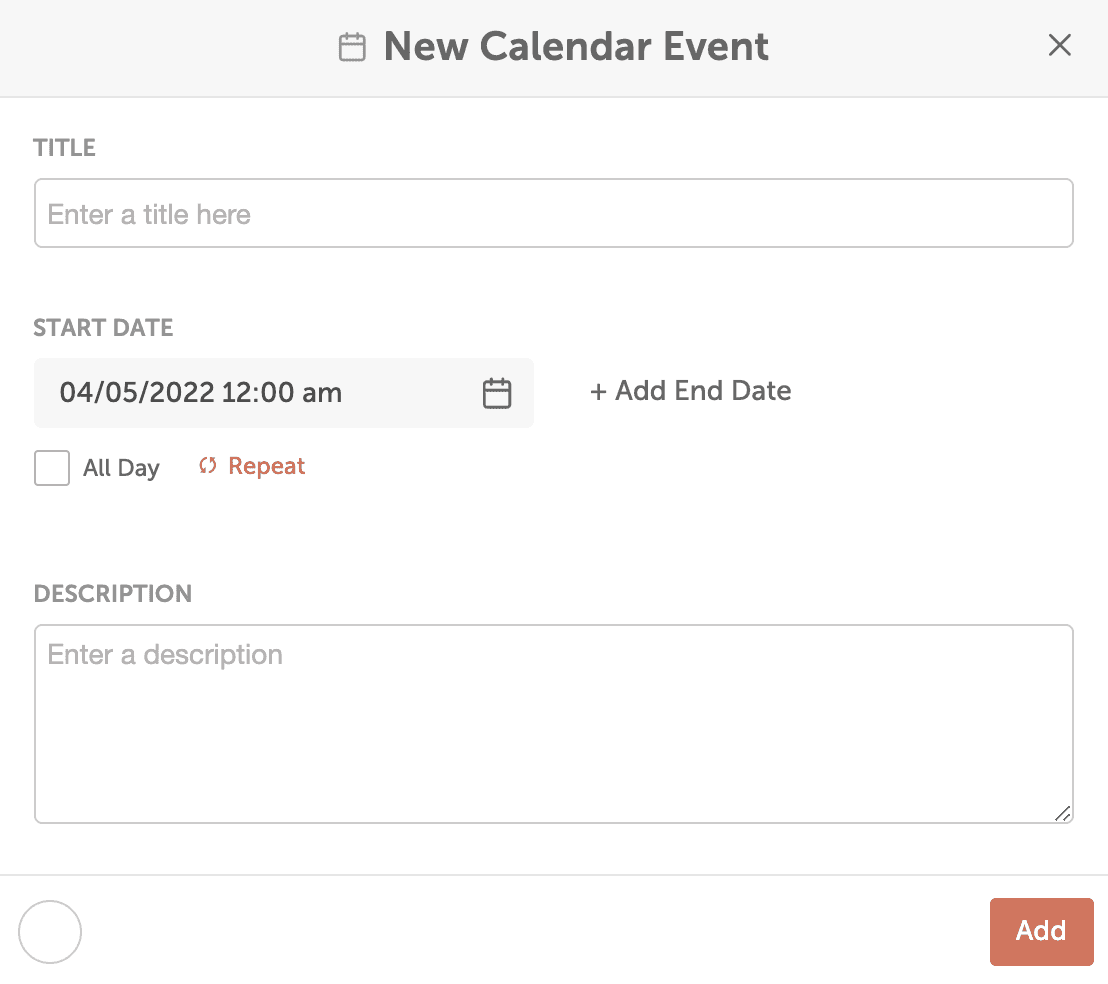
Calendar events can't be attached to a project. They can only belong to a marketing campaign. To plan an event with tasks, discussions or a social campaign, create a project instead.
Make an event repeat
Repeat appears on plans with recurring schedules.
- While you create the event, click Repeat (the button with the cycle icon).
- Choose how often it happens, from daily to yearly.
- In the Repeat section, choose when it stops: a date in Until, or a number of Occurrences.
- Choose how far into the future to create the events on your calendar.
- Click Add.
Edit a recurring event
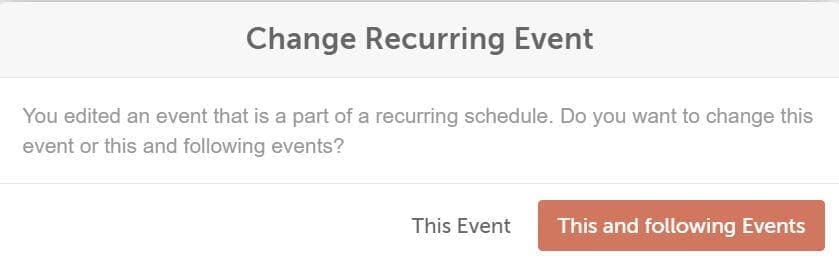
When you edit an event that repeats, CoSchedule asks Change Recurring Event. Choose which events to change:
- This Event: changes only the event you selected.
- This and following Events: changes the event you selected and the ones after it in the series.
Duplicating an event that is part of a recurring series creates one single event, not a new recurring series.