
Sub-calendars give each color label its own calendar view, so you can see everything for one department, product line or client in one place and control who can open it. Available on Professional and Suite. On Professional the feature is called Client Calendars; on Suite it's called Sub-Calendar Views.
An item shows in a sub-calendar only if it carries that sub-calendar's color label. If something is missing from a sub-calendar, check its color label.
Turn on sub-calendars
Calendars created since January 2021 have sub-calendars turned on already. If you don't see Sub-Calendar Views (or Client Calendars) in Settings, turn the feature on:
- Open Settings.
- Click Power Ups.
- Click Enable Sub-Calendar Views. On Professional, click Enable Client Calendars on the Client Calendars tile.
Create or edit a sub-calendar
CoSchedule creates a sub-calendar for each color label.
- Open Settings.
- Under the Settings tab, click Sub-Calendar Views. On Professional, click Client Calendars.
- Click a color label or name to edit it, or add a new sub-calendar.
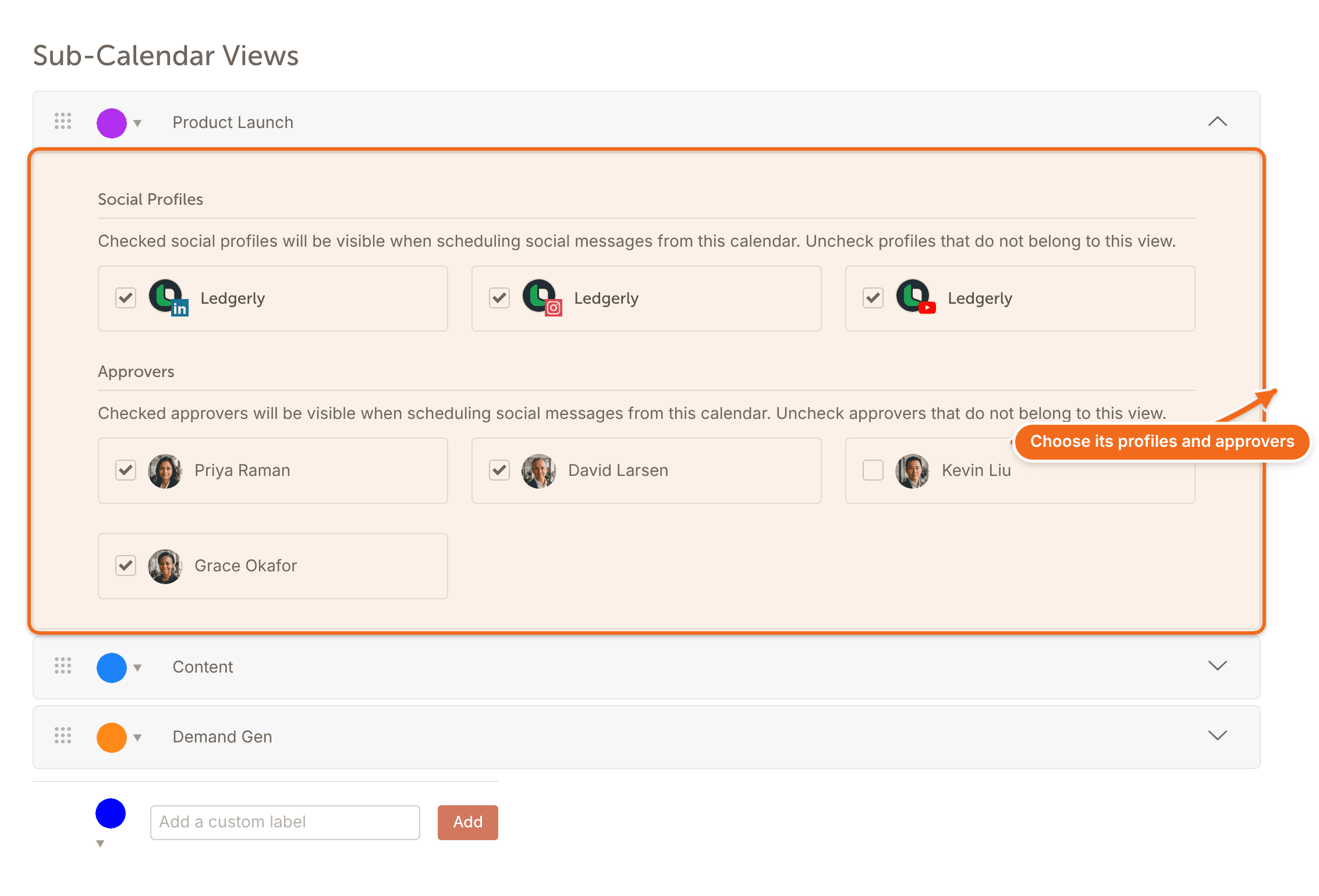
- To choose which social profiles show when someone schedules social messages in this sub-calendar, click the down arrow to the right of the sub-calendar. If you use social approvals, you can also choose which approvers show.
Open a sub-calendar
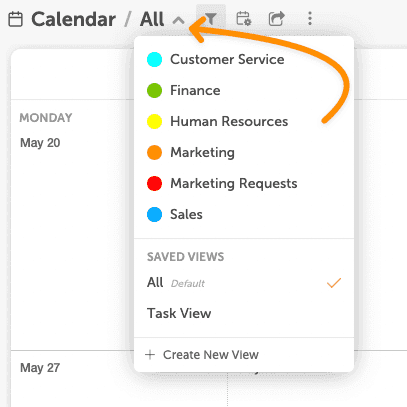
Sub-calendars are listed in the main Calendar menu, with your saved calendar views. When you create a project or social message from a sub-calendar, it gets that sub-calendar's color label.
Choose who can open each sub-calendar
Owners, Managers and Admins can choose which sub-calendars each team member can open. Team members can see, edit and create items only in the sub-calendars they have access to.
- Open Settings.
- Click the Team Members tab.
- Find the team member and click Edit.
- Check the box next to each sub-calendar they should be able to open.
If someone is assigned a task or project with a color label for a sub-calendar they can't open, they'll see it on their Home page but can't open it until you give them access to that sub-calendar. In a marketing campaign with items in several color labels, they see only the items they have access to.