

Get to Know Your CoSchedule Calendar
In This Lesson
- Welcome to CoSchedule
- Why Your Team Uses CoSchedule
- Take a Quick Look at Your Calendar
- Read the Colors and Types
Your team uses CoSchedule to plan and track its marketing. This chapter shows you what you'll see, so nothing looks unfamiliar when you start.
Welcome to CoSchedule
CoSchedule is the calendar your team uses to plan and track its marketing work, from projects and tasks to social posts. It's social media management software built on that calendar, so your social posts sit right next to everything else your team is working on.
How to use this guide: Chapters 2 through 4 get you through your first project. Chapter 5 is for anyone who helps with social media.
Why Your Team Uses CoSchedule
When all the work is in one place, you spend less time asking where things stand. Your assigned work comes to you, you can see how your piece fits the bigger plan, and comments and files stay with the work instead of getting lost in email.

Take a Quick Look at Your Calendar
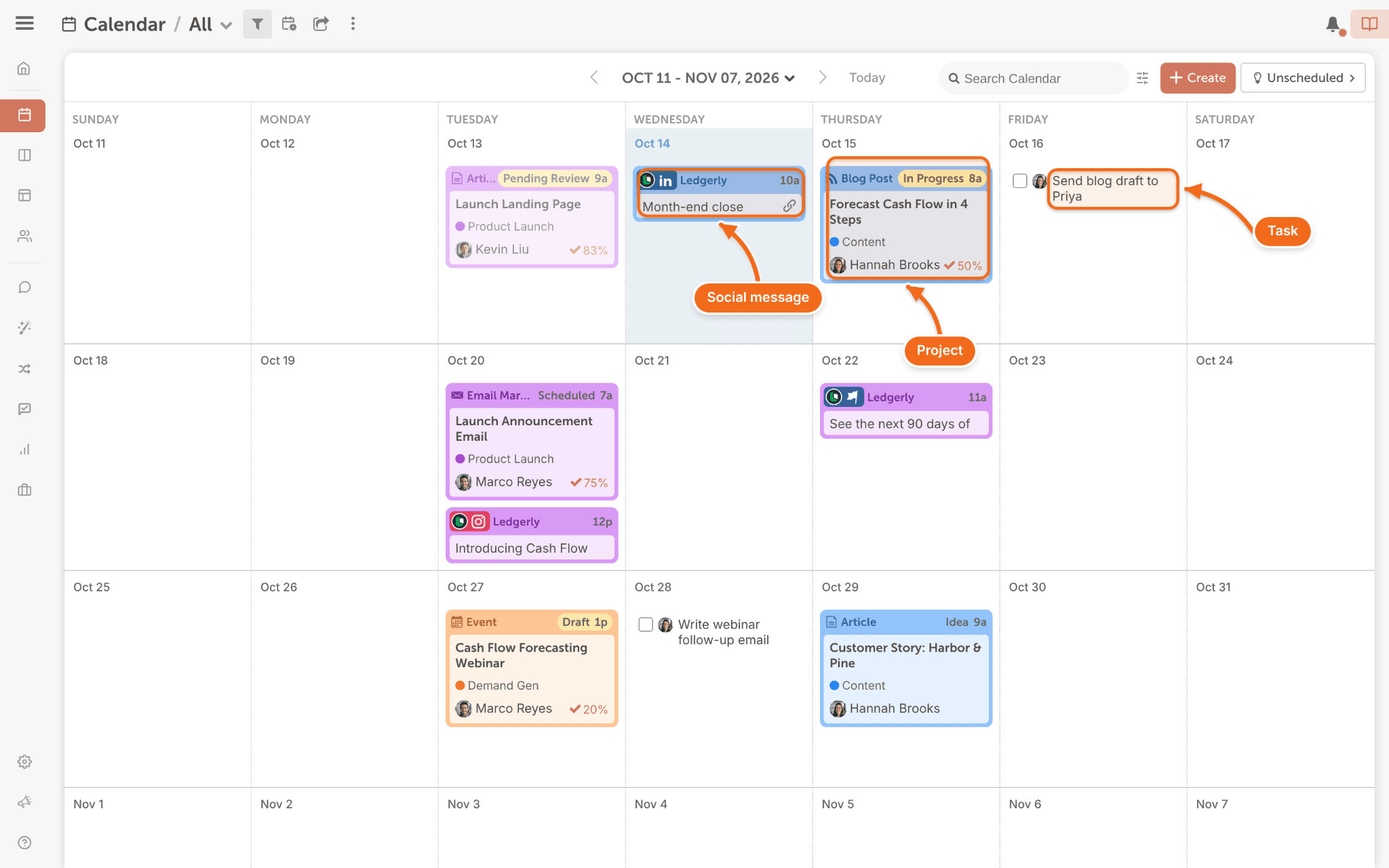
When you open your calendar, you'll see three main things:
- Projects: the cards for each piece of work, like a blog post or email.
- Tasks: the to-dos inside a project, each with an owner and a due date.
- Social messages: posts scheduled to your social profiles.
Read the Colors and Types
Your team sorts the calendar two ways. Color labels show which team, product or channel a project belongs to. Project types show what kind of work it is, like a blog post or webinar.
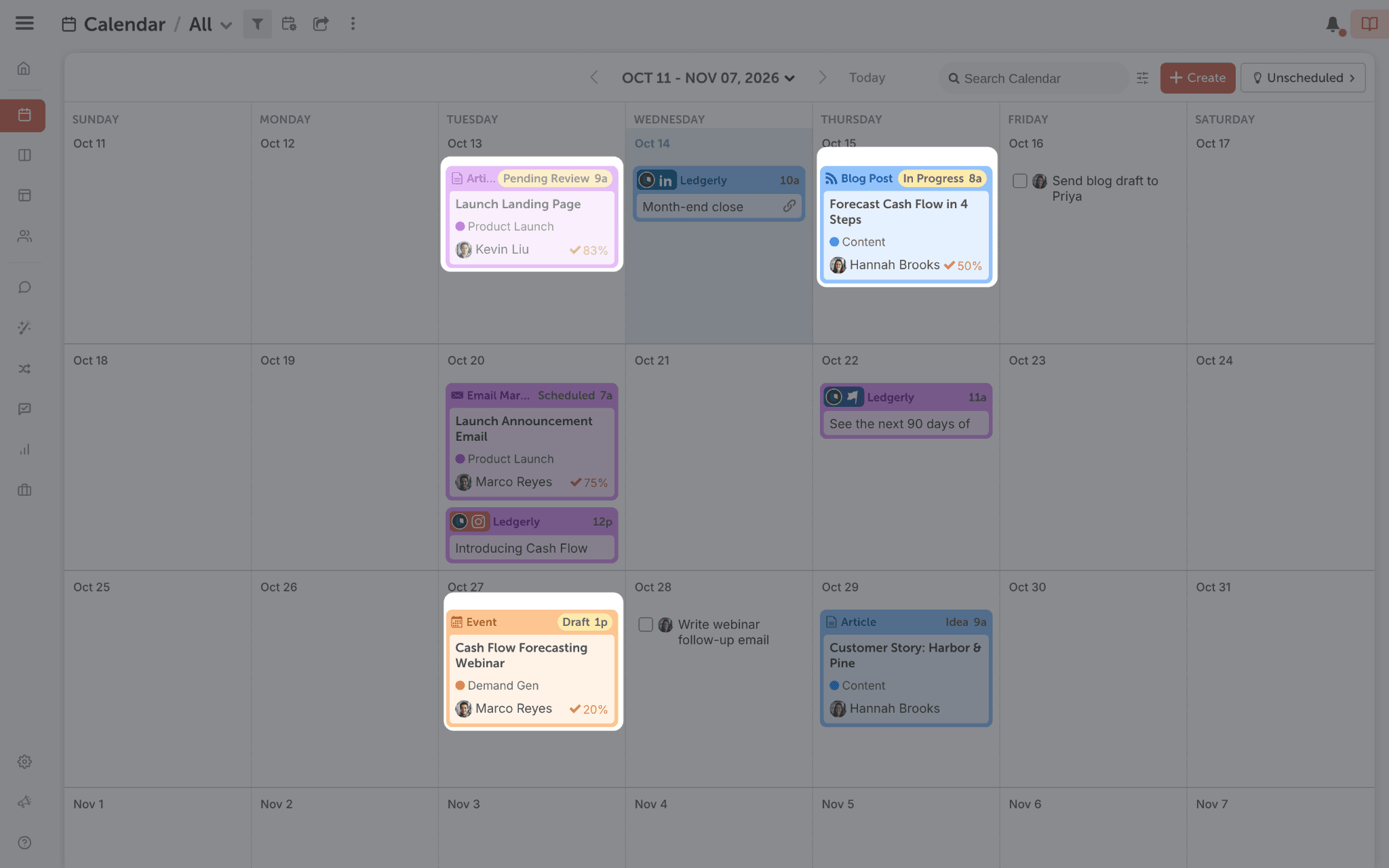
You can see your team's full list of color labels inside any project. Ask your admin what each color means on your calendar.
Some teams also use tags, and Suite teams can add custom fields, to sort projects further. If yours does, your admin will show you how.
You're all set when you can spot a project, a task and a social message, and you know what your team's colors mean.
Next step: see what's waiting for you on your Home page in Chapter 2.