

Getting Started With Your CoSchedule Calendar for Marketing Team Members
Start Your Day From the Home Page
In This Lesson
The Home page is the first thing you see in CoSchedule. It shows the work your team has assigned you, so start here each day.
See What's Yours
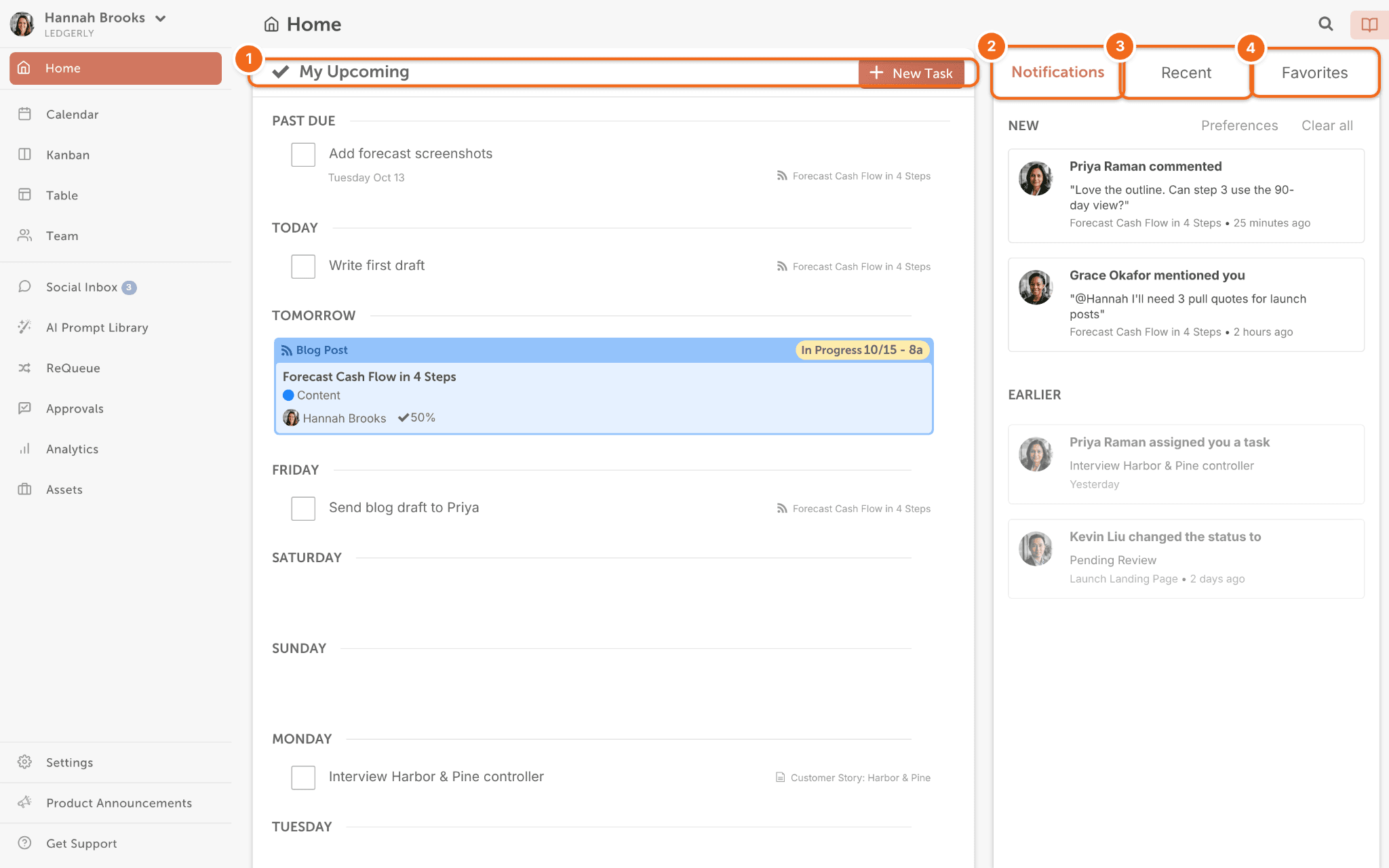
The Home page, labeled Home in CoSchedule, has four areas.
- My Upcoming: your tasks and projects. Click one to open it.
- Notifications: new comments and activity on your projects.
- Recent: projects you've opened lately.
- Favorites: projects you've saved for quick access.
Snag: if My Upcoming is empty, you haven't been assigned anything yet. Ask your team lead.
You're all set when you've opened one task from My Upcoming.
Choose Your Notifications
CoSchedule tells you when someone assigns you work or comments on it. To choose which alerts you get:
- At the top of the left sidebar, click your name or photo.
- Choose My Account. This opens the Account Details page.
- Under My Notification Preferences, check the notifications you want in the Web App, Email or Browser column.
- Uncheck the ones you don't want.
For more, see Manage notifications and unsubscribe from emails.
Next step: find your work on the calendar in Chapter 3.