

Work Through Your First Project
In This Lesson
- Open a Project
- Complete Your Tasks
- Comment and Share Files
- Add a New Project
- Reschedule Your Work
- Projects, Tasks & Campaigns
The fastest way to learn CoSchedule is to use it. In this chapter, you'll open a project you've been assigned and finish your part.
Open a Project
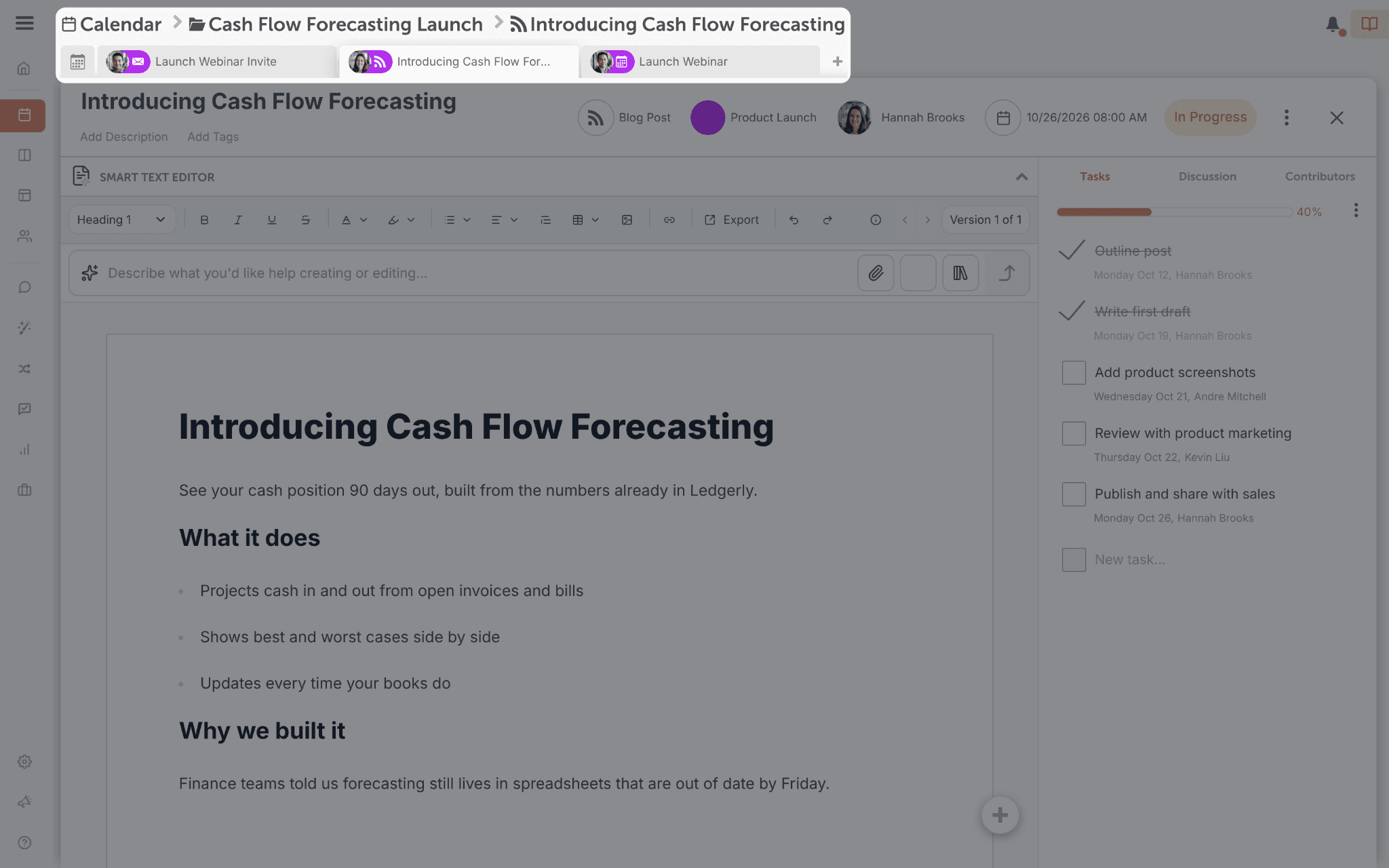
A project holds everything for one piece of work: its date, its tasks, its comments and its files. Go to your Home page and click a project in My Upcoming.
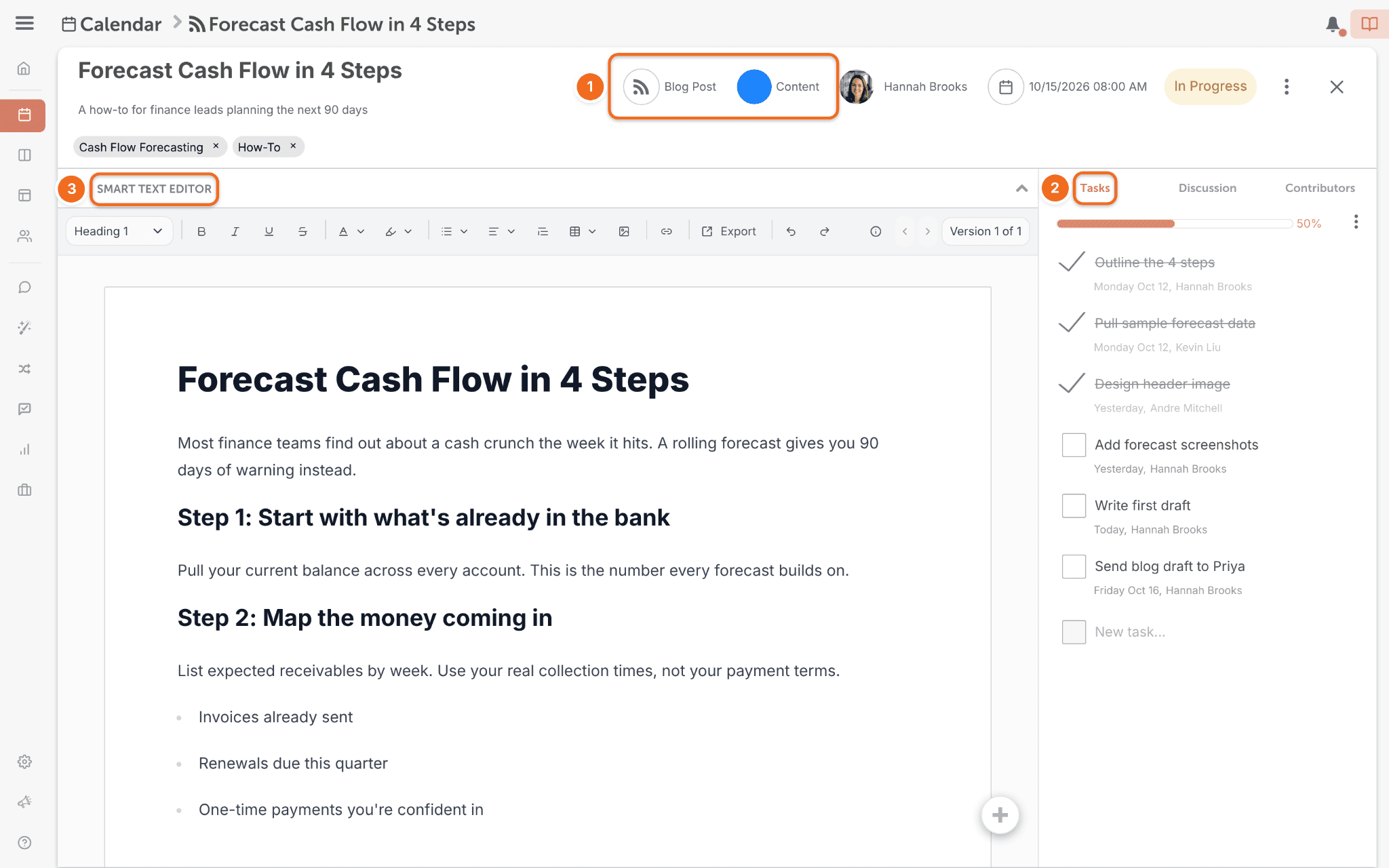
Here's what to look for:
- Color label and project type: which team or channel it's for, and what kind of work it is.
- Tasks: the to-dos for this project. Each one belongs to the project, and the ones assigned to you also show on your Home page.
- Attachments: the files and docs for this work, like a brief or a draft.
Complete Your Tasks
Tasks are the to-dos inside a project. When you finish yours, your team can see the work moving.
- In the project, find the task assigned to you.
- When the work is done, check the box to the left of the task.
You're all set when you've completed one task.
Comment and Share Files
Keep questions and files on the project, so nobody has to dig through email.
Comment: type in the project's discussion. Type @ and a name to get a teammate's attention.
Share a file: add it to the project as an attachment, so everyone works from the latest version.
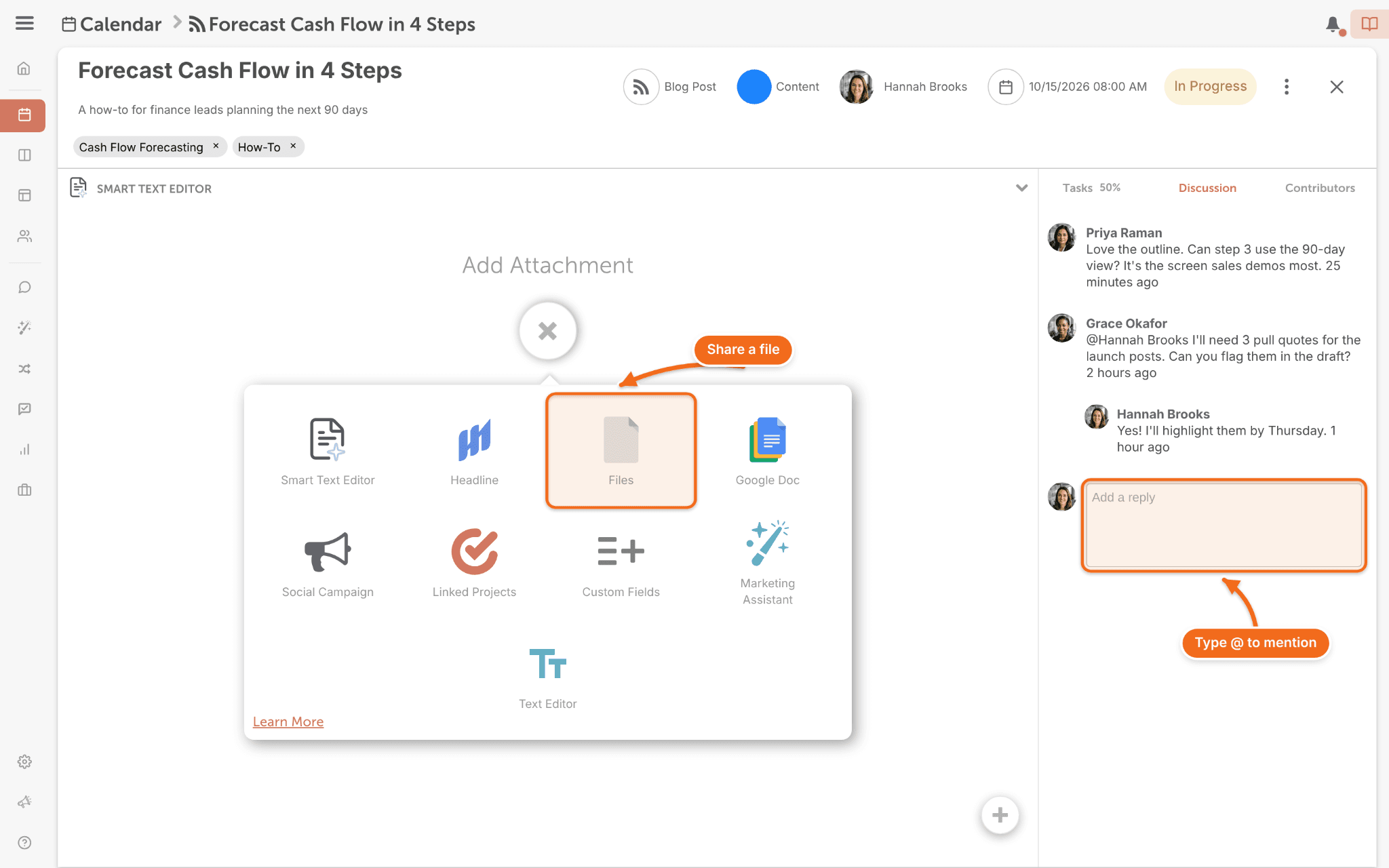
You're all set when you've left one comment on your project.
Add a New Project
- On your calendar, click + Create, or the + on a date.
- Select Project.
- Enter a title.
- Add labels.
- Choose an owner.
- Set the date.
- Click Create.
For more, see Create a project.
Reschedule Your Work
Plans change. Drag a project to a new day on the calendar, and tasks scheduled around its date move with it.
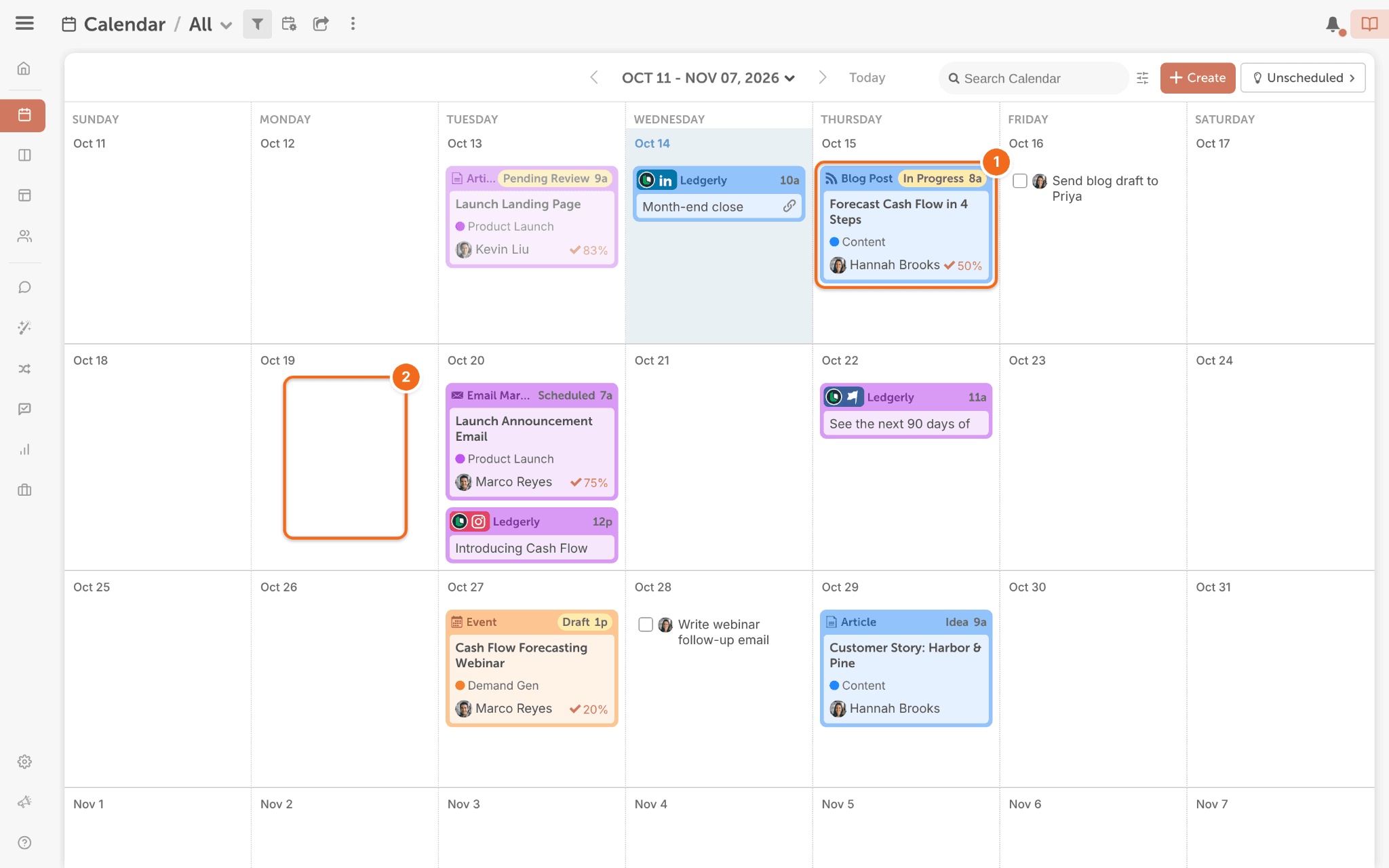
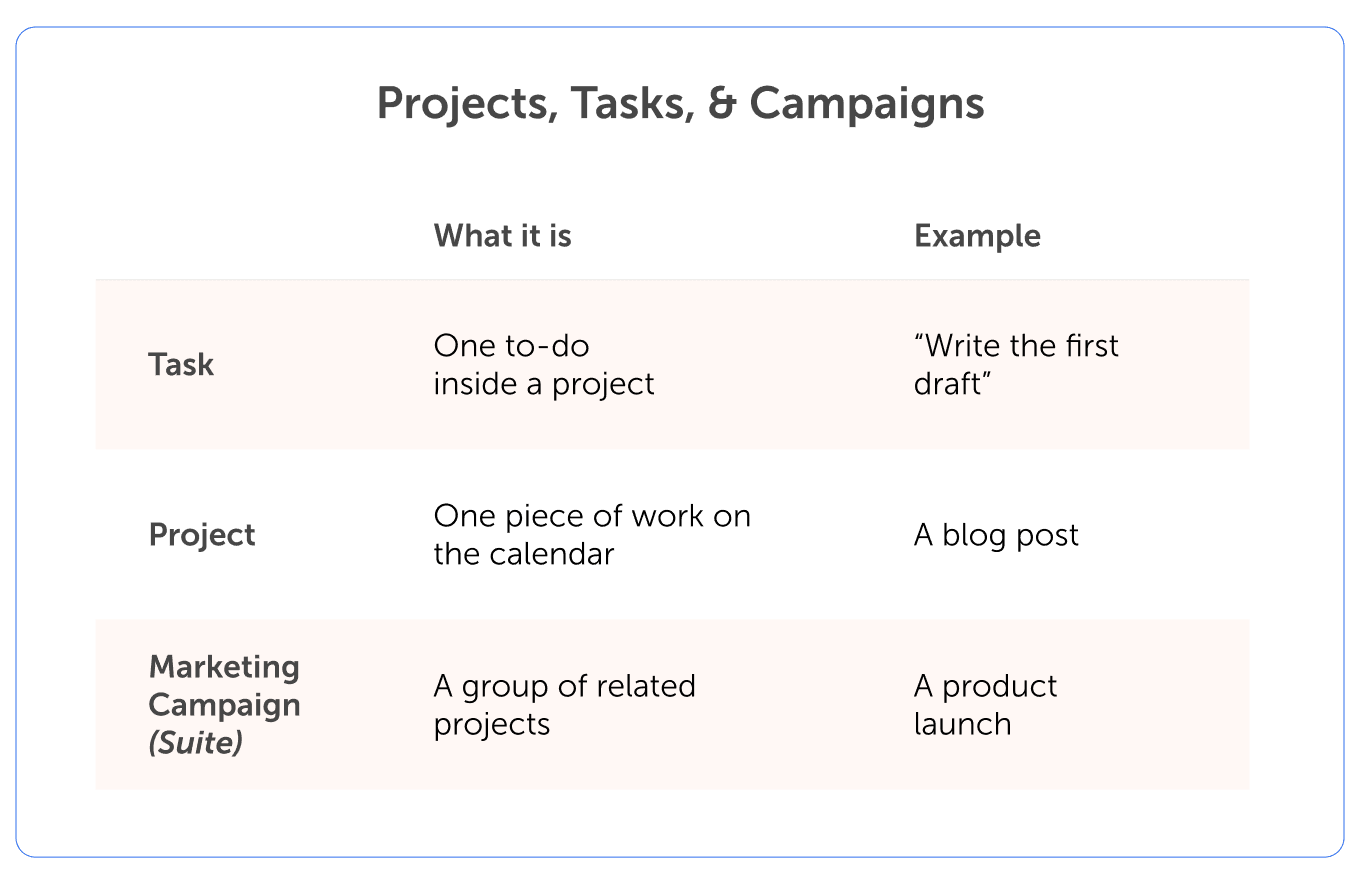
Projects, Tasks & Campaigns
Here's how the pieces fit together.
Next step: if you help with social media, go to Chapter 5. If not, skip to Chapter 6.