

Find Your Work on the Calendar
In This Lesson
The full calendar shows everything your team has planned. Here's how to get around it and how to see just your own work.
Get Around Your Calendar
When you open the calendar, you'll start in the All view: every project, task and post your team has planned.
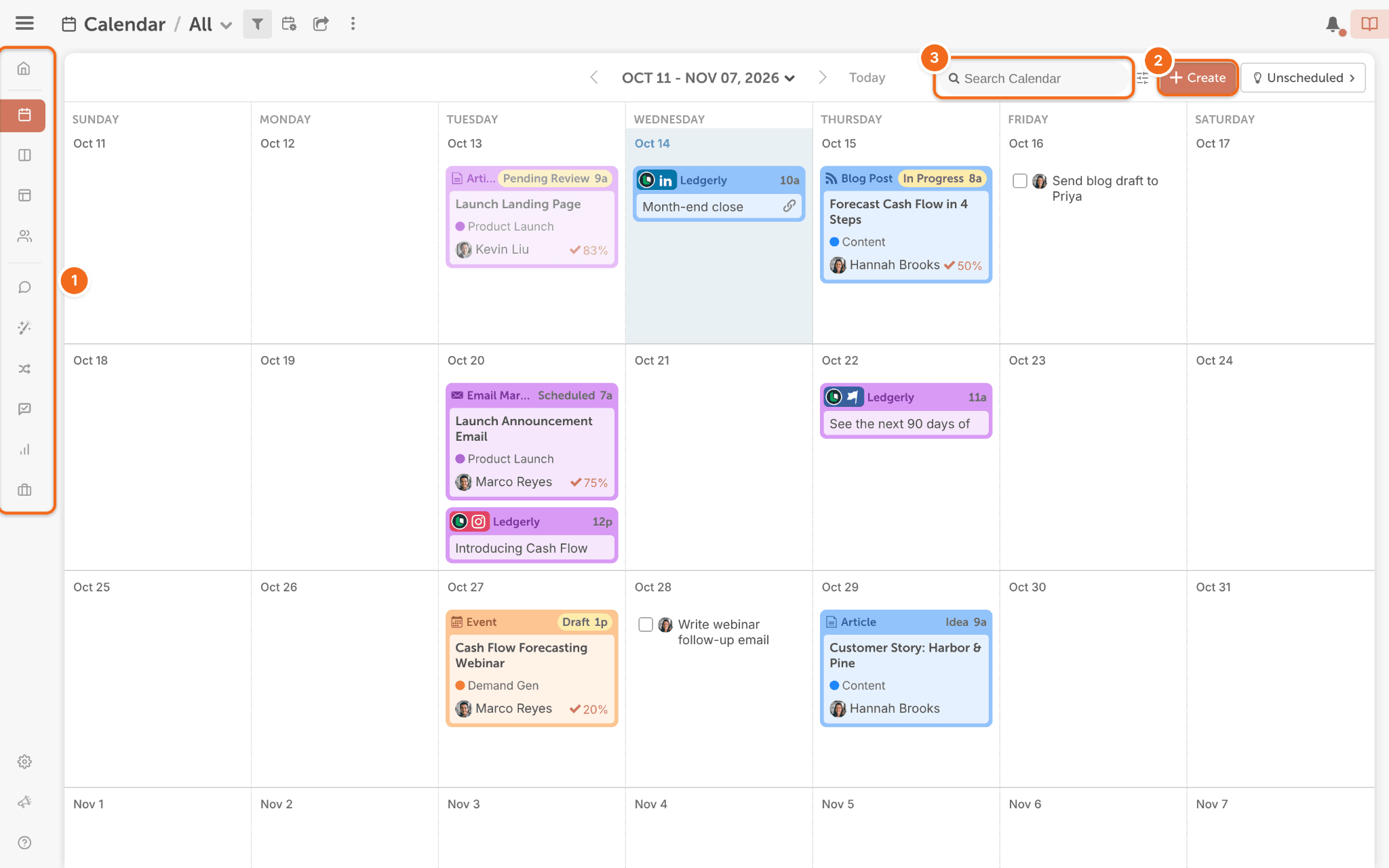
- Left-side menu: switch between your Home page, the calendar and other views.
- + Create: add something new. You can also click + on any day.
- Search Calendar: find a project by name.
You're all set when you've found one project with search.
Save a View of Just Your Work
A busy team calendar can be a lot. A saved view filters it down to what matters to you.
Your admin may have already set up views for your team, so check your saved views before you create your own.
- Click Create New View.
- Name it "My Work."
- Filter by team member, and choose yourself.
- Click Save View.
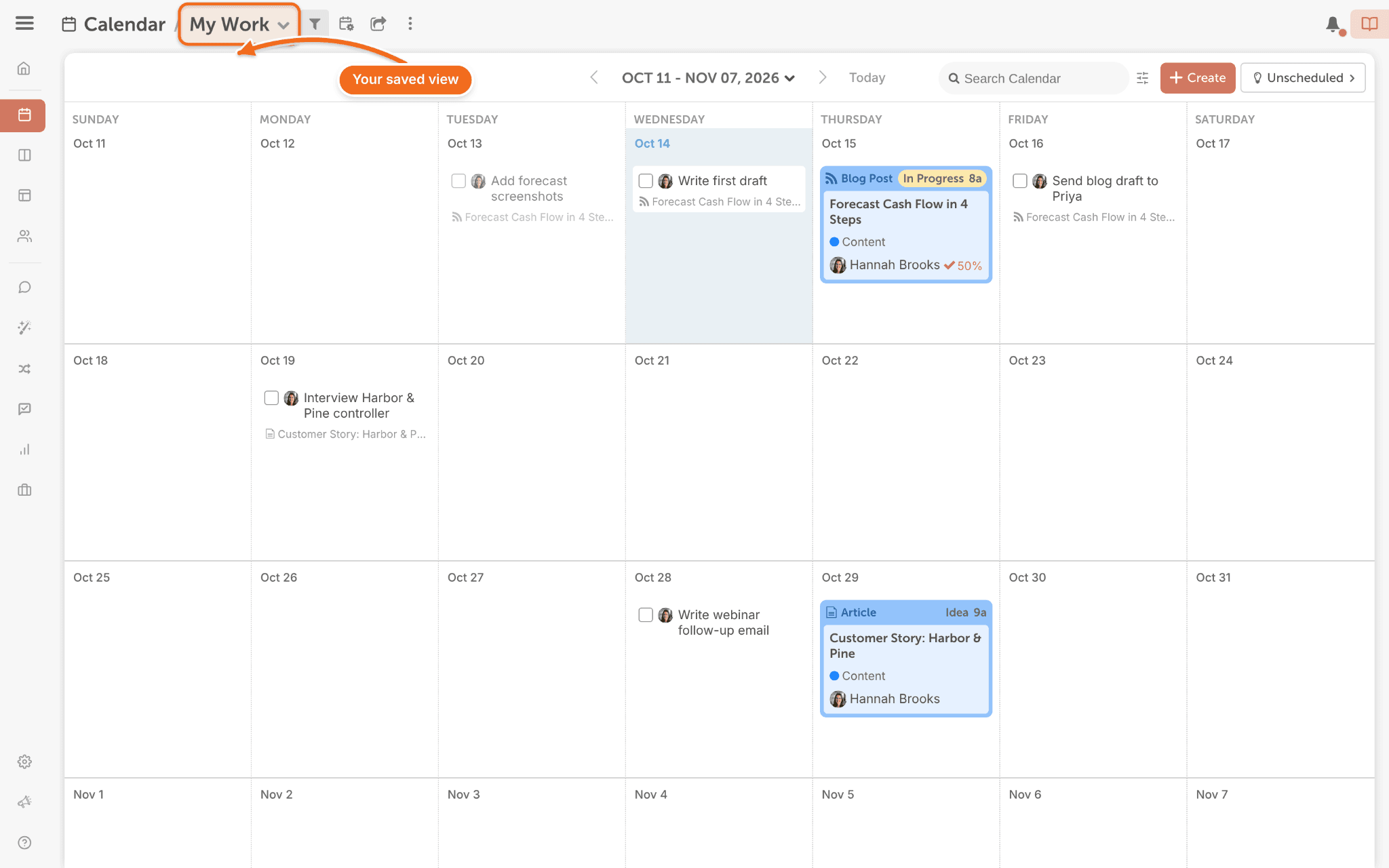
For more, see Save and manage calendar views.
You're all set when you can open your "My Work" view in one click.
Other Views Your Team Might Use (Suite)
Some teams also use Kanban (a board view), Table (a list view) or the Team Management Dashboard (each person's tasks and projects). If your team does, you'll find them in the left-side menu.
Next step: open a project and get to work in Chapter 4.