
Connect a social profile to your calendar to schedule and publish social messages to it, or remove one you no longer use. The Owner, Managers and Admins can connect profiles; only the Owner and Managers can remove them. This works on every plan, up to the number of social profiles your plan includes.
Team members with the User role can't open calendar Settings, so they can't connect or remove profiles. If you can't see Social Profiles, ask your calendar's Owner to change your role.
Add a social profile
Some networks have extra requirements, such as an admin role on a Facebook Page or Super Admin on a LinkedIn Page. Check Social networks and account types you can connect first.
- Open a private or incognito browser window.
- In one tab, log in to the social account you want to connect.
- In another tab of the same window, log in to CoSchedule.
- Open Settings.
- Click the Social Profiles tab.
- Click Connect Social Profile.
- Select the network.
- If you're asked for an account type, choose it, such as Facebook Page or LinkedIn Company.
- Follow the prompts to log in and give CoSchedule access to the account.
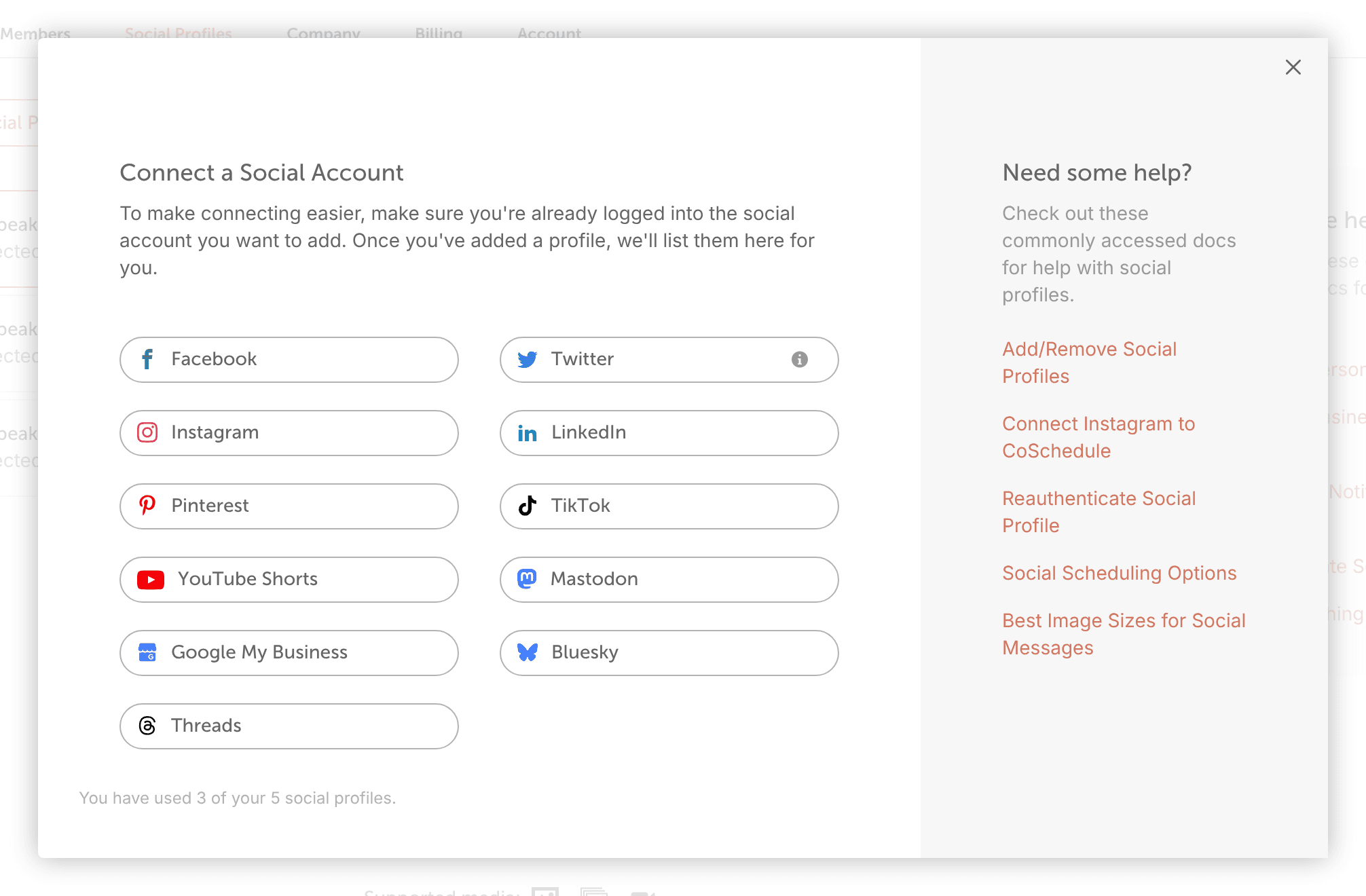
In the network list, X is listed as Twitter, Google Business Profile as Google My Business, and YouTube as YouTube Shorts.
Each account, Page or channel you connect counts as one social profile toward your plan's limit. A Facebook Page and an Instagram account count as two.
If the account you want isn't listed or you see an error, open the connect article for that network under Learn more. Each one has the network's own fixes.
Remove a social profile
Removing a profile deletes its scheduled, sent and ReQueue messages and its social template messages in CoSchedule. Delete Profile from Calendar removes them from this calendar; Delete Profile from Organization removes them from every calendar. The confirmation shows how many scheduled, sent and ReQueue messages will be deleted. Posts already published stay on the network.
- Open Settings.
- Click the Social Profiles tab.
- From the left-side menu, click the profile you want to remove.
- Scroll to the bottom of the page. Click Delete Profile from Calendar to remove the profile from this calendar, or Delete Profile from Organization to remove it from every calendar.
- When asked "Are you sure you want to remove this profile?", type DELETE PROFILE to confirm.
Planning to lower the number of social profiles on your plan? Remove the extra profiles here first.
Learn more
- Social networks and account types you can connect
- Reconnect a social profile
- Connect a Facebook Page
- Connect an Instagram Business or Creator account
- Connect a LinkedIn profile or Page
- Connect an X (Twitter) account
- Group social profiles to schedule to several at once
- Team member roles
- What each CoSchedule plan includes
- Upgrade, downgrade or change your billing cycle