

Manage Conversations With Social Inbox
In This Lesson
Once your posts go out, people respond. This chapter shows you how to reply to comments, messages and mentions without leaving CoSchedule, and how to keep up with a simple routine.
4.1 Manage Conversations With Social Inbox
Social Inbox is CoSchedule's unified social inbox. It brings comments, direct messages and mentions from your connected profiles into one inbox, so you can reply without opening each network.
- If Social Inbox isn't on yet, open Settings, then Power Ups, and click Enable Social Inbox.
- Open Social Inbox from the left-side menu.
- Click a conversation to read it and reply.
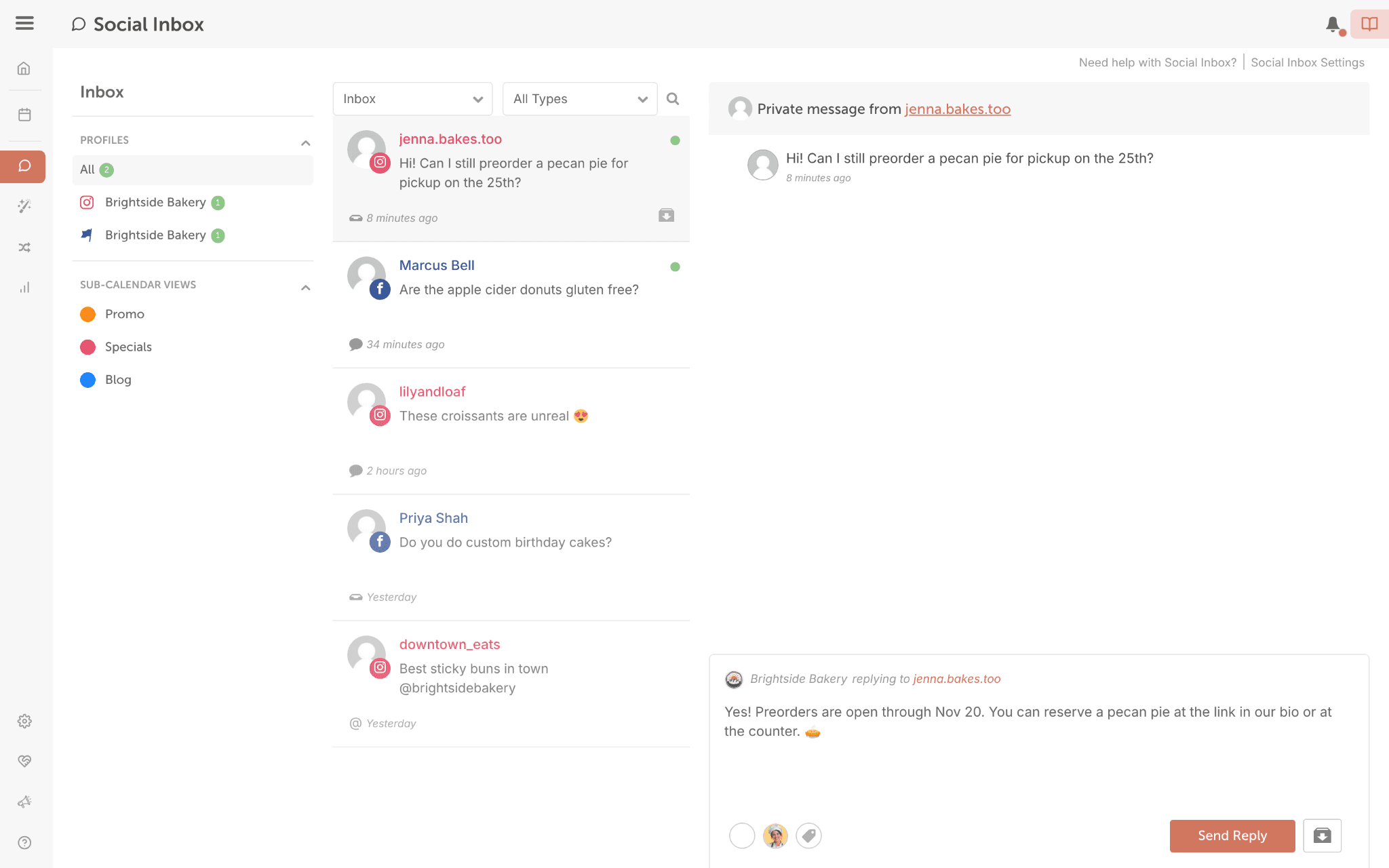
Reply quickly. Facebook and Instagram give you 24 hours to answer a direct message.
Stay organized. Archive conversations you've finished, so what's left is what still needs you. To group conversations, add tags or color labels from the bottom left of an open conversation.
Plan note: on Starter, Social Inbox covers Facebook and Instagram. Professional and Suite add more networks, plus Saved Replies, internal discussions with your team and AI replies.
For more, see Getting Started with Social Inbox.
You're all set when Social Inbox is on, and you've answered or archived one conversation.
4.2 Create a Social Inbox Workflow
A few minutes a day in Social Inbox keeps your audience from waiting. Here's a routine you can copy.
- Check at the same time each day. A repeating task on your calendar makes a good reminder. See Create Tasks.
- Answer direct messages first, then questions and complaints in comments.
- Reuse and share (Professional and Suite). Click Saved Replies for answers you give often, and type @ in the discussion tab to ask a teammate.
- Archive what's done. An empty inbox means you're caught up.
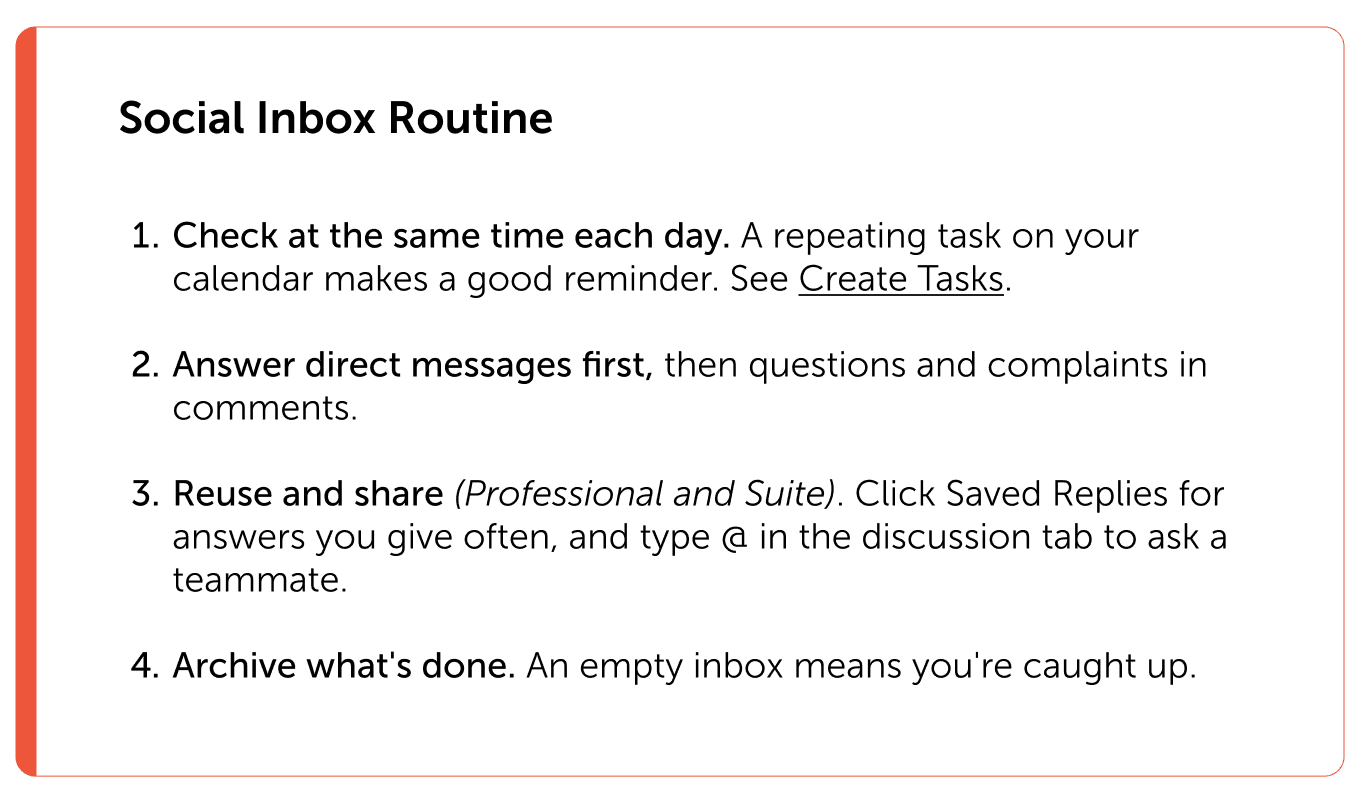
You're all set when a daily reminder is on your calendar, and nothing in your inbox still needs a reply.
Next step: see what's working in Chapter 5.