

Measure Your Social Performance
In This Lesson
- 5.1 Understand Your Social Analytics
- 5.2 Analytics That Improve Your Social Strategy
- 5.3 Turn Your Data Into Next Steps With AI Insights (Professional and Suite)
- 5.4 Your Monthly Social Media Review
See how your posts are doing, and use what you learn to plan next month.
5.1 Understand Your Social Analytics
Social analytics, CoSchedule's social media reports, show how your posts and profiles are doing, so you can see what your audience responds to.
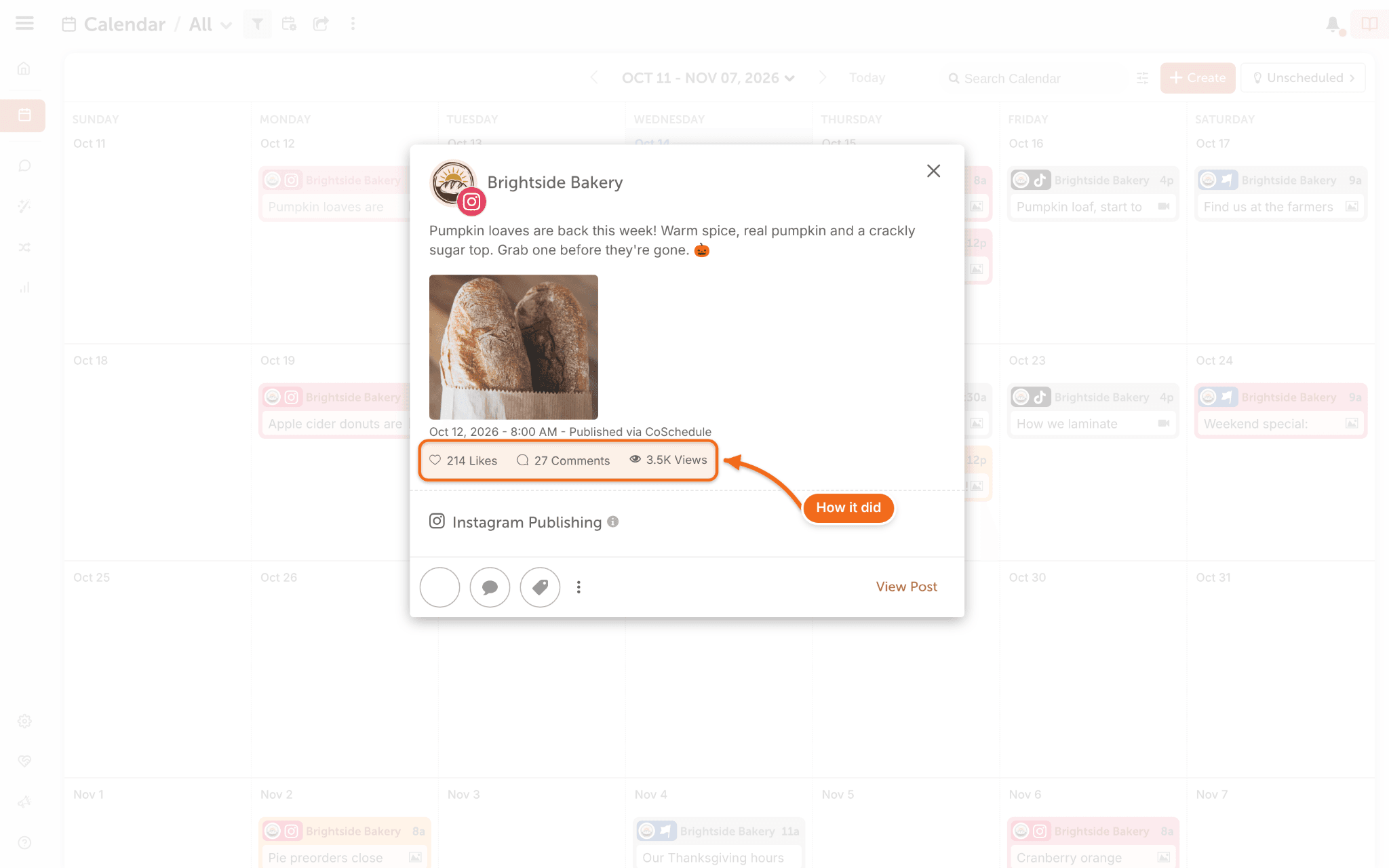
Where to look: open any published post on your calendar to see how it did, or click Analytics in the left-side menu for full reports.
What to look at first: your most engaging posts, and which networks respond the most. A post's numbers keep updating for days after it goes out, so give new posts time.
For more, see Social Profile Reports.
You're all set when you've opened one report and found last month's most engaging post.
5.2 Analytics That Improve Your Social Strategy
Reports are only useful if they change what you post next. Here's how to turn yours into next month's plan.
Spot the pattern. Look at what your best posts have in common, like the topic, the format or the network.
Do more of it. Add your best evergreen posts to ReQueue (see 2.5), and turn campaigns that worked into templates (see 2.4).
Plan ahead. Take what you learned back to your calendar for next month.
You're all set when you've written down one thing to do more of and one thing to try differently.
5.3 Turn Your Data Into Next Steps With AI Insights (Professional and Suite)
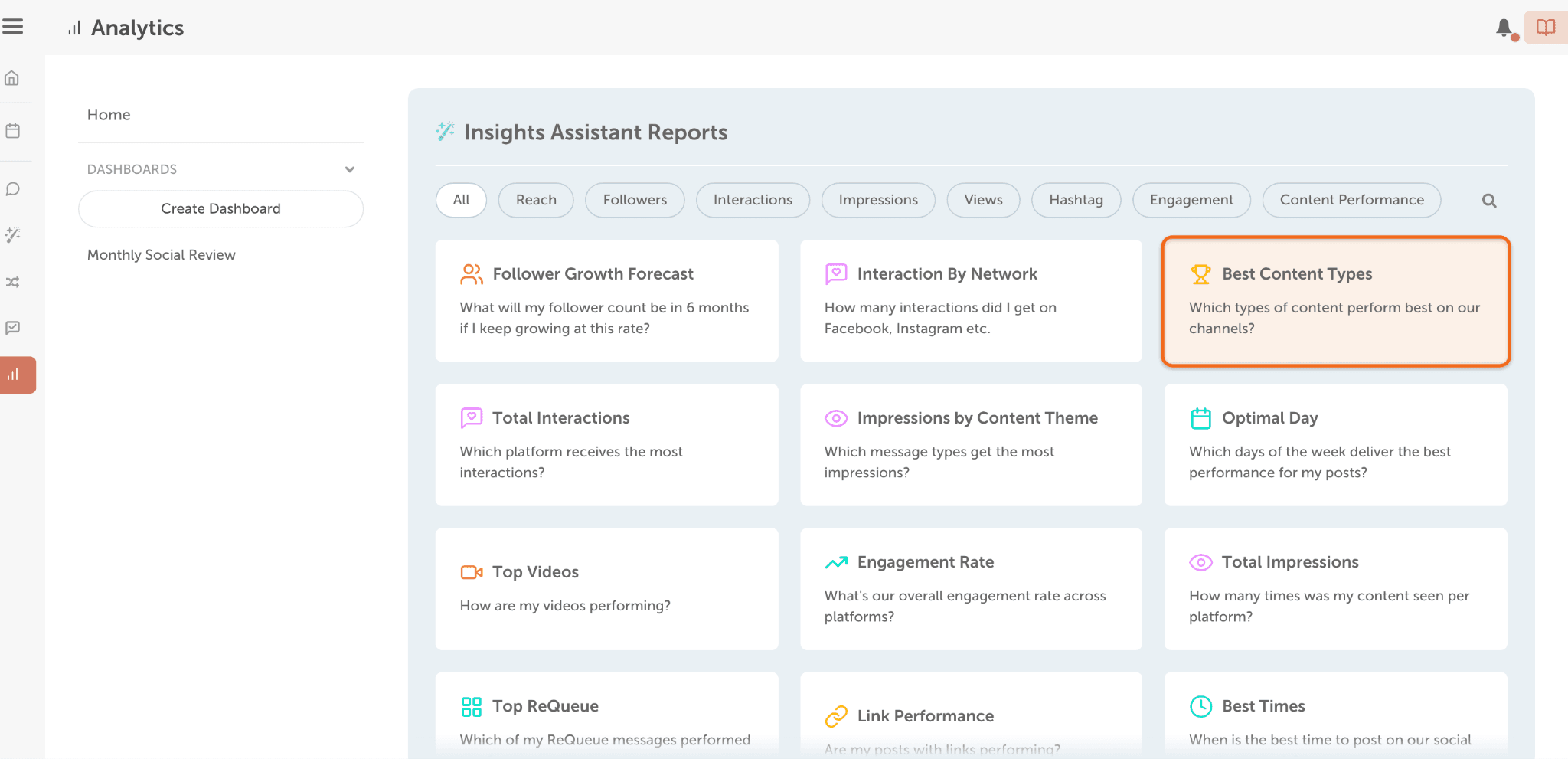
AI Insights, CoSchedule's AI analytics assistant, reads your social metrics and tells you what they mean and what to try next. In the app, you'll find it as an Insights Assistant. It's included on Professional and Suite.
What you get: a chart with a plain-language explanation and suggested next steps.
- Click Analytics in the left-side menu.
- Pick one of the ready-made prompts. There's nothing to write.
- Read the recommendations, choose one, and make that change on your calendar, like scheduling more of a post type that works.
Keep the charts you care about. From a chart's menu, choose Add To Dashboard to build your own dashboard.
See Insights Assistant Reports and Customizable Insights Dashboard.
You're all set when you've run one prompt, acted on one recommendation and saved one dashboard.
5.4 Your Monthly Social Media Review
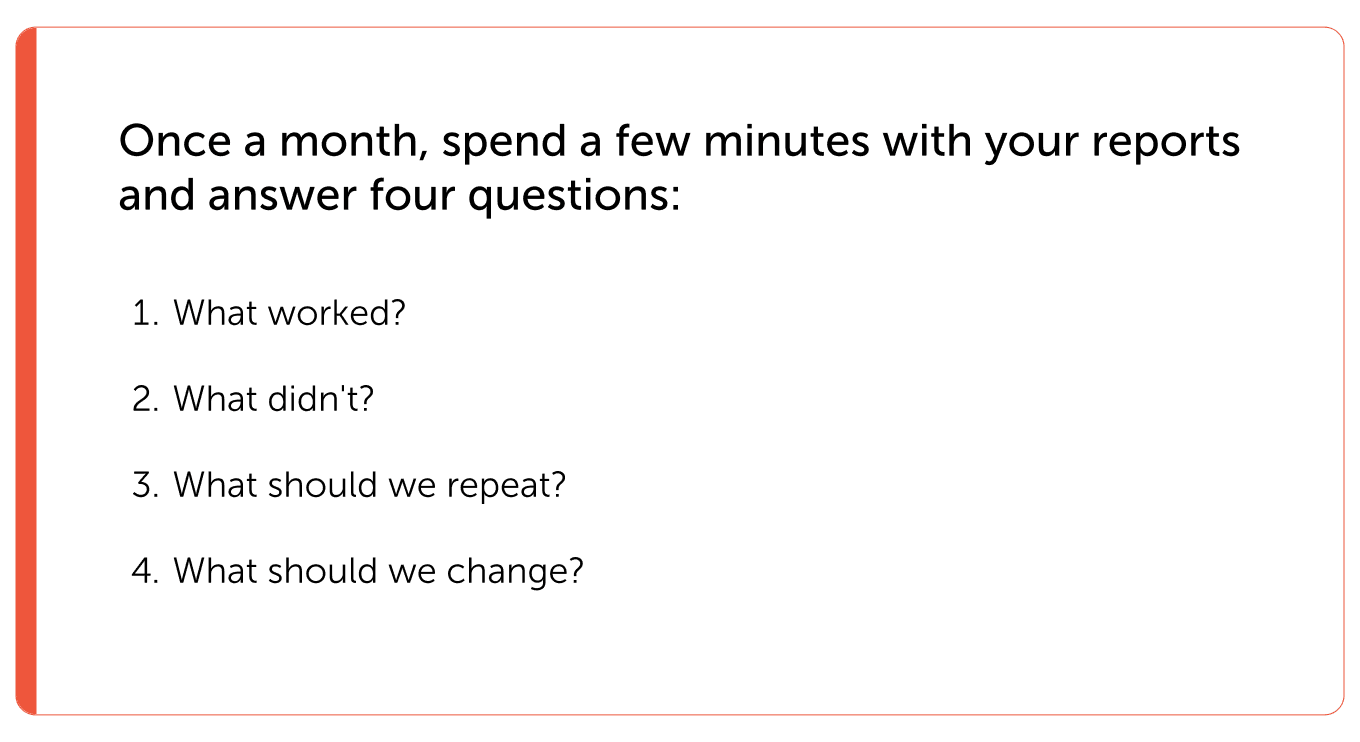
Once a month, spend a few minutes with your reports and answer four questions: What worked? What didn't? What should we repeat? What should we change?
Make it a habit. Add a monthly repeating task to your calendar.
Have the report come to you. You can schedule a report to arrive by email each month. See Export Analytic Reports.
You're all set when your first monthly review is on the calendar, and your monthly report is scheduled.
You've finished the guide. Your profiles are connected, your posts and campaigns are scheduled, your inbox has a routine and your first review is planned. Next step: open your calendar and plan next month, starting with what worked.