
A marketing campaign groups related projects, such as everything for a product launch, a trade show or a holiday promotion, on a calendar of its own. Available on Suite.
Marketing campaigns group projects. To group social messages instead, use a social campaign. See Create a social campaign.
Create a marketing campaign
- From the calendar, click +Create.
- Select Campaign.
- Enter a title and a start date.
- Add an end date, label, tags or description if you want them.
- Click Create Marketing Campaign.
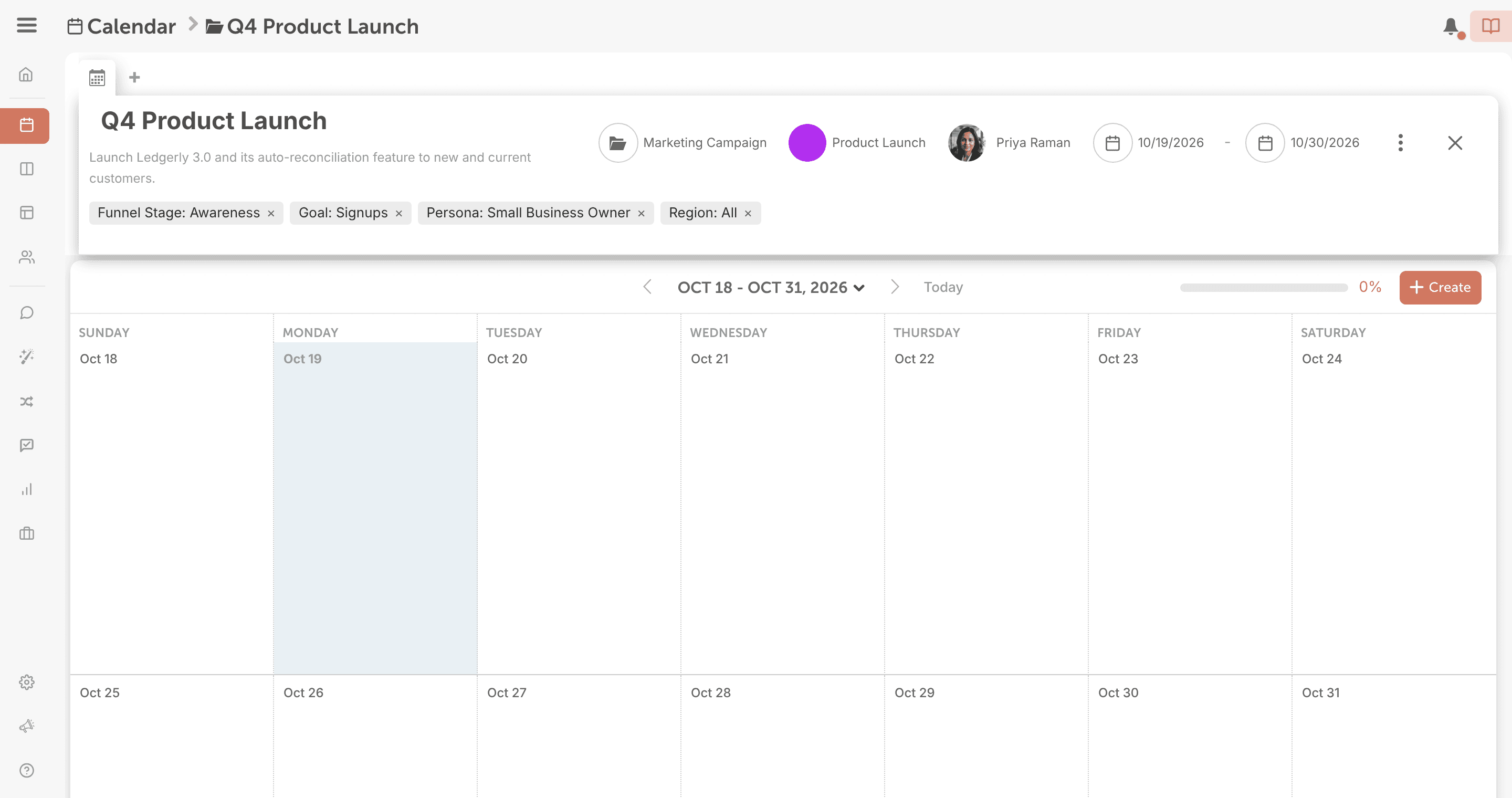
The campaign opens on its own calendar, ready for projects.
Add projects to the campaign
Projects you create on the campaign's calendar belong to the campaign and start with the campaign's color label.
To add an existing project from your main calendar to a campaign:
- Open the project.
- Open the project's three-dot menu.
- Choose Add to Campaign. The Add to Marketing Campaign window opens.
- Search for the campaign and select it.
Only projects can move between your main calendar and a campaign. Social messages, tasks, events and notes on your main calendar stay there.
Work inside a campaign
Inside a campaign, use the project selector to switch between the campaign's projects.
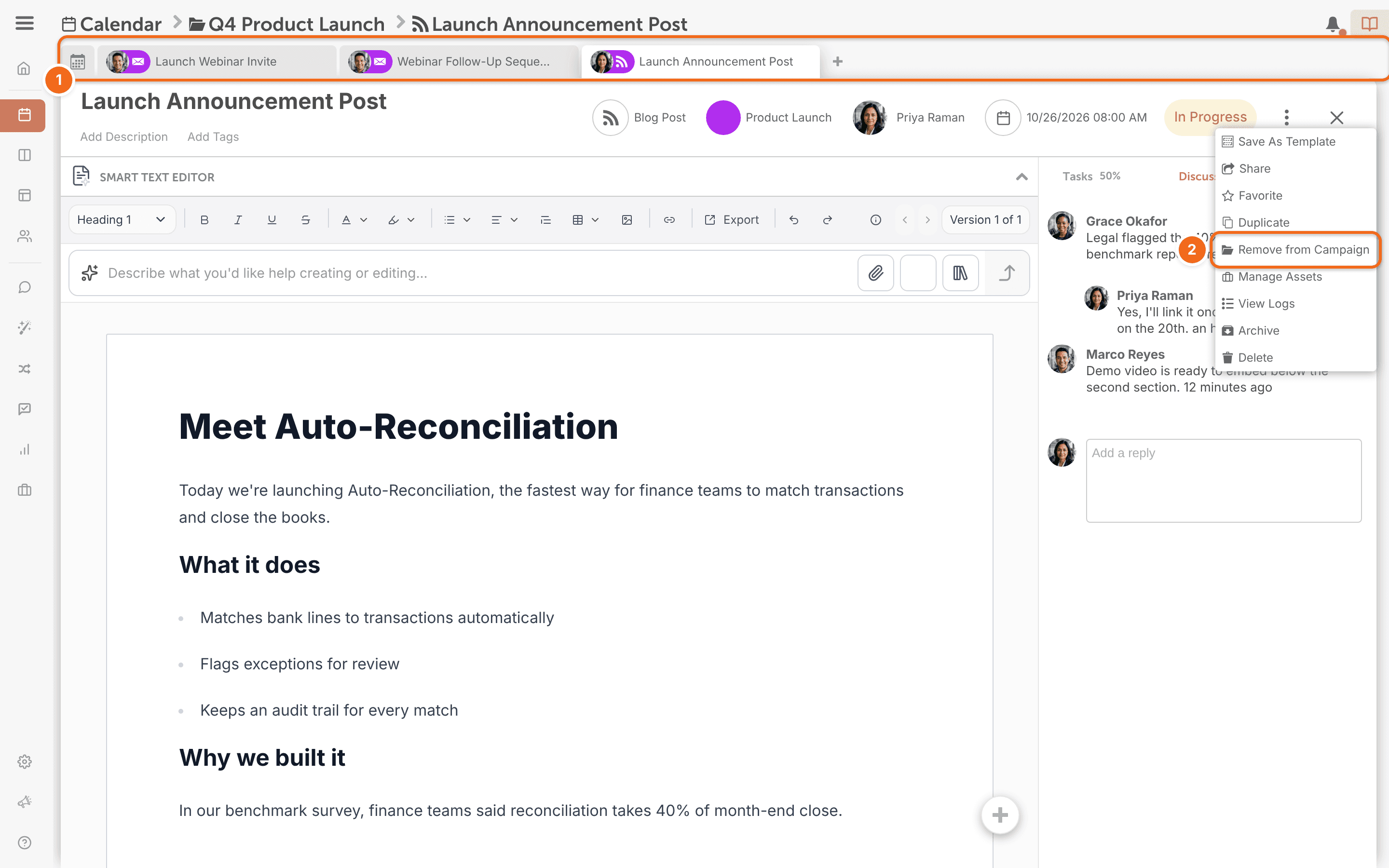
To take a project out of the campaign, open the project's three-dot menu and choose Remove from Campaign.
There's no option to move a project straight from one campaign to another. Remove it from its campaign, then add it to the other campaign.
To change how the campaign's calendar is shown, use the view switcher: Grid or Agenda. Agenda lists every item in the campaign by date. Whether you have Agenda depends on your plan. A campaign with nothing in it yet shows "No items have been added to this Campaign."
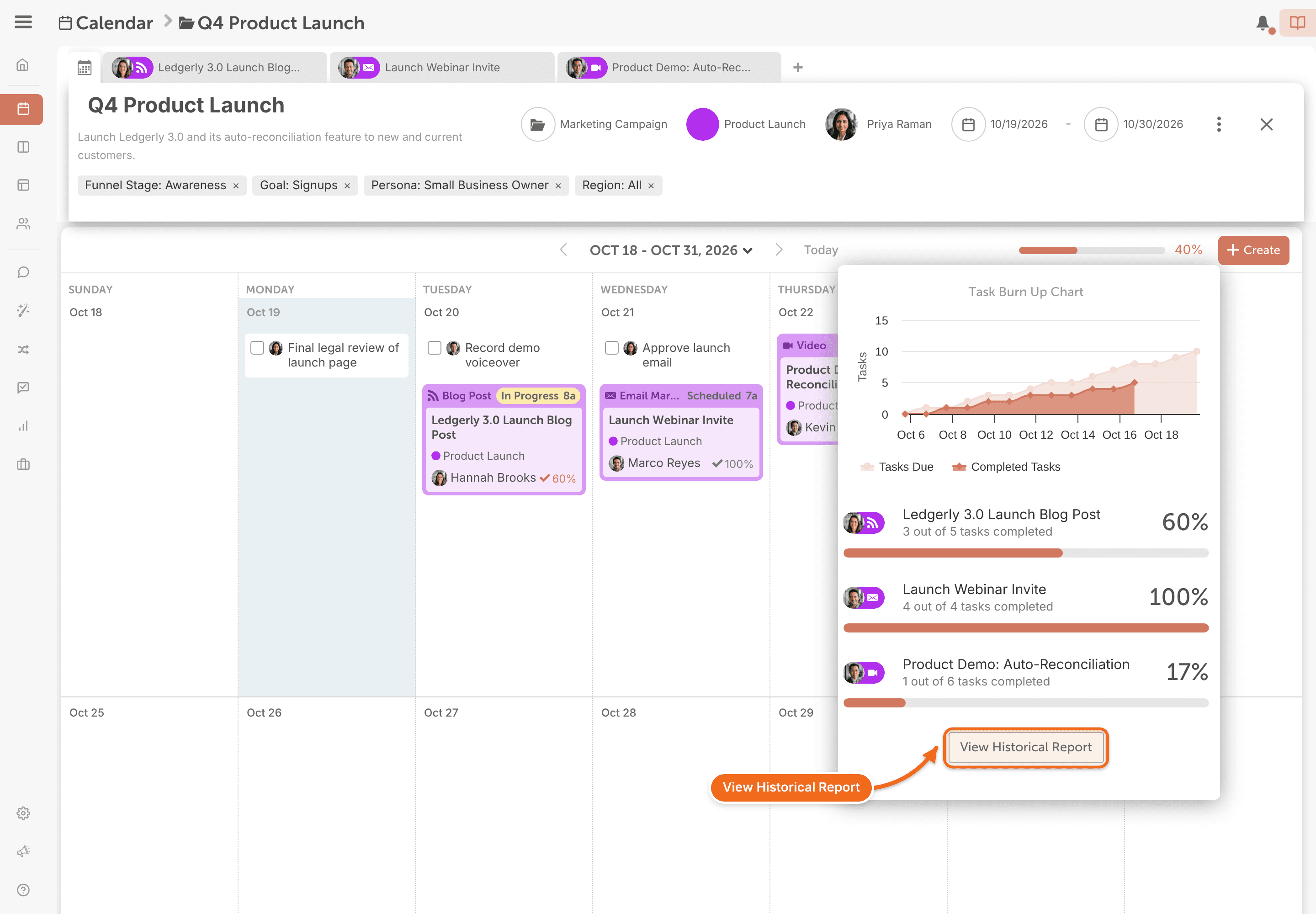
The campaign's calendar tracks the completion rate of all tasks in its projects, with the number and percentage completed shown in a burn-up chart. To see the full Team Performance Report, click View Historical Report.
Reschedule a campaign
Drag the campaign to a new date on your calendar. Projects, social messages, tasks and notes scheduled relative to the campaign move with it. These stay where they are:
- Social messages scheduled for a specific date.
- Tasks set not to reschedule automatically.
Delete a campaign
When you delete a campaign, CoSchedule asks whether to delete its projects too. To keep the projects, choose Delete Campaign only. The projects move to your main calendar.
Deleting a campaign together with its projects is permanent. The projects and their tasks and social messages are removed and can't be restored.
Common questions
Can I schedule projects outside the campaign's start and end dates?
Yes. The start and end dates show the campaign's timeline to your team. They don't limit when you can schedule its projects.
Do marketing campaigns have a status?
No. Campaigns don't have a status the way projects do. They always show on your calendar as active.
Do campaigns show up in calendar search?
Yes. Searching your calendar finds marketing campaigns. See Search your calendar.
Can I move a campaign to Ideas?
No. You can move projects to Ideas, but not marketing campaigns.
Can I share or duplicate a campaign?
Yes. You can share a campaign as a read-only view, and duplicate it like other items on your calendar. See Share a read-only view of your calendar and Duplicate anything on the calendar.