
Calendar Sync uses ICS links to bring events from Google Calendar, Outlook and other calendar apps into CoSchedule, and to send your CoSchedule projects and social messages out to them. Available on every plan, including the free plan.
Turn on Calendar Sync
- From your calendar, open Settings.
- Click Integrations.
- In the Tools section, click Calendar Sync.
- Click Enable.
Bring another calendar into CoSchedule
You need the other calendar's ICS link, sometimes called its iCal address. You get it from the other calendar app: Google, Microsoft Outlook and Apple iCloud explain how.
- Go to Settings > Integrations > Calendar Sync.
- Click Add Calendar to CoSchedule, or pick one of the popular feed options.
- Enter the calendar's ICS link.
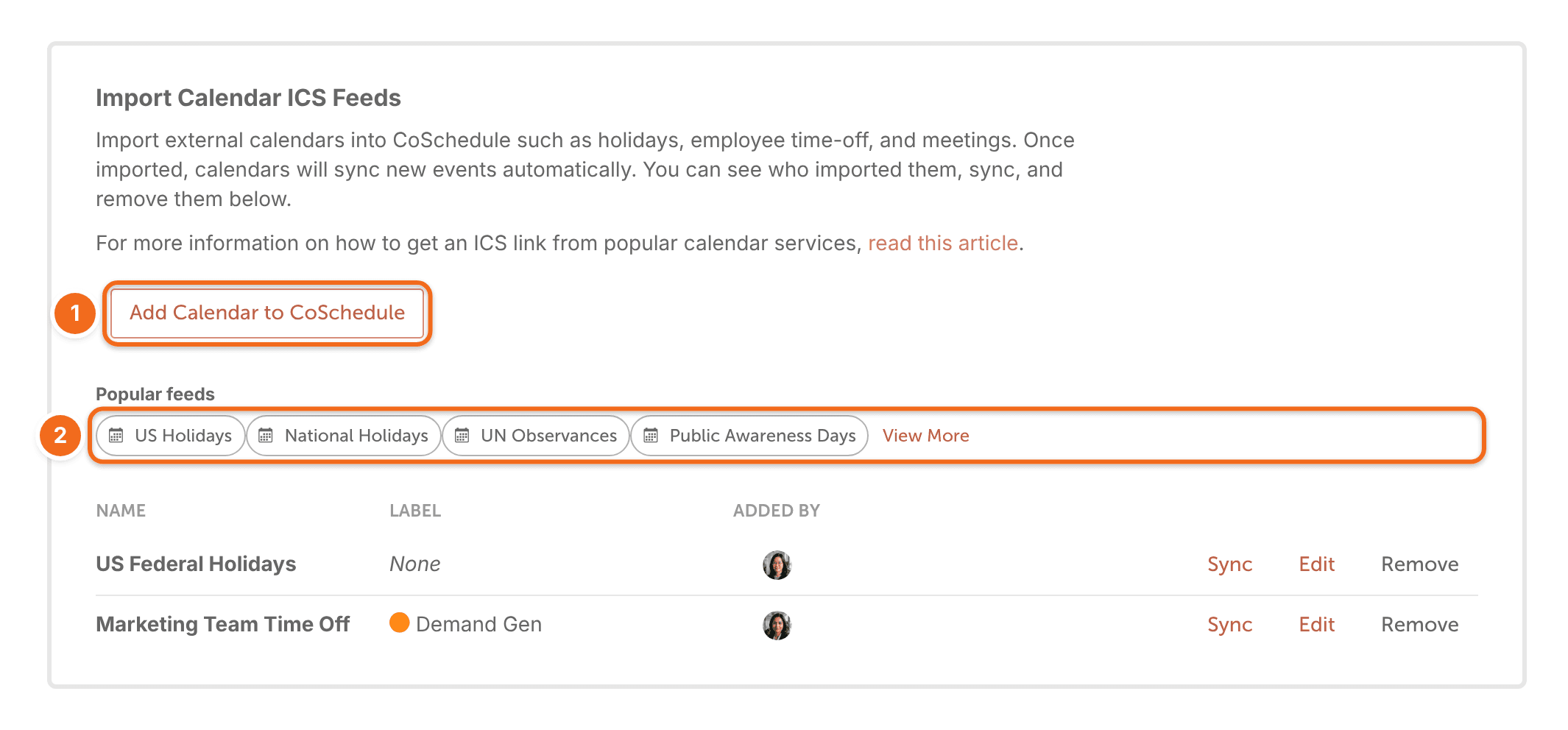
Add each calendar separately. CoSchedule imports single-day and multi-day events from today forward. Past events, recurring events, tasks and reminders aren't imported.
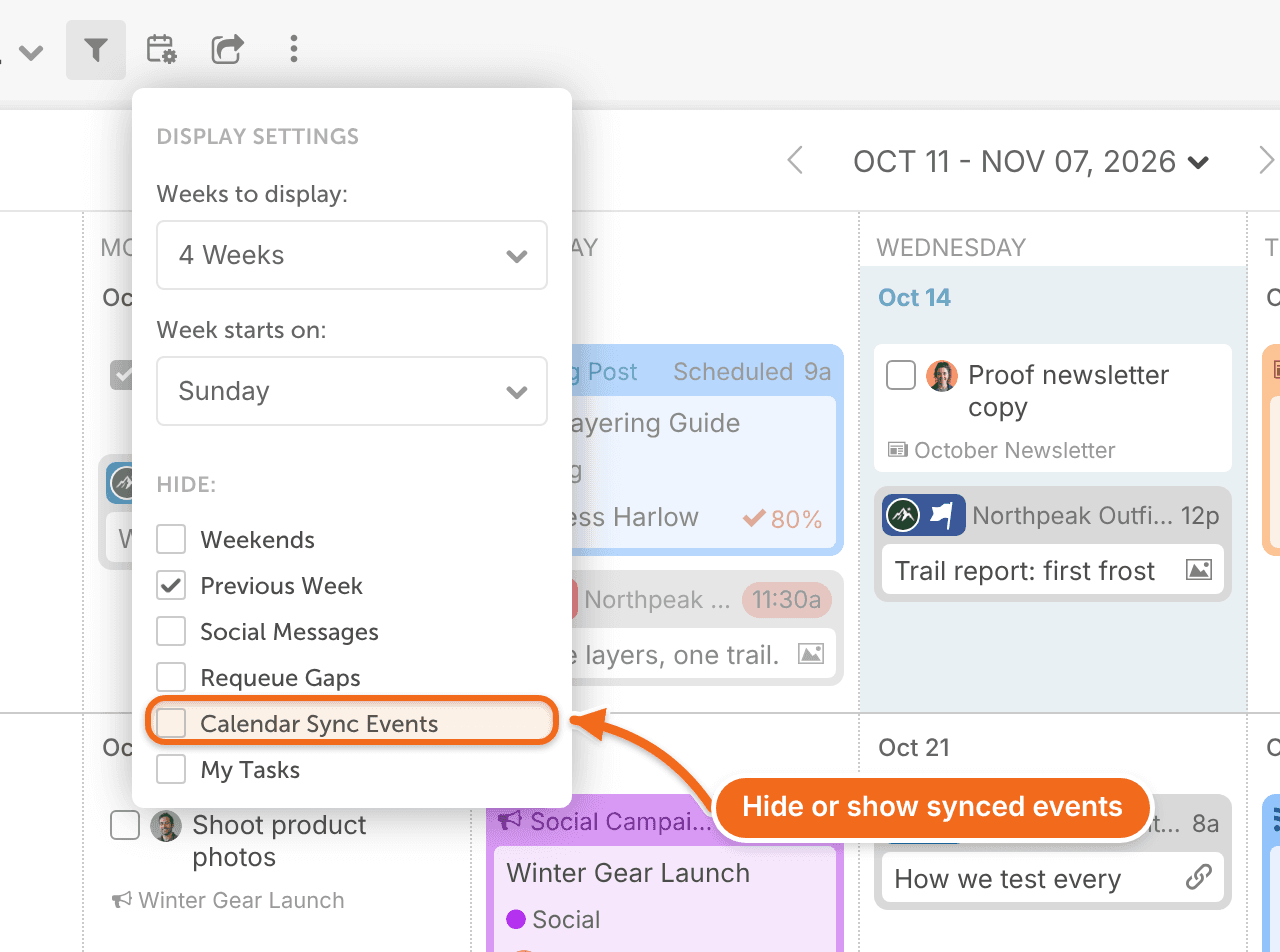
To hide synced calendars from view, use your calendar's display settings. See Change calendar display settings.
Send your CoSchedule calendar to another calendar
- Go to Settings > Integrations > Calendar Sync.
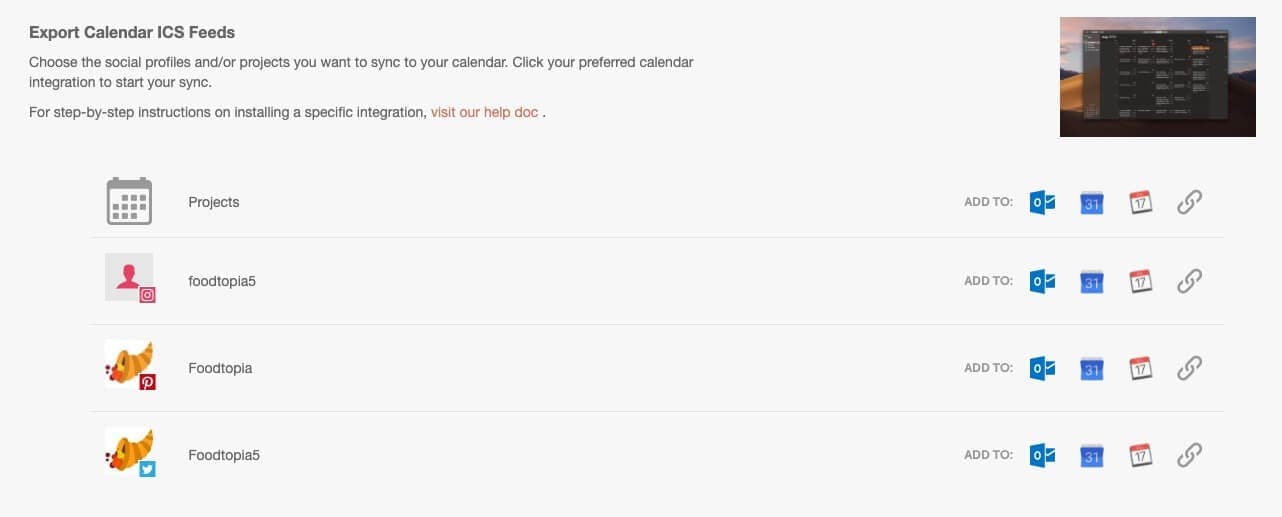
- Find the Export Calendar ICS Feeds step. It has one row for Projects, then one row for each social profile.
- On the row you want, next to Add To:, point at each icon to see its name. For Google Calendar, click Add to Google Calendar. Google Calendar opens in a new tab with the feed filled in.
- For Outlook or Apple Calendar, click Add to Outlook or Add to Apple Calendar. Both open the feed in whichever calendar app your computer uses for calendar links.
- For any other calendar app, or if Add to Outlook opens a different app, click the link icon (Copy ICS Link) instead. The link is copied to your clipboard rather than shown on screen, and the tooltip changes to Link Copied!.
- In your other calendar app, add a calendar from a URL and paste the link. Google and Microsoft explain how in their apps.
- The link includes items from two weeks back to 60 days ahead.
- Exported projects are read-only and don't show their tasks.
- Tasks and calendar events aren't exported.
Frequently asked questions
Does the sync happen automatically?
Yes. Once it's set up, it keeps updating on its own. It isn't instant: the other calendar app decides how often it refreshes a calendar it subscribes to, and that can take several hours. Mobile calendar apps can take longer.
Can I sync more than one calendar?
Yes. Add each calendar separately.
Can I share my calendar with people who don't use CoSchedule?
Yes. Besides Calendar Sync, you can share a read-only view of your calendar. See Share a read-only view of your calendar.