
The Kanban Dashboard shows your scheduled and unscheduled projects as cards in columns, so you can manage them all in one view. Available on Suite.
Open the Kanban Dashboard
- Open your calendar.
- Click Kanban in the left sidebar.
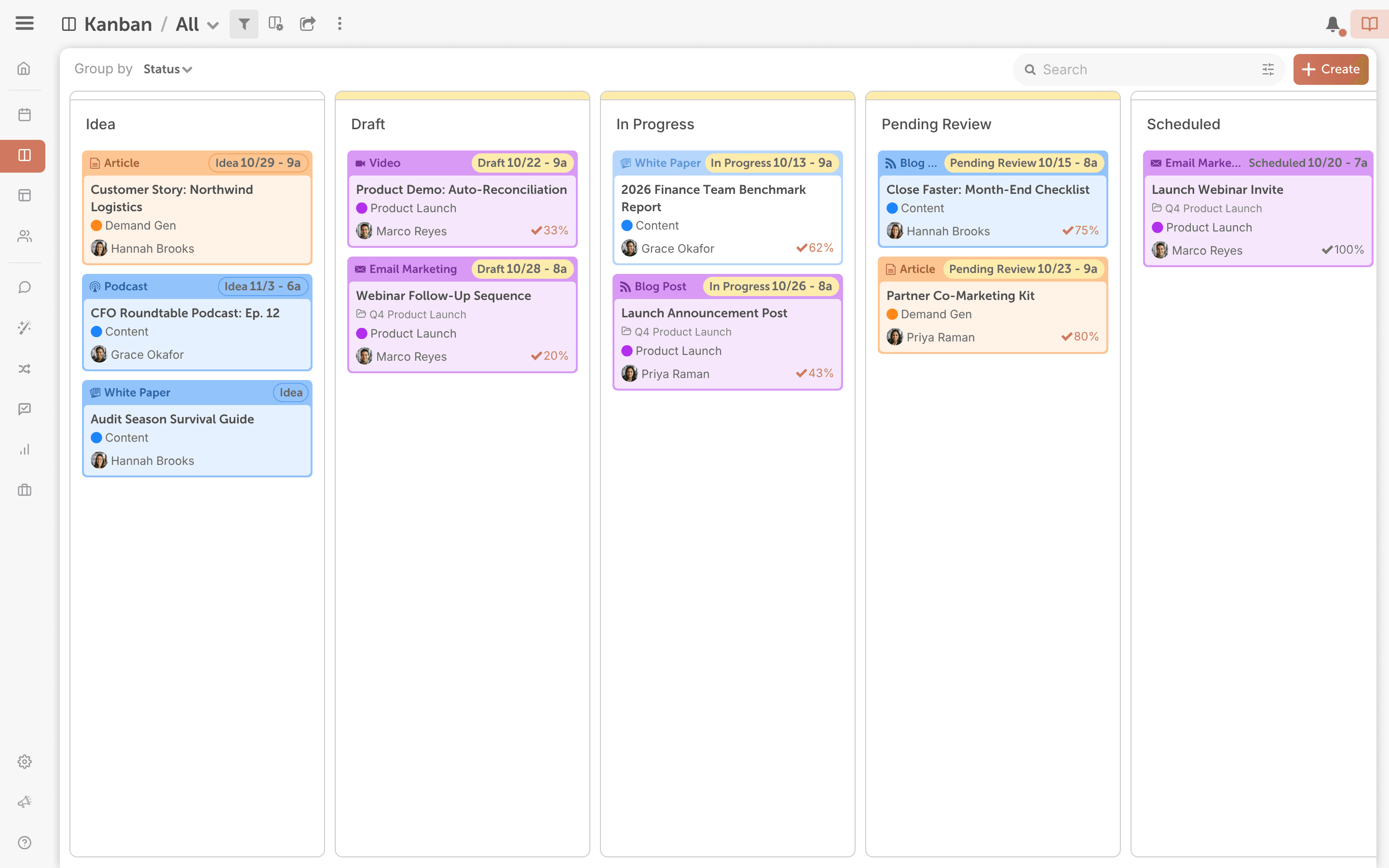
Projects submitted through request forms land on the Kanban Dashboard. See Set up request forms.
Group and move projects
- Click Display Settings in the top menu.
- Group projects by Color Label, Status or Type.
- Drag a project to another column to change its color label, status or type.
- Drag a project to the top of a column to give it a higher priority.
Filter and save a view
Like the calendar, the Kanban Dashboard can be filtered, and you can save a filtered view to jump back into it.
- Click the filter icon at the top of the page.
- Choose the filters you want.
- Name the view and click Done.
To learn what each filter shows, see Save and manage calendar views. The Team Member filter shows the projects a person owns, not projects where they're only assigned a task or added as a contributor.
To open the Kanban Dashboard with a saved view each time, open the saved views dropdown in the top bar, open that view's submenu and click Default View. Your default applies only to you and only to the Kanban Dashboard.
Share a view
- Open the view you want to share.
- Click the share icon at the top of the page.
- Turn on read-only sharing.
- Copy the link, or click Download PDF.
If projects are missing from the board
When a view matches 1,000 or more items, the Kanban Dashboard shows 100 projects, so the page loads quickly. If cards are missing or columns look empty, add filters to narrow the view:
- Filter by Status and leave out your published status, so finished work drops off the board.
- Filter by Created to show only projects created recently, such as this quarter.
- Save the filtered view and make it your default, so the board loads faster each time you open it.