
The Team Management Dashboard shows what everyone on your team is working on, day by day, so you can balance workloads and reassign work as plans change. It also works as a ready-made view for status meetings. Available on Suite.
Turn on the Team Management Dashboard
- From your calendar, open Settings.
- Select Power Ups.
- On the Team Management Dashboard tile, click Enable Team Management Dashboard.
- Click Team in the left sidebar to open the dashboard.
Read the dashboard
The dashboard shows each team member's tasks and a percentage breakdown of their projects. Drag any calendar item to reassign it to another team member or day.
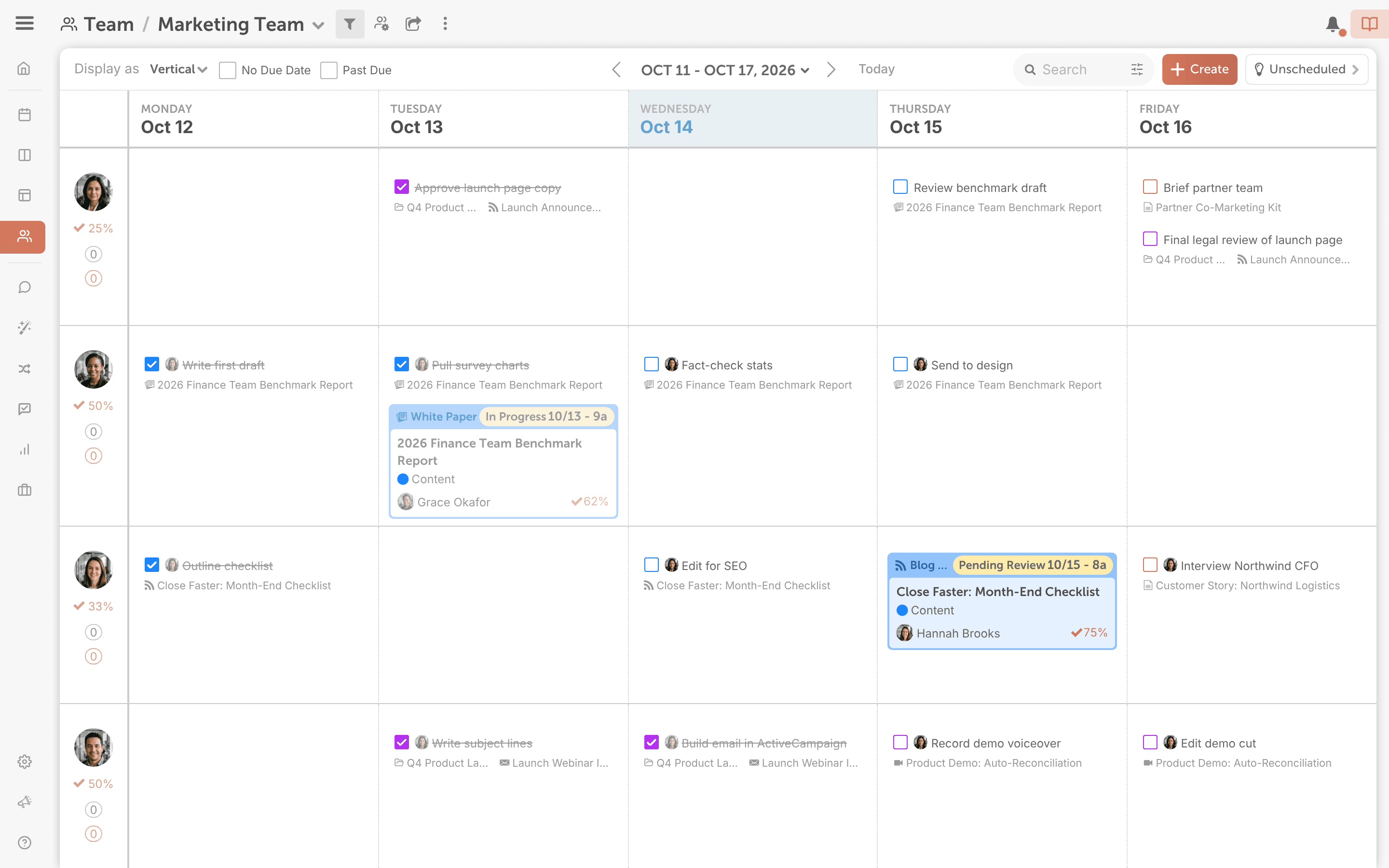
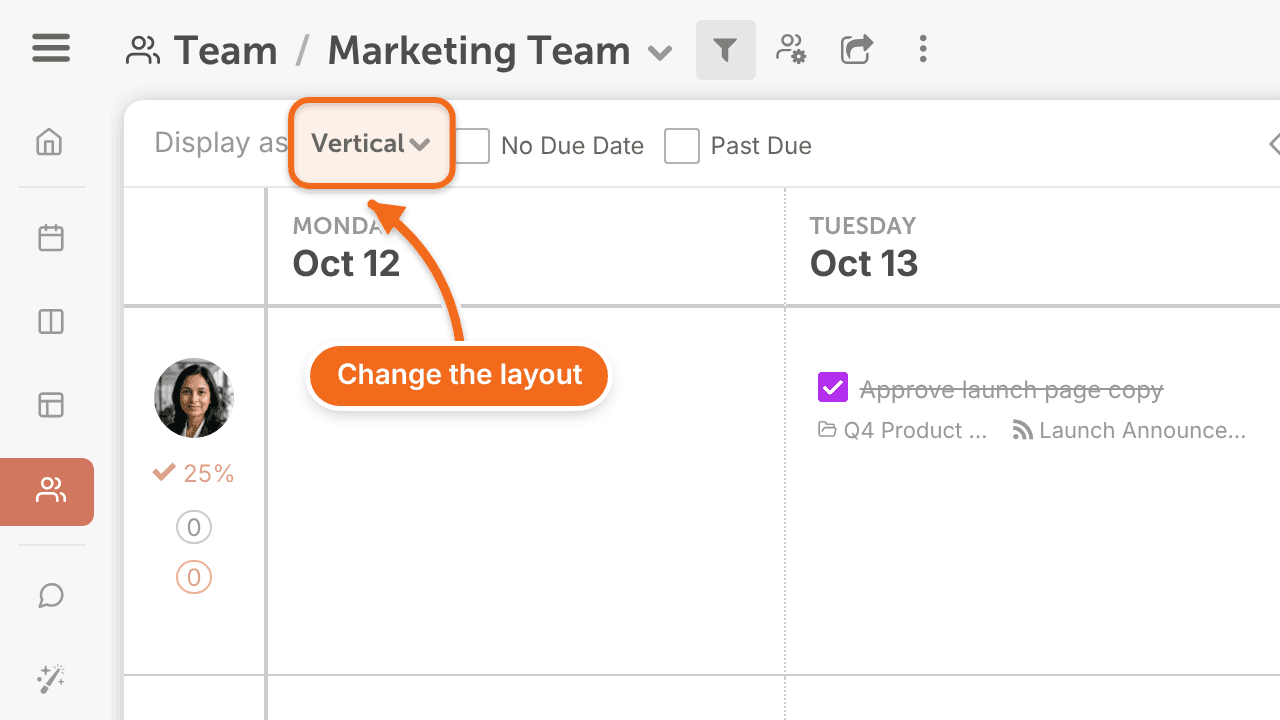
To change the orientation, open Display Settings and choose Horizontal or Vertical under Display Default:. The vertical orientation shows what's scheduled for each day.
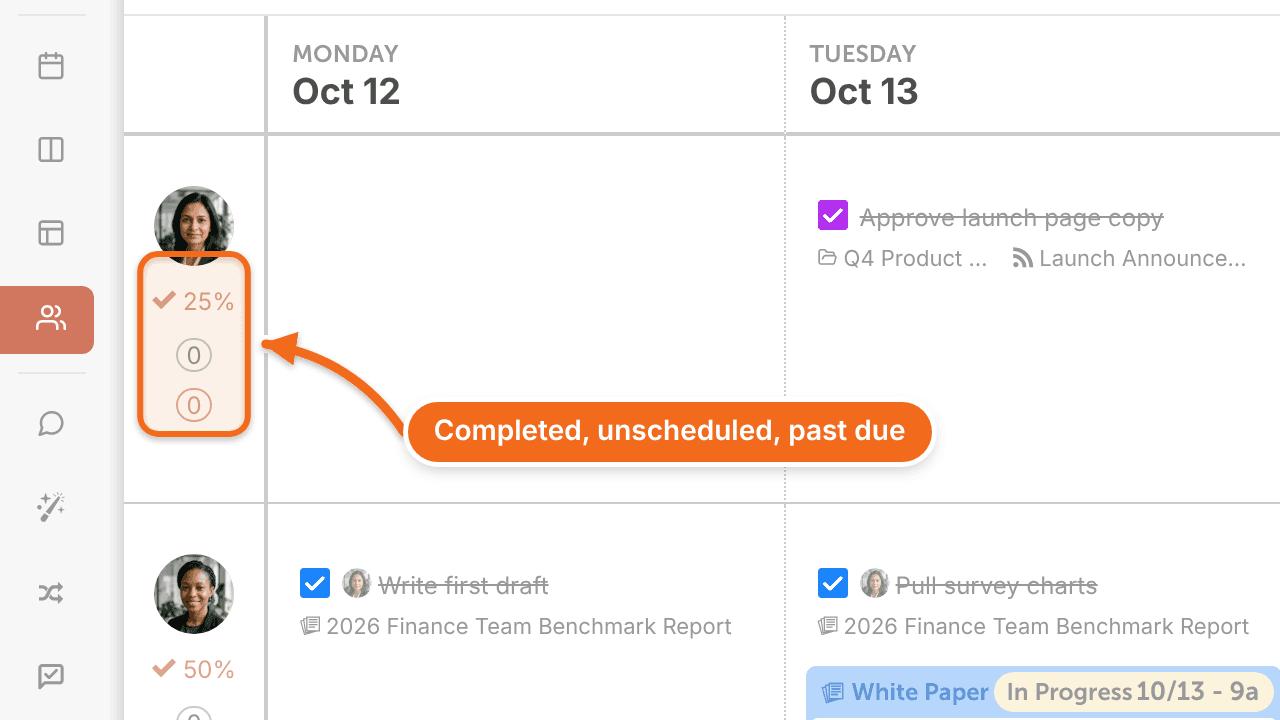
Next to each team member, you'll see how many unscheduled, past due and completed tasks they have in the time frame. Click a team member to see their full Task Report.
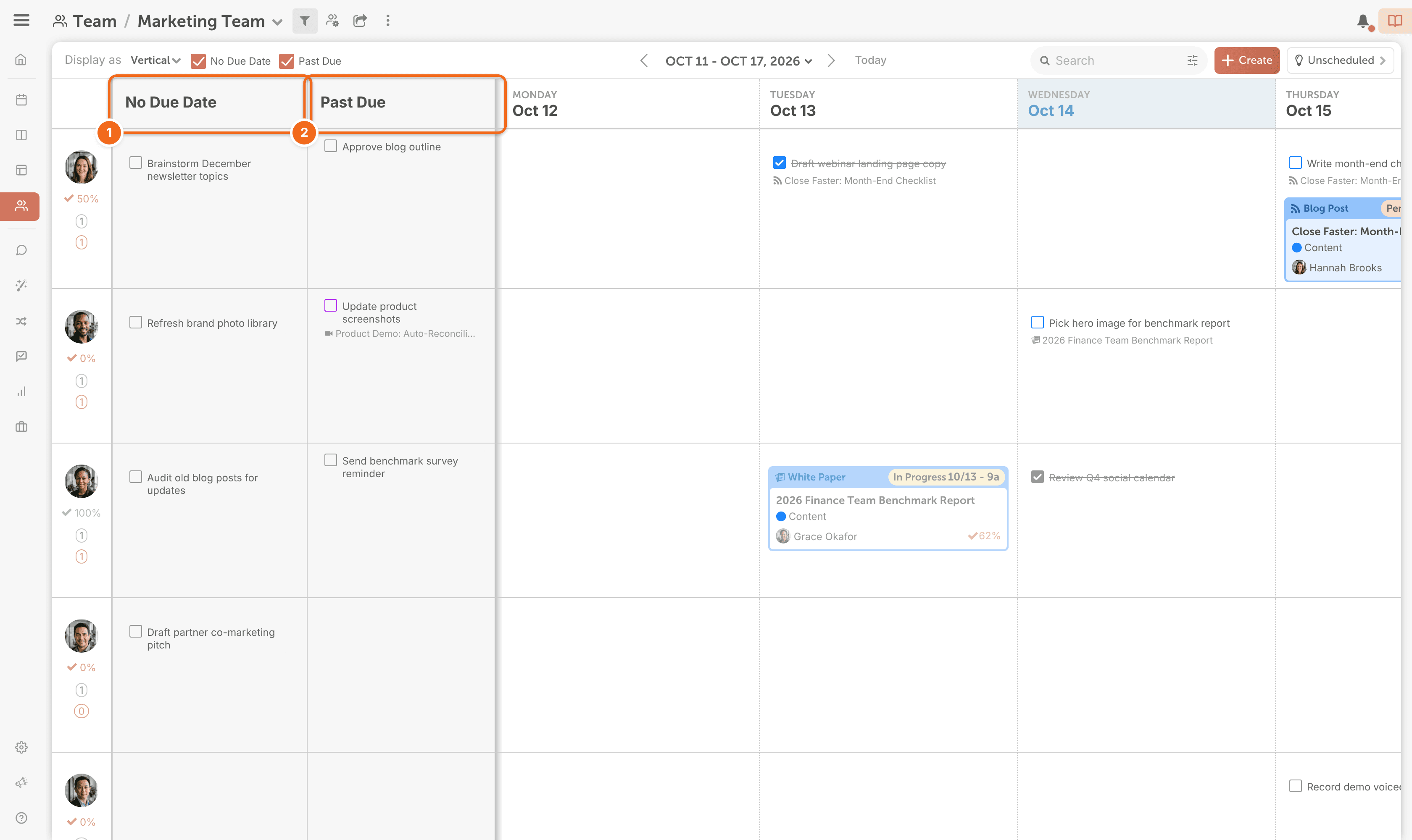
Show tasks with no due date and past due tasks
- Tick No Due Date, Past Due or both at the top of the dashboard to show each team member's tasks with no due date and past due tasks.
- Drag a task to a date to schedule it, or to a different team member to reassign it.
To unschedule a task, drag it to the task bin.
Create saved team views
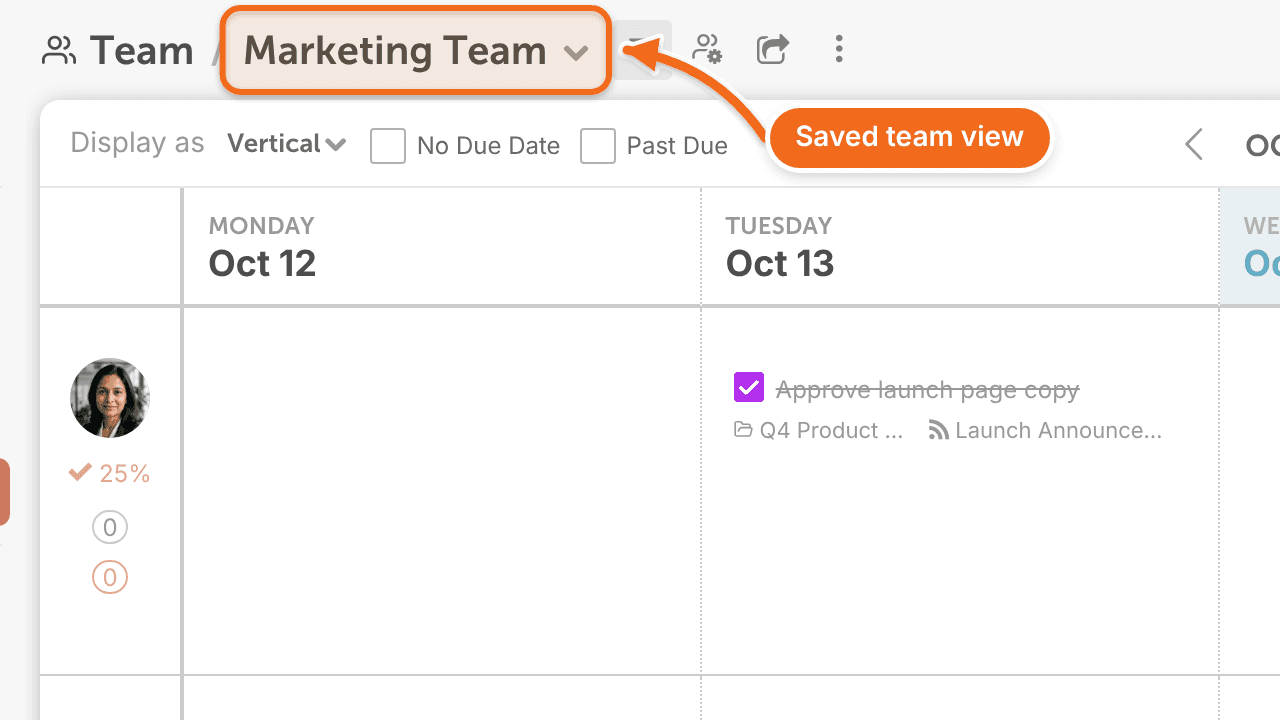
Saved team views work like saved calendar views, except that the Team Member filter shows only the team members you add. Create a team view for each of your teams or projects, so you see only their work. See Save and manage calendar views.
Reassign a team member's work
When someone leaves the team or is away, move their work to other team members.
- Click Team in the left sidebar.
- Tick No Due Date and Past Due at the top of the dashboard to include those tasks.
- Find the team member's row. A saved team view with only that person can help.
- Drag each task to another team member.
There's no way to reassign all of someone's work at once. Move their tasks one at a time.