
Connect your ActiveCampaign account to see your scheduled ActiveCampaign email campaigns on your CoSchedule calendar. You create and edit the campaigns in ActiveCampaign. Available on every plan, including the free plan.
Set up the connection
- From your calendar, open Settings.
- Click Integrations.
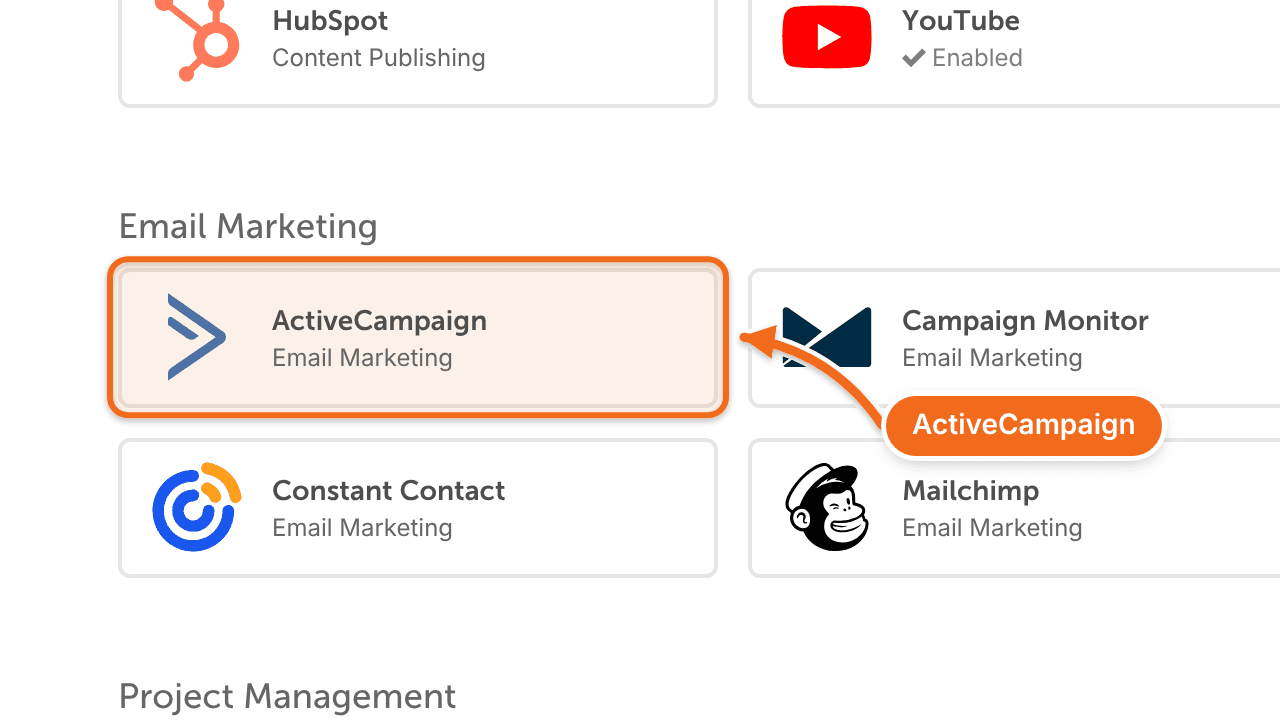
- Click ActiveCampaign.
- Click Enable.
- Follow the prompts to connect your ActiveCampaign account.
- Click Sync.
CoSchedule starts adding the email campaigns in your ActiveCampaign account to your calendar.
Settings > Integrations is open to the Owner, Managers and Admins by default. Other roles see an access-denied page, and custom roles can differ.
See ActiveCampaign emails on your calendar
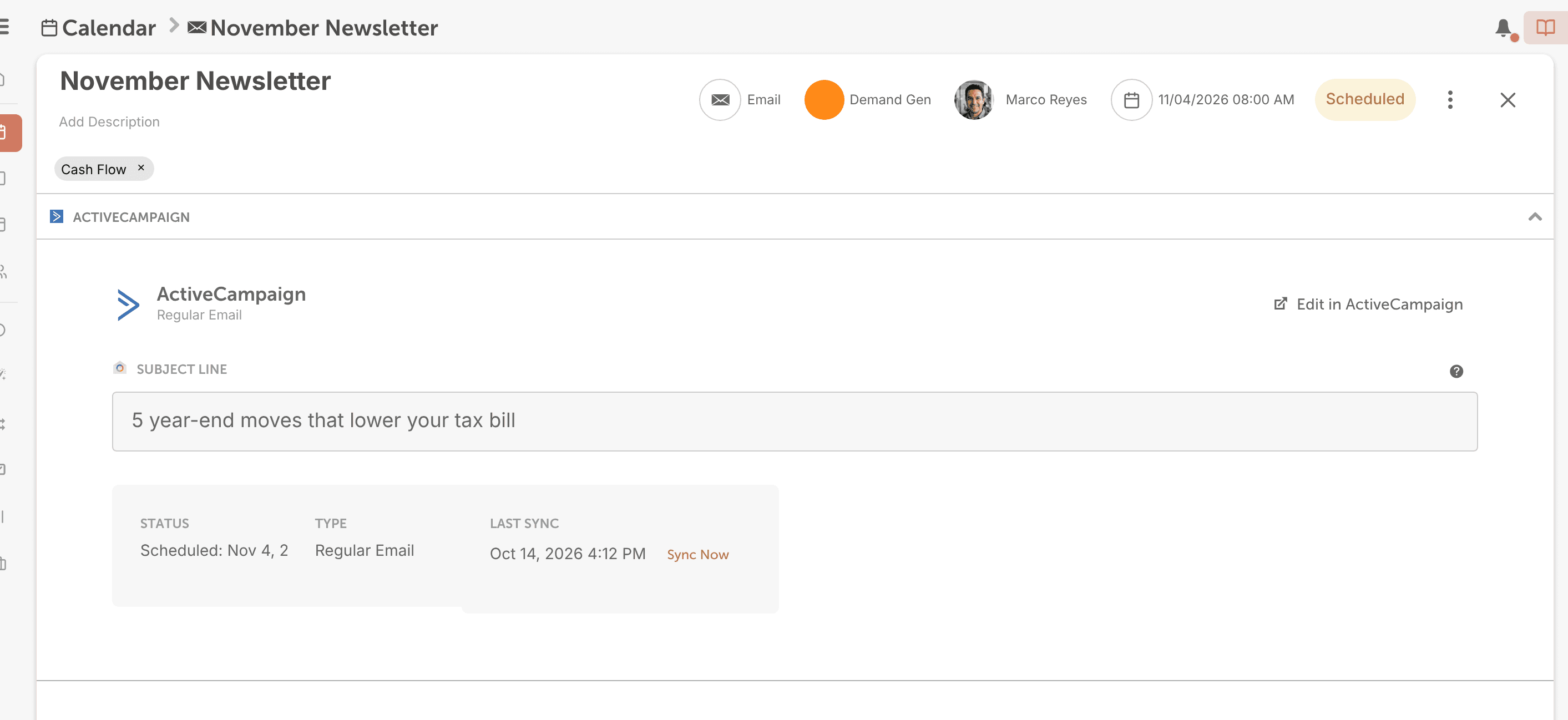
Create and schedule email campaigns in ActiveCampaign. Each scheduled campaign shows on your calendar as an Email Marketing project with these details from ActiveCampaign:
- Project Title: the campaign's name.
- Scheduled Date: the campaign's scheduled time.
- Subject Line: the campaign's subject line.
Emails your ActiveCampaign automations send don't sync to your calendar.
You can't edit these details in CoSchedule. To change a campaign, open its project and click Edit in ActiveCampaign.
Disconnect ActiveCampaign
If you disconnect a ActiveCampaign account all of your emails from that account will be removed from CoSchedule.
- From your calendar, open Settings.
- Click Integrations.
- Click ActiveCampaign.
- On the account you want to remove, click Disconnect.
To turn off the whole ActiveCampaign integration instead, click Disable ActiveCampaign on the same page.