
Connect HubSpot to see your HubSpot blog posts, pages and scheduled email campaigns on your CoSchedule calendar, and to create new posts and pages from it. Available on every plan, including the free plan.
Before you connect
Connect with a HubSpot user who can access your blog, landing pages and marketing email in HubSpot. CoSchedule syncs what that user can reach.
Set up the connection
- From your calendar, open Settings.
- Click Integrations.
- Find HubSpot and click Enable.
- Sign in to HubSpot and approve the connection.
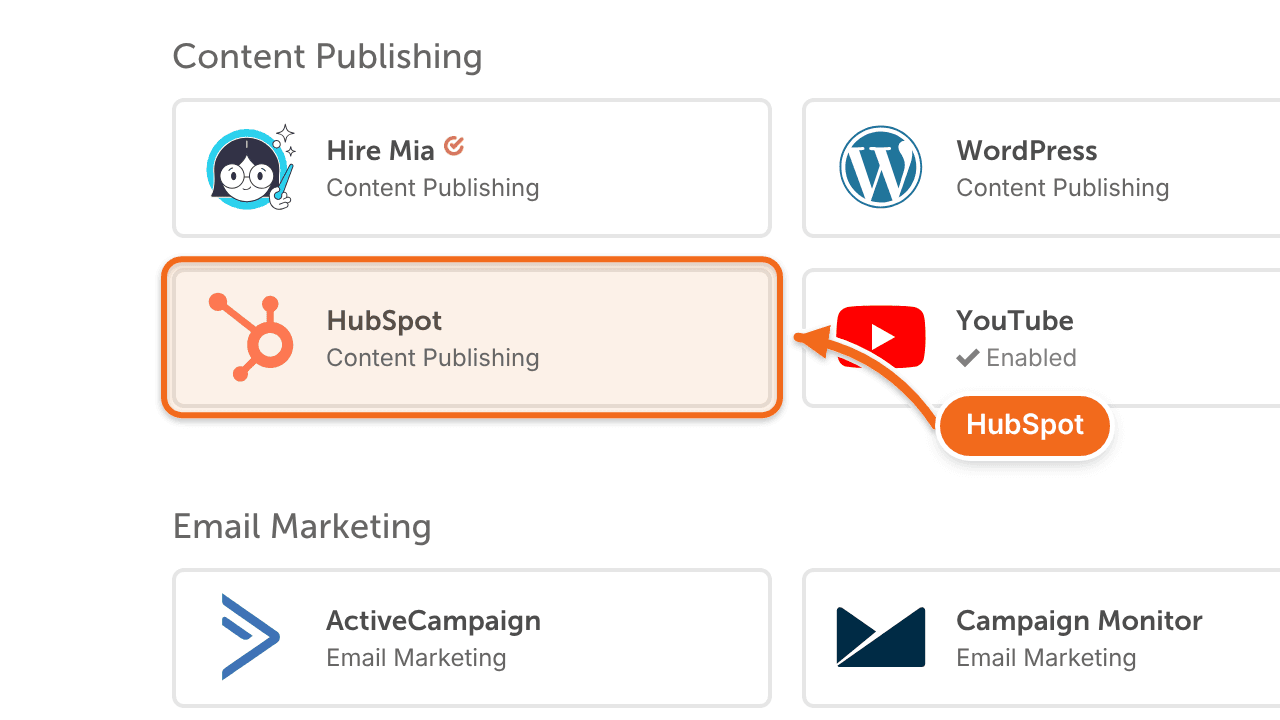
Your HubSpot account now shows at the bottom of the page. You can rename it for your calendar, or click Sync to pull in new content at any time. CoSchedule adds your existing HubSpot blog posts, pages and scheduled email campaigns to your calendar.
Create a HubSpot blog post
- On your calendar, click + on the date you want.
- Select the HubSpot Blog Post project type.
- Enter the title and any other details, then click Create.
- In the project, set the post's title, author and scheduled time.
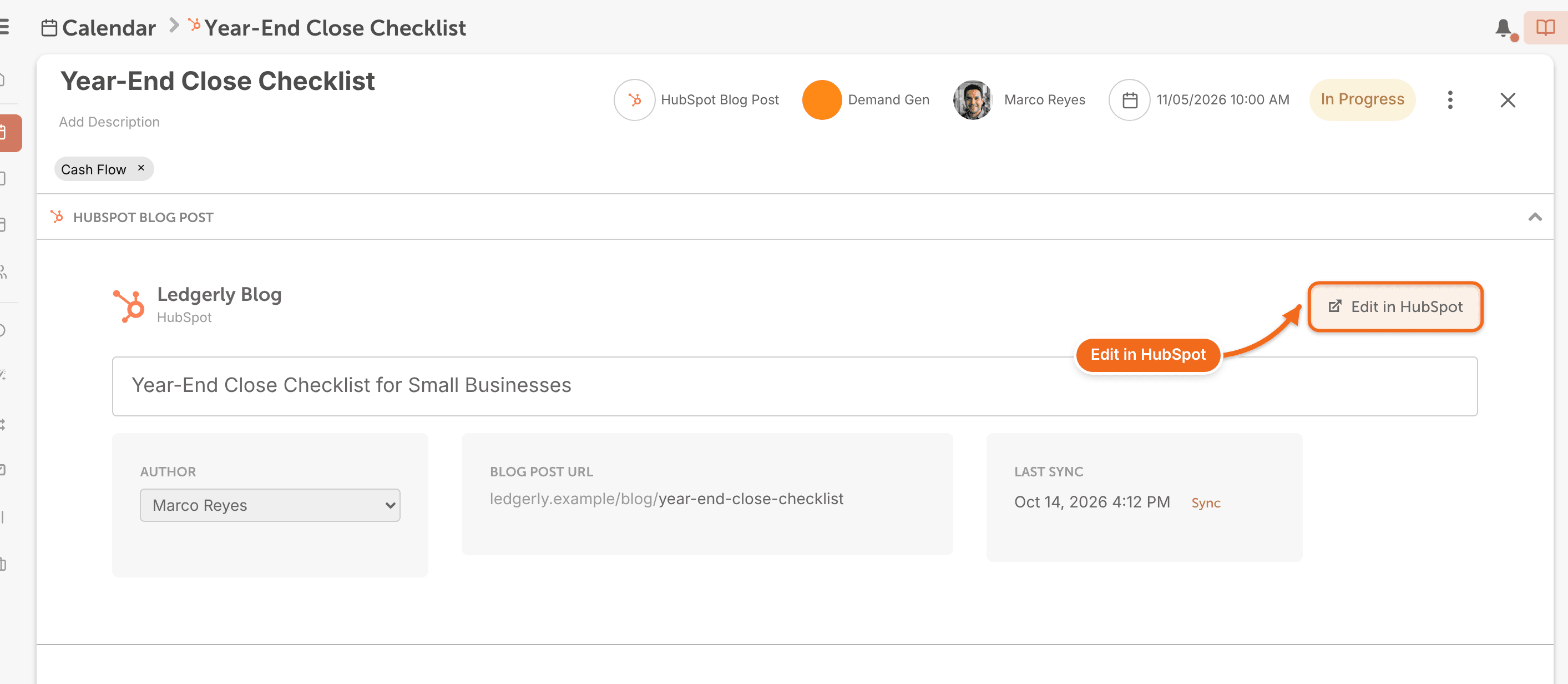
To change anything else, click Edit in HubSpot.
Create a HubSpot page
- On your calendar, click + on the date you want.
- Select the HubSpot Page project type.
- Enter the title and any other details, then click Create.
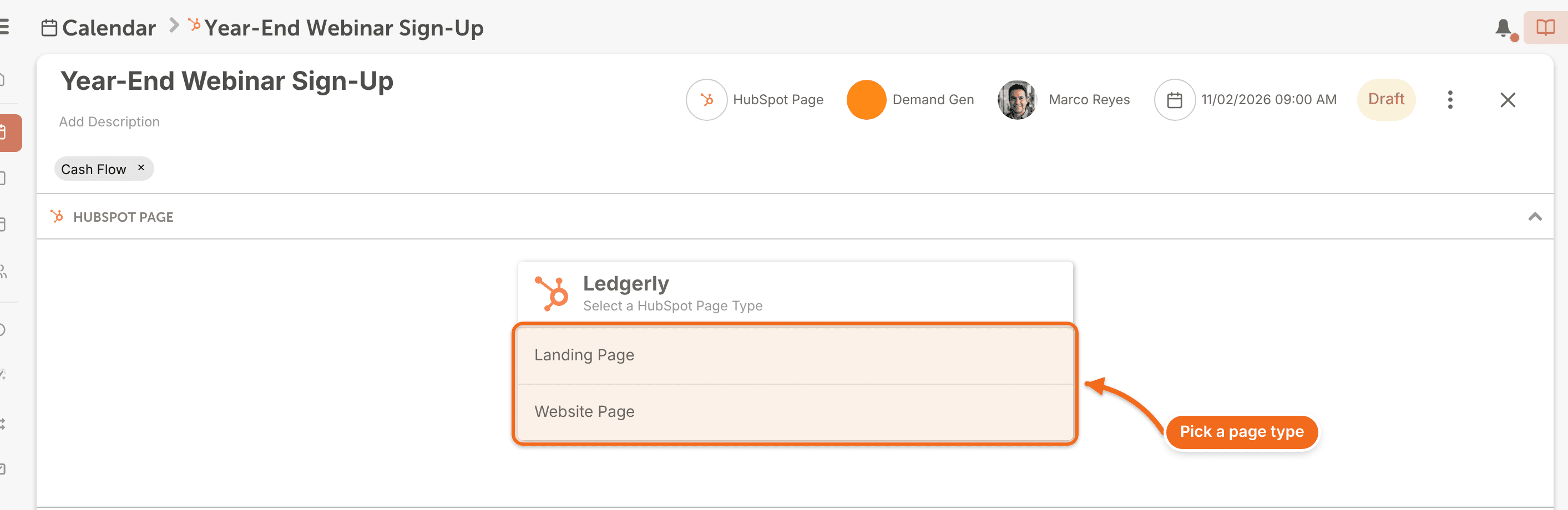
- Choose Landing Page or Website Page.
- Choose the page's URL and template.
- In the project, set the page's title and scheduled time.
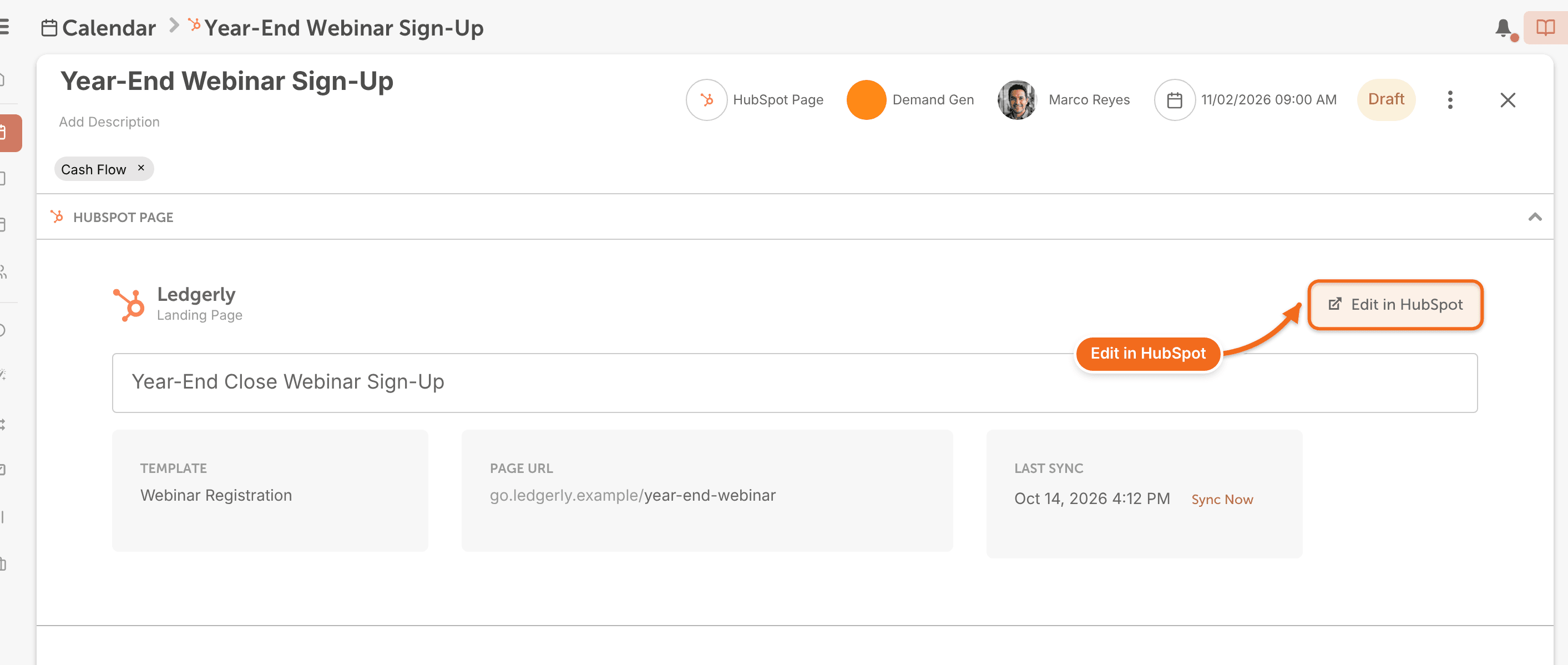
To change anything else, click Edit in HubSpot.
See HubSpot email campaigns on your calendar
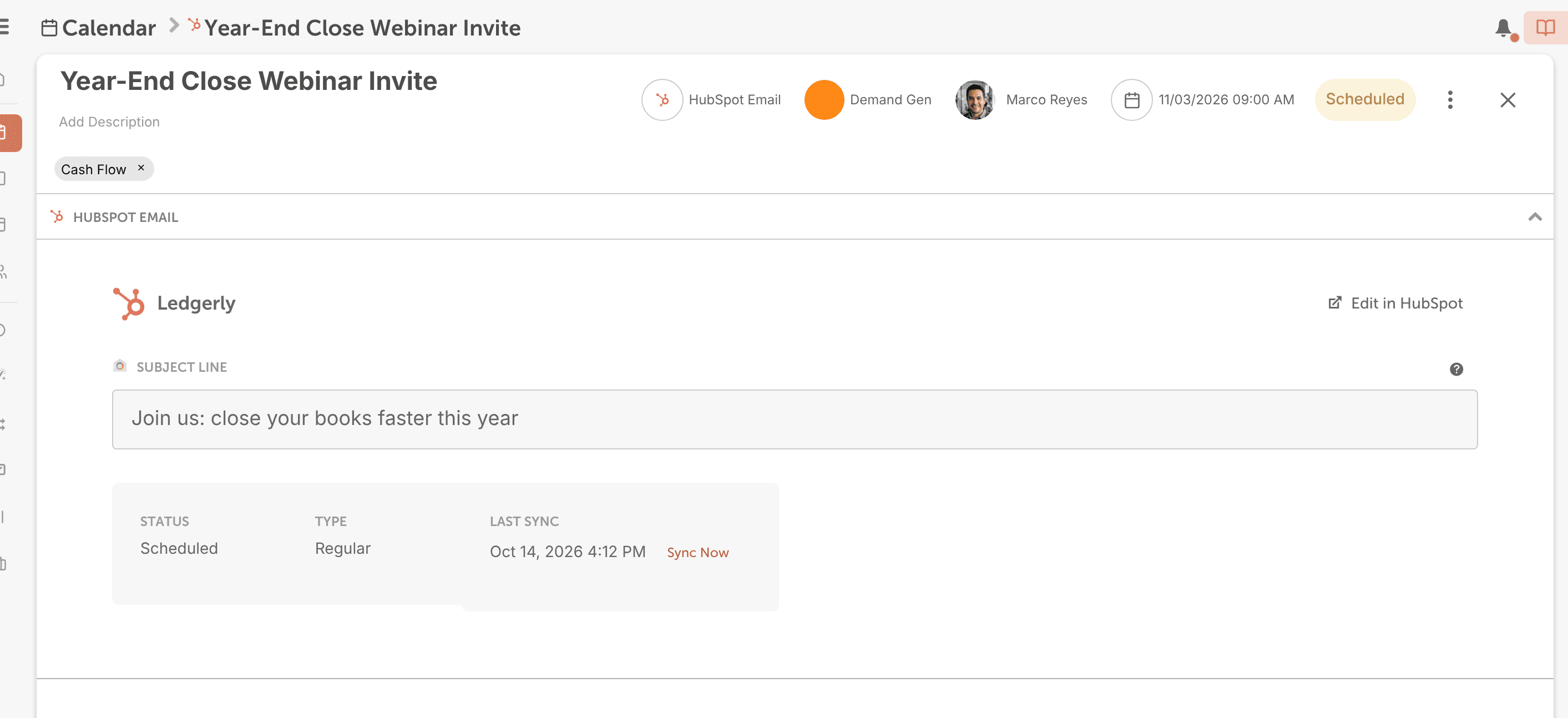
Scheduled HubSpot email campaigns show on your calendar as HubSpot Email projects, with their title, scheduled date and subject line. You create and edit the emails in HubSpot. To change one, open it and click Edit in HubSpot.
Frequently asked questions
Can I promote a HubSpot post on social media from CoSchedule?
Yes. Add a social campaign to any synced HubSpot post. See Create a social campaign.
Can I embed my CoSchedule calendar in HubSpot?
No. The calendar can't be embedded in HubSpot.