
Zapier links CoSchedule with other apps. Use it to send CoSchedule activity to another tool, or to create projects, tasks, events and social messages in CoSchedule when something happens somewhere else. Available on every plan, including the free plan.
Tools you connect through Zapier
CoSchedule works with these tools through Zapier, not through a direct integration:
- Project and task management: Asana, Basecamp, Jira, MeisterTask, Todoist, Trello and Wrike
- Team chat: Slack and Flock
- CRM: Insightly and Keap
- Other tools: Evernote, Feedly and Shopify
To move existing projects from Asana, Jira, Trello or Wrike into CoSchedule, use the bulk project import. It's a one-time import, not a live sync. For ongoing automation, use Zapier.
Before you start
- You need access to calendar Settings. By default, the Owner, Managers and Admins have it.
- You need a Zapier account.
- Each calendar has its own API key. To connect several calendars, connect each one with its own key.
Turn on Zapier and copy your API key
- From your calendar, open Settings.
- Click Integrations.
- In the Tools section, click Zapier.
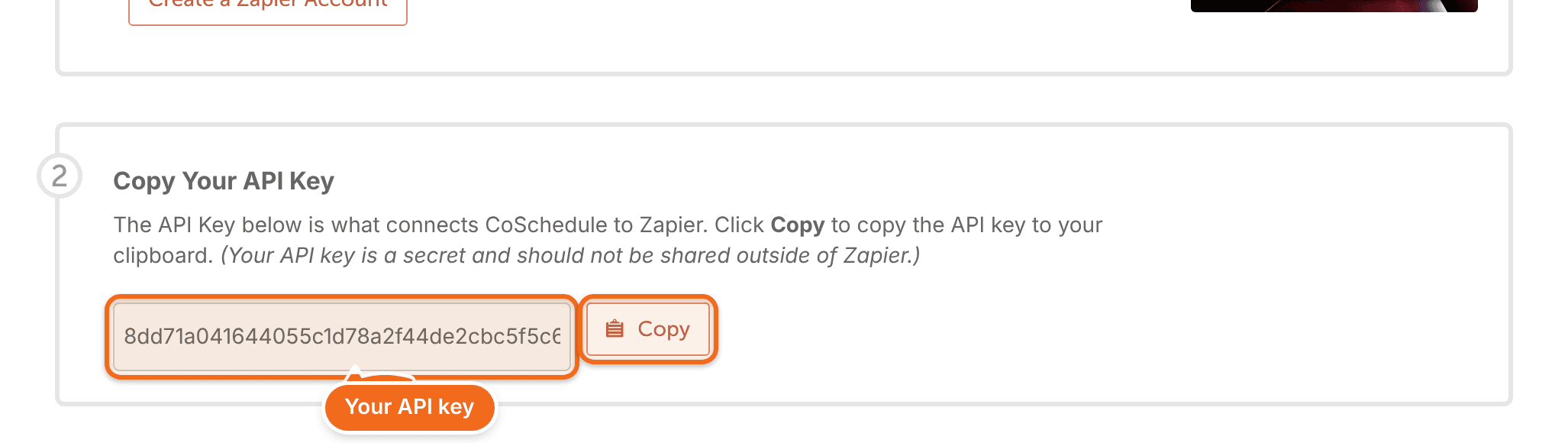
- Click Enable.
- Copy your API key. It appears only after Zapier is enabled.
Connect CoSchedule in Zapier
In Zapier, add a CoSchedule connection and paste your API key when Zapier asks for it. Zapier explains how to connect app accounts. To browse ready-made CoSchedule Zaps, see CoSchedule on Zapier.
What CoSchedule can do in a Zap
Type | Name | What it does |
|---|---|---|
Trigger | New Project | Runs when a project is created. |
Trigger | New Event | Runs when an event is created. |
Trigger | New Message | Runs when a social message is created. |
Trigger | New Marketing Campaign | Runs when a marketing campaign is created. |
Trigger | New Task | Runs when a standalone task is added to the calendar. Project tasks and personal tasks from the Home page don't trigger it. |
Action | Create Project | Creates a project on your calendar. |
Action | Create Marketing Campaign | Creates a marketing campaign on your calendar. |
Action | Create Task | Creates a task on your calendar. |
Action | Create Social Message | Creates a social message on your calendar. |
Action | Create Event | Creates an event on your calendar. |
Search | Find Team Member | Finds a team member on your calendar. |
Marketing campaigns are part of Suite.
Tips for filling in Zap fields
- Images for Create Social Message must be a public, direct link to the file, ending in .jpg, .png or .mp4.
- Your calendar ID is in CoSchedule's web address, right after /calendar/. When you open a project or message, its ID is in the address too.
- Color label IDs aren't shown in CoSchedule. Contact support to get them.
Create recurring projects
On Suite, give a project template a recurring schedule instead. You don't need Zapier for that. See Create and use project templates.
On the free plan, Starter and Professional, use Zapier:
- In Zapier, start a Zap with a schedule trigger and choose how often it runs. Zapier explains scheduled Zaps.
- Add CoSchedule's Create Project action.
- Choose your calendar and fill in the project details.
- Test the Zap and turn it on.
If something isn't working
- No API key showing: make sure Zapier is enabled for the calendar, and that your role can open calendar Settings.
- A Zap seems slow: Zaps don't always run right away. How often they run depends on Zapier and the apps in the Zap.
- Need something Zapier can't do: on Suite, depending on your Suite agreement, webhooks can send calendar activity to your own tools. See Send calendar activity to other tools with webhooks.