
Connect your Mailchimp account to see your Mailchimp email campaigns on your calendar, create new campaigns from CoSchedule and keep their title, date and subject line in sync. You can connect more than one Mailchimp account. Available on every plan, including the free plan.
Set up the connection
- From your calendar, open Settings.
- Click Integrations.
- Click Mailchimp.
- Click Enable.
- Follow the prompts to sign in to Mailchimp and connect your account.
- Click Sync.
CoSchedule adds the email campaigns in your Mailchimp account to your calendar. The Mailchimp project type is now available when you create a project.
Settings > Integrations is open to the Owner, Managers and Admins by default. Other roles see an access-denied page, and custom roles can differ.
Create a Mailchimp email from your calendar
- On your calendar, click + on the date you want the campaign to start.
- Select the Mailchimp project type.
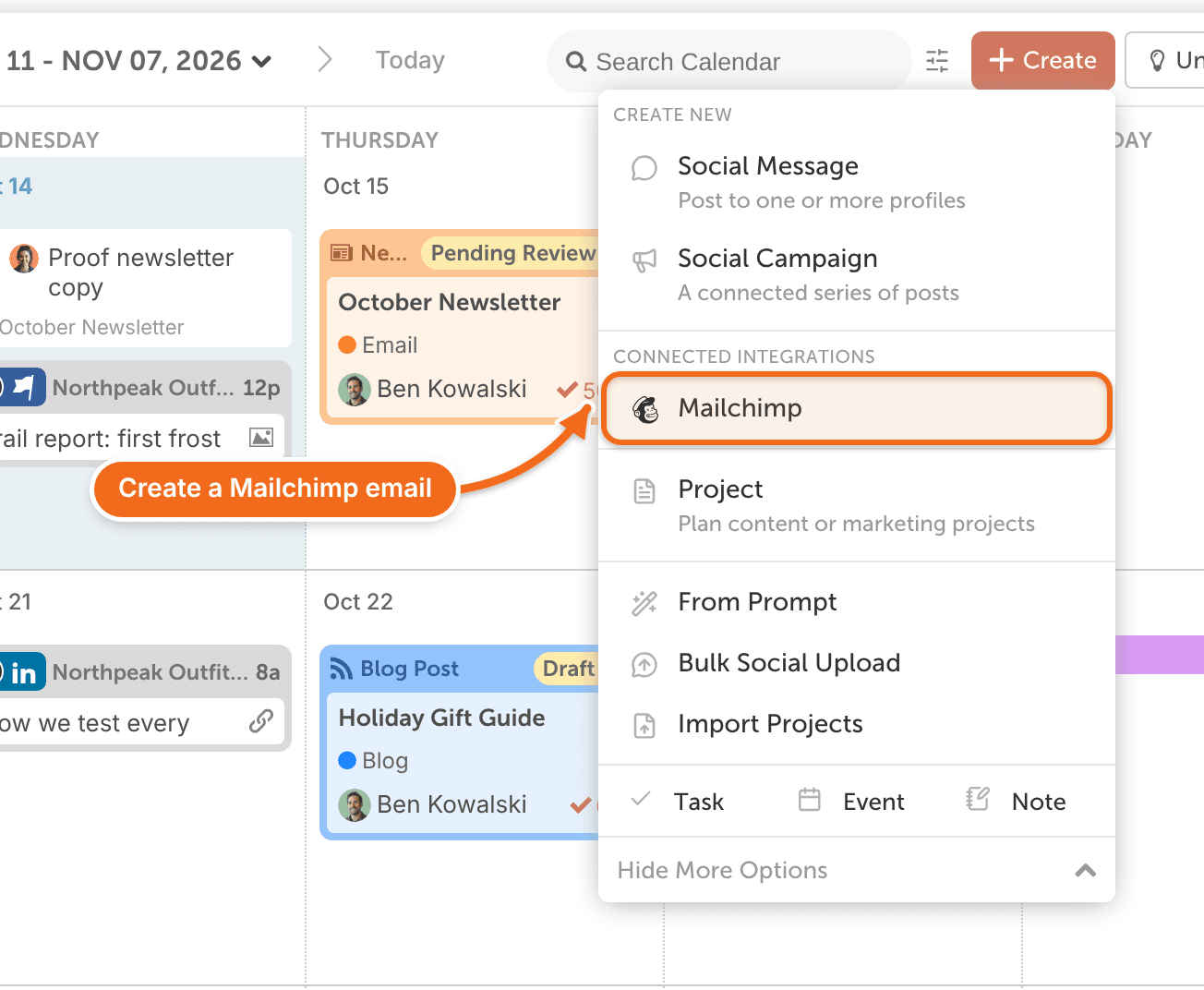
- Enter a title and click Create.
- Choose Regular Email or Plain Text Email.
CoSchedule creates a matching draft campaign in Mailchimp. These details stay in sync between the project and the campaign:
- Project Title: the campaign's title in Mailchimp.
- Scheduled Date: the campaign's scheduled time in Mailchimp.
- Subject Line: the campaign's subject line in Mailchimp.
Deleting a Mailchimp project in CoSchedule also deletes the campaign in Mailchimp, and deleting the campaign in Mailchimp removes the project from your calendar.
Schedule a Mailchimp email
Schedule a new campaign in Mailchimp first. After that, you can change its schedule from CoSchedule.
- Open the Mailchimp project on your calendar.
- Click Edit in Mailchimp.
- Schedule the campaign in Mailchimp.
Mailchimp explains how in schedule or pause a regular email campaign.
Find draft Mailchimp emails
CoSchedule syncs your Mailchimp campaigns, including drafts. Scheduled campaigns show on the calendar. Drafts without a date go to the Unscheduled Bin: click Unscheduled in the upper right corner of your calendar to see them. If you don't see a campaign, search your calendar for its title.
Disconnect a Mailchimp account
If you disconnect a Mailchimp account all of your emails from that account will be removed from CoSchedule.
- From your calendar, open Settings.
- Click Integrations.
- Click Mailchimp.
- On the account you want to remove, click Disconnect.
To turn off the whole Mailchimp integration instead, click Disable Mailchimp on the same page.
Frequently asked questions
Will a draft Mailchimp project send?
No. Drafts never send. To send a campaign, schedule it in Mailchimp first.
Why don't my saved Mailchimp templates show up?
Saved templates may not appear in CoSchedule. Create the campaign in Mailchimp instead, and it syncs to your calendar.