
Webhooks send a call to a URL you choose whenever something is created, updated or deleted on your calendar, so your own tools can react right away. Webhooks are available on Suite, depending on your Suite agreement. If your plan doesn't include them, the Webhooks card doesn't appear in Settings > Integrations.
Each calendar has its own webhooks, so set them up on each calendar separately.
Turn on webhooks
- From your calendar, open Settings.
- Click Integrations.
- Select Webhooks.
- Click Enable.
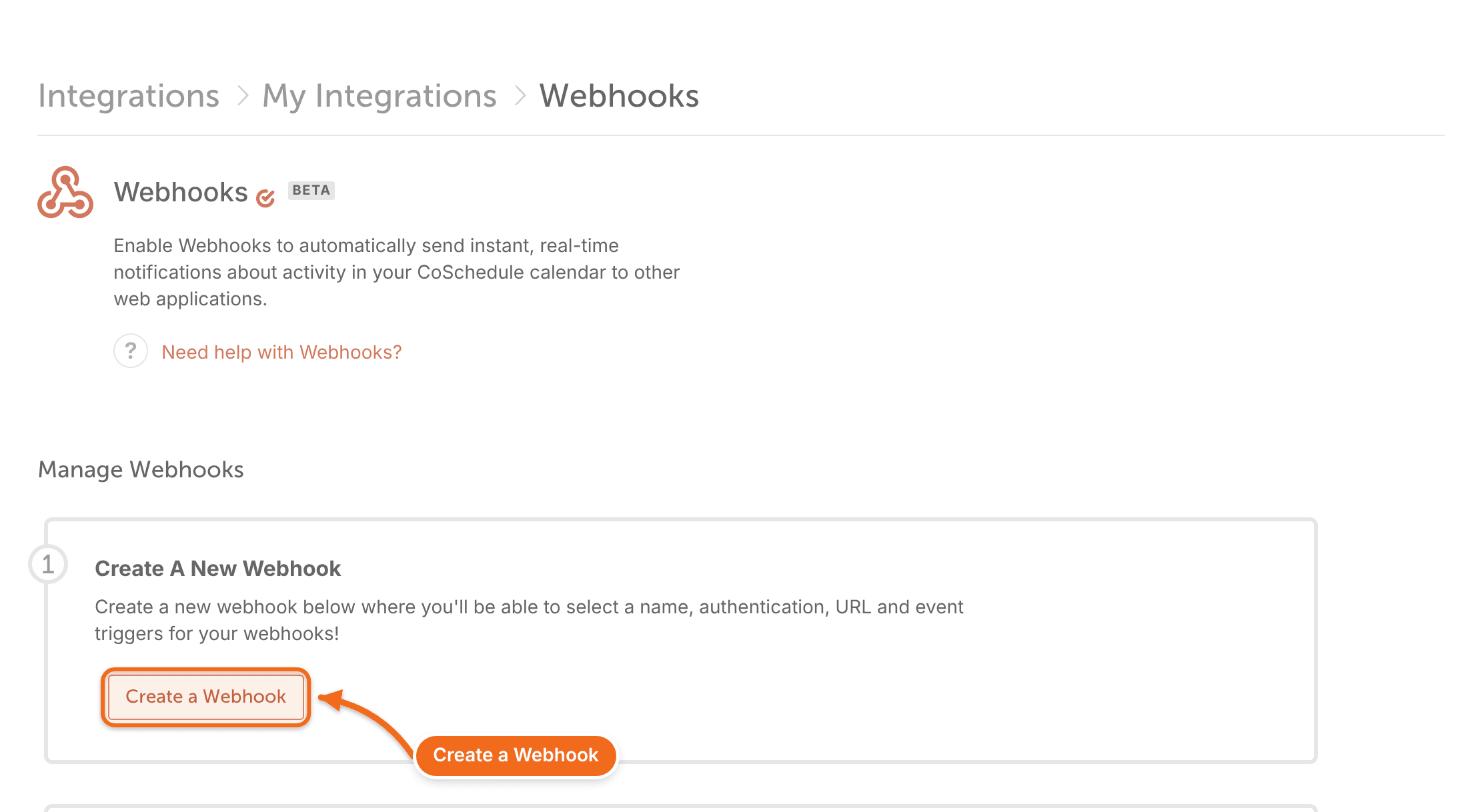
Create a webhook
- Click Create Webhook.
- Give the webhook a name.
- Enter the URL that should receive the calls, and any authentication your endpoint needs.
- Choose the events that trigger the webhook.
- Test the webhook, then make sure it's set to Active.
Manage your webhooks
To change a webhook, click its name in your list of webhooks.
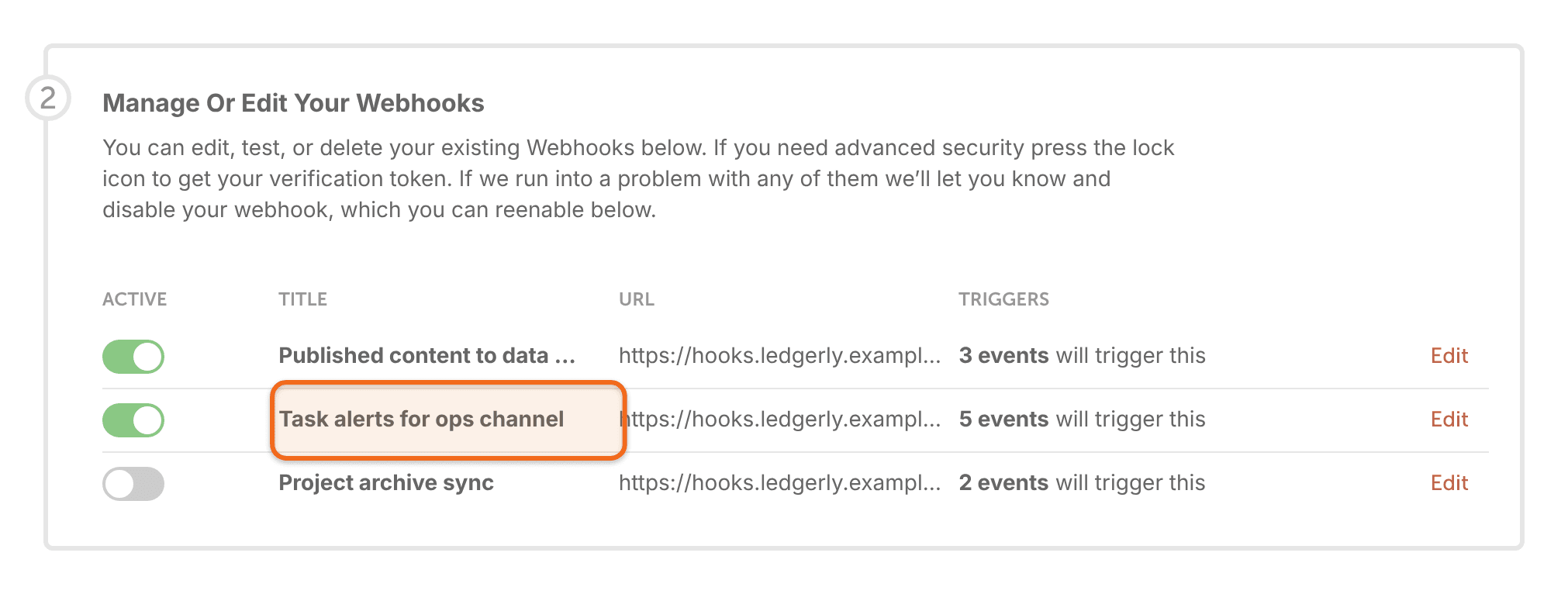
If a webhook stops sending, open it and check that it's still Active. CoSchedule turns a webhook off when its calls keep failing; see When calls fail, below.
Check that calls come from CoSchedule
Each webhook gets a Verification Token when you create it. It shows on the webhook, read-only, with a Copy button. CoSchedule sends the token in a Verify-Token header with every call, so your endpoint can check that the call came from CoSchedule. Checking it is optional.
When calls fail
Your endpoint must answer with a status from 200 to 202 within 10 seconds. Any other response, including 204, or no response in time, counts as a failed call.
- CoSchedule retries a failed call 7 times: after 30 seconds, 5 minutes, 15 minutes, 30 minutes, 1 hour, 2 hours and 4 hours.
- If every retry fails, that counts as one failure for the webhook. Any successful call resets the count.
- After 3 failures, the webhook turns itself off, and the calendar owner gets an email titled “CoSchedule Webhooks – Subscription Deactivation Notice”.
To turn the webhook back on, open it and switch on Active.
Events you can send
Each type of item sends an event when it's created, updated or deleted. Event names follow the pattern item.create, item.update and item.delete, for example content.create.
Item | What it covers |
|---|---|
content | Projects |
comments | Comments |
events | Calendar events |
marketing_campaigns | Marketing campaigns |
messages | Social messages |
notes | Calendar notes |
tasks | Tasks |
wordpress_posts | WordPress posts |
For the fields each event sends, see CoSchedule's webhook schema documentation. Times are in seconds since the Unix epoch.
Frequently asked questions
Does CoSchedule have a public API?
No. To connect CoSchedule with your other tools, use these instead:
- Webhooks send calendar activity out as it happens.
- Zapier actions create projects, tasks, events, marketing campaigns and social messages in CoSchedule. See Connect other tools with Zapier.
- Calendar Sync shares your calendar as an ICS feed. See Sync your calendar with Google Calendar and other calendars.
Where do I find a calendar or item ID?
In CoSchedule's web address. Your calendar ID comes right after /calendar/, and an open project or message shows its ID in the address too.
Why don't I see Webhooks in my integrations?
Your plan doesn't include webhooks. They depend on your Suite agreement. To ask about adding them, contact us.