
Two clocks decide when things publish. WordPress posts publish on your WordPress site's timezone. Social messages, including the ones that promote a WordPress post, follow your CoSchedule calendar's timezone. Keep the two the same. This applies to every plan.
Signs your timezones don't match
- Social or ReQueue messages for a WordPress post fail with Scheduled too far in the past.
- Posts don't publish at the time you expect.
Match the timezones
- In WordPress, set your site's timezone. Choose a city in your timezone rather than a UTC offset, so daylight saving time is handled for you. WordPress explains the timezone setting.
- In CoSchedule, check your calendar's timezone under Settings > Configuration. See Change your calendar name, timezone and date format.
- Go to Settings > Integrations > WordPress.
- Click Manage Site for the site.
- Click Refresh Connection.
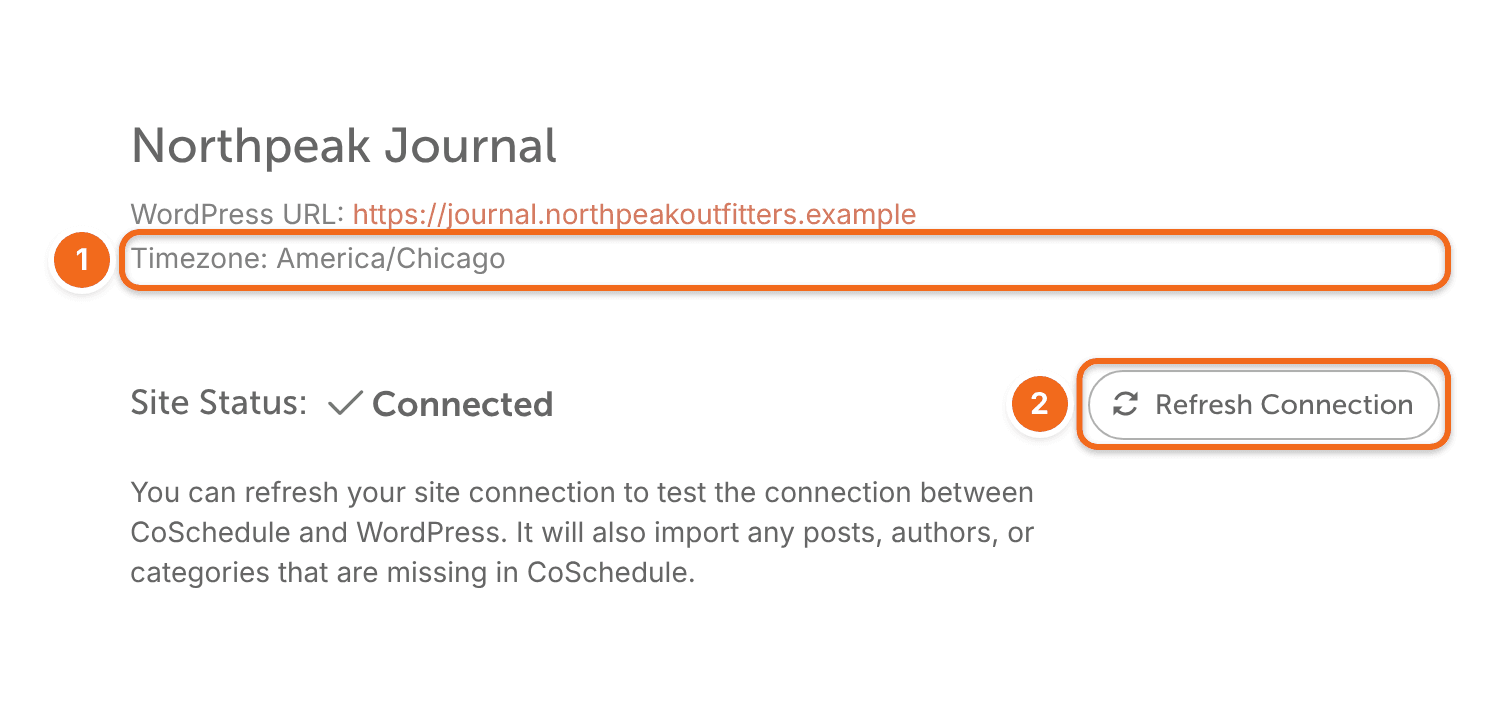
After the refresh, the site's timezone shows under Connection Details. Reschedule any social messages that already failed. See Reschedule a social message.
Fix "Problem with your server's timestamp"
This error means your web server sent CoSchedule an empty or wrong universal time, usually because of how the server's PHP time settings are configured. It can't be fixed in CoSchedule or WordPress. Ask your host or web developer to:
- Turn on network time syncing (NTP) on the server.
- Set PHP's date.timezone setting.
If CoSchedule says your server's timestamp is a bit off, the server's clock has drifted. The same fix applies.