
RSS Feed Sync adds new posts from an RSS feed to your calendar as projects, so you can plan and promote them. Use it for blogs, news sites and podcasts that CoSchedule doesn't connect to directly. Available on every plan, including the free plan.
Before you start
- Have the feed's URL ready. Use the feed address, which often ends in /feed or /rss.xml, not the address of the blog page.
- Only items published after you add the feed are imported. Older posts, and posts that are scheduled or dated in the future, never import. To see scheduled posts on your calendar, use the HubSpot or WordPress integration.
Add an RSS feed
- From your calendar, open Settings.
- Click Integrations.
- Click RSS Feed Sync, then click Enable.
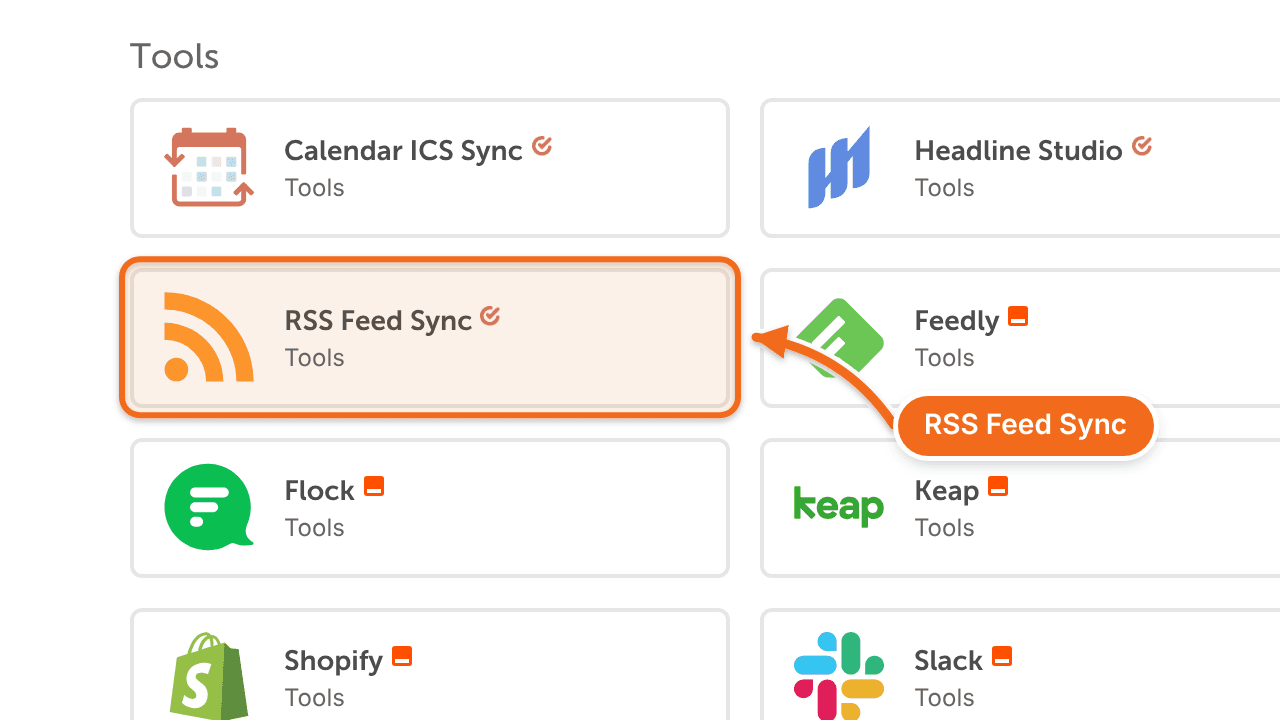
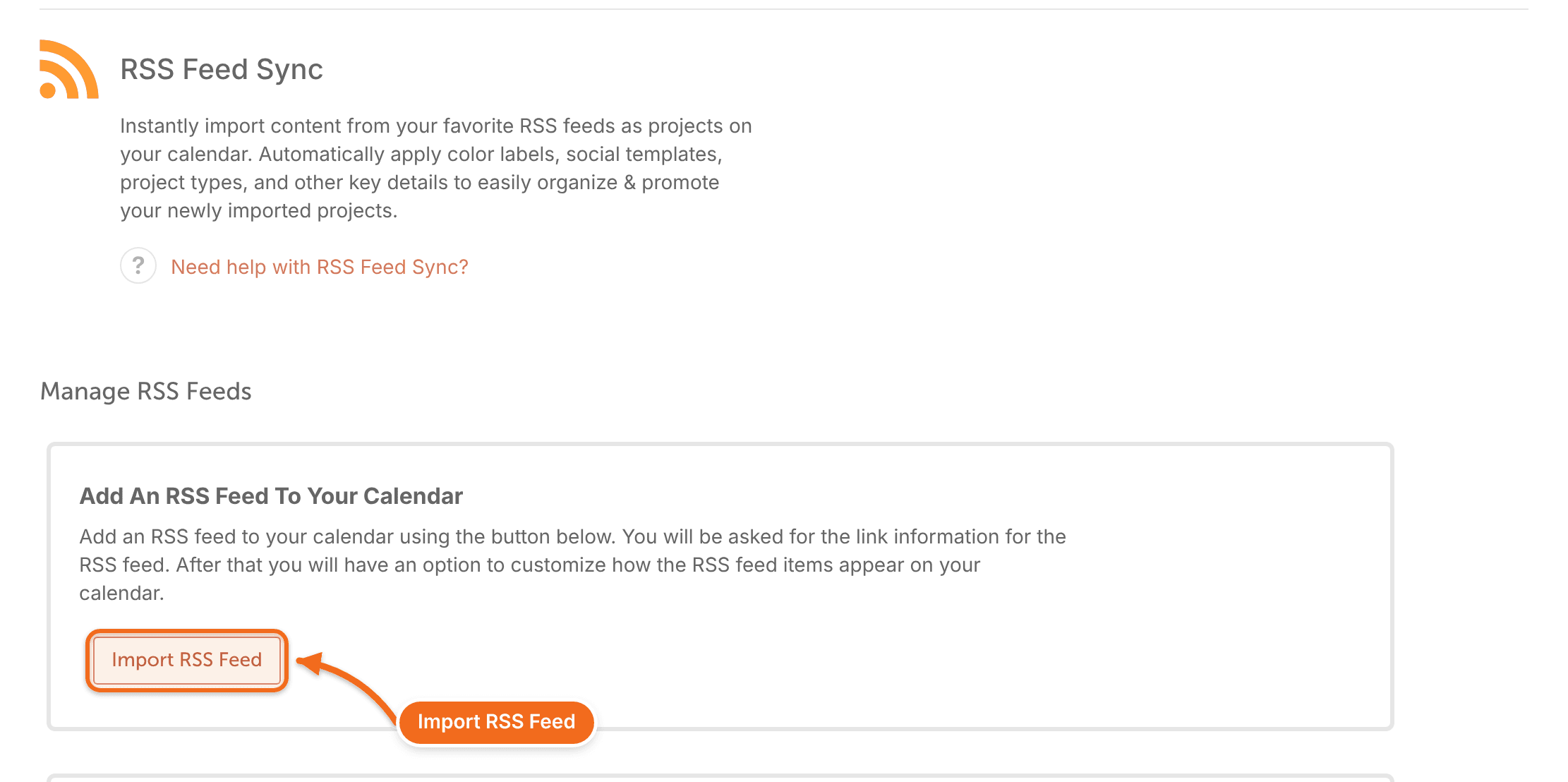
- Click Set up RSS Feed, then click Import RSS Feed.
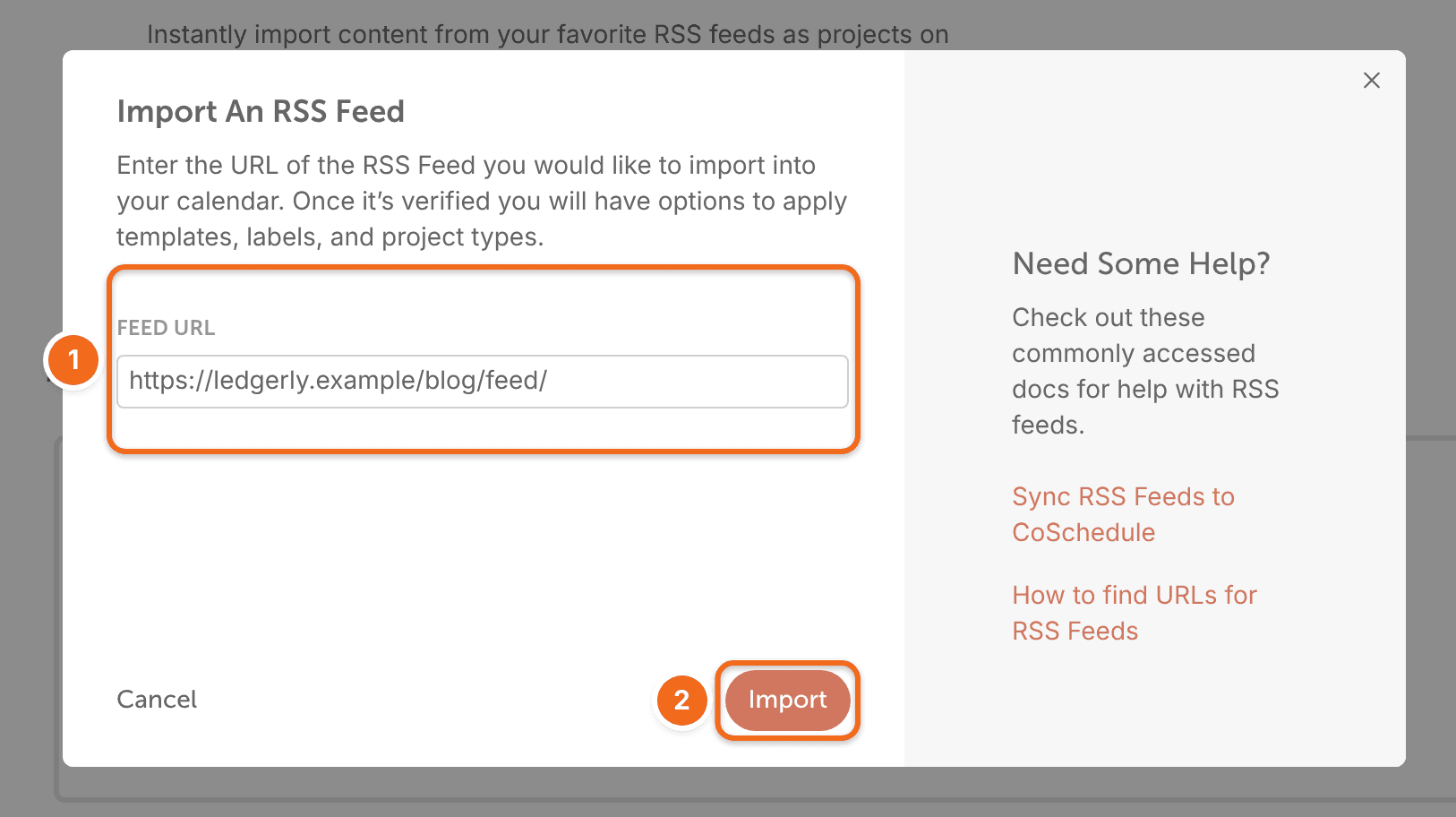
- Paste the feed's URL in the Feed URL box and click import.
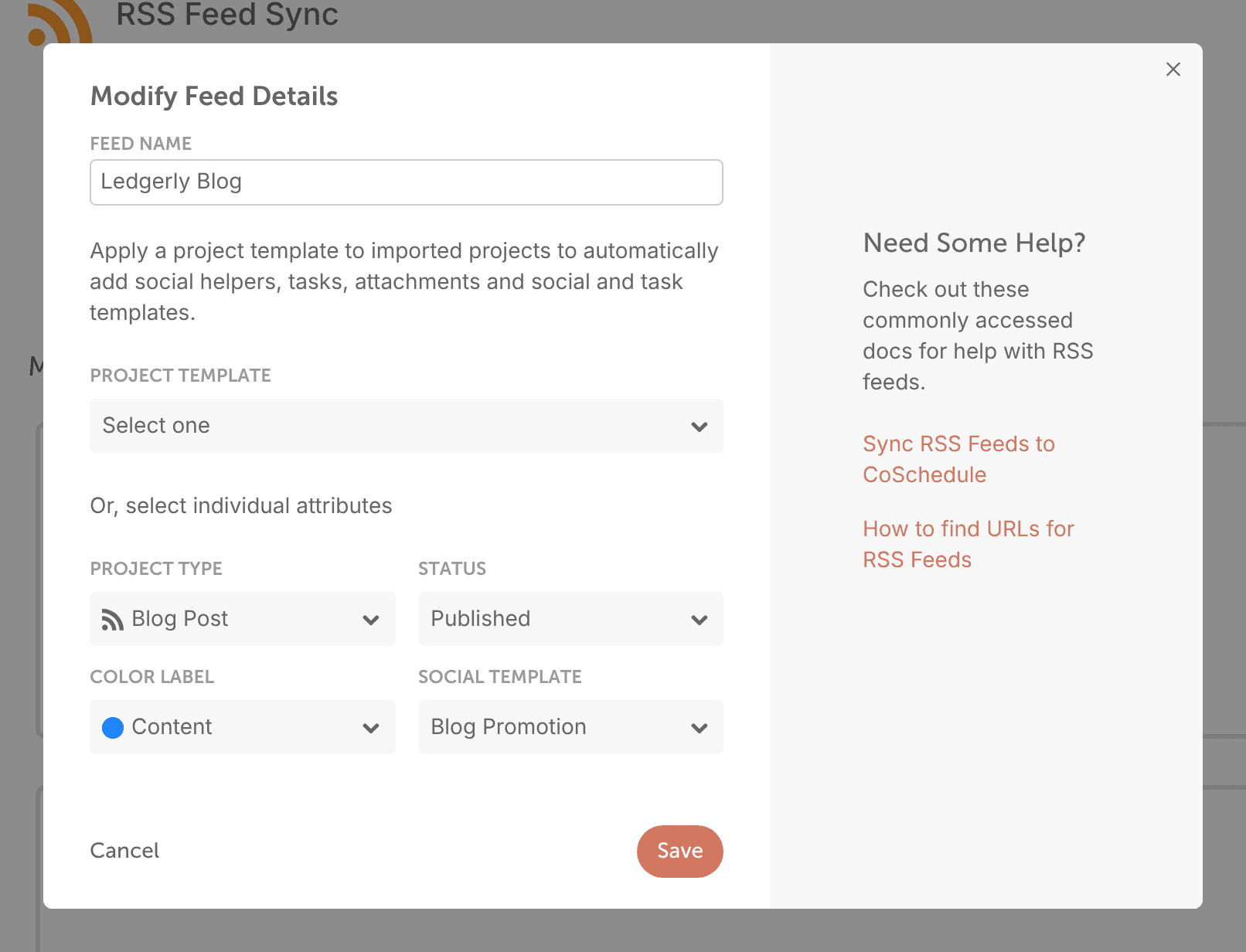
- In the Modify Feed Details panel, set the Project Type, Status, Color Label and Social Template for imported items. On Suite, you can apply a project template instead.
- Click Save.
How syncing works
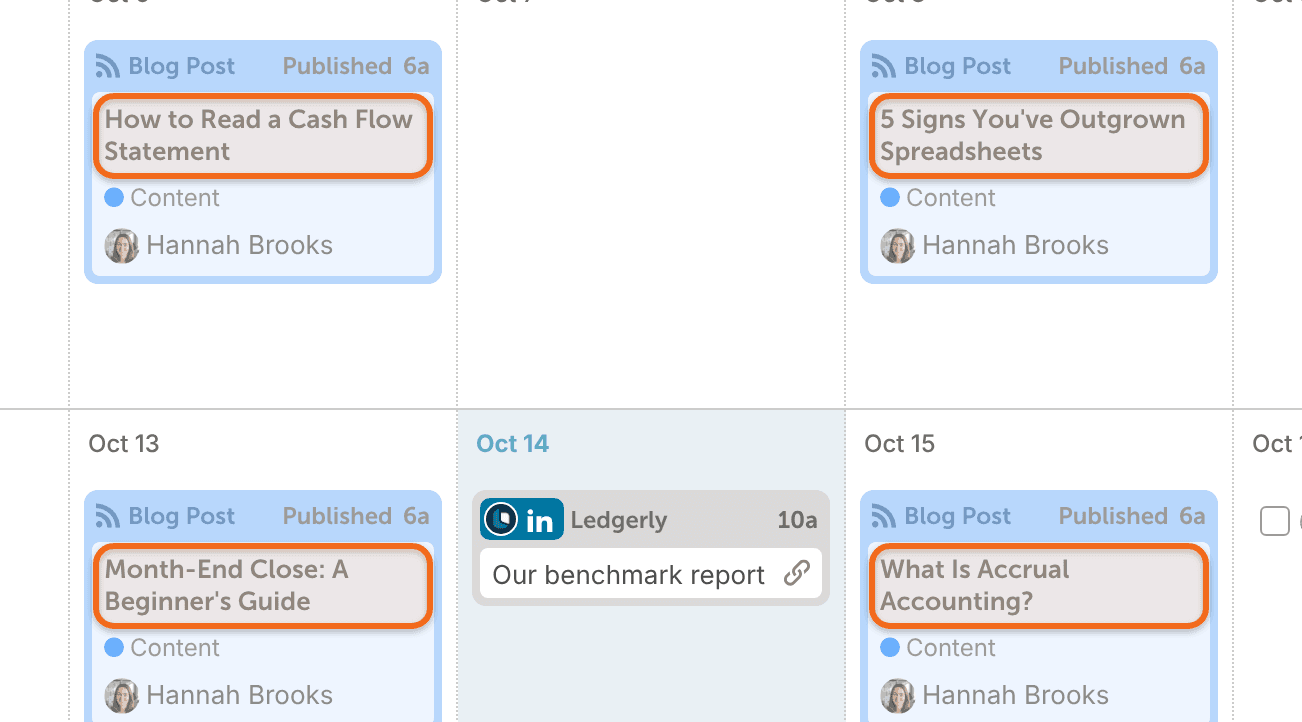
- CoSchedule checks the feed about every five minutes and adds each newly published item to your calendar as a project.
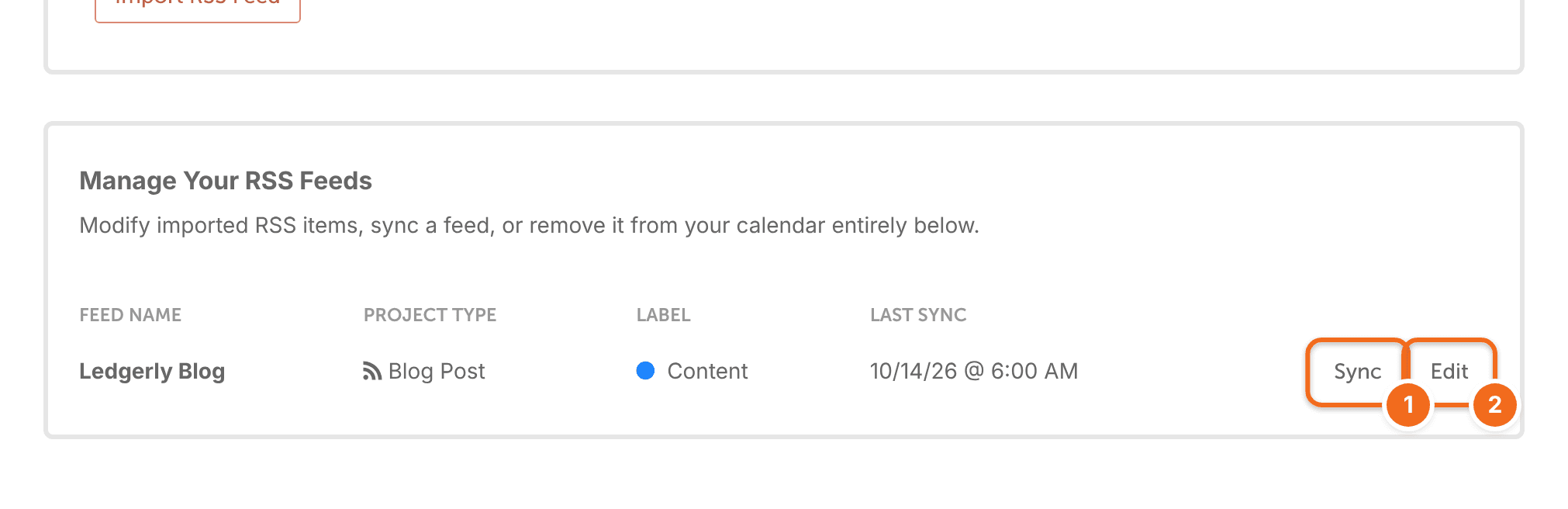
- To check for new items right away, sync the feed from the RSS Feed Sync page.
- Imported items are regular projects. Add social messages to them to promote each post.
- The sync is one-way. Changes you make in CoSchedule don't change the feed or your site.
- A social message's link preview image comes from the post's Open Graph tags.
Remove a feed
- Go to Settings > Integrations > RSS Feed Sync.
- Click Edit on the feed.
- Click Remove Feed From Calendar, then confirm.
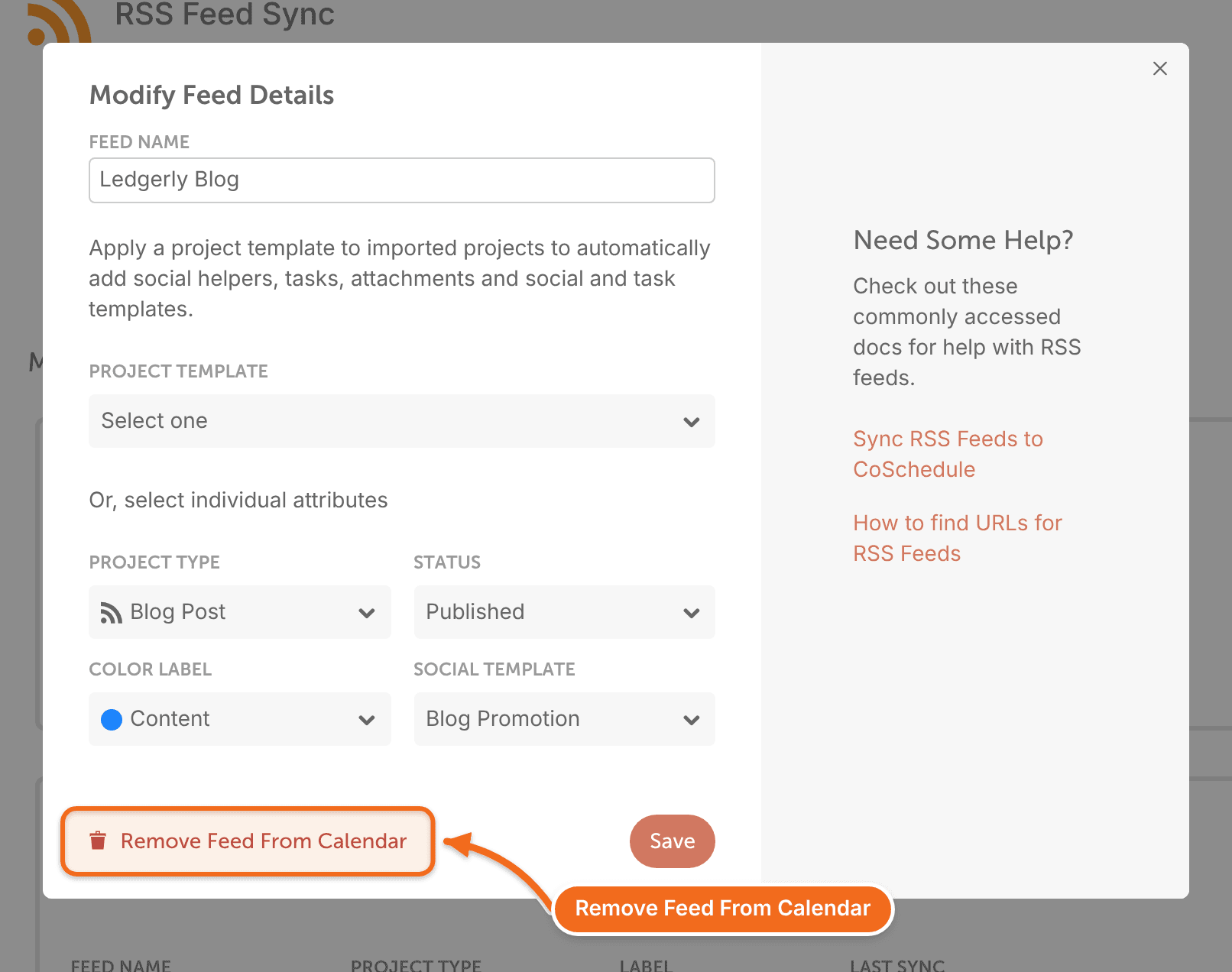
The feed stops syncing. Projects it already imported stay on your calendar.
Fix "Invalid RSS Feed URL"
If CoSchedule says a feed is invalid even though it works in other readers, check these:
- You're using the feed's URL, not the blog page's URL.
- The feed doesn't redirect to a different site.
- Your site isn't blocking CoSchedule. Many hosts and firewalls block bots, or the feed takes too long to respond. Ask your web host to allow the CoScheduleBot user agent and the IP addresses 34.202.82.63 and 52.71.109.154.
You can forward this note to your web host: "CoSchedule imports our RSS feed, but our site is blocking its requests. Please allow the CoScheduleBot user agent and the IP addresses 34.202.82.63 and 52.71.109.154 to read our feed."
See What CoScheduleBot is for more about CoSchedule's bot.
Find your feed URL
Most blogs and podcasts publish a feed. These help pages explain where to find it:
For other sites, search the site's help pages for "RSS feed".