
When CoSchedule can't reach your WordPress site, posts stop syncing and you see a connection error. Find your error or symptom below. This applies to every plan.
Start with a refresh
- Go to Settings > Integrations > WordPress.
- Click Manage Site for the site.
- Click Refresh Connection.
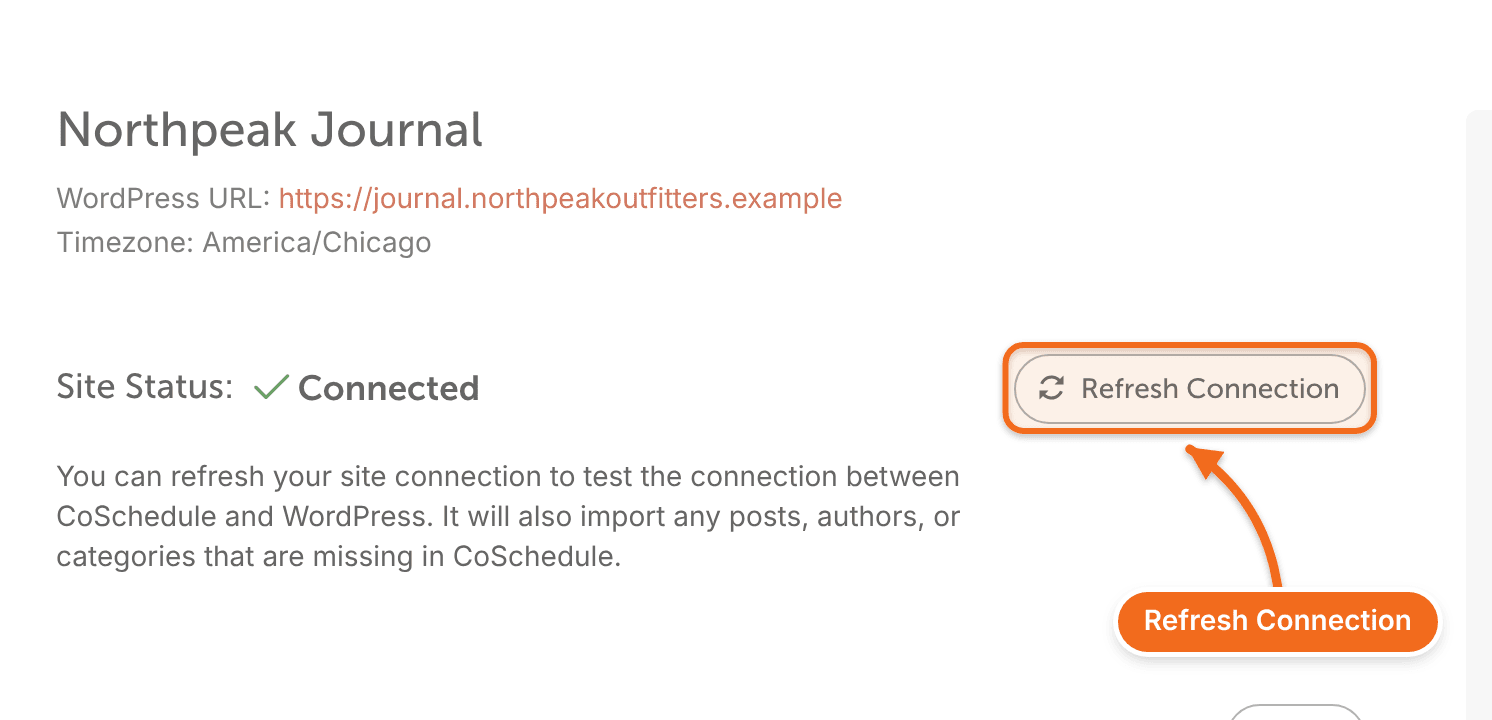
A refresh doesn't get past a firewall. If the site connects and then drops again, see the firewall section below.
Fix "Could not reach WordPress admin"
This error means your server asks for basic HTTP authentication before anyone can reach the WordPress admin area, so CoSchedule can't get in. Give CoSchedule those credentials:
- Go to Settings > Integrations > WordPress.
- Click Manage Site for the site.
- Under WordPress Basic HTTP Auth, click Enable.
- Enter your server's HTTP auth username and password.
- Click Save.
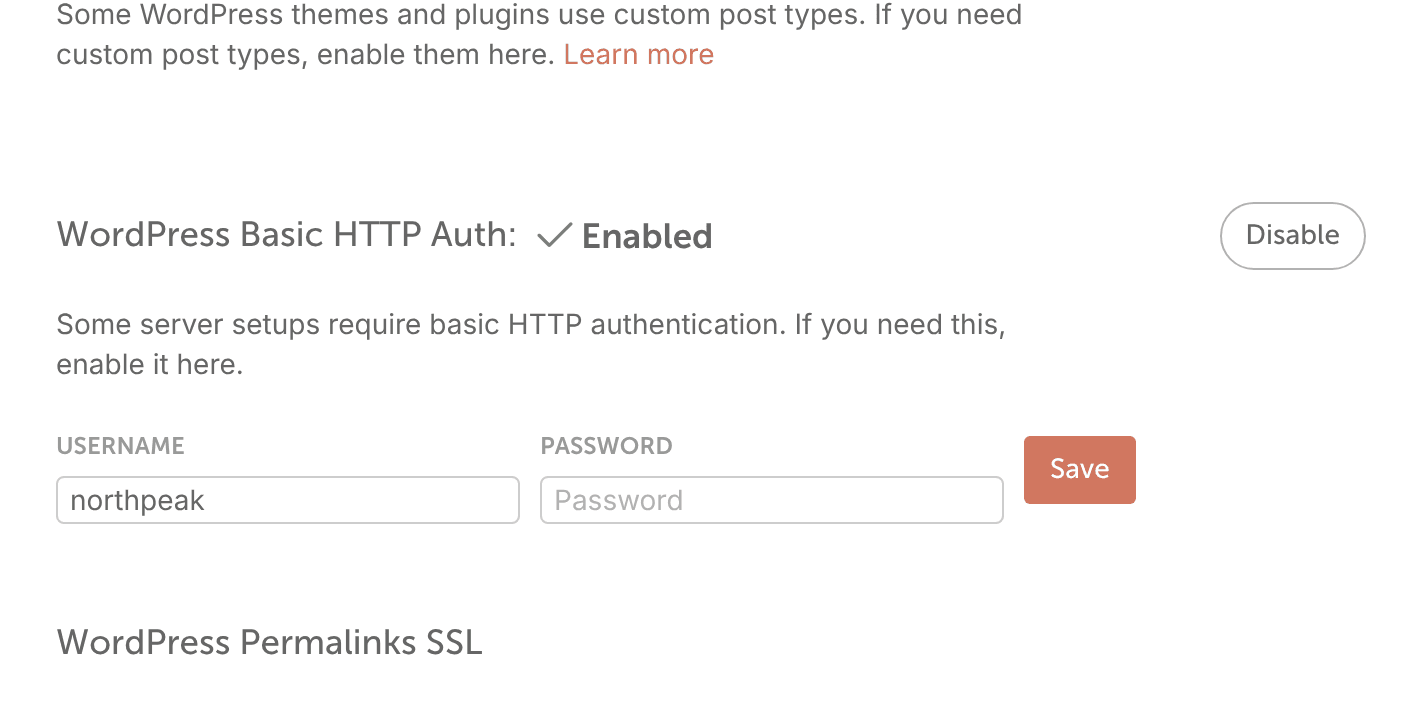
Use the HTTP auth username and password your host or server admin set up, not your WordPress login.
Let CoSchedule through a firewall
Security plugins, firewalls and hosting security services can block CoScheduleBot, which CoSchedule uses to sync with WordPress. Ask your host, or whoever manages your site's security, to allow:
- Requests whose user agent contains CoScheduleBot.
- 34.202.82.63, the address CoSchedule uses for WordPress syncing and link previews.
- 52.71.109.154, the address of CoSchedule's Static IP Proxy.
Turn on the Static IP Proxy
Some security setups need CoSchedule to reach your site from one fixed address. Turn on the Static IP Proxy to do that.
- Go to Settings > Integrations > WordPress.
- Click Manage Site for the site.
- Under Static IP Proxy, click Enable.
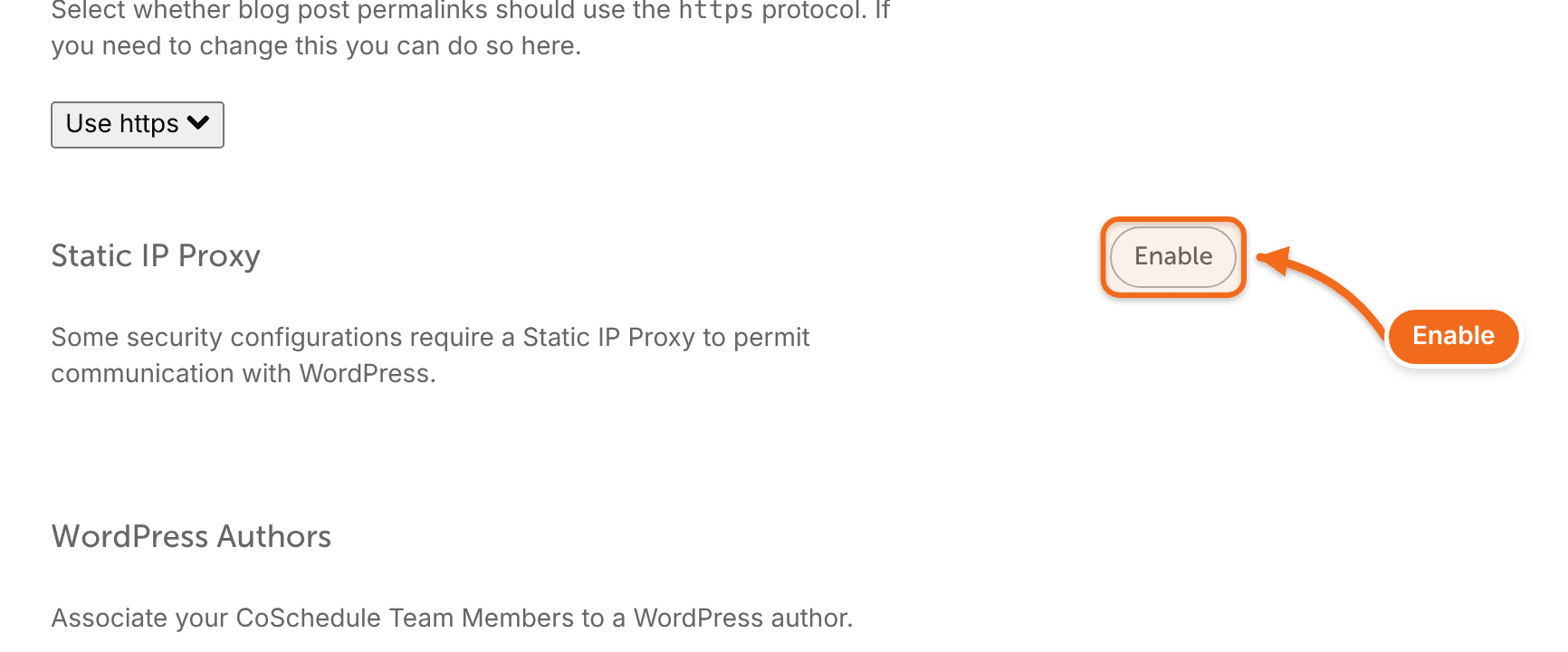
- Add the proxy address CoSchedule shows to your firewall's allow list.
What to send your host
Copy this note and send it to your host or IT team:
Please allow CoSchedule's crawler, CoScheduleBot, to reach our WordPress site. Allow requests whose user agent contains "CoScheduleBot", and allow the IP addresses 34.202.82.63 and 52.71.109.154. If a firewall or bot protection service blocks these requests, add a rule that lets them through. Details: https://coschedule.com/support/social-publishing/links/what-coschedulebot-is
For security plugins such as Wordfence or Solid Security, see Fix WordPress plugin conflicts.
Other connection errors
Error or symptom | What to do |
|---|---|
An error says you may have connected this site to a different calendar. | Disconnect the site from the other calendar, then connect again. See Connect WordPress to CoSchedule. |
A warning says your plugin is out of date. | Update the plugin. See Update or reinstall the CoSchedule WordPress plugin. |
An error about your WordPress categories, authors or plugin list. | Deactivate and reactivate the plugin. See Update or reinstall the CoSchedule WordPress plugin. |
An error names a plugin that conflicts with CoSchedule. | |
Problem with your server's timestamp | Ask your host to fix the server's time settings. See Fix WordPress timezone and timestamp problems. |
Social messages for a WordPress post fail with Scheduled too far in the past. | Make your WordPress and calendar timezones match. See Fix WordPress timezone and timestamp problems. |
Still not connecting?
Check status.coschedule.com. Then contact support with your site's URL and the exact error text. See Contact support and find CoSchedule policies.