
Connect an X (Twitter) account to your calendar so you can schedule and publish posts to it from CoSchedule. Available on Starter, Professional and Suite, not on the free plan.
Connect an X account
- In CoSchedule, open Settings, then click the Social Profiles tab.
- Click Connect Social Profile.
- Select X, then click Let's Connect.
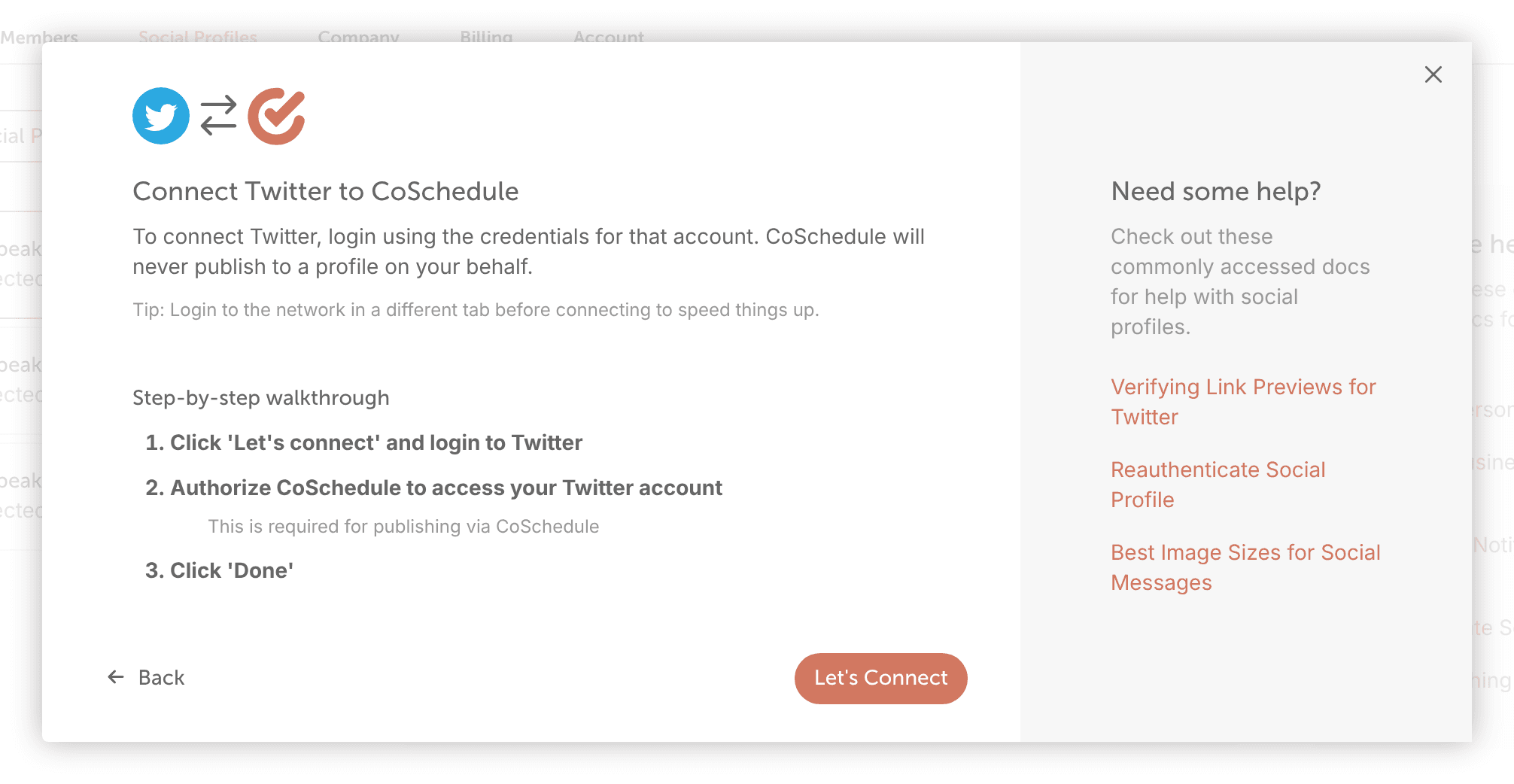
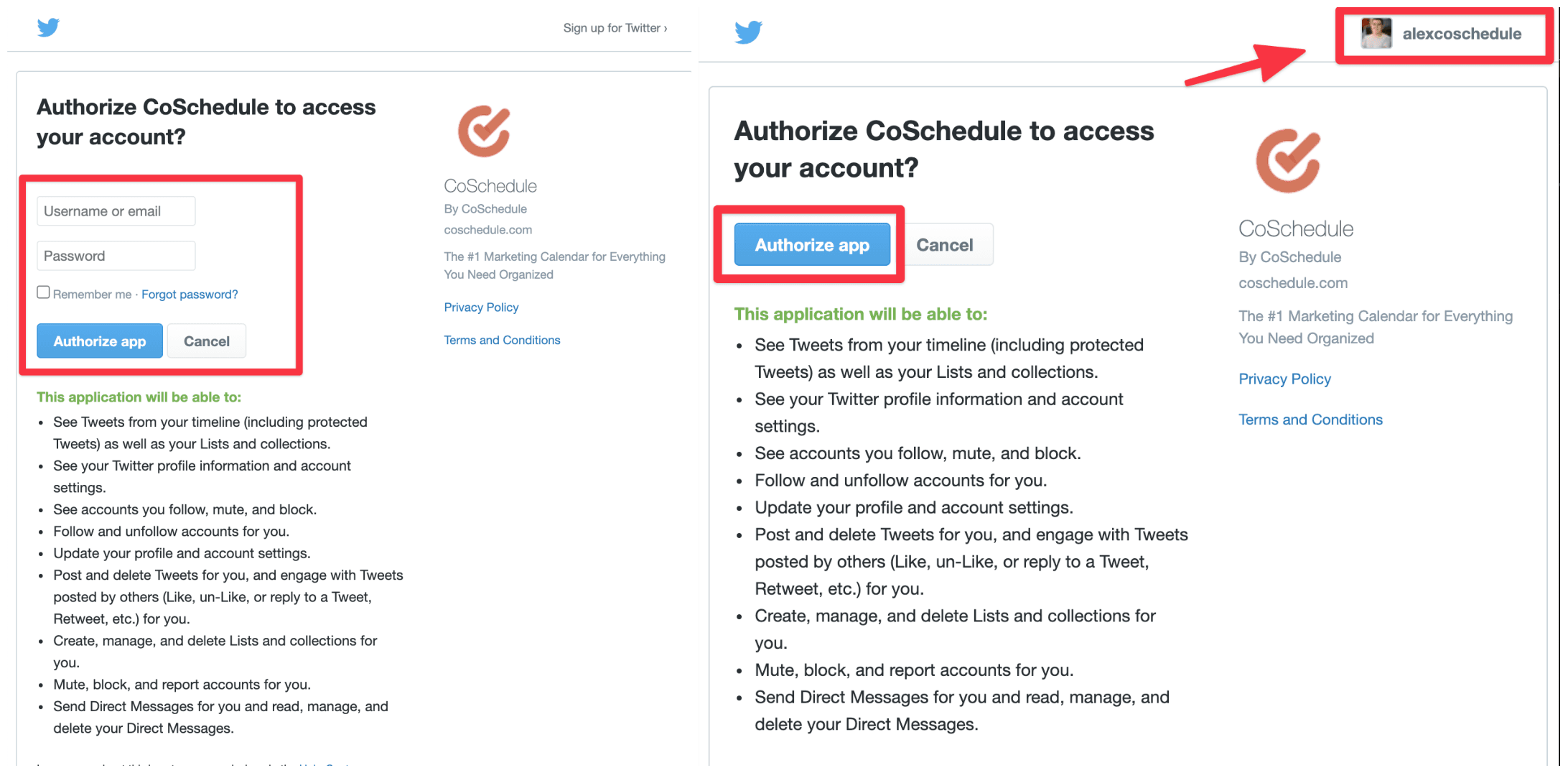
- In the pop-up window, sign in to X with the account you want to connect, then authorize the CoSchedule app.
- Check that the account now appears on the Social Profiles tab.
Post longer messages with X Premium
If your X account has X Premium, you can post up to 25,000 characters once you verify the profile in CoSchedule. After you subscribe to X Premium on X:
- Open Settings, then click the Social Profiles tab.
- From the left-side menu, click your X profile.
- Click Update X Verification in the profile's details.
CoSchedule shows one of these messages: "X [Type] profile confirmed.", "X verification removed." or "X profile does not have a Blue subscription. Please purchase a subscription and try again." The last one means CoSchedule couldn't find an X Premium subscription on the account.
If the connection doesn't work
Check these in order:
- Make sure you're signed in to X with the account you want to connect, not another account.
- Try again in a private or incognito browser window, or in another browser.
- Remove CoSchedule from the connected apps in your X settings, then connect the account again.
If the account still won't connect, contact support.
Reconnect an X account
If posts to X stop publishing, reconnect the account, then reschedule the posts that failed. For the steps, see Reconnect a social profile.
Remove an X account
Removing a profile deletes its scheduled, sent and ReQueue messages and its social template messages in CoSchedule. Posts already published stay on X.
For the steps, see Add or remove a social profile.
Frequently asked questions
Does CoSchedule charge extra for X profiles?
No. Each X account you connect counts as one of the social profiles your plan includes, like any other network. Your account can publish a set number of posts to X each month, and you can add more if you need them. See Monthly post limit for X (Twitter).
Can I connect an X delegate account?
No. Connect the X account itself. X's API doesn't let CoSchedule connect or post through a delegate account.