
Add many projects to your calendar at once from a CSV file, from a spreadsheet or exported from another project management tool. Available on every plan, including the free plan, to team members who can create projects.
Bulk import is a one-time import, not a live sync. Changes you make later in the other tool don't come across. For ongoing automation between tools, use Zapier.
Before you start
- Each import can include up to 200 projects (rows) and 25 columns.
- Each project can have up to 10 text attachments.
- Dates must be in MM/DD/YYYY or DD/MM/YYYY format. You choose which one when you upload.
- Projects without a date go to the Unscheduled Bin instead of the calendar. See Hold ideas in the Unscheduled Bin.
- You choose the project type during the import. It can't be set in the CSV file.
- Tasks can't be imported. Add them to the projects after the import.
Import your projects
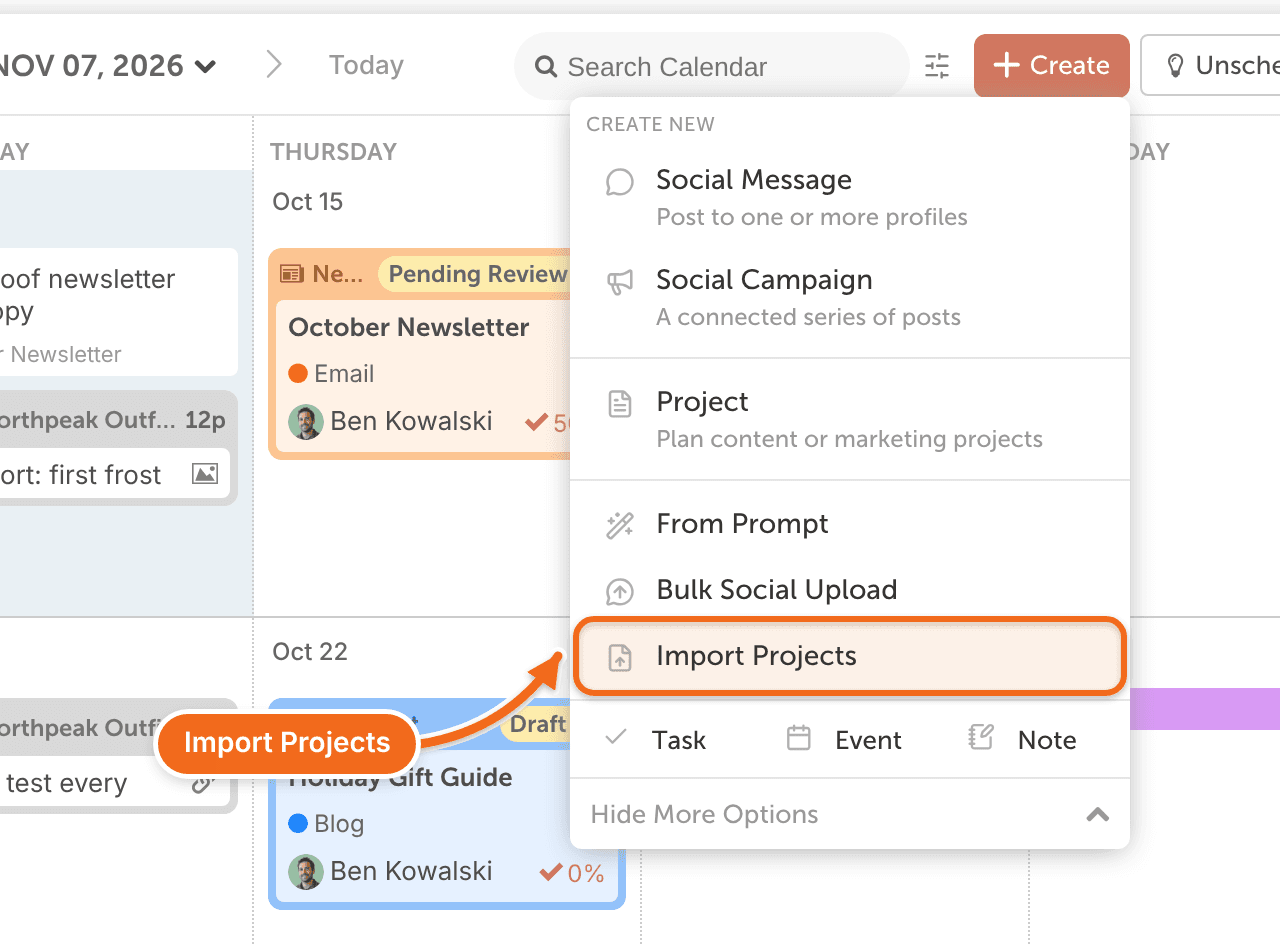
- From the calendar, click +Create.
- Click More Options.
- Click Import Projects.
- Choose where your projects come from: a project management tool or a spreadsheet.
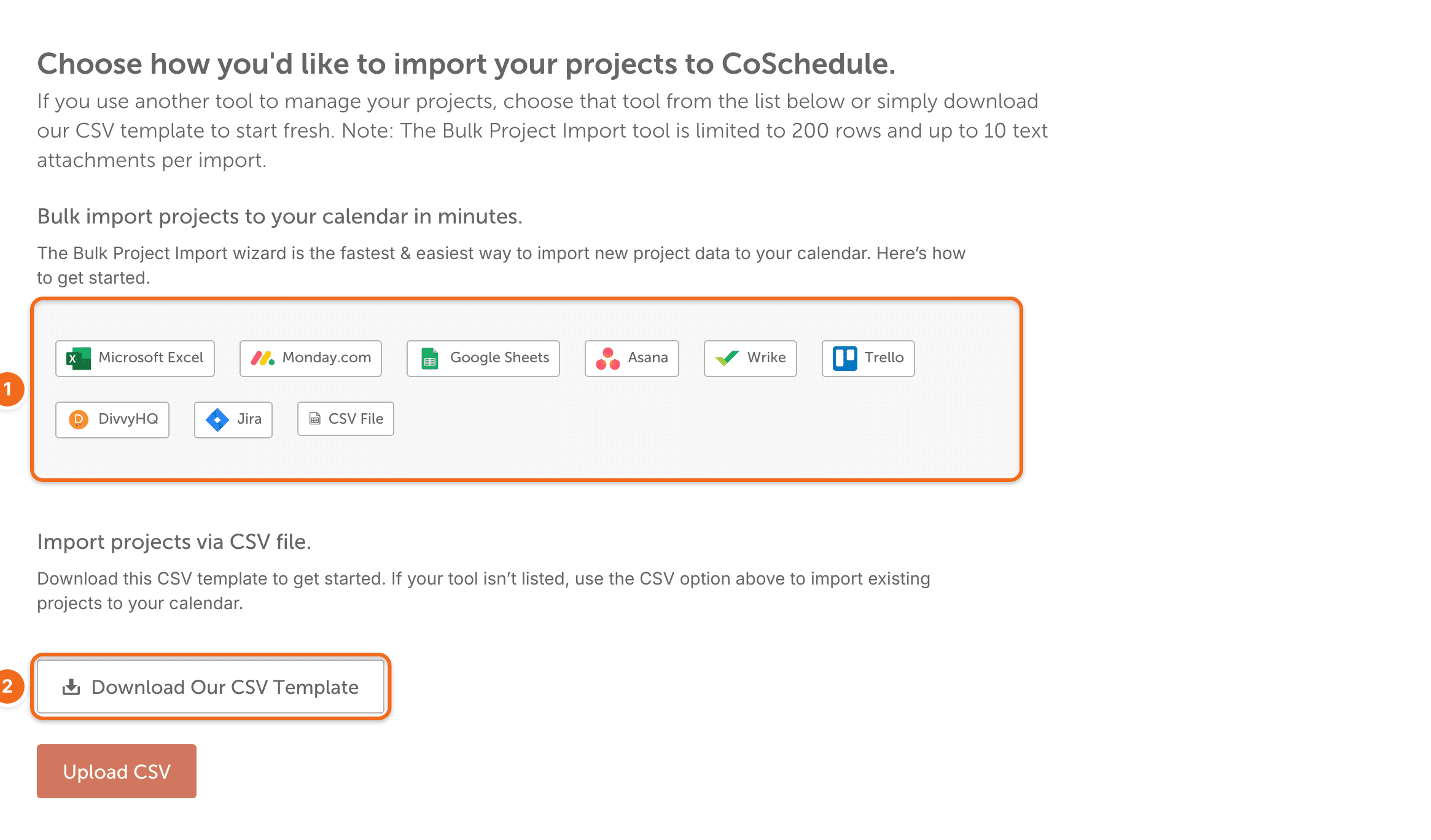
- Follow the steps to upload your CSV file, match its columns and choose the project type.
You can also start from Settings > Integrations: under Bulk Import Projects from Other Tools, choose Asana, Jira, Trello or Wrike, then click Launch Bulk Project Import Wizard.
Match your columns
Match each column in your file to one of these:
- Project Title: the project's name.
- Publish Date: the date the project is scheduled for.
- Text Attachment: text added to the project as a text attachment.
- Do Not Import: leaves the column out.
Start from the CSV template
If your projects aren't in a tool yet, start from CoSchedule's template.
- On the import page, click Download Our CSV Template.
- Open the file in a spreadsheet program, such as Excel, Google Sheets or Numbers.
- Fill in one row per project.
- Save the file as CSV and import it.
Export your projects from another tool
Export your projects as a CSV file from the tool they're in, then import that file. When you match columns, choose the column with each item's name for Project Title, its due date for Publish Date, and any description you want to keep for Text Attachment.
Asana
Export the Asana project as a CSV file. Asana explains how in Import and export projects in Asana.
Trello
Export the Trello board as a CSV file. Trello explains how in Export data from Trello.
Jira
Export the Jira issues you want as a CSV file. Atlassian explains how in Export issues from Jira Cloud in CSV format.
Wrike
Wrike exports to an Excel file. Export the project, then save the file as CSV. Wrike explains the export in Exporting Data to Excel From Wrike, and Microsoft explains saving as CSV in Import or export text (.txt or .csv) files.
Spreadsheets and other tools
Save or download the sheet as a CSV file. Microsoft explains this for Excel in Import or export text (.txt or .csv) files, and Google for Sheets in Create, view, or download a file. Projects from any other tool import the same way once they're in a CSV file.