
On Starter and Professional, the account Owner and any Manager can change plans, add or remove social profiles, and switch between monthly and annual billing from the Billing page. On Professional, they can also add or remove seats, up to 3 users. Starter has 1 user; to add people, change your plan. Suite plans are changed through your account team. See Manage a Suite or contract plan.
All plan changes are prorated at checkout.
Upgrade or downgrade your plan
- From your calendar, open Settings.
- Click Billing.
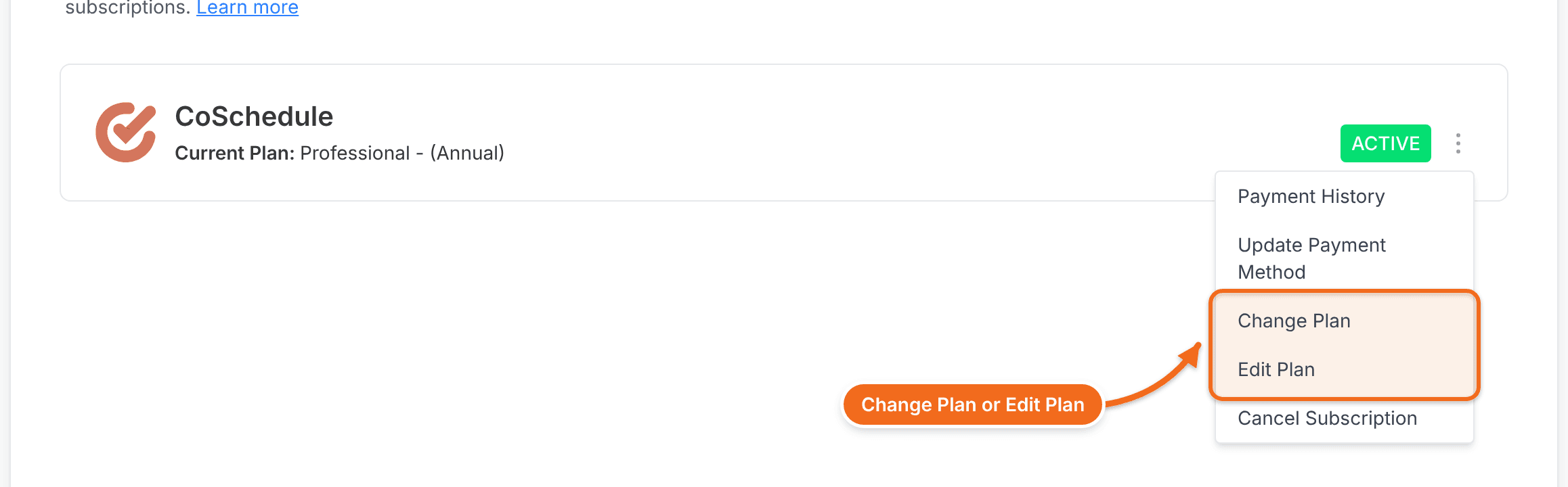
- Click the three-dot menu next to your subscription.
- Select Change Plan.
- Choose the new plan.
- Review the prorated amount and complete checkout.
Add or remove seats and social profiles
- From your calendar, open Settings.
- Click Billing.
- Click the three-dot menu next to your subscription.
- Select Edit Plan.
- Change the number of team members or social profiles.
- Review the prorated amount and confirm the change.
Starter includes 1 user. Professional includes 2 users and can add a third.
Removing someone from your team doesn't change your bill. After you remove a team member or cancel their invitation, lower your seat count in Edit Plan.
Switch between monthly and annual billing
- From your calendar, open Settings.
- Click Billing.
- Click the three-dot menu next to your subscription.
- Select Change Plan.
- Choose monthly or annual billing.
- Review the prorated amount and complete checkout.
Move to the free plan
The free plan includes 1 social profile. See What the free plan includes.
Removing a social profile deletes its scheduled, sent and ReQueue messages and its social template messages in CoSchedule. Posts already published stay on the network.
- Cancel your subscription. See Cancel your subscription. Your plan stays active until the end of the period you've paid for.
- Remove social profiles until only one is left. See Add or remove a social profile.
- Remove team members and calendars beyond the free plan's limits. See Invite, change or remove team members.
- When your plan ends, the Owner clicks Switch to Free.
- Confirm the change with the button at the bottom of the downgrade page.
If your account is still over the free plan's limits on social profiles, users or calendars, nothing changes and you see "Before you can downgrade, you must take action on your account." Remove the extras, then click Check Again.
Once you're within the free plan's limits, the switch takes effect right away. It doesn't remove or unschedule any social profiles, users or scheduled messages. Your integrations, including WordPress and Google Drive, stay connected. ReQueue is removed.