
Every calendar has one Owner, who manages billing and the team. Ownership can change on every plan. How you do it depends on whether the current Owner is available and whether anyone else is on the calendar.
If the current Owner is available
Only the current Owner can do this. The new Owner must already be a team member who has accepted their invitation.
- From your calendar, open Settings.
- Click the Team Members tab.
- Find the new Owner and click Edit.
- Next to Role:, choose Owner.
- In the Change Company Owner window, type CHANGE OWNER to confirm the change.
- Click Confirm.
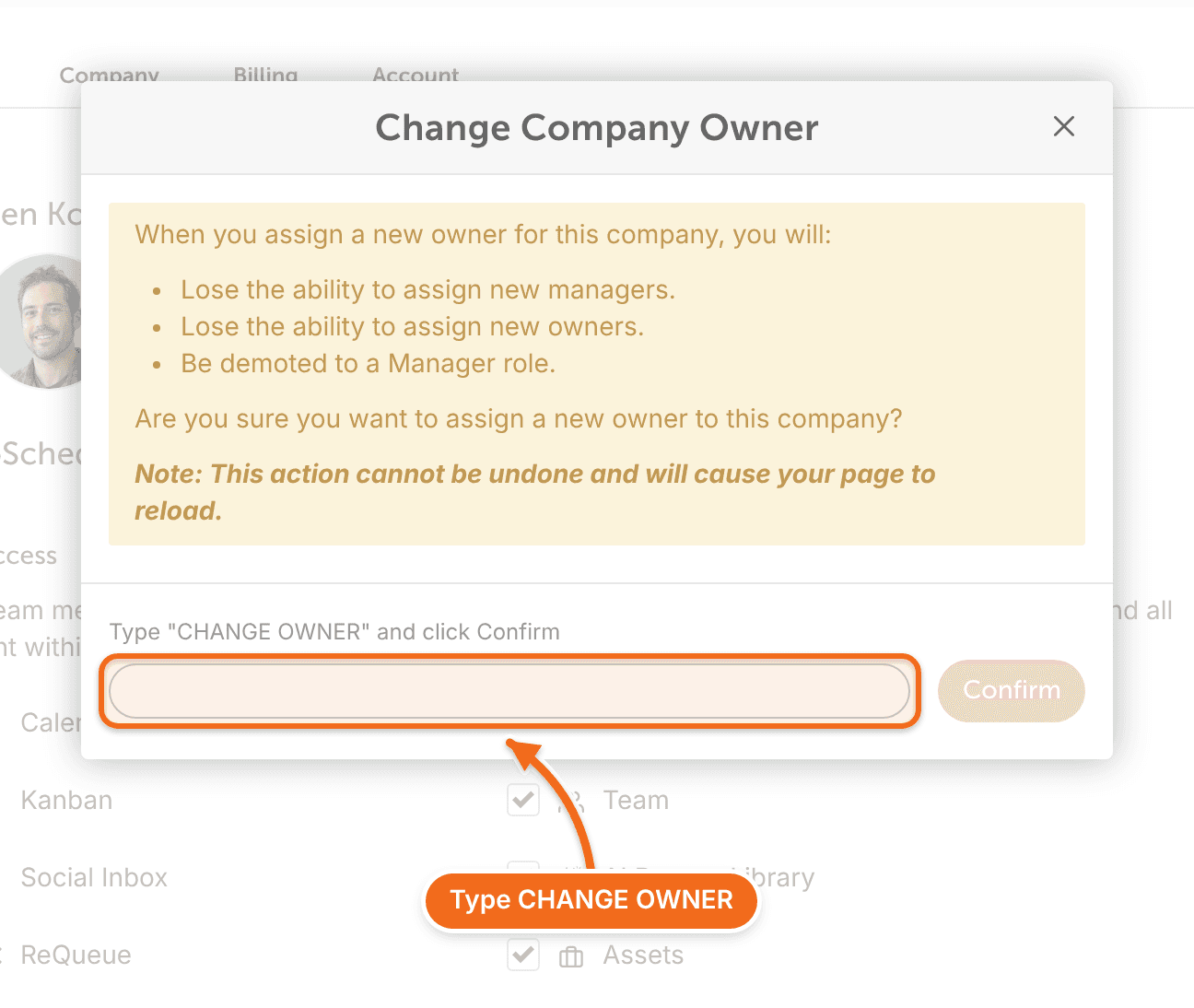
The previous Owner becomes a Manager. The subscription and billing stay with the calendar, so nothing about your plan changes.
If CoSchedule says the person is already an owner, they own another calendar, often a free calendar they created themselves. They need to delete that calendar first, then you can try again. See Delete your CoSchedule account for how to delete just one extra calendar.
If every seat is in use
If the new Owner isn't on your calendar yet and every seat is taken, make room first.
- Add a seat, or remove a team member to free one. See Invite, change or remove team members.
- Invite the new Owner and wait until they accept.
- Make them the Owner, as above.
- If the previous Owner is leaving, the new Owner removes them. They're a Manager now.
- If you added a seat only for the handover, lower your seat count in Edit Plan.
If you're the only user
On a calendar with just one user, such as Starter, hand it over by changing the account's details to the new person's: their name, login email and a new password. See Change your name, email, password or timezone.
The billing email on your subscription changes to the new address too.
If the current Owner is gone
If the Owner has left and can't make the change, start a chat with CoSchedule support from your calendar. Support verifies the request before transferring ownership. See Contact support and find CoSchedule policies.