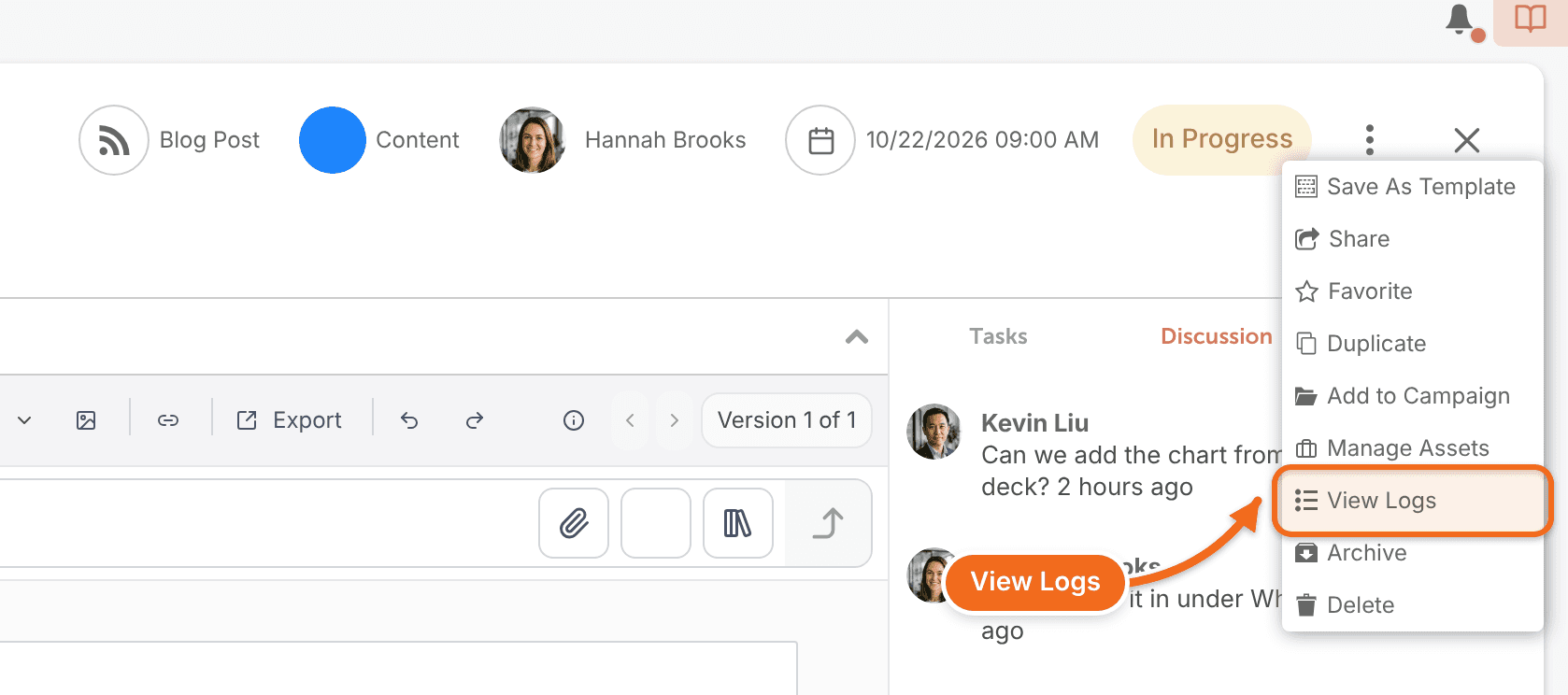
Access Logs show who created, updated or deleted items on your calendar, and when. Logs are kept indefinitely, and entries can't be deleted. Security and access logs depend on your Suite agreement. The Owner, Managers and Admins can open them by default.
If you can open Settings but don't see Access Logs, it isn't part of your agreement, and neither is View Logs on a project. For a question about a change you can't trace, contact CoSchedule support and include a link to the item.
View all access logs
- From your calendar, open Settings.
- In the left menu, click Access Logs.
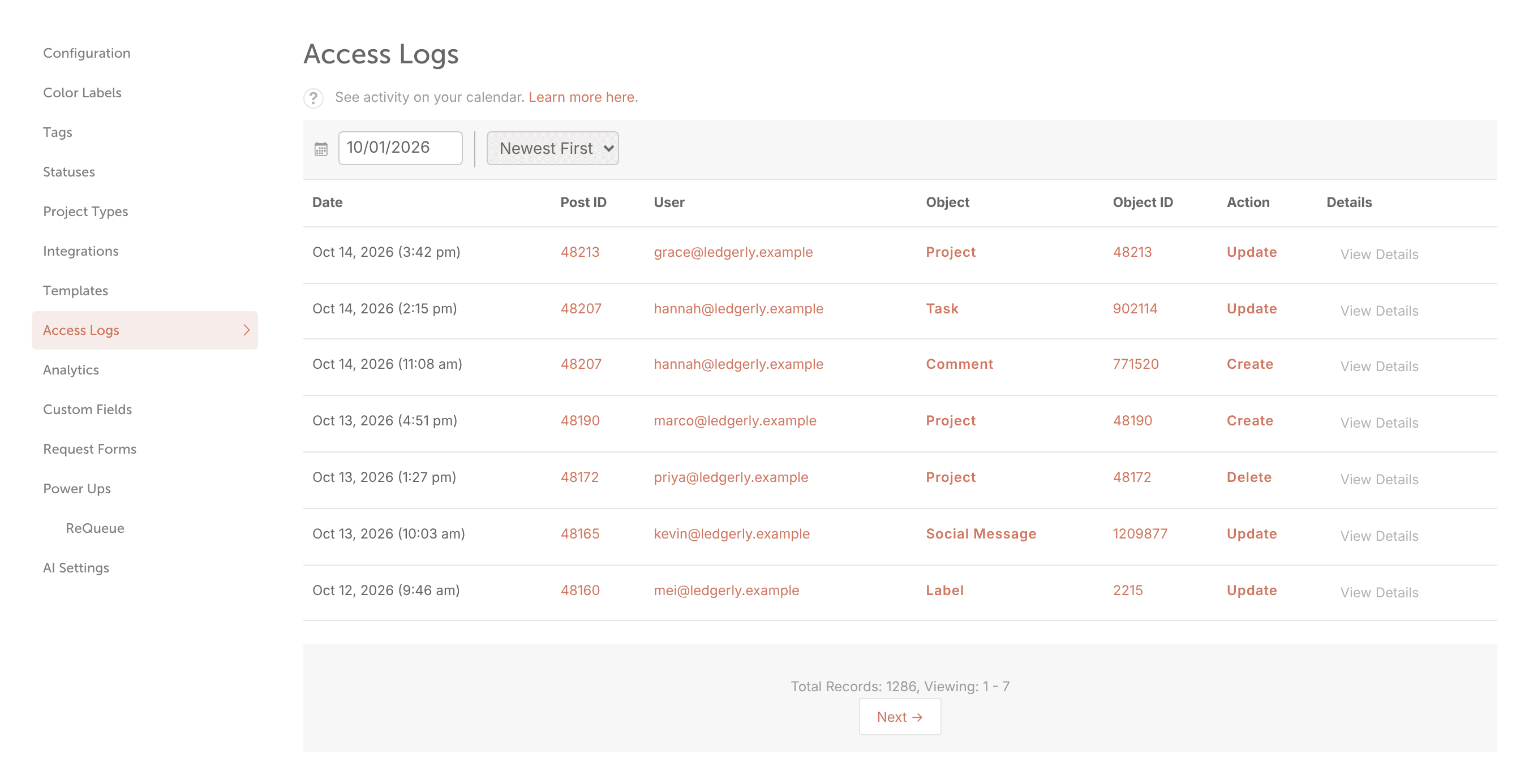
The page lists the actions taken on your calendar. Use Filter Settings to filter the logs by date and to sort them in ascending or descending order.
What each column shows
- Date: the date and time the action took place.
- Post ID: the item the action was taken on. Click a Post ID to see other actions on the same item.
- User: the person who took the action.
- Object: the type of record that changed. Click a value to filter the log by that type.
- Object ID: the number of that object. Click an Object ID to see other actions on the same object.
- Action: what happened: Create, Update or Delete.
- Details: click View Details next to an action to see all its details. Click Hide Details to close them.
View the logs for one project
- From your calendar, open the project.
- Click the three-dot menu.
- Select View Logs.