
Your CoSchedule profile holds your name, login email, password and social sign-on logins. Anyone with a CoSchedule account can change these, on every plan. Your timezone belongs to the calendar, so you set it in the calendar's settings instead.
Open your profile
- At the top of the left sidebar, click your name or photo (My Account). The Account Details page opens.
- Click Update My Details. Your profile page on the accounts site opens in the same tab.
- Make your changes on the My Profile page.
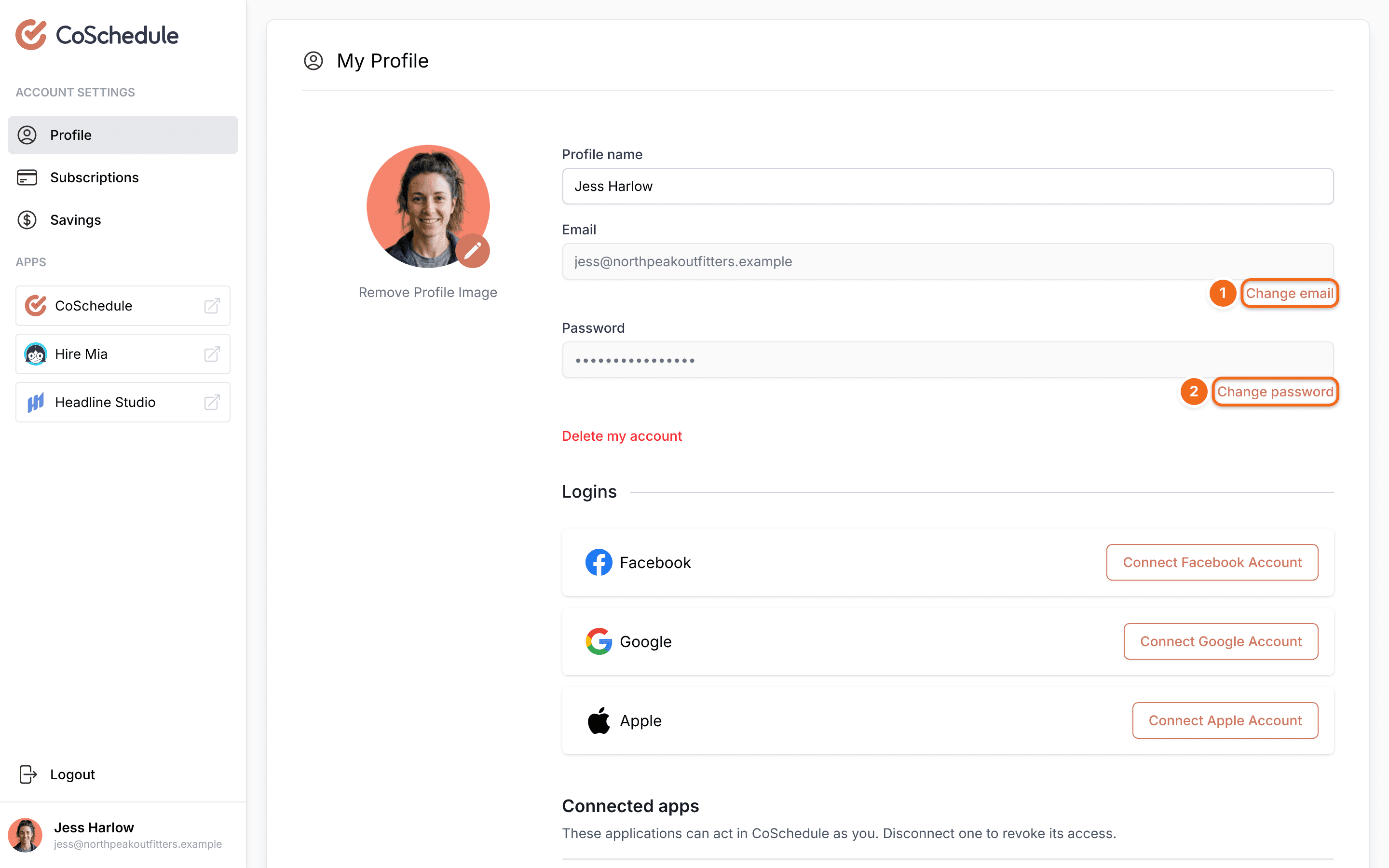
You can also go straight to your profile at accounts-billing.coschedule.com/profile.
Your profile picture comes from Gravatar. If you have a Gravatar profile linked to the email you signed up with, CoSchedule adds the picture automatically.
Change your name
- On My Profile, click in Profile name.
- Type your new name.
Change your login email
- On My Profile, click Change email.
- Enter your new email address and follow the prompts.
Your new email can't already belong to a CoSchedule account. If it does, delete that account or change its email first.
- Changing your email removes every social sign-on login (Google, Facebook or Apple) from your account. Connect them again afterward. See Sign in with Google, Facebook or Apple.
- If you're the Owner, the billing email on your subscription changes to your new address too.
- If you only sign in with Google, Facebook or Apple, use Forgot Password on the login page to set a password first. Then log in with it and change your email.
- Lost access to your old inbox? Contact support. Support needs proof that the account is yours, such as the last 4 digits of the card, the amount and the date of a charge, or confirmation from your company's Owner.
Change your password
- At the top of the left sidebar, click your name or photo (My Account).
- Click Change Password. Your profile page on the accounts site opens in the same tab.
- Follow the prompts to set your new password.
You can also click Change password on your My Profile page.
If you signed up with Google, Facebook or Apple and never set a password, use Forgot Password on the login page to set one. See Reset your password or fix login problems.
Change your timezone
The timezone belongs to the calendar, not to your profile, and it applies to everyone on the calendar.
- From your calendar, open Settings.
- Click Configuration.
- Under Timezone, click Open Timezone Settings. If a timezone is already set, click the pencil icon instead.
- Select a city in your timezone.
Choose a city when you can. A city shifts with daylight saving time. Use a UTC option only if no city fits.
Changing the timezone doesn't reschedule anything. Scheduled projects and messages keep the same moment in time, so the time shown on them changes. For example, a message set for 9:00 AM with the calendar on Chicago time shows 10:00 AM after you switch the calendar to New York.
If you publish to WordPress, keep your WordPress timezone the same as your calendar's. See Fix WordPress timezone and timestamp problems.