
You can delete your own CoSchedule account on any plan. You'll end any paid plan, delete your calendar, then delete your account, in that order. To remove only one extra calendar, see the last section.
Deleting a calendar or an account is permanent. CoSchedule can't recover anything in it, including scheduled social messages, comments, tasks, team member information and notes.
Fastest way: if you're stuck on a plan screen, signed up with Google, Apple or Facebook, or see an Owner error, email support from the address on your account. Support will delete the account for you.
Before you start
- Any paid plan you manage billing for must have ended, not just been canceled. A canceled plan stays active until the end of the paid period, and the account can't be deleted until then. See Cancel your subscription.
- A canceled trial stays active until its end date. To delete sooner, ask support to end the trial early.
- If you have a Headline Studio subscription, cancel it too. See Manage or cancel your Headline Studio subscription.
- Deleting your account asks for your current password. If you signed up with Google, Apple or Facebook, use Forgot Password on the login page to set one first. See Reset your password or fix login problems.
Delete your calendar
- Log in to your calendar at app.coschedule.com.
- Click the gear icon to open Settings.
- Click Configuration.
- Click Delete This Calendar.
- Approve the deletion and click Confirm.
Only the Owner or a Manager can delete a calendar. You can't delete your last calendar while its subscription is active or past due, and deleting the last calendar also deletes your company in CoSchedule.
Delete your account
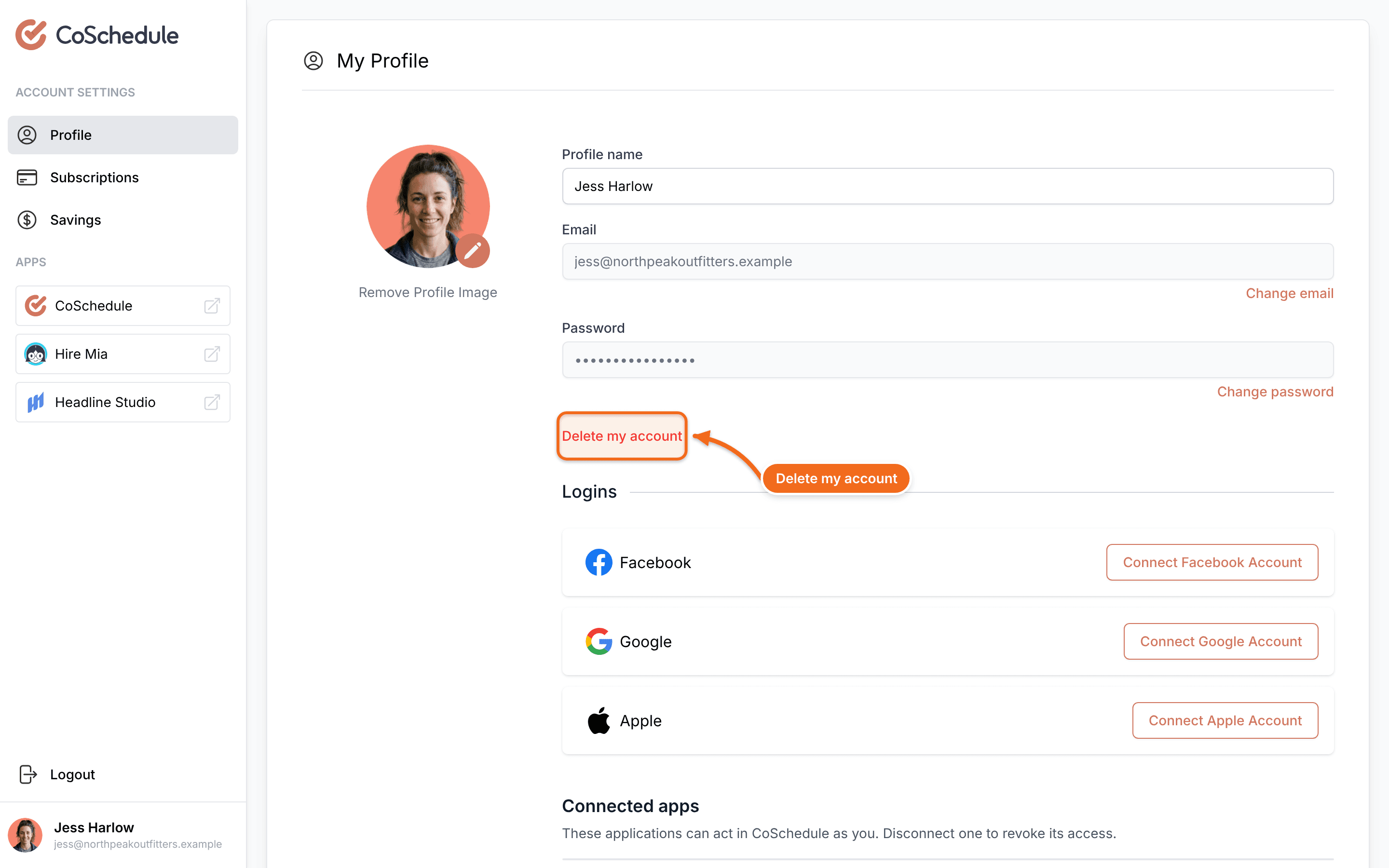
- Log in to your profile at accounts-billing.coschedule.com/profile.
- Click Delete my account.
- Enter your current password and follow the prompts until your account is deleted.
Request deletion or a copy of your personal data
You don't need a form. Email support@coschedule.com or datasupport@coschedule.com from the address the request is about.
- Support deletes your CoSchedule calendar and Headline Studio accounts, your billing customer records, and the records CoSchedule keeps for sales and marketing.
- Invoices and tax records are kept as the law requires.
- Requests are completed within 30 days, and you get a confirmation for each email address.
- A paid or shared account must be canceled or handed over first. Support tells you what's in the way. See Change the owner of your calendar.
- The Owner or an Admin can ask to delete a former employee's work account in their own company.
- To get a copy of your data, ask the same way. Support sends it only to the verified address on the account.
Delete just one extra calendar
If you joined your team's calendar and also have a calendar of your own that you don't need, you can delete only that one. Your team's calendar isn't affected.
- Use the switcher in the upper left to open the calendar you want to delete.
- Click the gear icon to open Settings.
- Click Configuration.
- Click Delete This Calendar.
- Click Confirm.