
You can sign up for and log in to CoSchedule with your Google, Facebook or Apple account instead of an email and password. Social sign-on works on every plan.
Google or Apple opened an empty account? You signed in with a different email than your CoSchedule login, so a new account was created. Sign out, then sign in with your original email and password.
Connect Google, Facebook or Apple to your account
If you log in with an email and password today, connect a social sign-on first. The Google, Facebook or Apple account must use the same email address as your CoSchedule login.
- Log in to CoSchedule with your email and password.
- At the top of the left sidebar, click your name or photo (My Account).
- Click Update My Details.
- Under Logins, click Connect Google Account, Connect Facebook Account or Connect Apple Account.
- Sign in to that account and allow CoSchedule to connect when it asks.
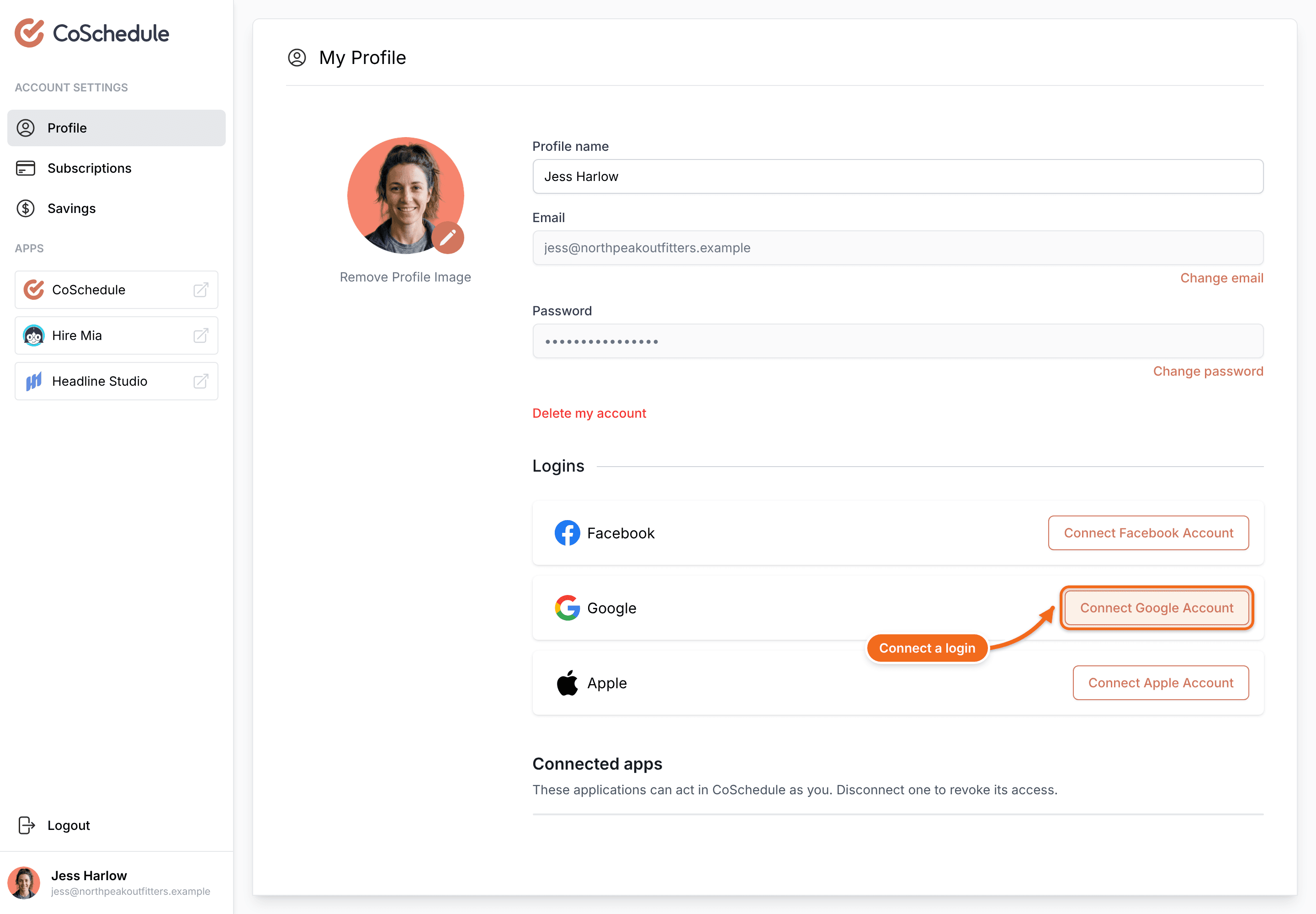
Next time, choose Google, Facebook or Apple on the CoSchedule login page. You can connect more than one, as long as each uses the same email address as your CoSchedule login.
Frequently asked questions
Can I use both a password and social sign-on?
Yes. If you signed up with Google, Facebook or Apple, use Forgot Password on the login page to set a password. See Reset your password or fix login problems.
What if I disconnect every social sign-on and have no password?
Use Forgot Password on the login page to set a password.
Where do I add or remove a social sign-on?
Under Logins on your My Profile page. You can connect and disconnect each one there.
What happens if I change my email address?
All your social sign-on logins are removed. Connect them again after the change.
What if I sign in with a different Google, Facebook or Apple account?
If its email address doesn't match your CoSchedule login, CoSchedule creates a new account with that address. To switch the account you sign in with, set a password with Forgot Password, change your CoSchedule email to match the new account, then connect it from My Profile. See Change your name, email, password or timezone.
Does Apple's Hide My Email work with CoSchedule?
Hide My Email gives CoSchedule a relay address instead of your real email. That's a different email, so CoSchedule opens a separate account for it. To get into your existing account, sign in with your email and password instead. Apple explains the feature in How to use Hide My Email with Sign in with Apple.
What if I removed CoSchedule from my Google, Facebook or Apple account?
The next time you sign in with that provider, CoSchedule asks you to authenticate again.
My company uses single sign-on (SSO). Can I use Google, Facebook or Apple?
No. Social sign-on isn't used for companies on SSO. Sign in with your company's SSO login. See Set up single sign-on (SSO).
Do I need a password to delete my account?
Yes. Deleting your account asks for your current password. If you only use social sign-on, set a password with Forgot Password first. See Delete your CoSchedule account.
What if social sign-on isn't working?
The provider may be having a problem, or that provider isn't connected to your CoSchedule account yet. If you see “Provider not connected,” sign in with your email and password, then connect the provider from My Profile. If you still can't get in, contact support.
What information does CoSchedule get from the provider?
Your name, email address and profile picture. You can change them on your My Profile page.