
When a social message doesn't publish, CoSchedule marks it on your calendar and shows an error on the message. This article helps you find the cause, fix it and get the message out. It applies to every plan, including the free plan.
Read the error on the message
- On your calendar, find the social message that didn't publish. Messages that failed show in red.
- Open the message and read the error on it.
- Look up the error text in Social message errors and what they mean to see what it means and what to do.
A yellow warning, such as "still processing," means CoSchedule is still trying to send the message. A red error means the message failed.
How CoSchedule retries a message
- For a temporary problem, CoSchedule makes up to 7 attempts to send the message over about 45 minutes. While it's still trying, the message shows a yellow warning. You don't need to do anything yet.
- For a permanent problem, the message fails right away, on the first attempt.
- A failed message doesn't retry by itself. Fix the cause, then reschedule the message.
Don't reschedule a message while it still shows a yellow warning. Rescheduling resets its attempts, so CoSchedule starts over.
To pick a new time for a failed message, see Reschedule a social message.
Common reasons a message didn't publish
The message is still a draft
A social message, social campaign or project in Draft or Pending Review status doesn't publish. Pending Review is the default name for that status; your calendar may have renamed it in Settings > Statuses. On the calendar, a draft has a yellow background behind its time.
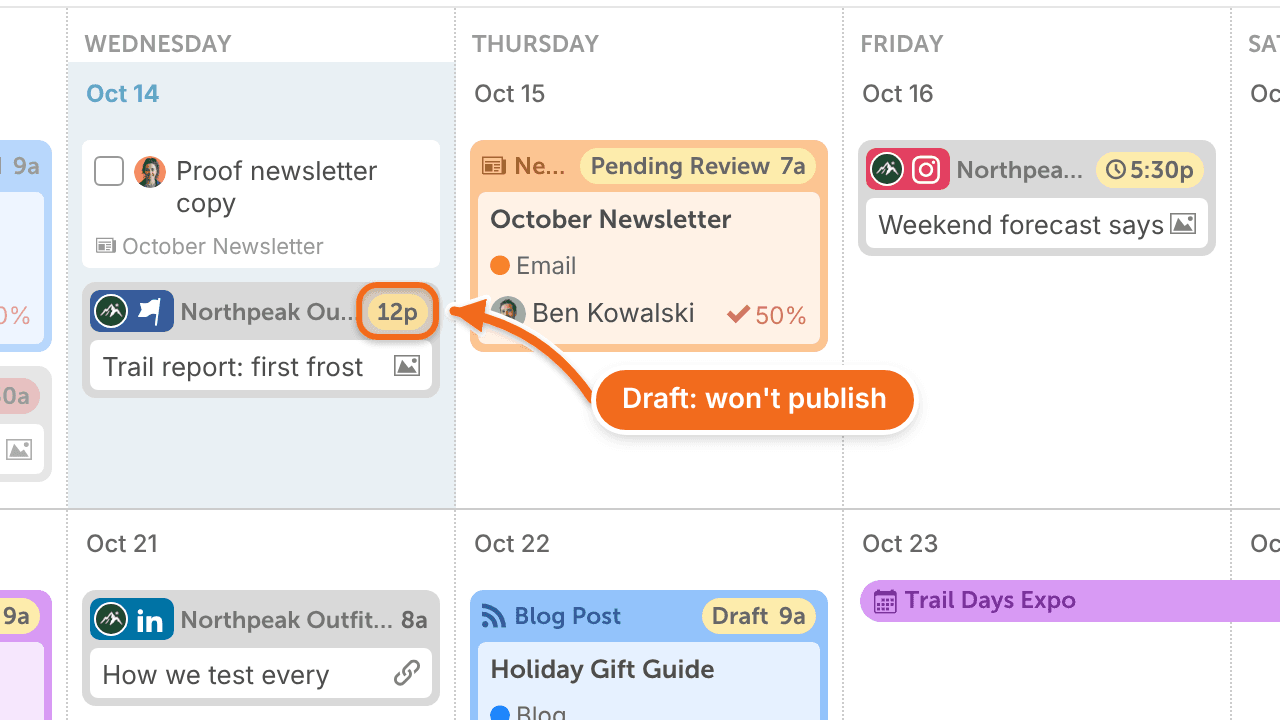
- Open the draft.
- Click the yellow status button in the lower right corner.
- Select Scheduled if the date is in the future, or Published if the date is now or in the past.
If you set a past-dated item to Published, it sends right away.
Social messages in a social campaign follow the campaign's status. If the campaign is a draft, none of its messages publish. Set the campaign to Scheduled.
The message is waiting for approval
A message that needs approval doesn't publish until it's approved, and approving it doesn't change its status. If it's still waiting at its scheduled time, CoSchedule tries to send it a few more times, then it fails with "Your message failed to send because it requires approval from 1 or more team members. Please have them approve the message and reschedule." Get it approved, then reschedule it. See Set up and use social approvals.
Social publishing is paused
If social publishing is paused for your calendar, messages scheduled during the pause don't send. Reschedule them after you turn publishing back on. See Pause all scheduled social messages.
The social profile needs to be reconnected
If the login or password for a social account changed, or its connection expired, the profile has to be reconnected. Reconnect it, then reschedule the messages that failed. See Reconnect a social profile.
You reached a network's limit
Some networks limit how often an account can publish in 24 hours. If you hit a limit, wait for it to reset, then reschedule the message. For example, see Pinterest denied publishing social message because limit was reached.
You reached CoSchedule's daily send limit
CoSchedule also limits how many send attempts your calendar can make in 24 hours. Every attempt counts, including the automatic retries of a message that keeps failing. When you reach the limit, CoSchedule stops sending for the rest of that 24-hour window. During a trial, the limit is half of the plan's limit.
Reaching the limit doesn't mean your content was judged to be spam. To fix it:
- Contact support and ask them to reset the limit. See Contact support and find CoSchedule policies.
- Fix the messages that kept failing, so their retries don't use up the limit again.
- Reschedule the messages that were blocked. They don't retry by themselves.
If you publish a high volume of messages, you can ask support for a higher limit.
The social network had an outage
When a network is down, CoSchedule can't send to it, and failed messages aren't resent. To recover:
- Check CoSchedule's status page.
- Wait until the network is working again.
- Check your profile on the network before you reschedule. A post can go live even when CoSchedule shows it as failed, and rescheduling it would publish it twice.
- Reschedule the messages that failed.
If every profile on a network fails to reconnect at once, the network may be down. Wait for it to recover before you reset any passwords.
Scheduled too far in the past
This red error means the message wasn't sent within the retry window after its scheduled time. Reschedule it for a new time.
It can also happen when a project's date is in the past. Social messages scheduled relative to that date are in the past too, so they don't send. Set the project's date and time to now, or give the messages their own date and time.
Social messages follow your calendar's timezone. Only WordPress post times follow WordPress. If the two timezones differ, messages tied to a WordPress post can fail with this error, so keep them the same. See Fix WordPress timezone and timestamp problems and Change your calendar name, timezone and date format.
The service responded in an unexpected way and may prevent publication of this message.
This is a general error. CoSchedule shows it when a network responds in a way it doesn't expect.
- Wait for CoSchedule to finish its remaining attempts.
- If the message still fails, reschedule it once.
- If it fails again, contact support and send them a link to the message. See Contact support and find CoSchedule policies.