
A social template saves a social campaign plan you can reuse to promote blog posts, events and more. Social templates are available on Starter, Professional and Suite. Only Owners, Managers and Admins can create or edit them.
Create a social template
- Open a social campaign in a new or existing project.
- Click Templates in the upper left corner.
- Click Create Template.
- Click +Create New. The Social Template editor opens.
- Add dates and social profiles, plus anything else you want in the template. Changes in the Social Template editor save automatically.
To turn an existing social campaign into a template, select Save Existing instead of Create New in step 4.
We recommend at most 50 social messages per template.
Edit a social template
- Open a social campaign in a new or existing project.
- Click Templates in the upper left corner.
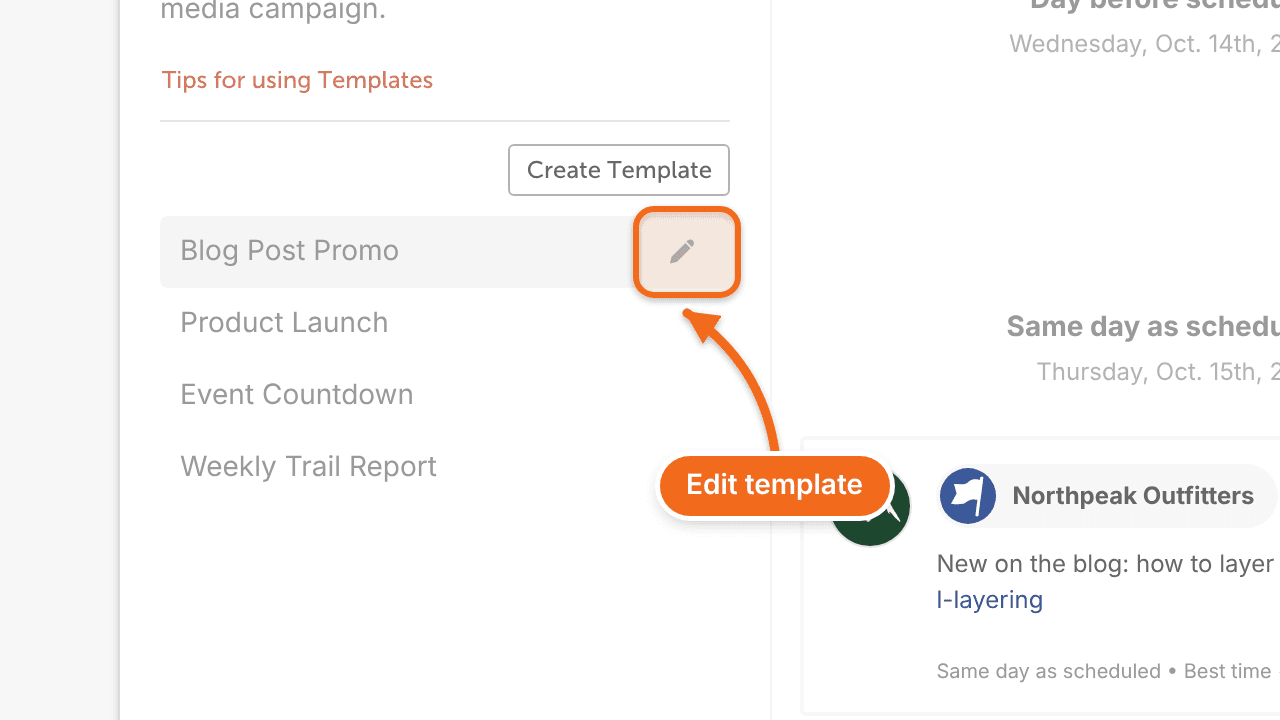
- Find the template you want to edit and click the pencil icon. The Social Template editor opens.
- Make your changes. They save automatically.
Add social helpers to a template
Social helpers are placeholders for text, images and video in a template's messages. Keep them empty in the template so you can fill them in each time you use it.
- Open a social campaign, or create one.
- Click Templates in the upper left corner.
- Create or edit a social template to open the Social Template editor.
- Click Create Helper, then choose Text Helper, Image Helper or Video Helper.
- Name the helper.
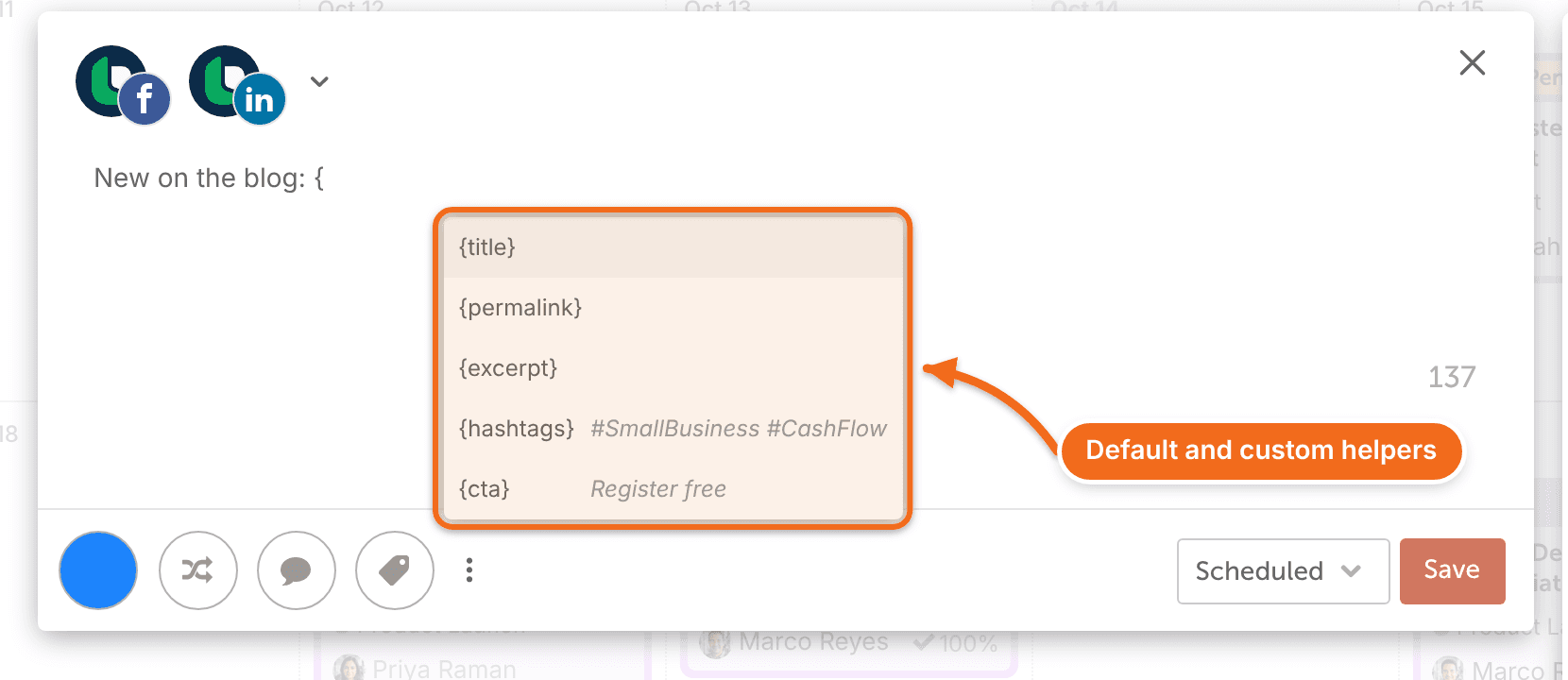
- To add a text helper to a message, type { in the message. A list shows the template's helpers along with the default helpers.
- To add an image or video helper, click the image or video icon in the message, select This Template, then choose the helper.
Types of social helpers
Default social helpers
Default helpers are available in every social campaign and social template. They fill in when you add a URL to the campaign's link field.
Helper | What it fills in |
|---|---|
{title} | The title of the URL in the link field |
{permalink} | The URL in the link field |
{excerpt} | The excerpt pulled from the URL in the link field |
Custom social helpers
You create custom helpers yourself and fill them in after you apply the template. Add the content once, and every message with that helper gets it.
- Text helpers go in the body of a message and fill with text.
- Image helpers go in a message as an image and fill with an image. For a carousel post, add several image helpers to the message, one for each image.
- Video helpers go in a message as a video and fill with a video.
Apply a social template
- Open the social campaign you want to use.
- Click Templates.
- Click the template you want to use.
- Click Apply.
- If the template uses custom helpers, click Helpers and fill them in. Every message with those helpers updates.
- If the template uses default helpers, add a URL to the link field. Every message with default helpers fills in from that link.